This is a sub-page of Sim Theme Park (Windows, Mac OS Classic).

|
This game is defunct. |

|
Please elaborate. |

SIM Theme Park (Theme Park World) has a now defunct online service. It would allow players to login to an account to view player's theme parks published to the service from around the world, send postcards to other players, play and chat together in chat rooms, and more.
Research into this component of the game is facilitated using TPW-SE to emulate the original servers and protocols with an original, unmodified SIM Theme Park v1.0 game client.
Online World
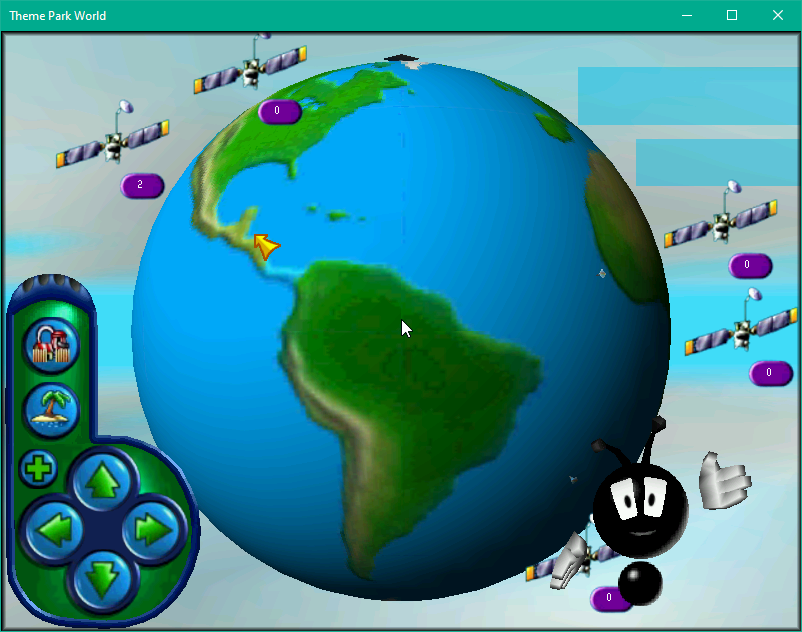
After successfully logging in, the player is greeted by a 3D globe that can be rotated to view different continents. Players would publish their parks to a city on the globe of their choosing. It doesn't correspond with the city they live in at the time of uploading.
The bottom-left contains a UI component that has the following options:
- Find Parks (Search)
- Go back to Offline play
- (+) Zoom In/Zoom Out
- Move Globe Up/Down/Left/Right
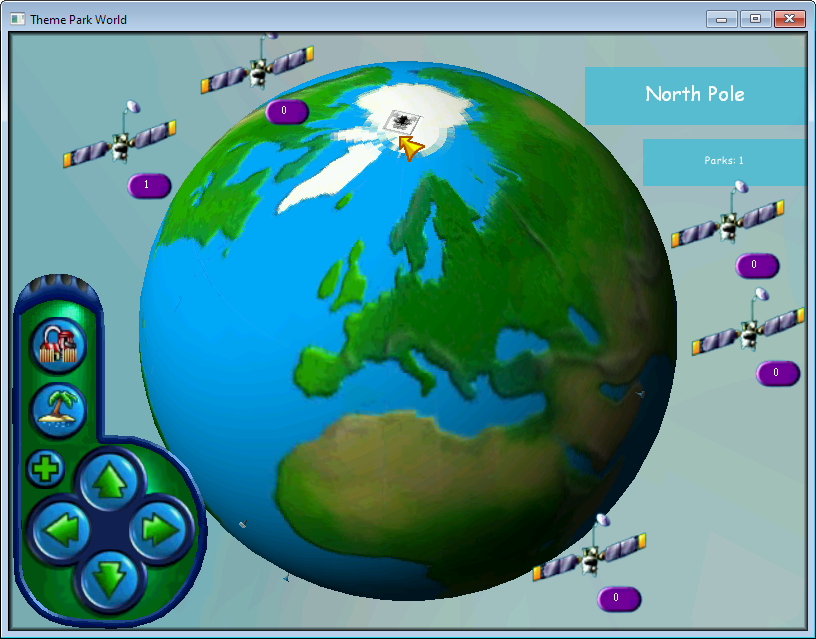
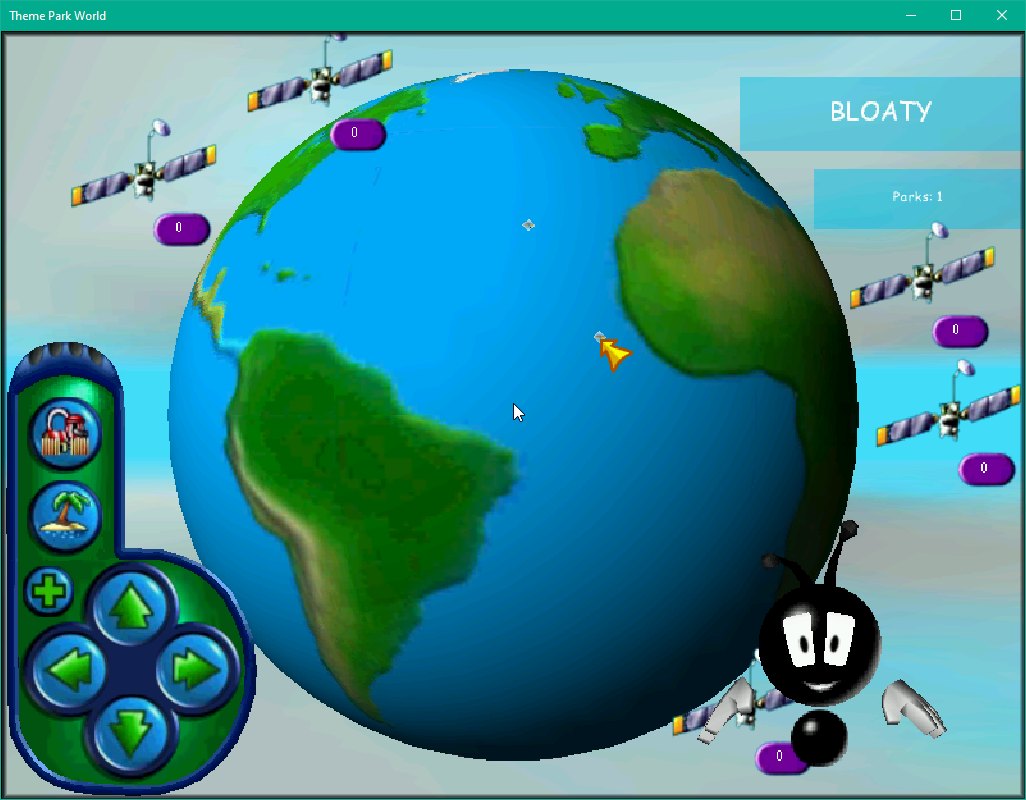
Satellites
The Satellites around the world represent 'Online Parks'. These are parks that are simulated rooms where players can walk around and chat amongst players through a text box.
Pins
Selecting a Pin shows the name and amount of parks in that area in the top-right. Selecting the pin will list all the parks available there.
They are blue, 3D objects that say "TPW" in orange bubble-font (game logo styling) on the top of them.
The size of a pin is determined by the amount of parks in the city. Cities have a maximum amount of parks they can hold.
Bullfrog Pin - "North Pole"
This is the game developer's special pin for their featured parks.
Parks in an Area#
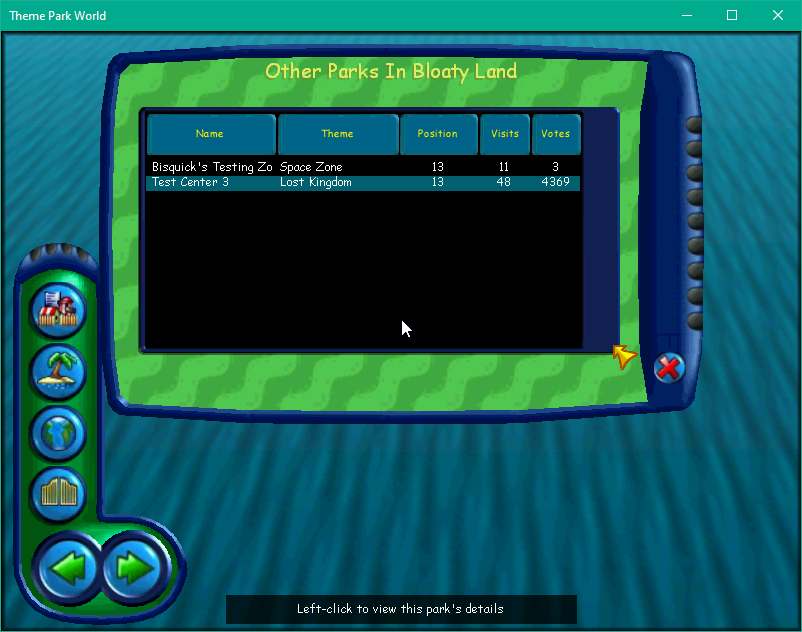
Visiting a Pin on the globe will open the given area and list parks available there.
These parks are listed in a grid view with the following format:
Name |
Theme |
Position |
Visits |
Votes |
|---|---|---|---|---|
Example Park Name |
Space Zone |
Index in the List |
Amount of Visits from Players |
Amount of Votes from other Players |
Note: Themes are the same as the Single-Player park themes, as in Space Zone, Lost Kingdom, Halloween World, and Wonderland (Fantasy).
Searching for Parks#

Players can use the button in the bottom-left of the screen to open the Search Dialog - "Find Parks". It allows players to input a search term, and find park results based off of what they search.
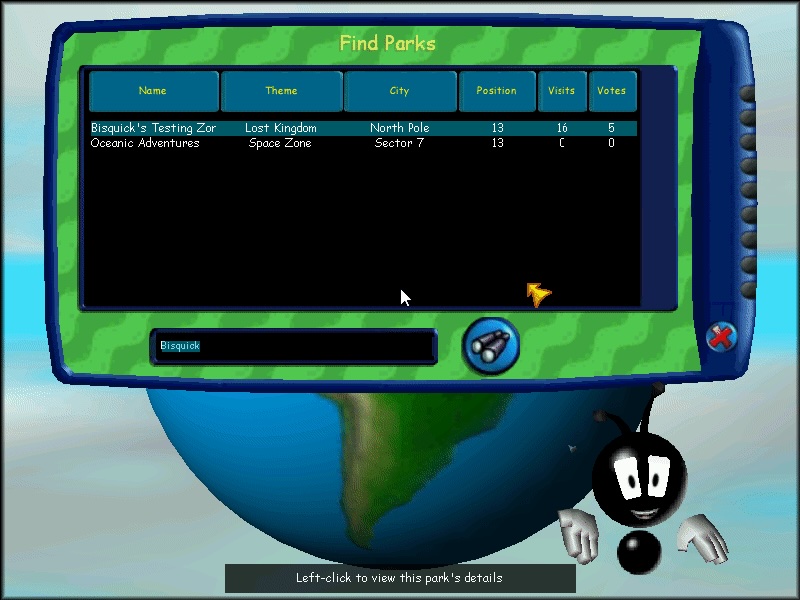
These parks are listed in a grid view with the following format:
Name |
Theme |
Position |
Visits |
Votes |
|---|---|---|---|---|
Example Park Name |
Space Zone |
Index in the List |
Amount of Visits from Players |
Amount of Votes from other Players |
Note: Themes are the same as the Single-Player park themes, as in Space Zone, Lost Kingdom, Halloween World, and Wonderland (Fantasy).
Park Details#

Selecting a park will open a dialog with details on the park selected.
Your own park
Selecting your own park will show all the details. There is a button to Unpublish the park at the bottom-right, next to the Enter Park button.
Created by |
The name of the player who uploaded it |
Date published |
The date it was uploaded to the service |
Theme |
The theme of the park |
The player's email |
|
Chart position |
What leaderboard position it currently ranks |
Number of Votes |
Number of votes from other players (Likes) |
Number of Visits |
Number of visits from other players (Views) |
Instant action mode |
Yes/No |

Private Details Park Page
A player's account can have a setting to protect their information, the park page will show very little details.
3D Lobby View#
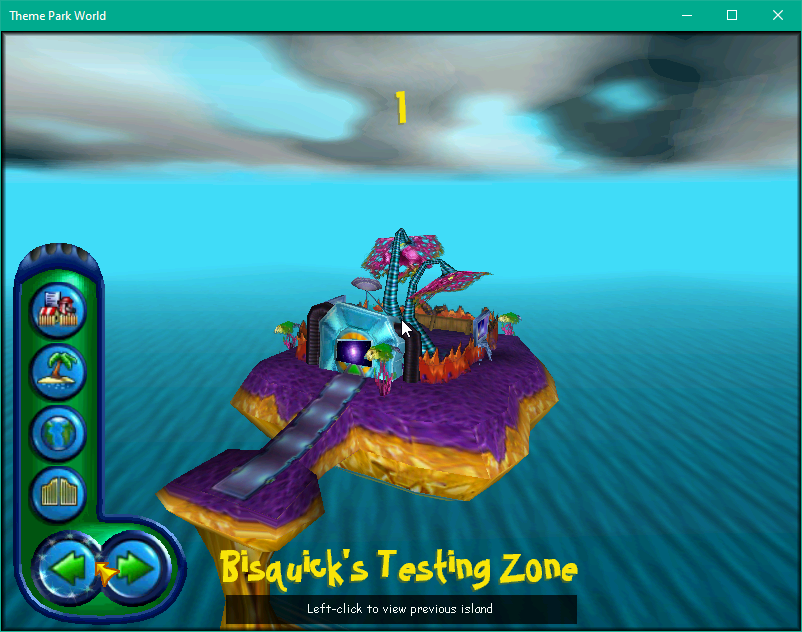
Entering a Pin on the Globe will bring you down to a level selection similar to the Single-Player park selection screen.
Depending on the selected Theme of the park being viewed, will show a unique 3D representation of the selected theme -- not what the appearance of the park actually is.
The player can use the Left and Right arrow buttons in the bottom-left to cycle from park-to-park in that selected area.
Publishing a Park#

Players can publish their own park to the online service when they're in Single-Player, from the pause menu.
Once selected, a player has to login and make successful connection to the online service.
When the connection is established, the player will next select a city (pin) to upload this park to. This does not have to be their current location.
Players cannot upload to the Bullfrog North Pole pin.
After selecting the city, they are prompted to upload their park with the following fields:
- Title
- Description
In-Game Chat Rooms
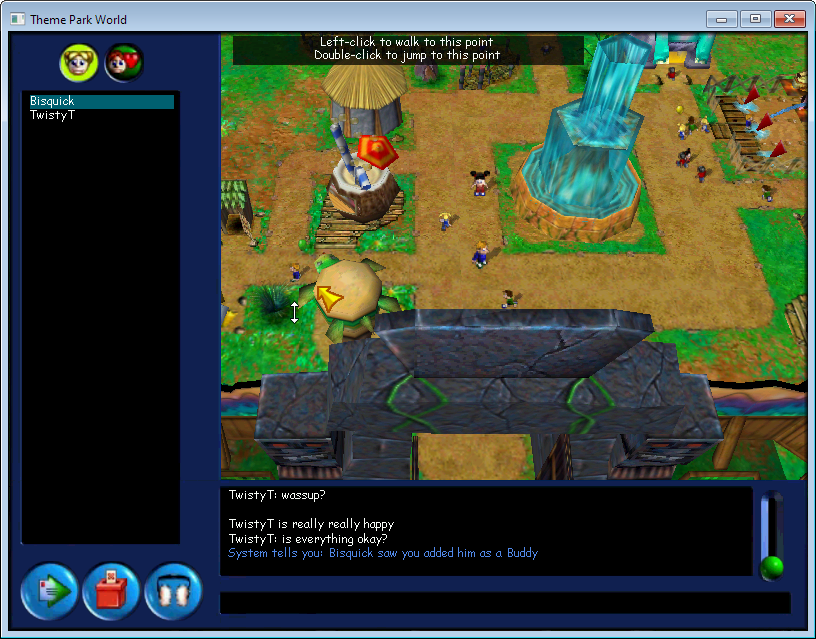
Gameplay consists of joining a park and entering the chat room with other players. Players are free to walk around, talk, ride rollercoasters, express themselves with emotes and find bookmarked friends.
Left: List of Players in the Room
Lists all the players currently in this chat room.
The two buttons above this view are:
List of Players in Room |
List of my Online Buddies |
You can right-click the player to get the following additional options:
Ignore |
Go-To Player |
Find Park |
Page Player |
Blackmark Player |
Add Buddy |
|---|---|---|---|---|---|
Ignore this player. |
Go to the park or location in the current park of this player. |
Find the park your friend is visiting. |
Page the player. |
Report this player. |
Add to friends list. |
Bottom Left: Park Options
- Send Postcard to Player
- Vote for Park
- Silent Mode - Earmuffs
Bottom: Chat History
Chat History#
Players can read and respond to player communications in the chat box.
There are commands the player can make use of:
Command |
Description |
Example |
|---|---|---|
/Say |
The default method of communicating. What you say will be seen by people in your vicinity (white). |
Example: /Say Hello – Displayed as “Dan: Hello”. |
/Tell |
This is a private message to a single person (blue). |
Example: /Tell Bjarne Hello – Displayed on Bjarne’s screens as “Dan tells you: Hello”. |
/Shout |
This message is seen by all visitors in the park, so use it wisely or people will ignore you (red). |
Example: /Shout Hello – Displayed as “Dan shouts: Hello”. |
/Emote |
A way of expressing emotions or actions (white). |
Example: /Emote is bouncing up and down – Displayed as “Dan is bouncing up and down”. |
Sending Postcards
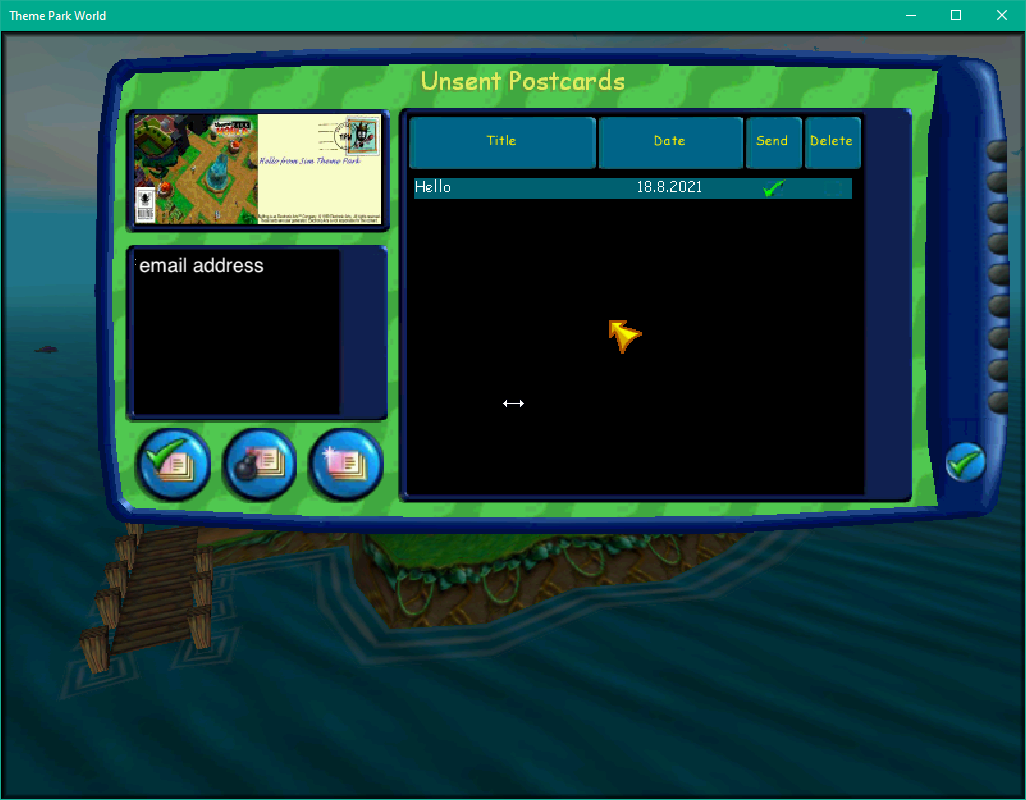
Sending postcards is effectively using the built-in email client to draft an email to a specific recipient.
The game is take a screenshot of the current game view, and add on the right a message the player can draft in an elegant-looking font.
There are three buttons available:
- Send this Postcard
- Delete this Postcard
- Compose a new Postcard
On the right, there is a data grid with each unsent item.
|
The Theme series | |
|---|---|
|
DOS |
|
|
Windows |
Theme Hospital (Prototypes) • Theme Park World • Theme Park Inc. |
|
Mac OS Classic |
|
|
Genesis |
|
|
SNES |
|
|
PlayStation |
|