 This article has a talk page!
This is a sub-page of Proto:The Sims Online.
 EODsCould it stand for Edith-Plugin Object Display perhaps?
 Development Tools & ResourcesFeaturing the fabled and highly sought-after, Edith tool
Login Screen#
Logging into TSO Pre-Alpha demonstrates the game's more primitive state. Error messages and dialogs are more casually worded and vague.

Generic Login Error#

This error is shown when the Authentication Server (www.ea.com/AuthLogin) returns a Bad result (Not Code 200)
TSO will first ensure the Authentication Server is actually online. If it is not reachable, it will display the error codes INV-300 or INV-301 (EA.com is not reachable right now. Please try again later.)
If it is reachable, it will:
- If the HTTP response code is 200 (Ok) and the server reports an error reason, it will display that as an error message.
- If the HTTP response code is not 200 (Ok) this message will be shown as it is seemingly an edge-case for the TSO protocol at this stage of development.
This is because the Authentication Server will always respond with Ok even if there is an error and will instead bake the error description into the body of the response.
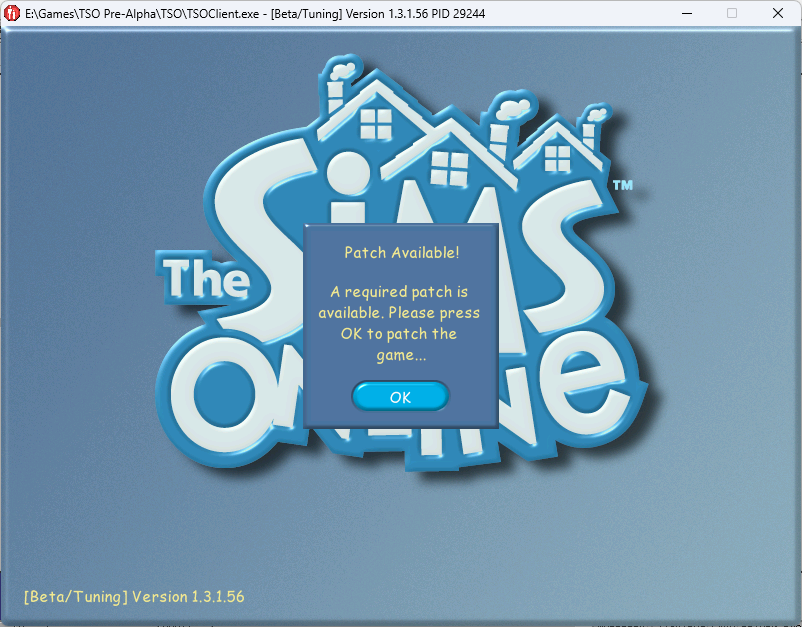
Patch Available Message#
This message is shown when the CitySelector server responds with the Patch-Result structure.
Clicking OK will invoke buddy.exe
This would allow developers connecting to a test server to synchronize their came client with the one the server expects. This patching solution would go on to be shipped with TSO with a new user interface.
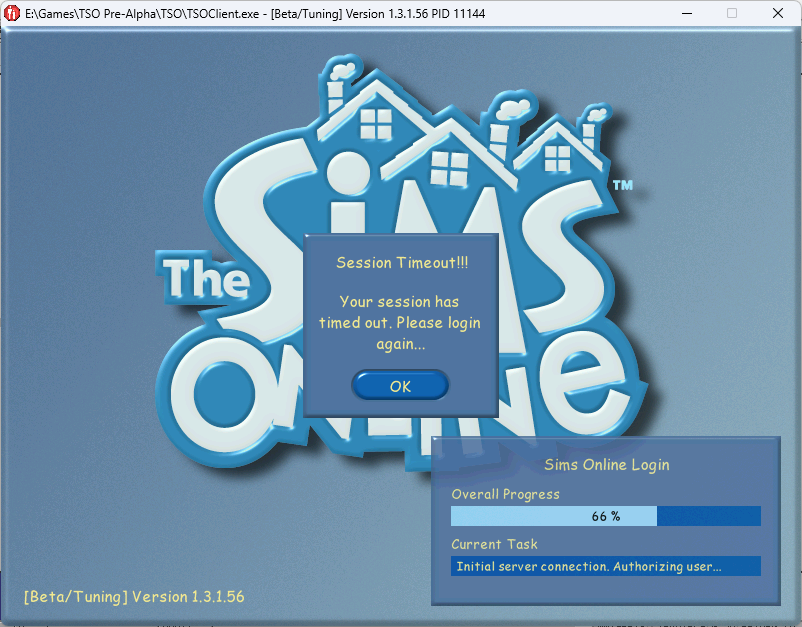
Session Timeout!!! Error#
This is used when the game client receives an Error-Message result with error-code 132.
The game will boot the user back to the Login Prompt.
Create-A-Sim & Select-A-Sim#
The Select a Sim screen went through a few notable changes from Pre-Alpha to Release.
Select-A-Sim#
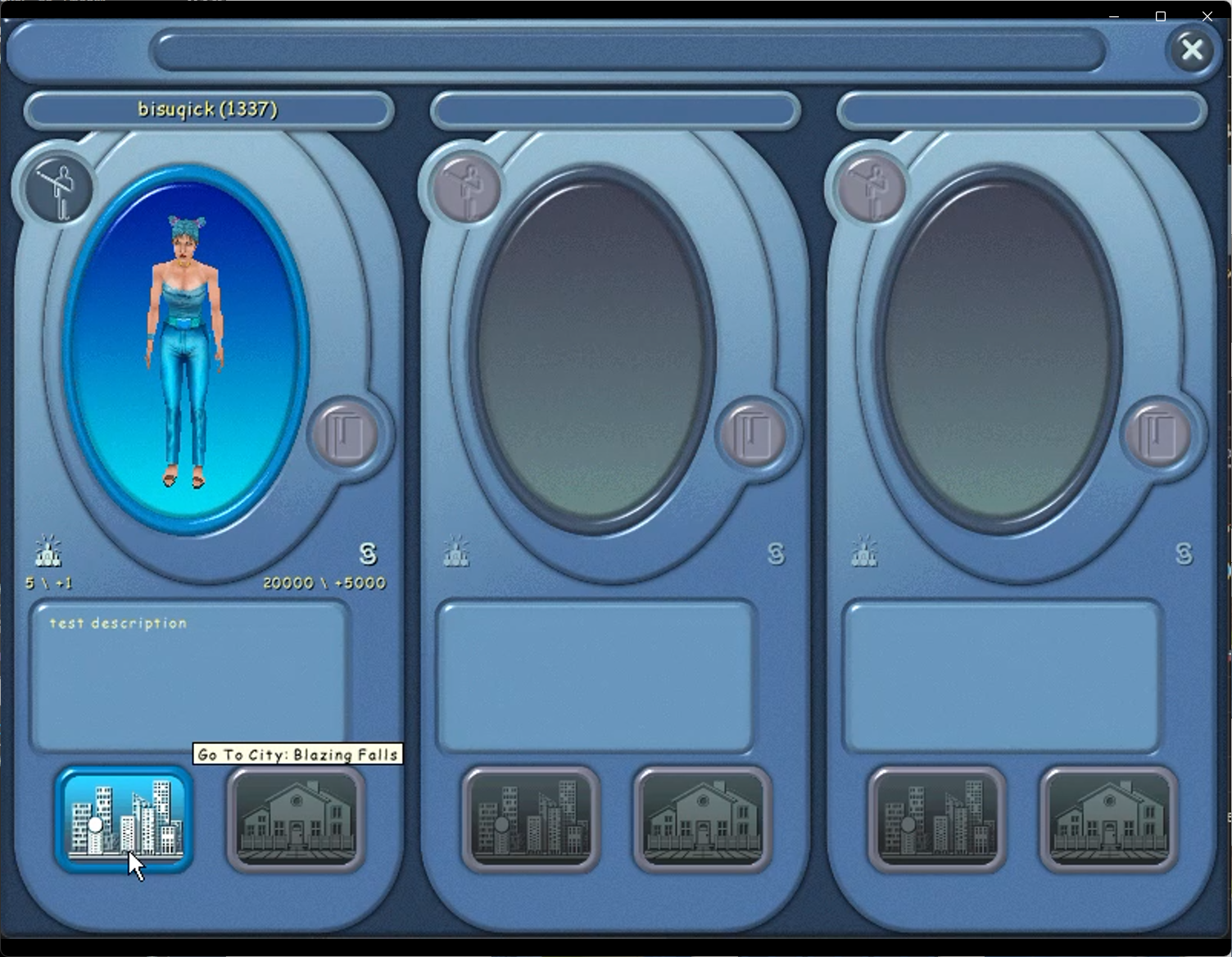
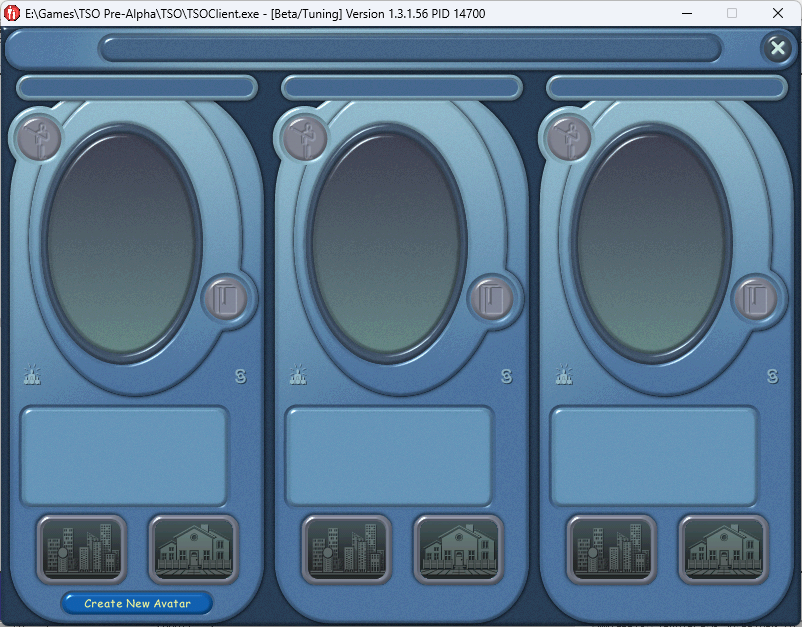
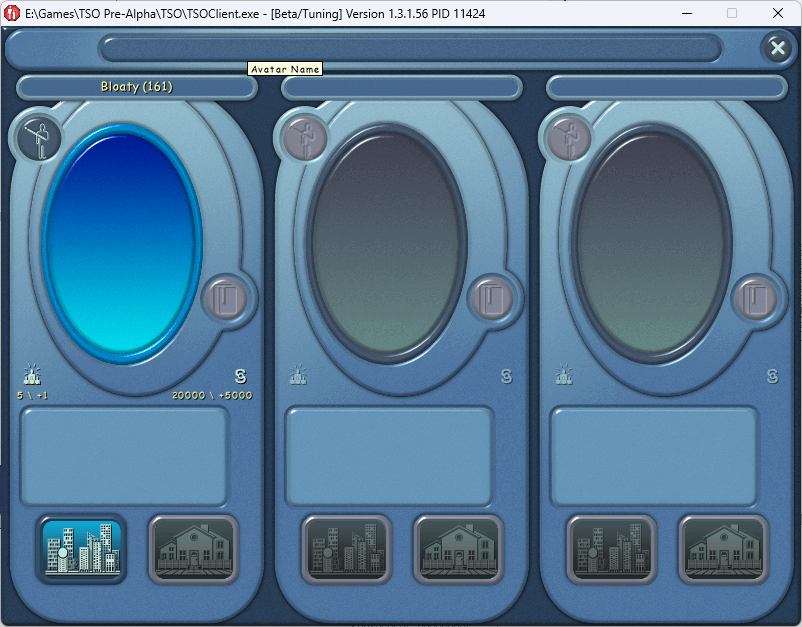
Avatar Previews will appear in Select-A-Sim once the user successfully logs into the City Server for the first time. The City Server will provide the game client with the Avatar file "Character Blob" which the game caches in the installation directory.
Avatar IDs also appear in parenthesis after the Avatar's name. This is not present in the final version.
The button at the bottom will show which City the Avatar lives in when hovered over. The only City available in Pre-Alpha would be "Blazing Falls".
Each Sim Card has a "Popularity" indicator and a Simoleans indicator. Both of these shows how much each has changed. The timestep for this change is unknown.
Shard (City) Selector Dialog#
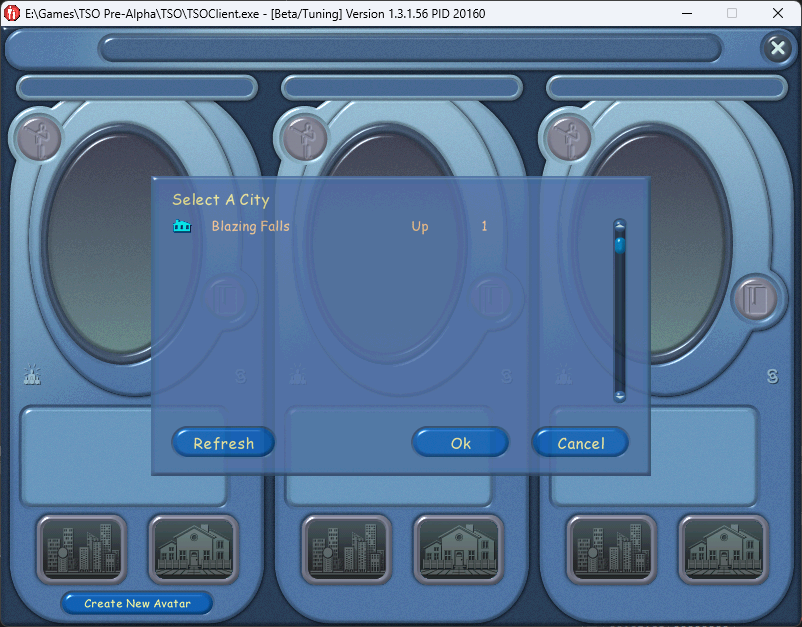
Present in the Pre-Alpha version is the ability for the user to select a "shard" to play on (City).
This dialog will display any city name you like, for exemplary purposes this is shown to be "Blazing Falls"
Create-A-Sim (Edit-A-Sim)#
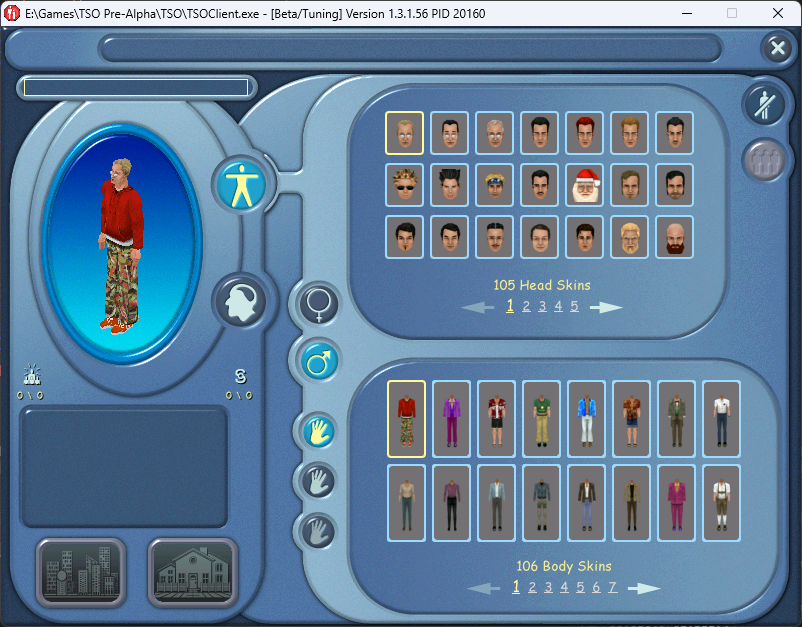
In Pre-Alpha, Create-A-Sim originally had a personality page where you could input your Avatar's supposed personality. It is unknown how this would have impacted normal gameplay.
The icon backgrounds in this version are grey instead of dark blue, and there is subtext indicating how many Heads / Body Skins there are loaded.
Since this screen would also serve as Edit-A-Sim, an idea later scrapped, the City and Property link buttons are still present at the bottom of the page.
The "OK" button for this page will take the user back to Select-A-Sim instead of taking them to the City like in the release version.
Map View (World View)#
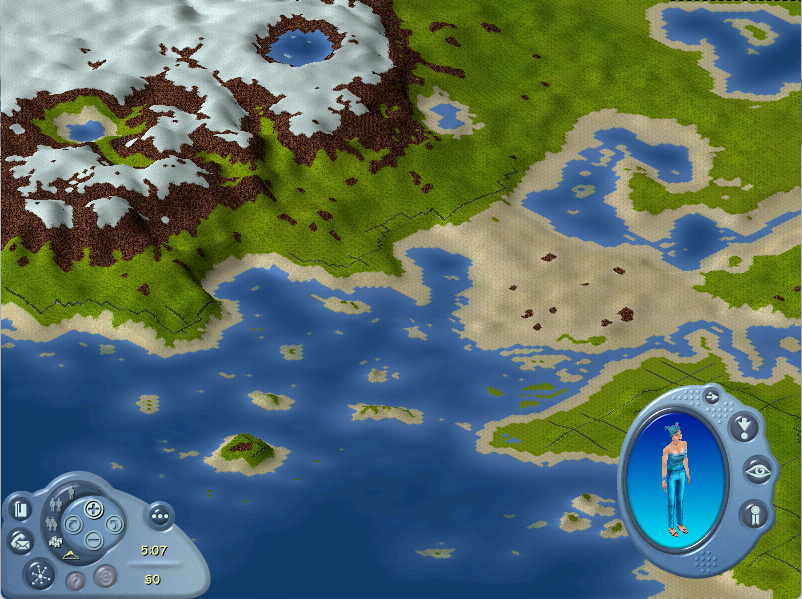
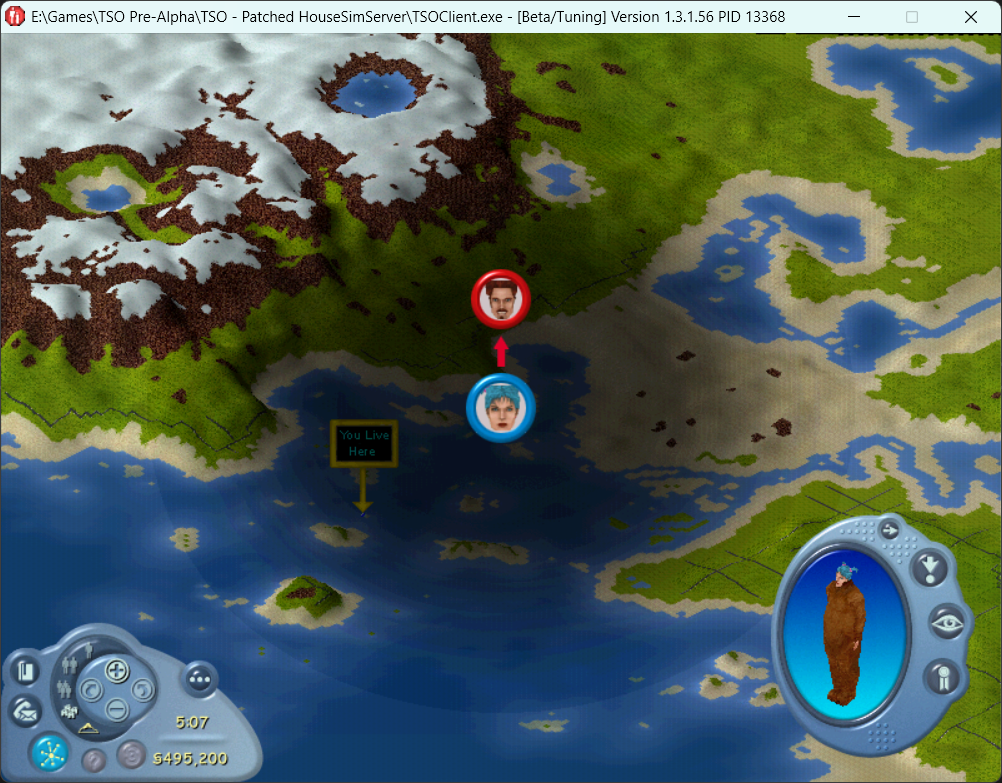
In the Pre-Alpha version, the Map View only had one city available, Blazing Falls. The textures are different, and the resolution of the terrain is noticeably lower than in the release version(s).
In the bottom right, your Avatar can be seen with a subtle rotation effect.
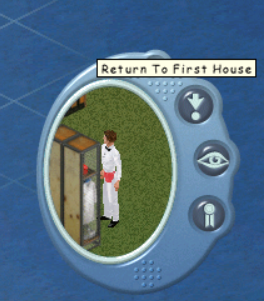
If your avatar is visiting a house, you can see them in the bottom-right using a Picture-In-Picture effect.
House Corrupt Message#
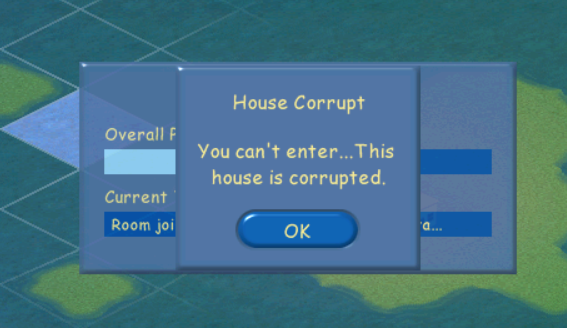
When attempting to join a house that is Online and joinable, if the data sent from the server containing the house file is corrupted in some way, this message is seen.
House Corrupt |
|---|
You can't enter...This house is corrupted. |
If the game is instructed to proceed anyway by the server, it will open the Default House. The default house data is kept in the UserData folder.
Search#
|
Avatar Search |
House Search |
|---|---|
|
|
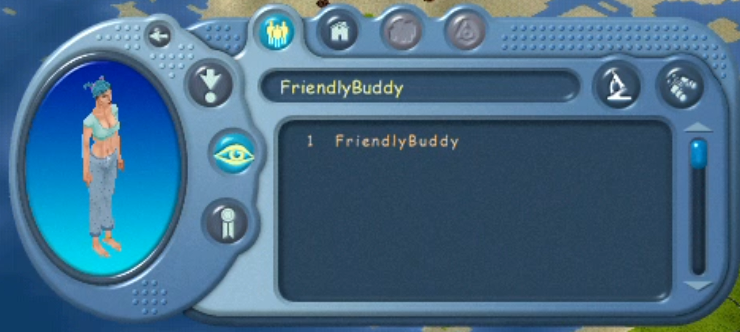
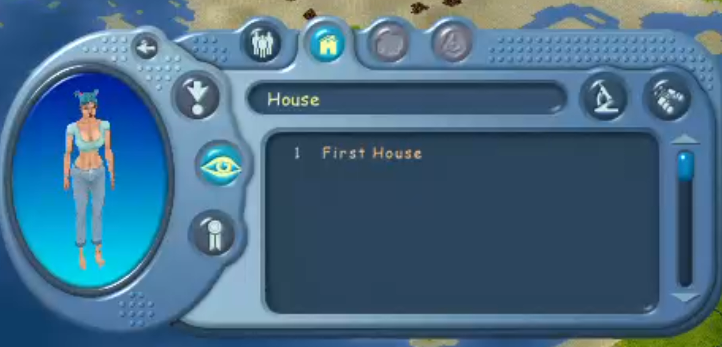
The Search section in the Gizmo allows the player to search for avatars and properties using a broad or narrow search functionality.
Results are shown in the list in order of online first, then alphabetical. Clicking on a result opens the PersonPage or HousePage respective to the search type.
Person Page#
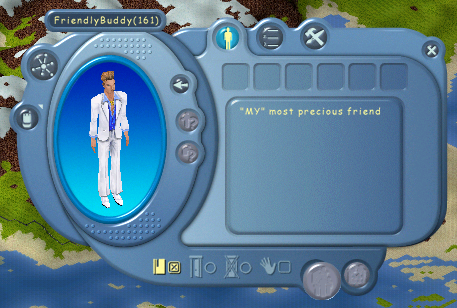
The person page is shown whenever you wish to view another player's Avatar. You can also view your own profile, too.
This page encompasses the following information:
- Avatar Name (with their AvatarID in parenthesis)
- Description
- Friendship (and Enemy) Web
- Personality Tab
- Skills Tab
- Top 100 Lists Tab that is currently unknown if it functions
- Blank, unimplemented pages for Clubs, Interests, etc.
Bookmarks Menu#

The Bookmarks menu in this version appears to only allow you to bookmark other player's Avatars.
Double-clicking will open the Person Page for the selected Avatar.
Right-clicking an entry will open a context menu:
- Delete Bookmark
- Open SimPage
- Send an Instant Message
Friendship Web#
|
Pre-E3 2002 Footage |
The Sims Online: Pre-Alpha |
|---|---|
|
|
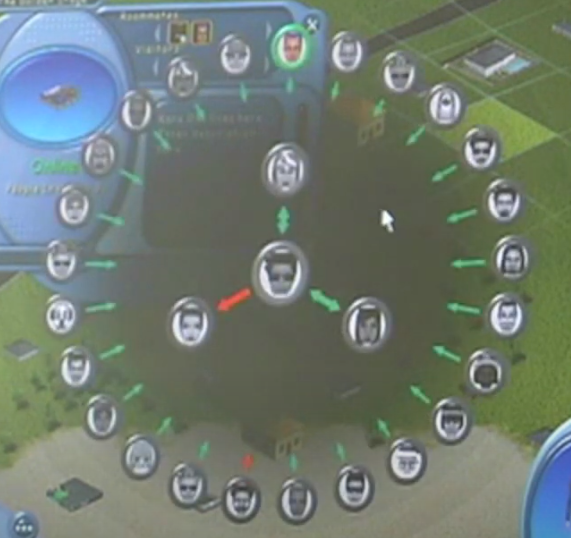
The Friendship Web is a visual representation of how your Avatar feels about others, and how others feel about your Avatar. These are not a mutual transaction, as in, players are free to declare anyone a Friend/Enemy for any reason in this game through interactions between Avatars when visiting a house.
In the files for the Friendship Web, there are two placeholder icons that are not intended to be seen during normal gameplay:


They can be triggered in-game by delivering invalid data from server for the Friendship Web.
Top 100 Lists#
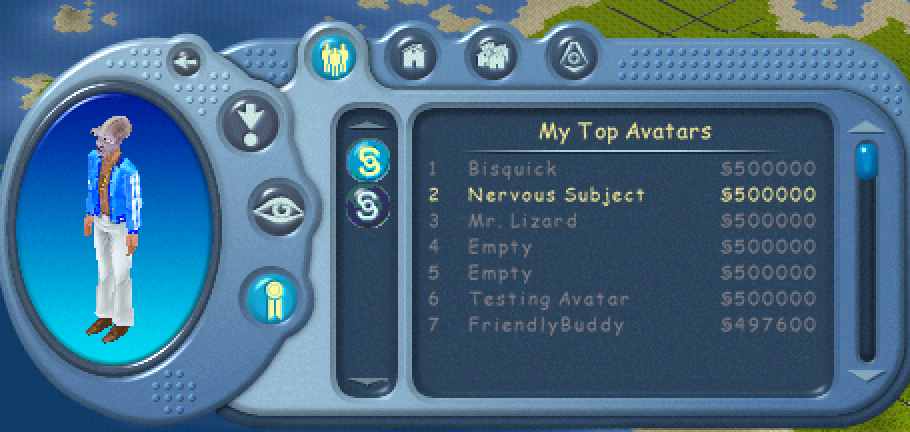
The Top 100 Lists had four categories: Avatars, Houses, Neighborhoods, and Clubs. Only the Avatars and Houses are implemented.
Each category can have multiple lists with different results depending on what the developers felt would be important to create a leaderboard around.
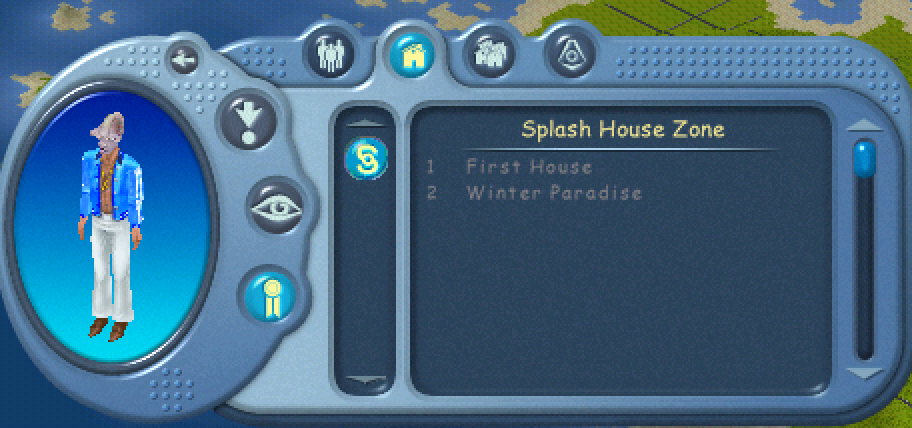
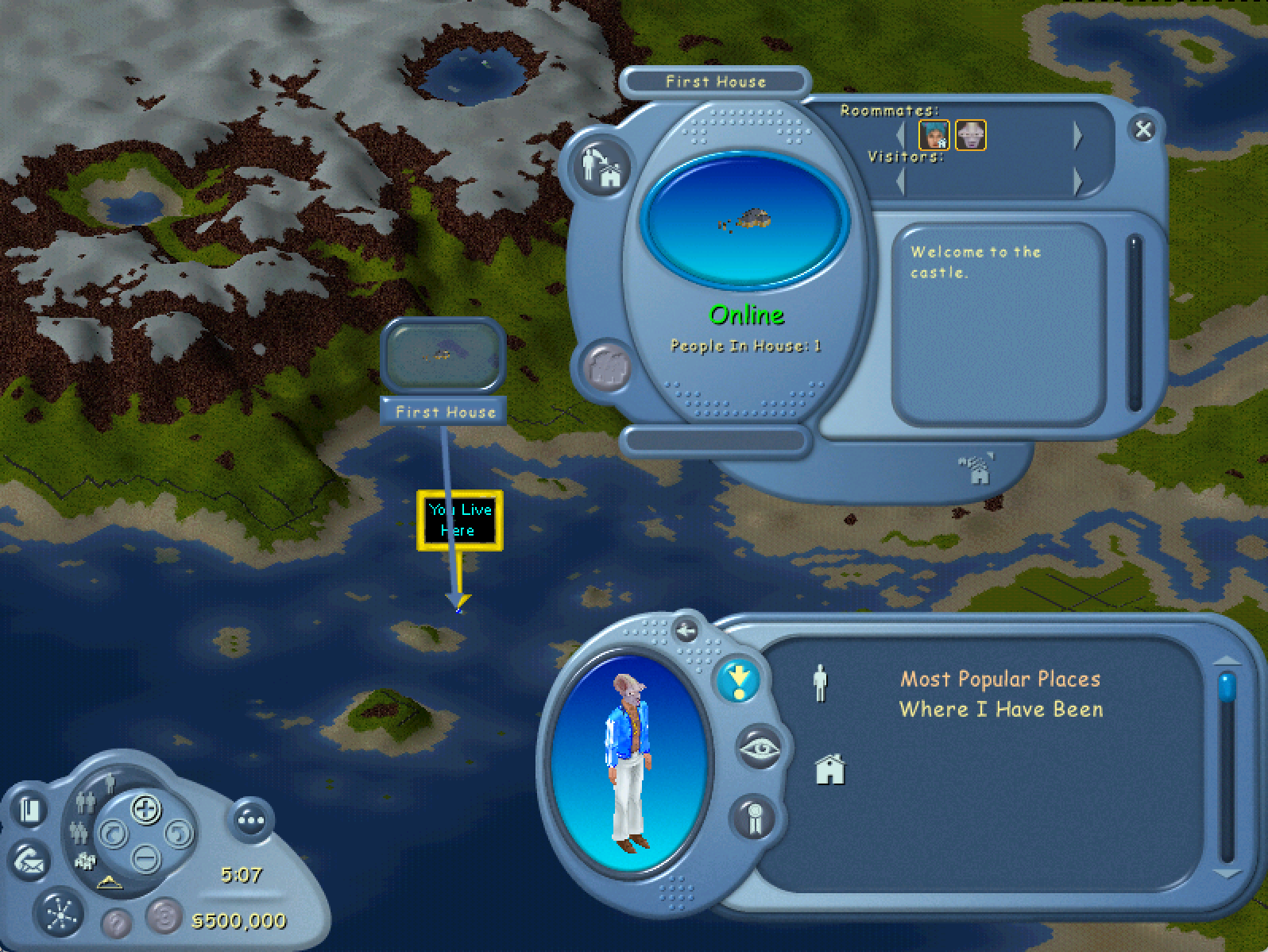
Most Popular Places will request list "1002", and works properly in-game.
Buying Property#

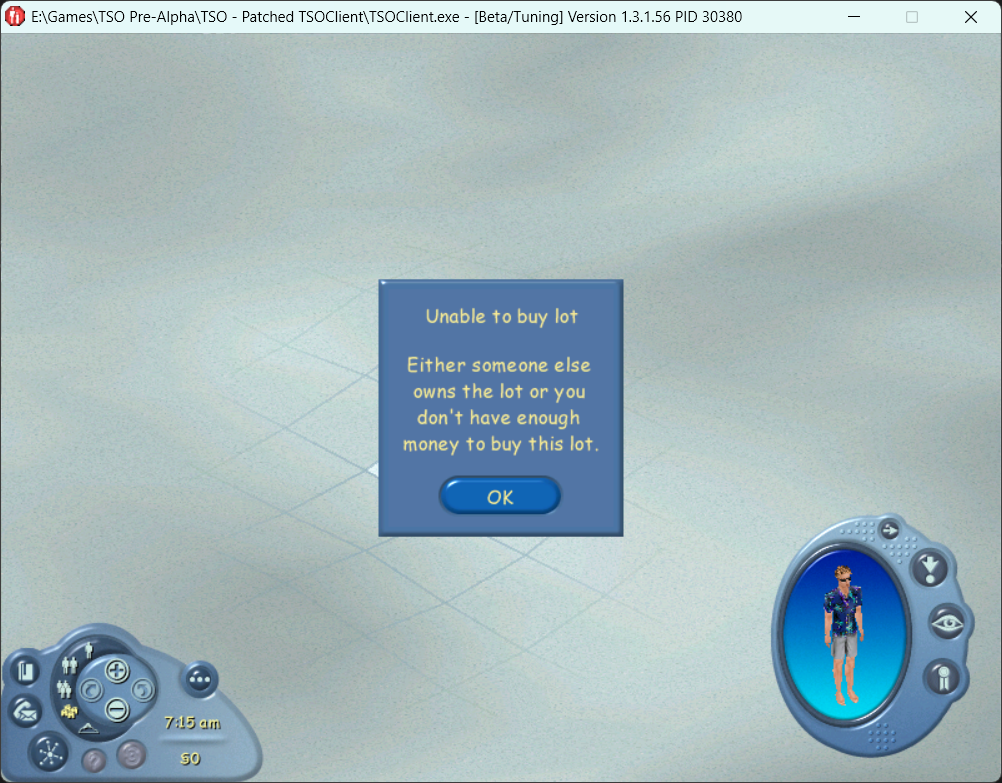
Purchasing a property in-game is completed by simply clicking on an open, habitable tile on the map. You cannot build on water tiles. The game will then prompt the user, confirming if they wish to buy the lot. If the user confirms, it is then followed up with a message indicating whether the purchase was successful or not. Possible causes for lot purchase failure include:
- The user does not have enough money. In this circumstance, the game client will use its local Simolean count to determine if they have enough funds. The server does not dictate the success of this transaction in this scenario.
- The Property is owned by someone else.
- Internal Server Error
In all cases, the client will use the same failure result. This means every error is handled with the same error message.
If the player owns a house, they will be told that selling their house will liquidate all of their objects at a fraction of their value. They will then be moved out of their current house and into this new one.
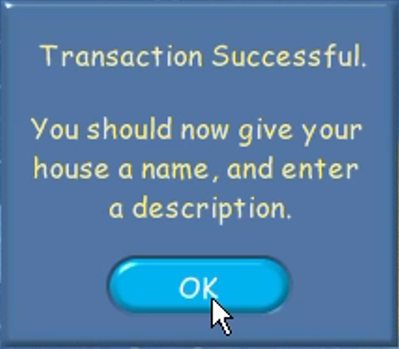

Once the purchase is complete, the following actions will take place:
- The camera is snapped to ensure the newly purchased lot is on-screen. It will also make an effort to ensure the lot is not obscured by any dialogs on-screen.
- The HousePage is opened with the newly purchased lot.
- The Name and Description fields have default values:
- Name: This is player_names property.
- Description: player_name lives here. Enter a description here
House Page#
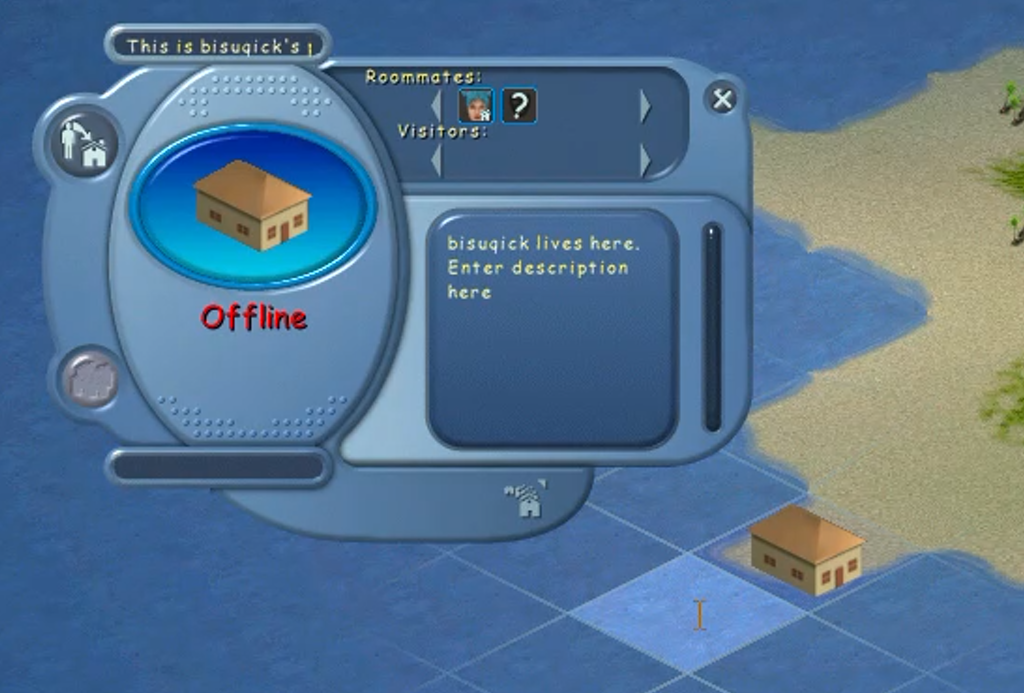
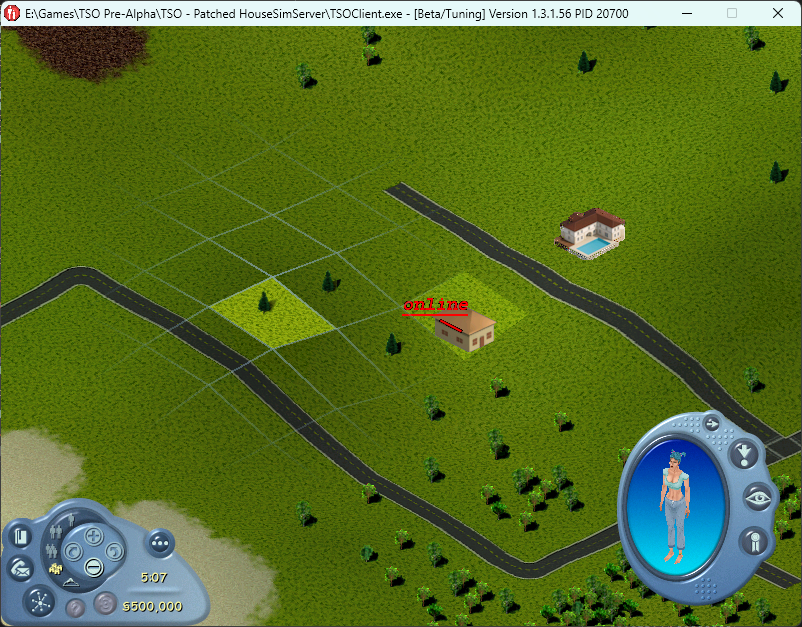 Clicking on a property owned by a player in-game will open a window to view information on a property.
This page encompasses the following information:
- Property Name
- Description
- Property Thumbnail
- Owner & Roommates
- Visitors on the property currently (if any)
- Online Status:
Online |
Offline |
Online and Locked |
|---|---|---|
- People in House
- Neighborhood Name
Curiously, there are primitive icons for properties for use in the Map View (called "MatchMaker" internally) still in the files:


You can see an example of one of these resources still found in-game in the figure on the right. This appears to be the only resource out of the three shown that is used in-game.

Additionally, this primitive waypoint can be seen in-game for highlighting your owned property from the far viewing distance.
Player Messaging#
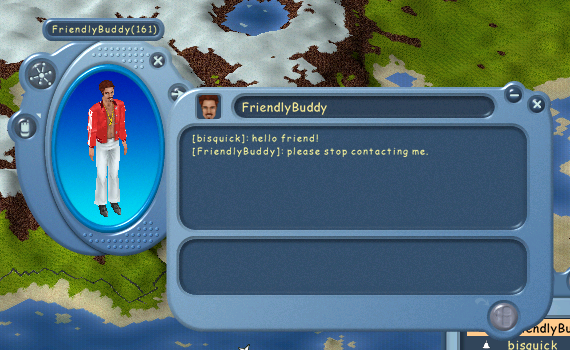
Watch on YouTubeThe Sims Online: Pre-Alpha lays the groundwork for what would later be shipped in release versions of the game in regard to messaging other players. The game has two forms of communication:
- Instant Messaging - Between online players only, cannot be sent to offline players.
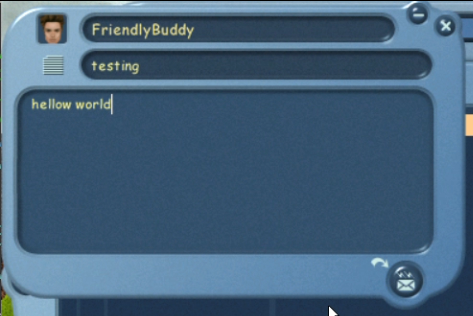
- Letters - Can be sent to any recipient, regardless of if they're online or not.
Letters have the following details:
- Sender Name
- Sender AvatarID
- Time Sent
- Title
- Body
Sending a Message#

|
Instant Messaging |
Sending a Letter |
|---|---|
|
|
In the figure on the right, there is an example of a pending new message notification. These will appear in the top-right of the screen. They do not flash in this version, unlike in the release version where they will flash light blue. Hovering with the mouse will show the sender's name. Unknown will act as a placeholder until the game downloads the sender Avatar information.
Viewing your Inbox#
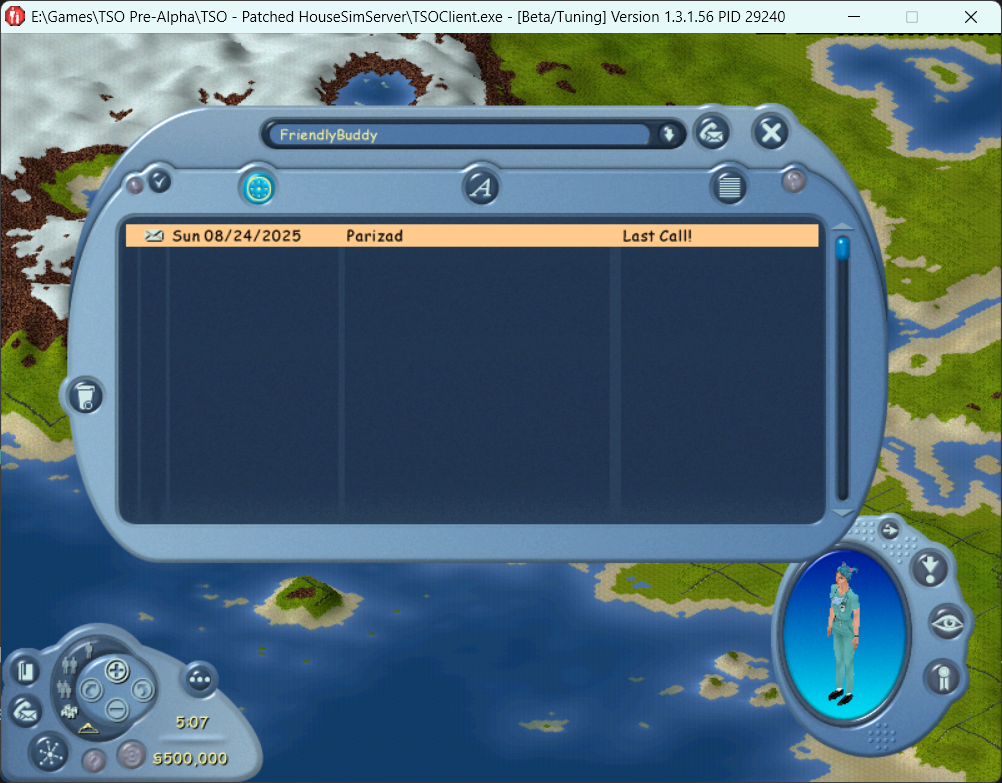
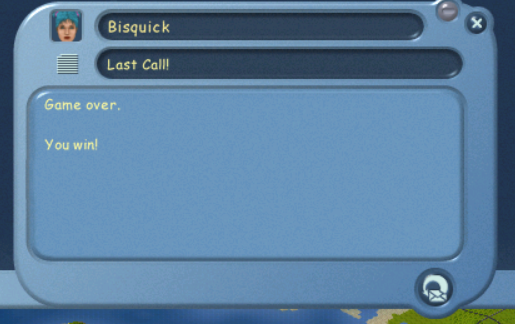

The Inbox can be opened using the Inbox Button in the bottom-left of the screen.

Letters will accumulate in your Inbox, but they can be deleted at any time using the delete button shown on the left.
Core Gameplay#
There are numerous changes in core gameplay from this version to the final game.
Default House#
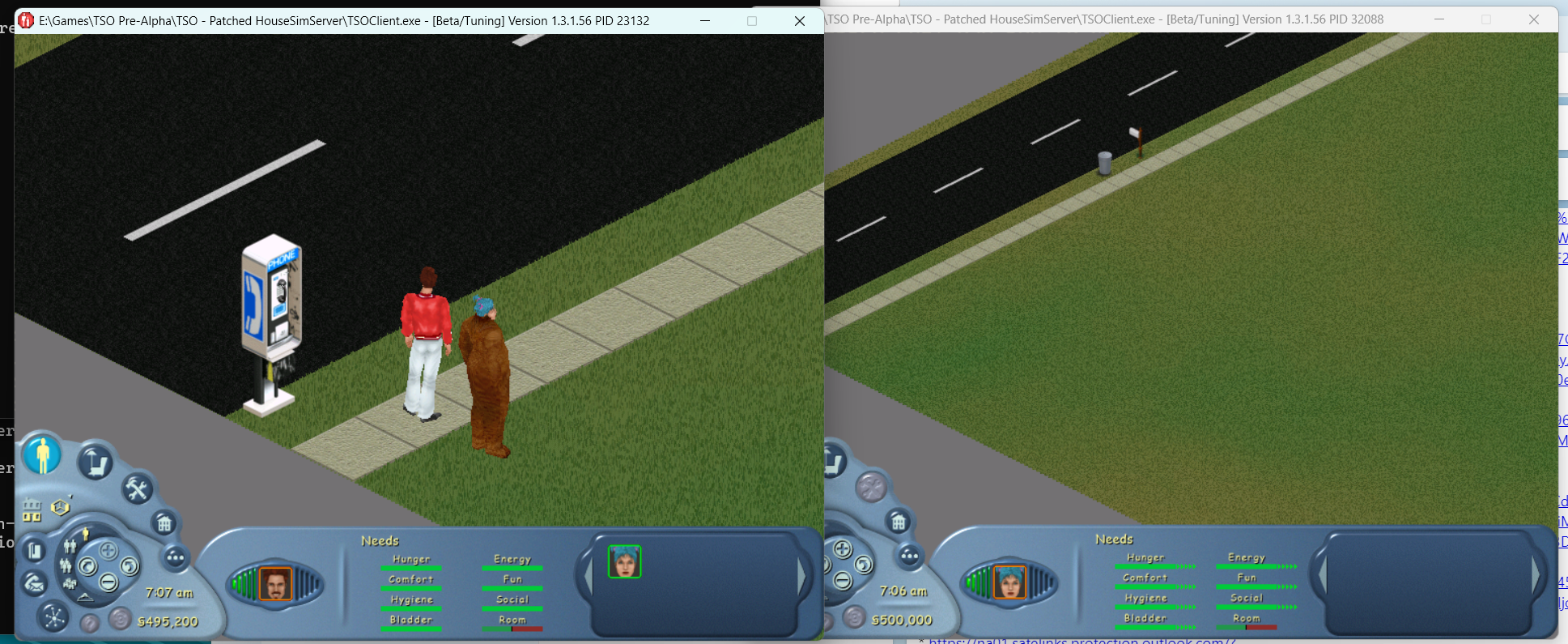
The default house is loaded when there is no house data supplied from the server, or when the supplied house data is corrupted. The data for this house is kept in the UserData folder. This is not to be confused with the nonetwork house, which is for the nonetwork switch only.
The default house is an empty lot with green grass and a street on one side. It has a mailbox and a trash can. Notably, avatars will spawn at the left corner on the sidewalk due to the spawn point being placed there, for some reason.
It also has notable debug objects on it as well.
Interactions Between Online Players#
This prototype version contains special interactions unique to The Sims Online that are not seen in The Sims. Given the interactive nature of this online variant, players can choose to "Accept" or "Decline" interactions between other players, allowing for more variation in social activities.
The act of Accepting and Declining was done using two face buttons under the current interaction in the queue, one smiley face and one frowney face.
Unique Interactions to The Sims Online:
* Give Money Gives a specified amount of Simoleans to the other player. (This will create a log entry in the server)
* Trade Not functional in this prototype. The intention is to trade objects between the Avatar's object inventories.
* Make Friend Marks a positive relationship between Avatars in the Friendship Web
* Make Enemy Marks a negative relationship between Avatars in the Friendship Web
* Ask to be Roommate An avatar can accept or decline this invitation, causing them to sell their old property (if they own one) and move into your property (if you own one).
SimAntics Exception Handler#

The Object Error dialog contains the following elements:
- The error occurred in object "
- A description of the error.
- Where the stack trace is stored.
There are three options you can choose from:
- Suspend - Freezes the object in its current state.
- Trace - Opens the SimAntics script in Edith at the offending node in the SimAntics object script.
- Delete - Deletes the object.
Patching Tool
Being an persistent online game, the game developers bundled in a patching tool for the Pre-Alpha game client that is the predecessor to the version eventually shipping with the game.
Pre-Alpha (v1.3.1.56) |
New & Improved (v1.676.5.0) |
|---|---|
 |
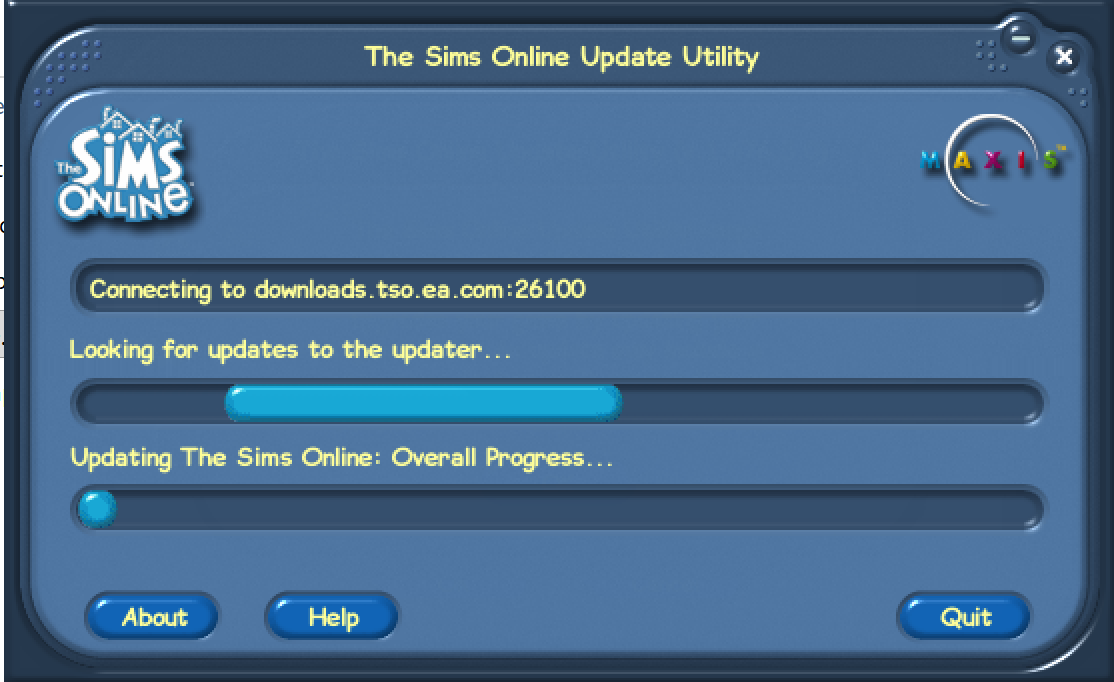 |
The tool's name is "Buddy.exe" in Pre-Alpha. In New & Improved, this still comes through as the temporary folder for the patcher is called "TempBuddy".
In Pre-Alpha, the tool appears hardcoded to connect to "http://ea4.str.downloads.ea.com/STR4/games/PSW/TSO/SMP3" via HTTP (port: 80)
The network library is known as Castanet, and it connects to a "Marimba Transmitter" to get patch details.