 This article has a talk page!
This page details one or more prototype versions of Mii Maker (Nintendo 3DS).

|
To do: |
On April 4, 2026, the Proto Challenge team recovered and published many 3DS system apps prototypes from 2010.
In this release, two prototypes of the Mii Maker were found. They appear to be from similar points of development, and there are few differences.
Differences#
Misc Differences#
- The app boots into a debug menu.
- The Mii heads have different shading.
- In the earlier build, a large section of the Mii's head will be missing when creating a Mii. Unknown if this is a bug. or a leftover from creating the "hat" hairstyles.
- When creating a Mii from a photo, the animation is longer and a beeping noise can be heard.
- It also saves an image named face_point 0.bmp to the SD Card, which is the photo you have taken, with dots tracking the facial structure.
- Buttons sound effects differ from final.
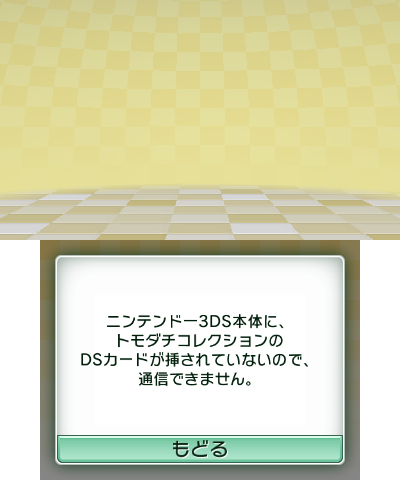
- The Send/Receive background turns yellow when transferring Miis from Tomodachi Collection.
Tomodachi collection exchange |
|---|
 |
Mii Plaza#
Early Prototype |
Late Prototype |
Final |
|---|---|---|
 |
 |
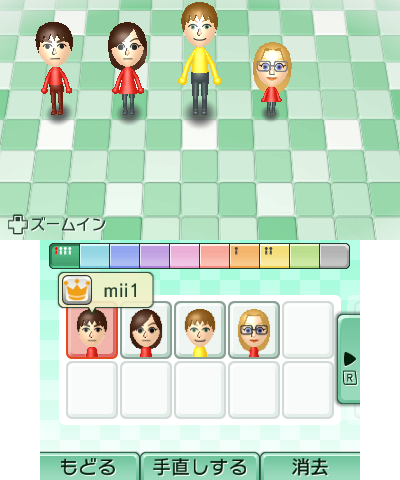 |
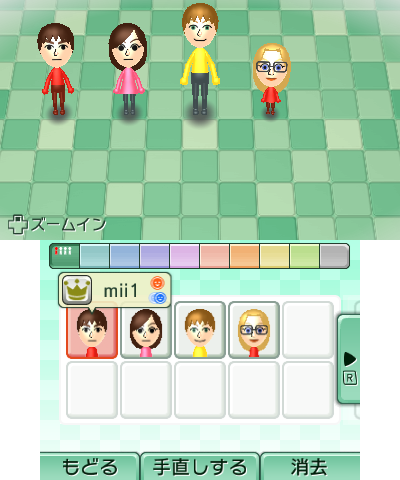
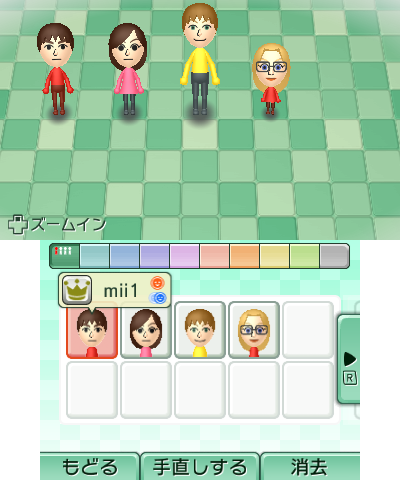
In the picture, there are a few notable differences:
- The "personal Mii" crown icon is a "gold" colour rather than the final's bright yellow.
- The plaza and Miis have different lighting and textures. The earlier build's textures most closely resemble that which is used in the final.
Other differences include:
- A bell sound plays instead of the whistle sound.
- You can't zoom on a Mii on the plaza by tapping its icon.
Mii Editor#
Background#
Early Prototype |
Late Prototype |
Final |
|---|---|---|
 |
 |
 |
 |
 |
 |
 |
 |
 |
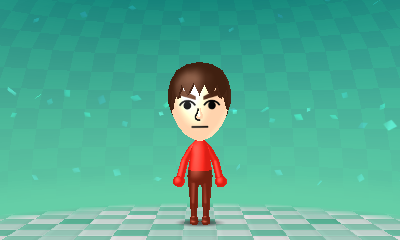
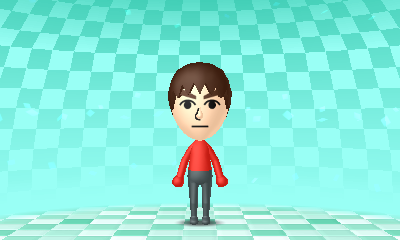
- In the Early Prototype, the background is darker, whereas in the later prototype, it's brighter.
- This has the added side effect of making the floating "square" particles less visible in final.
- The Miis are less shiny in the later prototype. (Does this warrant a second mention?)
Slider#
|
Prototype |
Final |
|---|---|

|

|
In the prototype, the slider bar is dark grey, whereas in final it's lighter grey, with notches.
Color picker#
|
Prototype |
Final |
|---|---|

|

|
The color picker's texture differs between versions.
QR Code menu#
Early Prototype |
Late Prototype |
Final |
|---|---|---|
 |
 |
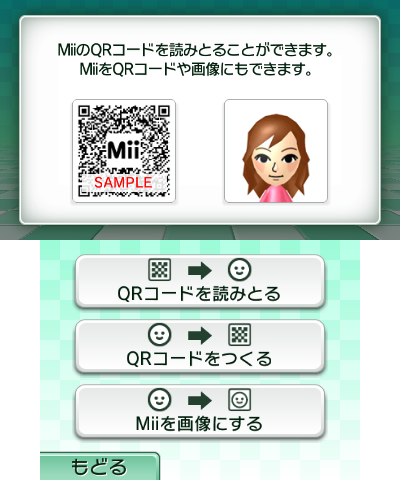 |
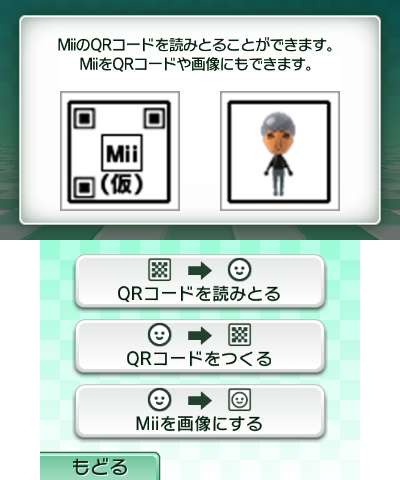
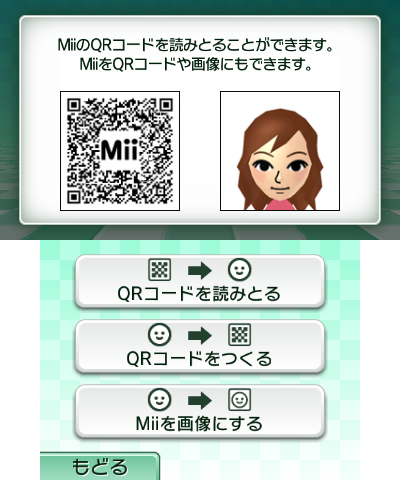
- The Early Prototype simply uses placeholders rather than generating previews, while the later prototype features early designs for the QR codes and portraits.
- The Mii QR codes generated are incompatible with the final version, as the final version's Mii data is encrypted.
- Similarly, the final's QR codes are also incompatible.
- This can be seen on the sample QR code in the image, the portrait of Sarah is also different.
Block list#
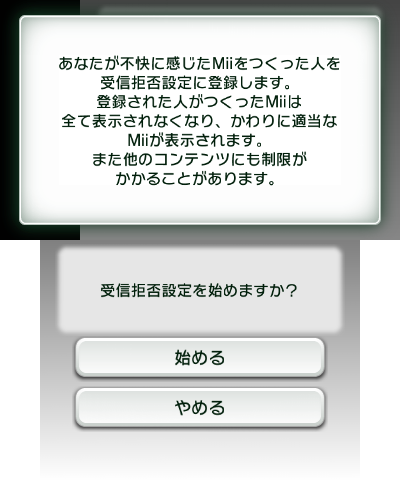
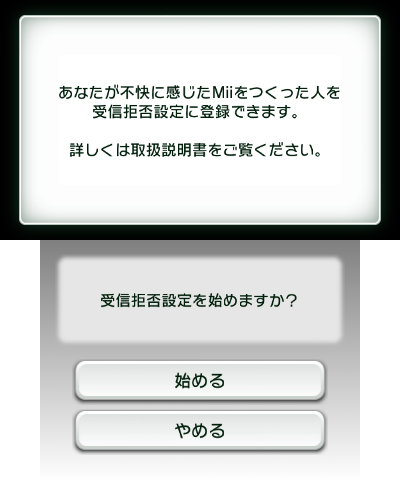
In the prototype, the only way to access the block list is through the debug menu, there is no button combo to access it, unlike the final's X + Y + D-Pad Left. The Block Miis functionality is missing from the prototype.
|
Prototype |
Final |
|---|---|
|
|
- The buttons in the prototype are higher than final.
- The text is more detailed in the prototype, whereas in the final build, it simply refers you to the manual.
|
Prototype |
Final |
|---|---|
|
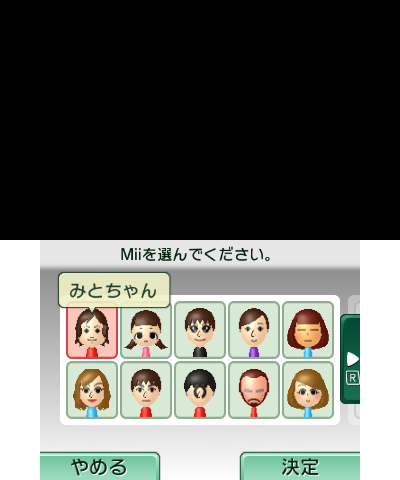
|
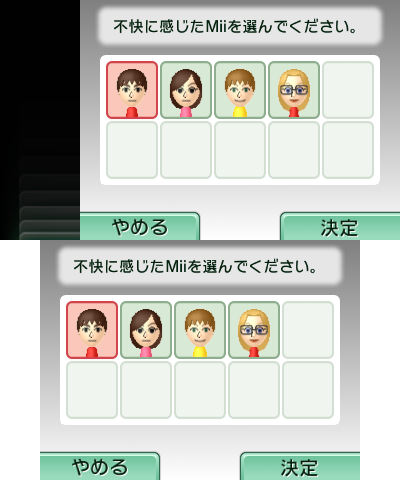
- In the prototype, the bottom screen's display is mirrored on the top screen.
- The Mii name isn't displayed in the prototype.
- The textbox has a different design.
- The text states "select a Mii that you find offensive", while in the final build, it just says "select a Mii".
Debug Menu#
|
|
To do: |

TestScene1#
Communication Test
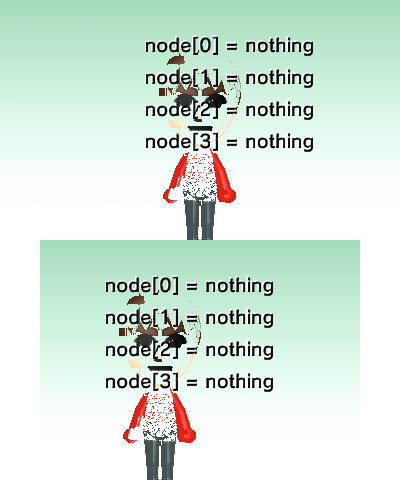
Shows an aqua-colored background with a default male Mii. L switches between Miis.
There is some text in front of the Mii.
node[0] = nothing
node[1] = nothing
node[2] = nothing
node[3] = nothingTestScene2#
Mii Accessory Test
Crashes.
TestScene3#
MP Communication Test
Main screen |
After pressing A |
|---|---|
 |
 |
Similar to TestScene1, but only the Mii's face renders. Pressing L switches between Miis here as well.
Pressing the A button starts looking for communicating with a "parent unit", most likely referencing a Wii.
OhnishiScene#
Nothing.
CFLTestScene#
CFL Performance Measurement

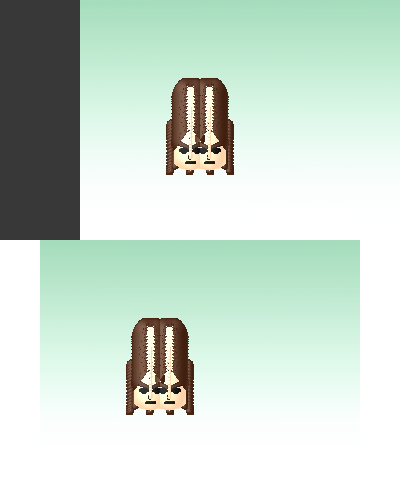
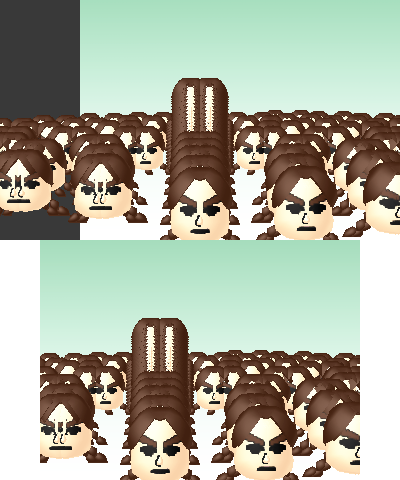
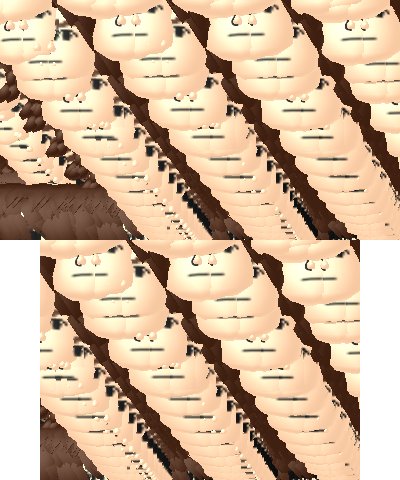
Pressing B spawns a default Mii head. You can use the circle pad to "move". The screen is also drawing over the previous frame. The Mii shown differs between the earlier and later versions.
EditorScene#
Mii Editor (New Creation)
Creates a new Mii. Value 0 starts you at the creation method select, while values 1 and 2 start with the male and female defaults respectively.
RetakeScene#
Mii Editor (Editing Mii)
Takes you to the editor screen with an existing Mii.
MiiTopScene#
Mii Plaza
Takes you to the Mii Plaza.
QRScene#
QR Code
Takes you to the QR Code/Image page.
MiiExchange#
Mii Exchange
Takes you to the Send/Receive page. Pressing X before selecting enables a "local-test" mode.
- When searching, it appears to connect with "DUMMY", which obviously won't send any Miis.
- When waiting, it'll act like a partner has been found, but the list will remain empty.
- When connecting to a Wii, it appears to connect to "SATO". Pressing A will cause it to act as if your personal Mii has ben sent over, then crash.
FirstBootTest#
Takes you to the first Mii creation.
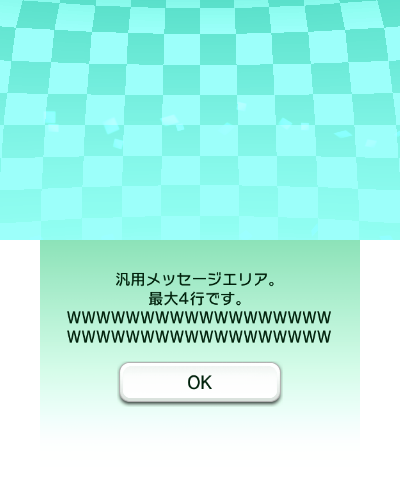
Dummy text for testing maximum line length appears before the tutorial text.
BlackListScene#
Takes you to the blocked Mii list.
Debug Menu overlays#
Camera controls#
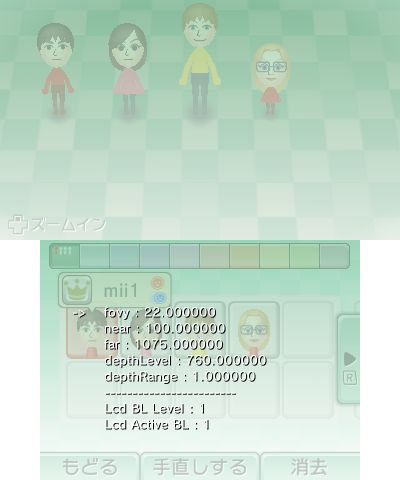
- Pressing the Y button anywhere shows a menu that allows you to control the camera position, 3D intensity, and the LCD backlight.
- The LCD backlight controls are nonfunctional.
Menu opened |
Menu closed |
|---|---|
 |
|
This also disables lighting/normal maps on all models.
Performance display#
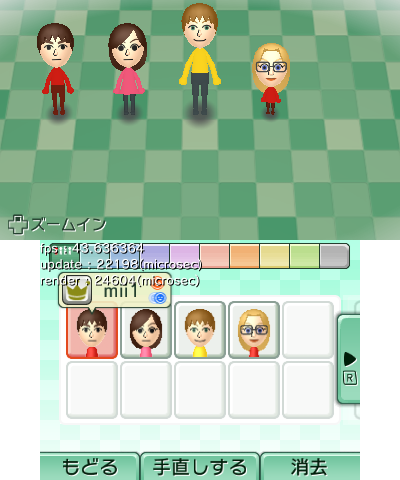
Holding the B button anywhere displays debug stats - in particular, framerate, and update and render times
Menu displayed |
Menu hidden |
|---|---|
 |
|
This does the same thing as the camera control menu, sans screen overlay.
Debug Menu (Mii edit)#

When pressing the X button on the Mii Editor, a debug menu will appear with multiple options.
Certain options are nonfunctional, while certain empty buttons are functional.
The top screen is duplicated to the bottom screen
The editor cannot be closed while this menu is open.
X + start opens both debug menus - however, the editor's menu closes once the other menu is displayed.
hair#
- hair.type: 0-131
- hair.color: 0-7
- hair.flip: 0-1 (Prevented from being set to 1 if the selected hair can't be flipped, but this can be bypassed.)
eye#
- eye.type: 0-59
- eye.color: 0-5
- eye.scale: 0-7
- eye.aspect: 0-6
- eye.rotate: 0-7
- eye.x: 0-12
- eye.y: 0-18
eyebrow#
- eyebrow.type: 0-23
- eyebrow.color: 0-7
- eyebrow.scale: 0-8
- eyebrow.aspect: 0-6
- eyebrow.rotate: 0-11
- eyebrow.x: 0-12
- eyebrow.y: 3-18
faceline#
- faceline.type: 0-11
- faceline.color: 0-5
- faceline.texture: 0-11
- faceline.make: 0-11
nose#
- nose.type: 0-17
- nose.scale: 0-8
- nose.y: 0-18
mouth#
- mouth.type: 0-35
- mouth.color: 0-4
- mouth.scale: 0-8
- mouth.aspect: 0-6
- mouth.y: 0-18
beard#
- beard.type: 0-5
- beard.mustache: 0-5
- beard.color: 0-7
- beard.scale: 0-8
- beard.y: 0-16
mole#
- mole.type: 0-1
- mole.scale: 0-8
- mole.x: 0-16
- mole.y: 0-30
mole#
- glass.type: 0-8
- glass.color: 0-5
- glass.scale: 0-7
- glass.y: 0-20
personal#
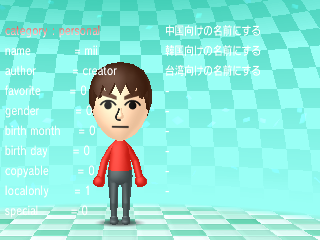
- name: Opens the keyboard for the Mii name.
- author: Opens the keyboard for the Mii author.
- favorite: 0-1
- gender (Due to an error, appears unlimited - however, the Mii will be deleted upon saving due to an incorrect checksum if anything besides 0 or 1 is set)
- birth month: 0-12
- birth day: 0-31 (Similar to gender, this is unlimited - however anything past 12 causes the Mii to be deleted due to an incorrect checksum)
- copyable: 0-1
- localonly: 0-1 (Mii sharing.)
- special: 0-1
- There are three options in Japanese on the rightmost side of the menu, however they can't be reached because the D-Pad is set to change the selected option, and attempting to go past the bottommost option simply loops the selection back to the top.
They appear to be for changing the character set used for the Mii's name:
- Make name for China
- Make name for Korea
- Make name for Taiwan
expression#
Doesn't appear to change anything.
- expressiontype: 0-6
randomMake#
Generates a random Mii! All generated Miis have the special flag enabled.
- gender: CFL_GENDER_MALE, CFL_GENDER_FEMALE, CFL_GENDER_ALL
- age: CFL_AGE_CHILD, CFL_AGE_ADULT, CFL_AGE_ELDER, CFL_AGE_ALL
- race: CFL_RACE_BLACK, CFL_RACE_WHITE, CFL_RACE_ASIAN, CFL_RACE_ALL
- make!!
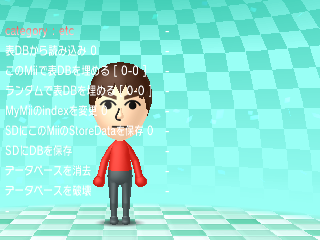
etc#
|
|
To do: |
|
First-Party | |
|---|---|
|
Default Apps |
Home Menu (Prototype) • Nintendo 3DS Camera (Prototype) • Nintendo 3DS Sound • Mii Maker (Prototypes) • StreetPass Mii Plaza (Prototype) • Face Raiders • AR Games • Activity Log (Prototypes) • Download Play • Health and Safety Information • System Settings (Prototype) • Nintendo Zone • Instruction Manual (Prototype) |
|
Included with System Update |
Nintendo eShop (Prototype) • Miiverse • Nintendo Network Settings • Internet Browser |
|
Downloadable Apps |
Virtual Console • Swapnote • Save Data Transfer Tool • Nintendo Badge Arcade |
|
Third-Party | |
|
Downloadable Apps |
|
|
Related | |
|
DSiWare |
|