 This article has a talk page!
This is a sub-page of Proto:Need for Speed: Carbon.

|
This prototype is documented on Hidden Palace. |

|
To do:
|
On May 27, 2026, a build of Need for Speed Carbon for PlayStation 3 dated October 12, 2006 and labled "Alpha 56 1" got leaked and since this build is compiled under the "Milestone" configuration, it features the debug menu. This build predates 12 days before the US final build. This is mostly the final build but with debug menu.
Bugs and oddities#
- An option to change from the STEREO to MONO exists, but it doesn't work.

- Cop cars' skin do not appear properly so the "PALMONT CITY POLICE DEPARTMENT" and "POLICE" signs will not appear, with the exception of the Chevrolet Corvette C6 and Pontiac GTO.
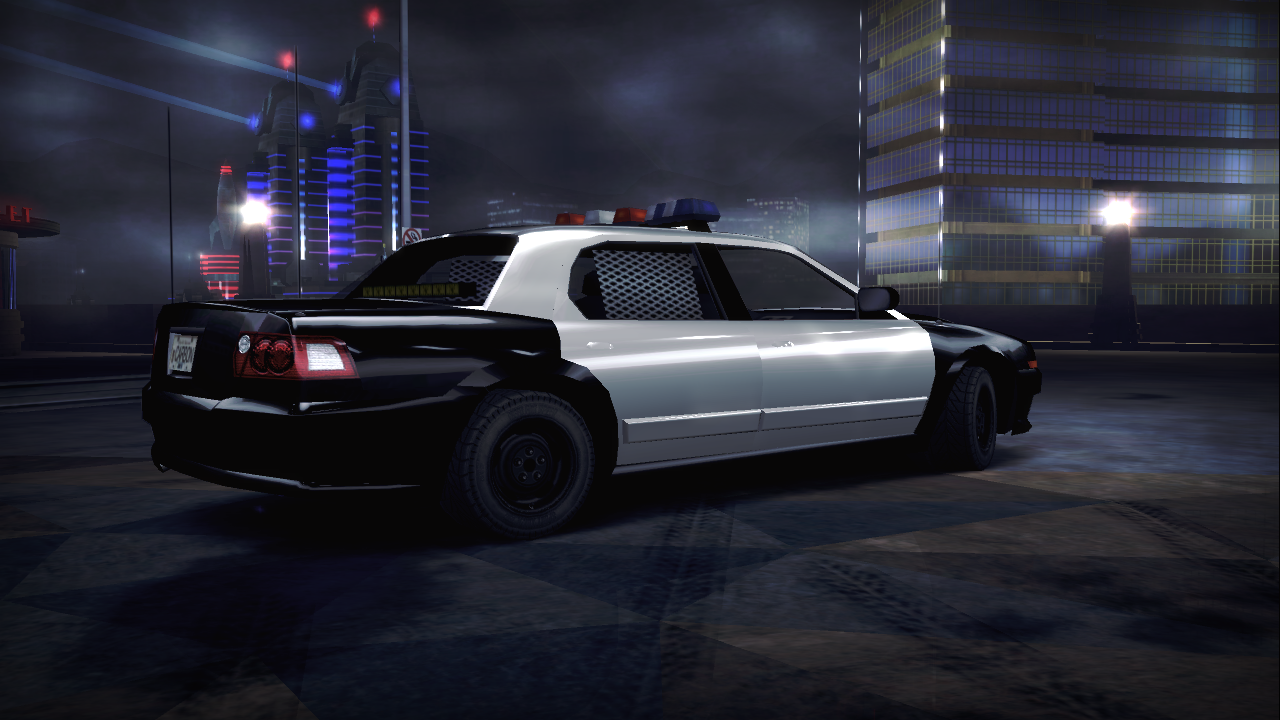
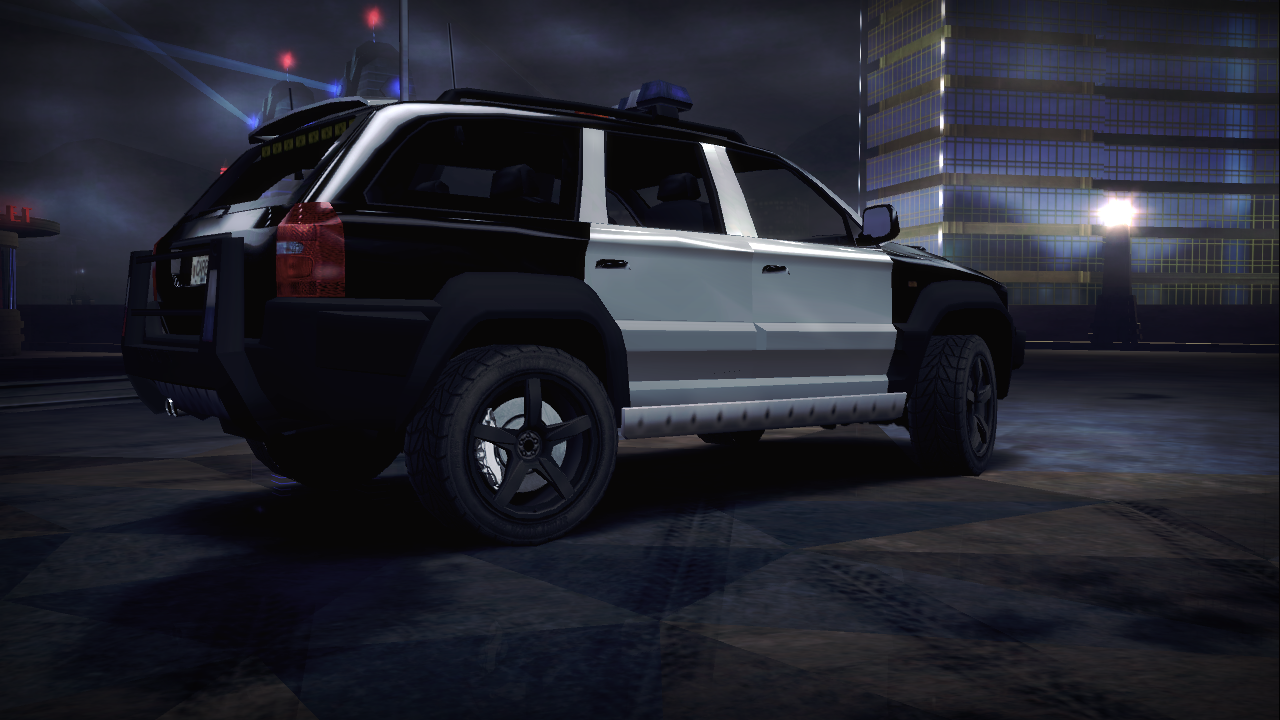
- Crew member intros don't exist
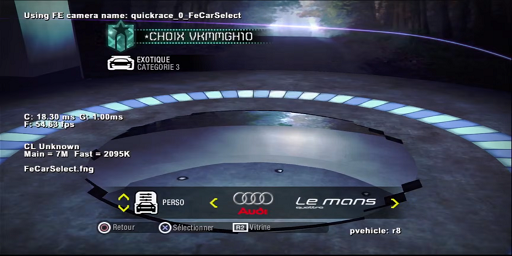
- The build always uses the french language no matter which language you are using on the console, can be fixed using Enable Language Cycling or patching the executable to use a different language.
- The crew logo "LAURELS" can't be painted.
- The Car lot floors don't render correctly.
Cheat Codes#
The milestone/debug builds of Carbon have several cheat codes which can be triggered in the main menu that do not work in the release version:
- L1, R1, L1, R1, Left, Right, Left, Right - Unlocks all the things in the game. It just triggers the "Unlock All Things" option to yes and it can be disabled through the debug menu.
HOO commands#
Holding L2 in press start menu will make the game execute HOO commands, these commands enables some functions on debug and auto controls the game until it ends, save functions are disabled in some of them.
Serial#
This build has a placeholder serial TEST12345 instead of BLES00020 which is the European serial ID and this build is compiled as a European build according to the build name: NFS07_ps3_INT_2006_10_12_00_05_Europe.
Debug Car Customization#
Enabling the "Debug Car Customize" option in the debug menu, a new button will appear in the main menu named "CAR(DEBUG)". It is able to view any car in the game, both stock and preset, along with all of their respective customization parts.
Use the D-Pad or Left Stick to navigate the various menu options, and press R2/RT to save the game. Pressing L2/LT doesn't do anything, despite the button referring to a help menu of sorts.
Debug Camera#
This build features the Debug World Camera which can move freely about the game world and it can be activated by pressing Select/Back on the second controller (or first depending on which controller you started the game).
Debug World Camera controls:
- Left Stick/D-Pad - Look around. Up and Down are inverted.
- Right Stick: Move Around.
- L1 - Ascend.
- R1 - Descend.
- L2 - Lesser speed boost.
- R2 - Greater speed boost.
- Cross - Move forward (does not affect y-axis).
- Circle - Strafe right (does not affect y-axis).
- Triangle - Move backwards (does not affect y-axis).
- Square - Strafe left (does not affect y-axis).
- Start - Teleports player car to camera position.
Debug Menu#
The debug menu can be opened from anywhere in-game by pressing L3/LS and R3/RS simultaneously on the second controller. The game also pauses itself whenever the menu is open.
Interestingly enough, the Debug Menu Window's width is extended to the entire screen when in 16:9 mode while in 4:3 display mode it is sized properly. This is due to a seemingly platform-specific bug caused by the overscan and 16:9 scaling being hardcoded in the rendering function based on a flag that the debug menu code doesn't set, instead of using a view matrix set prior like the other platforms do. Additionally the debug menu renderer adjusts the width of the background to match the position offsets applied by ScreenPrintf in 16:9, causing it to extend beyond the (now stretched) 4:3 viewport.
Front End#
- SafeHouse:
- Unlock All Things - Does exactly as mentioned, it unlocks everything if set to "yes".
- Also triggers to yes by using a cheat code mentioned above.
- TrackPositionMarkers - A submenu which is used to teleport to the markers in the frontend:
- CarPosition_Muscle - Kempton Safehouse
- CarPosition_Tuner - Downtown Palmont Safehouse
- CarPosition_Exotic - Fortuna Safehouse
- CarPosition_CarLot_Muscle - Kempton Car Lot
- CarPosition_CarLot_Tuner - Downtown Palmont Car Lot
- CarPosition_CarLot_Exotic - Fortuna Car Lot
- CarPosition_CarLot_Mazda - Mazda Car Lot that after unlocking it after typing in a cheat code in the PC version.
- CarPosition_Main - The Main Menu platform which takes place in Silverton.
- CarPosition_Generic - The generic safehouse such as the one located in the Highway.
- CarPosition_CarSelect - The platform at San Juan which was used in the Car Select menu after the player's BMW M3 GTR got totalled.
- Award Cash - Adds $10,000 to the loaded career's cash amount
- Full Impound Strikes - Gives all of the Impound Strikes to the currently selected car.
- Get One Of Each Marker - Awards one of each type of marker available if they haven't already been maxed out.
- populate crew and pool - Unlocks all of the crew members.
- Car Guys Camera - Allows free rotation of the camera in the menus.
- The controls are the same as in the showcase menu
- Disables the emitters such as the event icons and sparks.
- Render Lookat Point - Doesn't seem to do anything?
- Unlock All Things - Does exactly as mentioned, it unlocks everything if set to "yes".
- Localization:
- Show All SMS
- Dump Loc Tracking
- Enable Language Cycling - Setting this to "yes" lets you cycle through all of the game's available languages, including just the bare labels used by the game to determine what string should take its place. Use L1/LB and R1/RB on the second controller to cycle through.
- Enable Loc Tracking
- Printfs:
- Screen Printf - Enables or disables the printing of various information to the screen.
- Audio Printf - Doesn't do anything.
- FMV Timer Printf - Displays a timer at the top of the screen during FMV playback.
- DVD File Stats - Prints statistics related to disc reading. It displays timestamps for when a file was read from, and the delay between reads, followed by the size of the chunk of data being read, followed by the file that was being read from. Reads are also sorted into categories which are visible on the right side of the screen.
- Customization Printf - Doesn't do anything.
- Enable Debug Car Customize - Enables the "CAR(DEBUG)" option in the main menu.
- Video Mode (PAL:0 PAL60:1 NTSC:2) - Displays the current video mode..
- Save Joylog File - Saves a joylog file in USRDIR.
- Front End Drawing - Enables or disables the drawing of UI elements and the like to the screen. A side effect of this setting being enabled is the ability to see through loading screens. However when enabling it, the debug menu will not list the options properly.
- Toggle Game Tips - Enables or disables the ability to cycle through game tip loading screens including the unused ones. Use L1/LB and R1/RB to cycle through them.
- Display FMV Filename - Displays the filename of the FMV that is currently playing, if any. Requires Screen Printf to be enabled.
- Force LOD - Forces a certain LOD to be drawn for all cars, regardless of distance. Requires being pressed in order to have an effect.
- Toggle FEng Test Screen - This button toggles what seems to be a test screen on or off. The "test screen" itself just gets rid of any UI elements that are on-screen. Toggling this on and off causes some menus to default to what seems to be the placeholder values for that menu. It is very easy to softlock or even crash the game with this function.
- Test Career Customization - Doesn't do anything.
- Play FMV - Opens a submenu with a list of most of the available full-motion-video sequences present in-game. The menu also references files not present in the final game in which attempting these just results in a black screen as they do not exist. Press a filename to play it. To stop playing it or get out of the black screen, simply open the menu and press the filename again.
- Summon Chyron - Summons an online-specific notification in the bottom right corner of the screen with the amusing placeholder text "Chyron cometh. Doom is near."
- Dismiss Chyron Icon - If an online-specific chyron that has been summoned persists, adjust the number to that of the chyron that should be dismissed, and it will remove it from the screen. Set this to -1 to dismiss all chyrons.
- Display Loading Time - After loading into a different world, displays the loading time in red, in milliseconds, in the bottom left corner of the screen. Requires Screen Printf to be enabled for it to display.
- Enable Alias Delete - Does nothing. Togglable to "yes" or "no".
- Overlays -> Loading Screen - The submenu where you can view the loading screen overlays.
Audio#
- Reverb:
- Swapping - Shows the information at the top left corner of the screen.
- Tunnels - Shows the information at the top left corner of the screen.
- Speech:
- Toggle Speech AI Debug - Doesn't do anything?
- Toggle Speech Ditching - Doesn't seem to do anything.
- Debug Speech Collisions -Doesn't seem to do anything.
- Force Speaker ID
- Trigger random sample - Doesn't seem to do anything.
- Debug Gameflow States - Doesn't do anything.
- Debug Interactive Music - This shows debug information for the interactive music system. It prints to the screen.
- Debug Pathfinder - Displays information relating to the volume of music and the path events attributed to the music that plays in-game.
- Toggle Sound Printf - Enables or disables the printing of what menu sounds have been played. If no sound has been played for a certain amount of time, the reading will disappear until the next sound is played. The game also prints what sound has been played to the TTY.
- Print engineaudio info - Doesn't do anything.
- Show localization info - Prints the filenames and locations of the localized speech data files to the screen
- Debug EATRAX - Doesn't do anything.
- Show DAC CPU usage - Prints various usage statistics to the screen
Career#
- Selected Event - Changes to the selected event in the list.
- unlock boss races - Unlocks all of the boss races.
- Toggle milestone debug - Does nothing.
- SMS ID - The selected SMS ID to trigger.
- Do SMS - Triggers the SMS using the ID that's selected in the SMS ID option.
- Show All SMS - Shows all the SMS although it might softlock the game.
- Launch AI Attack - Triggers the Crew attack.
- Simulate turfWar result - Unclear what it does.
- Take over the track under cursor - Takes over the track under the player's cursor in the map screen.
- Print track heat level - Unclear what it does.
- NIS Safe Mode - Forces default (non-interactive-sequences) to be played.
- Reputation value
- Add Reputation - Adds the reputation to the player which is used to unlock more events as they progress through.
- Disable NISs - Disables the Non-Interactive Sequences.
- Car Classes - A menu where they can choose the progression paths of each car classes which are different, that being the Muscle, Exotic and Tuners.
- Worldmap Acquisitions:
- Launch Acquisition screen - Triggers the territory acquisition screen.
- Take over track at cursor - Takes over the track under the player's cursor in the map screen.
- Minor crew take over the track at cursor - Takes over the track with the minor crew under the player's cursor in the map screen.
- Clear acquisitions - Doesn't seem to do anything?
- Opponent Names:
- Display Debug Opponent Names - Replaces every opponent name including player's with the one that's selected
- Opponent Names (Rival Crews) - A menu that lists the names of the Rival Crews that can be chosen to be displayed on the leaderboard.
- Opponent Names (Bosses) - A menu that lists the opponents of the Bosses that can be chosen to be displayed on the leaderboard.
- Opponent Names (Crew Members) - A menu that lists the opponents of the Crew Members that can be chosen to be displayed on the leaderboard.
- Opponent Names (All Crews) - A menu that lists the opponents of all Crews that can be chosen to be displayed on the leaderboard.
- Opponent Names (Random Racers) - A menu that lists the opponents of the Random Racers that can be chosen to be displayed on the leaderboard.
- Check Dynamic AI Skill Level - Unclear what it does.
Teleport#
- to Race - A sub menu that features the list of races to teleport to. If the player teleports to the race while in-game, they will be teleported to the start of the race, otherwise it begins the race.
- by coordinate - This submenu allows teleportation via world coordinates. Scroll down and press "Engage!" to teleport.
- by Landmark - A sub menu that contains various points of interest in the game world to teleport to:
- Specific Locales - This provides a list of specific places in the game world to teleport to.
- Pursuit Breakers - This menu contains every single pursuit breaker that can be teleported to including cut ones.
- Splines - This menu allows teleportation to each of Palmont City's individual road splines.
- Save Hot Position - Saves the player's current position. Requires creating the file in the TRACKS directory under the name "HotPosition[TRACK NAME].HOT" with the "TRACK NAME" being the one that is currently playing the saving being triggered like "L5RA" which is the main Carbon world.
- Jump to Hot Position - Jump to the player's saved hot position.
- Teleport everyone to near end of race - This does exactly what it says.
Race#
- Force Finish In Place - Finishes the race in the selected position.
- Finish Time
- Teleport everyone to near end of race - This does exactly what it says.
- Toggle Send Race Length Update - Unclear what it does.
- Toggle Infinite Canyon Race - Unclear what it does.
- Drift:
- Deactivate Drift Race Physics - Deactivates the drift handling.
- Deactivate Time Limit - Deactivates the time limit which means the player can stay on track without moving instead of being disqualified.
- Reset Drift Score - Resets everybody's drift score to 0.
- Award Big Drift Score - Awards 1 million points.
- Award 1000 points - Does what it exactly says.
- Award 100 points - Does what it exactly says.
- Award 10 points - Does what it exactly says.
- NIS - This submenu allows different pre-race NISes to be played:
- Reset - Resets the NIS selection to the default for that race type.
- Eight Cars - A submenu that lists the NIS selection for the intros with eight cars.
- Four Cars - A submenu that lists the NIS selection for intros with four cars.
- Two Cars - A submenu that lists the NIS selection for intros with two cars.
- One Cars - A submenu that lists the NIS selection for intros with a one car.
AI#
- Car Watches - These options makes the camera focus on an AI car. Use L1/LB and R1/RB on the second controller to switch cars:
- Toggle Watch Cop Car
- Toggle Watch Traffic Car
- Toggle Watch Racer Car
- Toggle AI Control - Enables or disables AI control of your car. Needs to be re-enabled after a loading screen.
- Toggle full speed - Enables the game to run at full speed. It freezes the screen and exits the menu once pressed, but the game is actually still playable. If one somehow manages to toggle this off, the game returns to normal speed.
- Lock to 30 - Toggles the game's 30 frame-per-second limiter on or off.
- Player Wingman - Changes the wingman role during the race. The role will get reset back in the next race.
- Unlimited Wingman Charge - Makes the Wingman charge to be unlimited.
- Show Non-Pursuit Cops (Minimap) - Toggles the cops that are not in pursuit visibility on the minimap.
- Show Pursuit Cops (Minimap) - Toggles the cops that are in pursuit visibility on the minimap.
- No Cops - Disables the cops.
- Force Pursuit - Triggers the police chase. The player has to close the debug menu after selecting "yes".
- Scatter Cops - Throws all cop cars in the game world in random directions.
- Scatter AI - Throws every AI car on the track in random directions.
- Set Heat - Sets the Heat Level with value being up to 5.000.
- Hide GPS Arrow - Doesn't do anything.
- Override Cop Formation - Overwrites the Cop Formation using the selection that's chosen in "Cop Formation"
- Cop Formation
- Max Cop Cars - Sets the maximum cop cars can participate in pursuit.
- AI Random Turns
- Don't Hide Shortcuts
Camera#
- SmartLookAheadCamera - It enables a camera feature where it looks ahead to the next turn to increase the turn's visibility.
Car#
- Speed Boost Button - Toggles the speed boost button which is Triangle/Y on the second controller.
- Speed Boost Speed - Adjusts the speed boost speed up to 350 MPH.
- Change Car - Doesn't do anything.
- Flip Car - Rotates the car forward 180 degrees.
- Hop Car - Propels the car very far into the air.
- No Car vs Car Collision - Enables or disables car collision.
- Infinite NOS - Toggles infinite nitrous on or off.
- Infinite RaceBreaker - Toggles infinite Speedbreaker on or off. Also the option name reveals that Speedbreaker was called "RaceBreaker" at some point.
- Display Car Memory - Prints some sort of memory statistics to the top of the screen. Requires Screen Printf to be enabled.
- Manual Shift - Toggles manual shifting on or off.
- Tuned Cars - Displays a list of supposedly "tuned" cars available to switch into. The player has to pause the game for it to work properly otherwise the game will crash, and switching the cars in-game breaks the sounds and sometimes even races.
- Untuned Cars - Displays a list of supposedly "untuned" cars available to switch into. The vehicle changing procedure is the same as option above.
Rendering#
- Weather Effects - Toggles the weather effects such as rain.
- TimeOfDay - Doesn't do anything.
- TimeOfDay Swapping - Doesn't do anything.
- Always Raining - Toggles the rain that always happens without stopping.
- Fog Control Override - Overwrites the Fog Control and activating it will reveal a brighter fog.
- Pause World - Pauses or unpauses the game world.
- Toggle Framerate Summary - Doesn't seem to do anything.
- Preculler Mode - Changes the properties of the preculler. "Blinking" makes preculled things flash on and off the screen. The purpose of the "FullSpeed" setting is unknown.
ICE#
This menu is empty since the ICE, which stands for In-game Camera Editor and is used to make the camera tracks for the cutscenes, is stripped out of "Milestone" builds, therefore it's only available in the "Debug" configuration.
Rub Test#
- Draw Collision Surfaces - It was supposed to draw all of the collision geometry to the screen, but it doesn't work.
- Draw Triggers - It was supposed to draw all of the triggers to the screen, but it doesn't seem to work.
- Draw Objects - Does nothing.
- Draw Rigid Bodies - Does nothing.
- Draw World - This was supposed to toggle the world visibility but it doesn't work.
- Draw Cars - Enables or disables the drawing of car geometry.
Tutorial Debug#
- Pass tutorial race - Passes the Tutorial race.
- Wingman Activated - Triggers the wingman activated sequence.
- Wingman Success - Triggers the blocker success sequence.
Misc Root Category Options#
This is the section that lists the option that is not in any categories.
- NIS Text Display - Displays detailed information about the NIS currently playing. It displays the time elapsed, which frame it's on, which camera track is currently active, and the description given in the file.