 This article has a talk page!
Hover! is a game that's something of a tech demo, with fairly basic gameplay, but demonstrating what computers could do at the time. It shipped with the Windows 95 CD-ROM.
Sub-Pages#


Unused Dialog#

This About dialog seems to be from an earlier version of the game. However, all known prototypes, as well as the final version, use the standard Windows About dialog.
According to the placeholder date and text seen in the footer, this version was released with Windows 95 Build 224, which is also known as the M7 build.
Developer Credits#
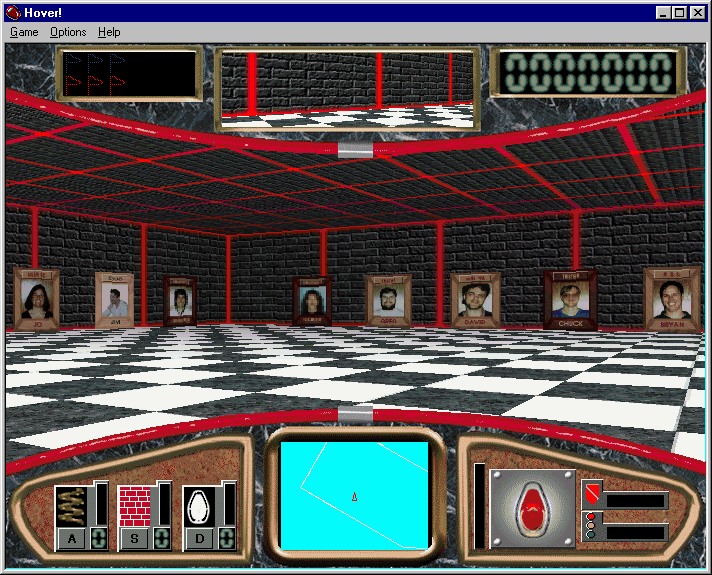
The intro level shown right after the game starts up contains much more than what meets the eye at first. To move around, hold Ctrl and enter the code IBMAB (the project's code name, "Bambi", spelled backwards). The controls will unlock, and you can maneuver around the wall behind you to see pictures of the game's developers.
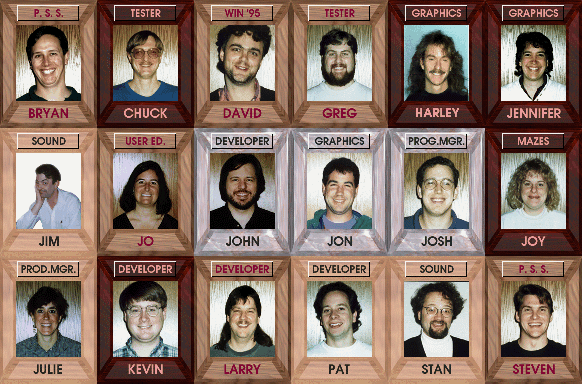
Each developer photo may have one out of four different image borders, but there does not seem to be a meaning behind that, rather than artistic choices. Known developers are:
- Stan LePard (Sound): This was his first game he composed the soundtrack for, after which he contributed to many other Microsoft games & software (such as Halo, and Windows XP's 'title.wma').
- Harley Howe (Graphics): This is his earliest Mobygames credit. He later went on to co-found Cat Daddy Games.
Unused Graphics#
The game's texture files contain two unused placeholder images.
Texture |
Usage |
Notes |
|---|---|---|
 |
|
|
 |
|
Demonstrates the capability of a transparency mask as it is simply the aforementioned floor/ceiling placeholder texture with holes added to it. |
Unused Abilities#
Unused Level Information#
Each level information structure can control how many of each power-up type are placed in a maze. However, the available structures evenly spread each type by placing 4 of each, with some obscured as a question mark, but their type being set properly.
Also, the level array has 21 entries out of which 2 are unused. The default levels are stored in entries 1 to 18, with the game looping between 16 and 18 for any level after 18, and entry 21 storing the splash screen level information. Entries 19 and 20 are unused. The complete table is calculated as follows:
Level |
Pod Counts |
||||
|---|---|---|---|---|---|
# |
Maze1 |
Speed |
Slow |
Map |
Wall |
1 |
1 |
4 |
4 |
4 |
4 |
2 |
2 |
4 |
4 |
4 |
4 |
3 |
3 |
4 |
4 |
4 |
4 |
4 |
1 |
4 |
4 |
4 |
4 |
5 |
2 |
4 |
4 |
4 |
4 |
6 |
3 |
4 |
4 |
4 |
4 |
7 |
1 |
4 |
4 |
4 |
4 |
8 |
2 |
4 |
4 |
4 |
4 |
9 |
3 |
4 |
4 |
4 |
4 |
10 |
1 |
4 |
4 |
4 |
4 |
11 |
2 |
4 |
4 |
4 |
4 |
12 |
3 |
4 |
4 |
4 |
4 |
13 |
1 |
4 |
4 |
4 |
4 |
14 |
2 |
4 |
4 |
4 |
4 |
15 |
3 |
4 |
4 |
4 |
4 |
16 |
1 |
4 |
4 |
4 |
4 |
17 |
2 |
4 |
4 |
4 |
4 |
18 |
3 |
4 |
4 |
4 |
4 |
19 |
1 |
4 |
4 |
4 |
4 |
20 |
2 |
4 |
4 |
4 |
4 |
21 |
S |
0 |
0 |
0 |
0 |
- Where 1=Medieval, 2=City, 3=Sewer, S=Small (splash screen). If random mazes are selected, this column is ignored.
Unused Sounds#
hit_shld.wav#
The sound directories contain a hit_shld.wav which is never played by the game's code. Its internal ID is 19, listed between hitting a robot (20) and a wall (18). Since the sound to place a power-up wall is named shield.wav, this sound was probably meant when hitting such walls, and they mave have looked differently first (more like a shield).
Debugging Material#
Debug Commands#
The final game retains most debugging commands from an early version, which are not accessible through the UI by default, but can be added back with a menu resource editor and the given command IDs:

|
To do: |
Advanced Game Logic Settings#
It is possible to control human and robot car physics, as well as the robot AI settings and additional gameplay parameters.
Even while the dialogs required for this have been removed, the code to use them is still available in the final executable. Thus, to revive the commands listed below, you also need to copy over the dialogs from the 1.0.8.0 executable (with a resource hacking tool) or nothing will happen when invoking the commands.
ID |
Dialog ID |
Description |
|---|---|---|
0x84D2 |
133 |
Set New Position. Teleports and stops the human car there, with the fields "X Position", "Y Position" and "Angle". |
0x84D8 |
148 |
Player Motion Physics. The 11 values have the following meaning, with physics being updated 20 times a second (optimally the same as the frame rate):
|
0x84D9 |
149 |
Drone Motion Physics. The values are described above. |
0x84DC |
130 |
Tuning Paramaters (sic). It sets up the duration of power-up effects as "Speed", "Slow", "God", "Smoke" and "Tmp Wall" and jump physics as "Accel", "Velocity" and "Velocity Deg", but the jump physics seem to have no effect. |
0x84EF |
152 |
Robot AI Tuning Parameters. The 10 values map to the following meanings:
A distance of 500 is approximately the length of a car. |


Alternatively, if you do not want to add dialogs, you can use registry keys to modify these settings externally: They are all read from HKEY_CURRENT_USER\SOFTWARE\Microsoft\Hover! and stored in binary format, representing a sequence of 4-byte integers or floats in order of the above descriptions.
Floating point values are stored in fixed-point packed integer format: They are read like an integer, but then divided by 65536.0 to retrieve the "real" floating value.
Key Name |
Description |
|---|---|
HBegParams |
Controls car physics in Easy mode. |
HIntParams |
Controls car physics in Intermediate mode. |
HExpParams |
Controls car physics in Difficult mode. |
RBegParams |
Controls car physics of the opponents in Easy mode. |
RIntParams |
Controls car physics of the opponents in Intermediate mode. |
RExpParams |
Controls car physics of the opponents in Difficult mode. |
RobotAIBegParams |
Flags to control opponent behavior, in Easy mode. |
RobotAIIntParams |
Flags to control opponent behavior, in Intermediate mode. |
RobotAIExpParams |
Flags to control opponent behavior, in Difficult mode. |
The following script can be used to create the keys with default values:
Windows Registry Editor Version 5.00
[HKEY_CURRENT_USER\SOFTWARE\Microsoft\Hover!]
"HBegParams"=hex:00,00,01,00,34,F3,FF,FF,00,00,32,00,00,00,00,00,00,80,00,00,33,33,00,00,\
  33,33,00,00,F5,A8,00,00,7A,54,01,00,99,19,00,00,00,00,05,00
"HIntParams"=hex:00,00,03,00,71,FD,FF,FF,00,00,41,00,00,00,00,00,00,80,00,00,CC,4C,00,00,\
  CC,4C,00,00,00,80,00,00,7A,54,01,00,66,06,00,00,00,00,07,00
"HExpParams"=hex:00,00,05,00,BF,FF,FF,FF,00,00,4B,00,00,00,00,00,00,80,00,00,00,80,00,00,\
  66,66,00,00,66,66,00,00,7A,54,01,00,8F,02,00,00,00,00,0F,00
"RBegParams"=hex:00,00,01,00,71,FD,FF,FF,00,00,28,00,00,00,14,00,CC,CC,00,00,CC,CC,00,00,\
  CC,4C,00,00,F5,A8,00,00,7A,54,01,00,66,06,00,00,00,00,05,00
"RIntParams"=hex:00,00,01,00,71,FD,FF,FF,00,00,32,00,00,00,14,00,CC,CC,00,00,CC,CC,00,00,\
  CC,4C,00,00,F5,A8,00,00,7A,54,01,00,66,06,00,00,00,00,05,00
"RExpParams"=hex:00,00,01,00,71,FD,FF,FF,00,00,3C,00,00,00,14,00,CC,CC,00,00,CC,CC,00,00,\
  CC,4C,00,00,F5,A8,00,00,7A,54,01,00,66,06,00,00,00,00,05,00
"RobotAIBegParams"=hex:00,80,01,00,3C,00,00,00,66,66,00,00,1E,00,00,00,0F,00,00,00,88,13,00,00,\
  88,13,00,00,88,13,00,00,64,00,00,00,03,00,00,00
"RobotAIIntParams"=hex:00,80,01,00,3C,00,00,00,66,66,00,00,1E,00,00,00,0F,00,00,00,58,1B,00,00,88,\
  13,00,00,88,13,00,00,64,00,00,00,04,00,00,00
"RobotAIExpParams"=hex:00,80,01,00,3C,00,00,00,66,66,00,00,1E,00,00,00,0F,00,00,00,10,27,00,00,88,\
  13,00,00,88,13,00,00,64,00,00,00,04,00,00,00
If you also do not feel comfortable editing the registry, the HoverHack tool can be used which simulates the settings dialogs and creates the registry keys for you.
Floor Pad Commands#
The square traps on the floor in every maze can be tested more detailedly with the following commands:
ID |
Description |
|---|---|
0x84DB |
Hold pad test. Allows movement while driving over them, with car being lowered. |
0x84ED |
Hold pad test. Totally disables any effect when driving over them. |
0x84EE |
Flag remover pad test. Removes all collected flags and places them back in the maze. |
Mini Map Commands#

The mini map can display additional information at full window size to debug the maze design and its drawing functionality.
ID |
Description |
|---|---|
0x84D5 |
The mini map covers the complete window. All walls are constantly visible. This does not work in fullscreen mode. Resizing the window ends this mode. |
0x84D7 |
Mini map displays robot beacons (waypoints) and routes to them. Robots move from one waypoint to another, unless they target either you (green robots), a flag (blue or yellow robots), or are currently recovering from having been hit. If a beacon is marked with a square around it, a robot is currently targeting and driving towards it. |
Palette Commands#
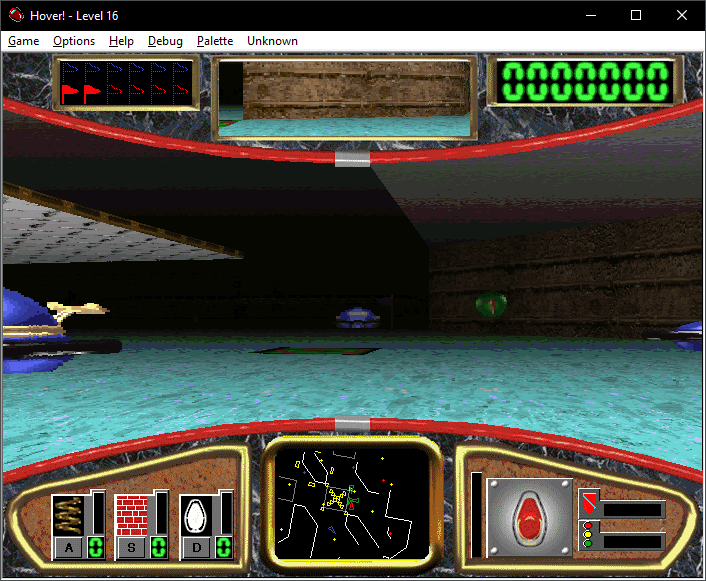
Hover is fading distant objects to a specific color (fog) which can be modified with the following commands. Note that these commands can be applied repeatedly to strengthen the effects.
ID |
Description |
|---|---|
0x84E5 |
Decrease brightness. |
0x84E6 |
Increase red amount. |
0x84E7 |
Decrease red amount. |
0x84E8 |
Increase blue amount. |
0x84E9 |
Decrease blue amount. |
0x84EA |
Increase green amount. |
0x84EB |
Decrease green amount. |
0x84EC |
Increase brightness. |
Power-up Commands#
The following commands yield a specific power-up each, as if the corresponding pod (green sphere) was collected. Note that using these commands in the above mentioned developer maze does not work, and causes them to no longer function for the remainder of the game.
ID |
Power-up |
|---|---|
0x84DD |
Jump |
0x84DE |
Cloak |
0x84DF |
Wall |
0x84E0 |
Slow |
0x84E1 |
Speed |
0x84E2 |
Shield |
0x84E3 |
Map Eraser |
Status Bar Commands#
A status bar at the bottom of the game's window (does not work in fullscreen) can be displayed through multiple commands, displaying the following information (from left to right): 
- The X coordinate of the human car (updated every 3 seconds).
- The Y coordinate of the human car (updated every 3 seconds).
- The height of the human car (updated every 3 seconds).
- The current frames per second and the desired FPS (updated every 3 seconds).
- The width of the game resolution, in pixels.
- WALL if the human car is colliding with a wall.
- POD if the human car is colliding with a power up bubble or an opponent team's flag.
- FLOOR if the human car is colliding with raised or lowered steps, or a floor pad.
- CAR if the human car is colliding with other cars.
ID |
Description |
|---|---|
0x8033 |
Shows the status bar, covering a tiny bottom of game view until the window is resized. |
0x84DA |
Shows the status bar, but also resizes the window to not make it overlap the game view. This always causes the window to switch to the nearest lower resolution. |
Other Commands#
The following commands control audio or video internals of the game:
ID |
Description |
|---|---|
0x8035 |
Opens the debug control dialog of the integrated WavMix32 sound mixer. |
0x84F0 |
Only enabled when the game is run in a 640x480 resolution window. Switches between the half-resolution 320x240 (default fullscreen) or native 640x480 graphics. |
0x84F2 |
No effect, the code was removed, but the command is still bound. |

Debug Messages#
The game may write any of the following lines to the debug output when loading data or logging system events:
Trashing Heap
Blowing floor heap
Blowing fixed memory heap.  Increase MAXTEXTURESIZE in CTexture.h and re-compile.
ScreenSaver Starting...
Disabling Screen Saver
Allowing Screen Saver|
Introduced in Windows 1.0 |
|
|---|---|
|
Introduced in Windows 3.x |
Hearts (1993) (Prototypes) • Minesweeper (1990) (Prototypes) • Solitaire (1990) (Prototypes) |
|
Introduced in Windows 95 |
|
|
Introduced in Windows 2000 |
3D Pinball: Space Cadet (Prototypes) • Spider Solitaire (1998) (Prototype) |
|
Introduced in Windows XP |
|
|
Introduced in Windows Vista |
Chess Titans (Prototypes) • FreeCell (2007) • Hearts (2007) • Mahjong Titans (Prototypes) • Minesweeper (2007) (Prototypes) • Purble Place (Prototypes) • Solitaire (2007) • Spider Solitaire (2007) |
|
Introduced in Windows 8 Developer Preview |
|
|
Introduced in Windows 10 |
|
|
Other |
|
|
See Also | |