
|
To do:
|
Farming Simulator 2008 may fool some into thinking it was a title released for the Sega Dreamcast, due to its scrappy and out of touch graphics. But unlike the said graphics, the gameplay idea was quite revolutionary for the tractor/farming simulation genre.
Debug Tools#
A handful of debugging tools of various uses are present in the game. To use them, you need to activate the development controlsby going to Appdata\Roaming\FarmingSimulator2008\game.xml and under
Debug keybindings#
Some debugging tools are activated through a keybind. Those tools are the following:
Console#
Pressing ~ opens the game's console. 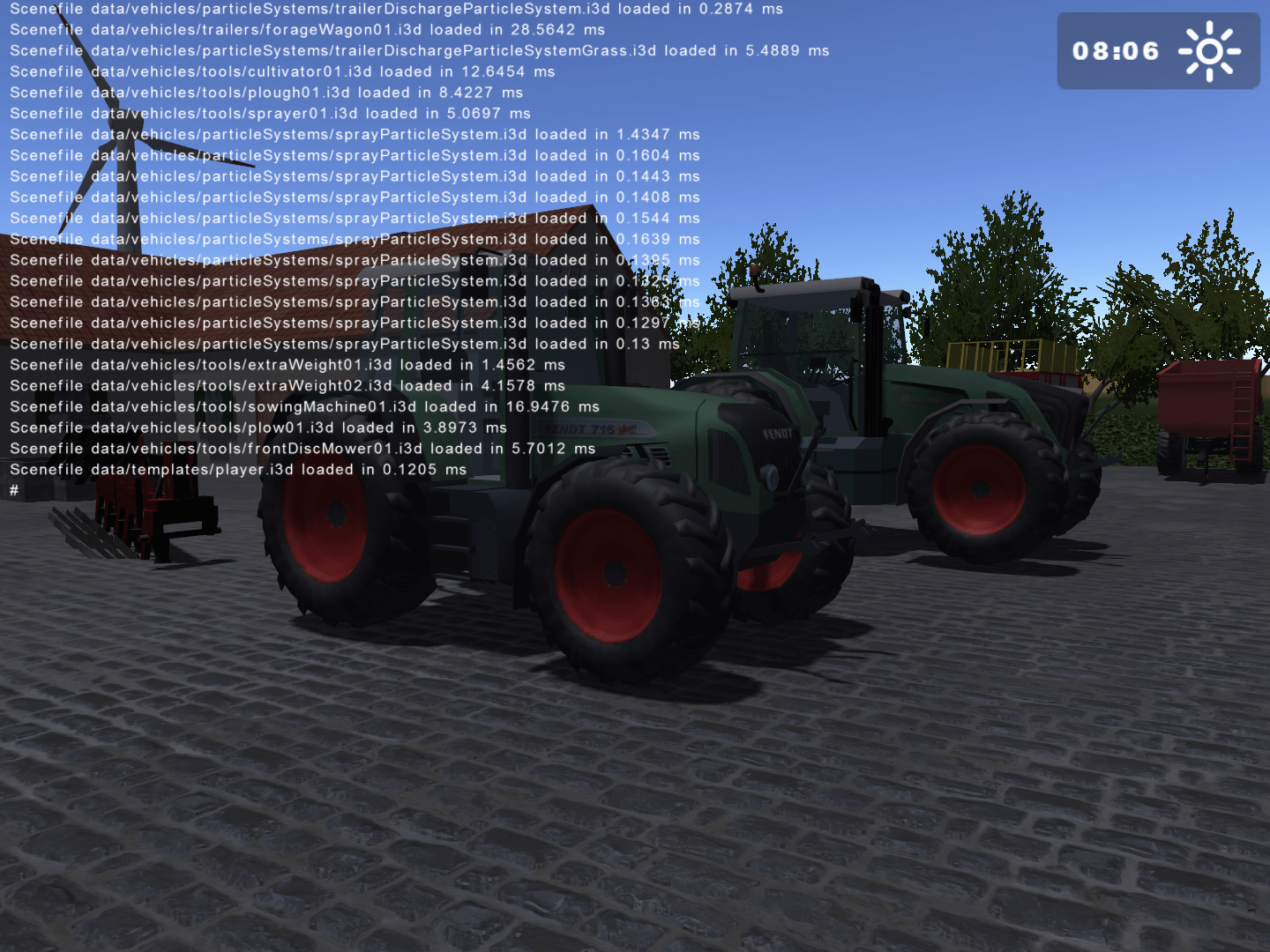
FPS Counter#
By pressing F2, an FPS counter is toggled in the top right corner of the screen. This counter is overlapping with the in-game clock, hence it may be quite hard to read. This keybind has the same functionality as the show_fps console command. 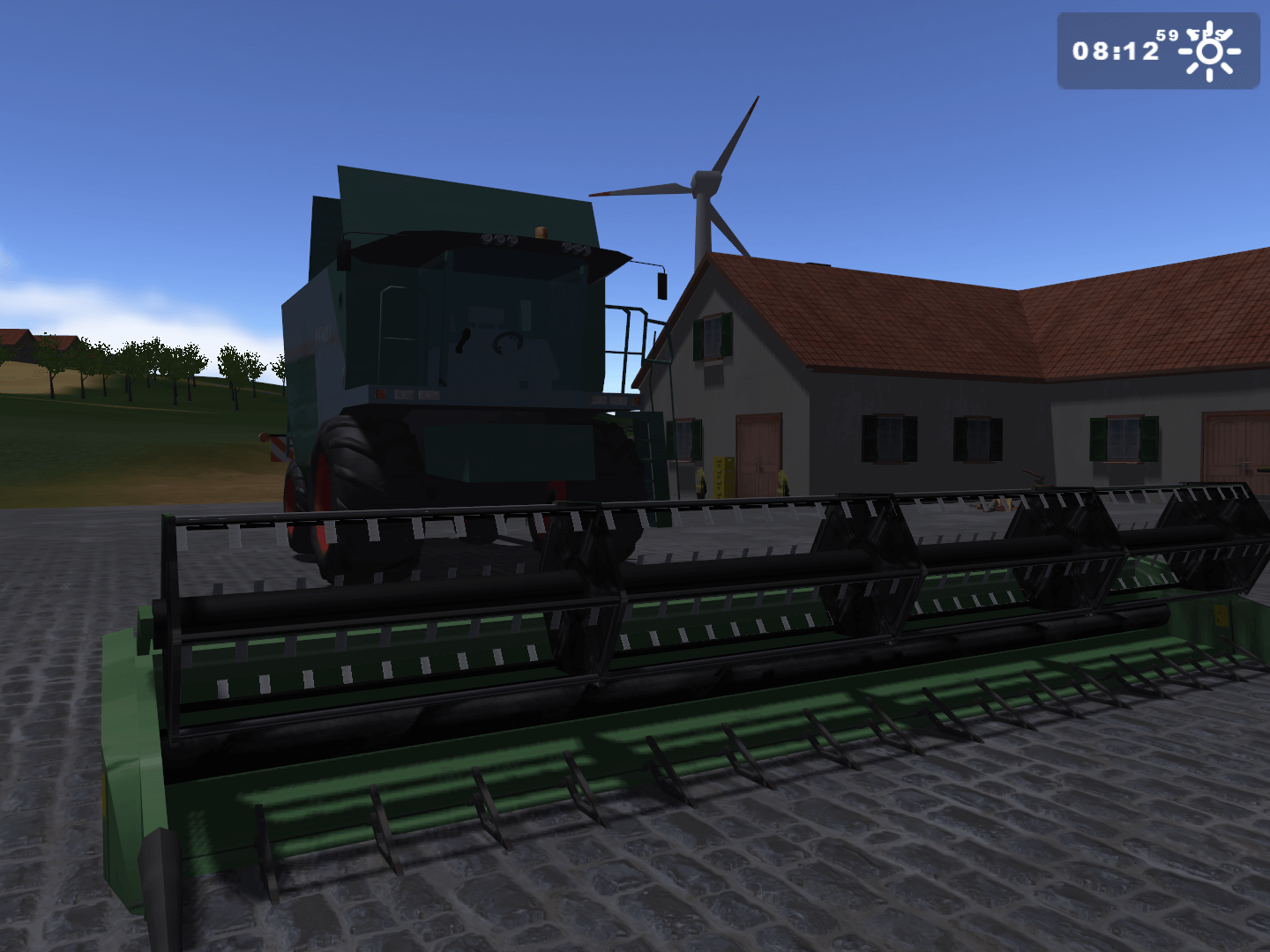
Play animations#
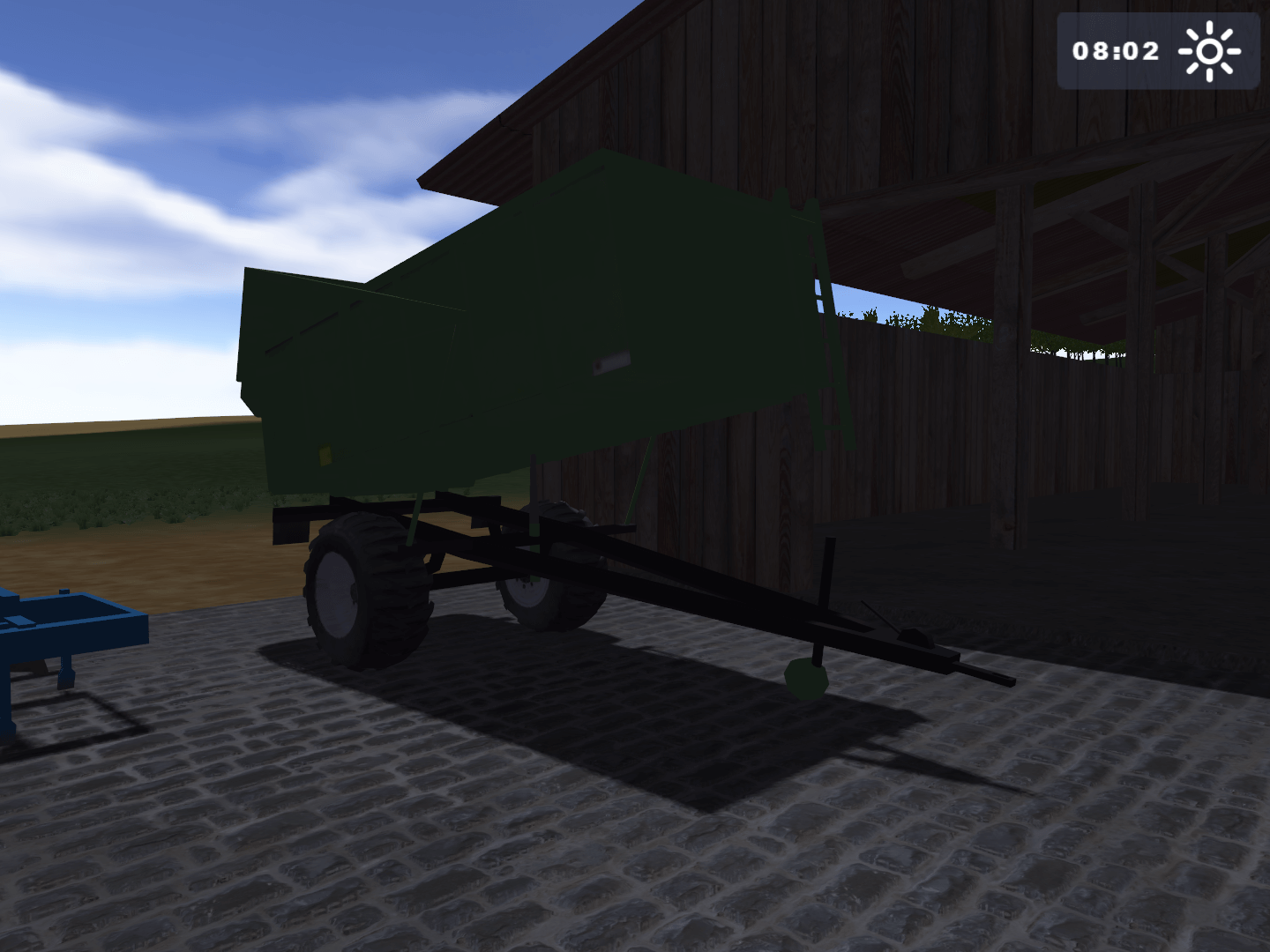
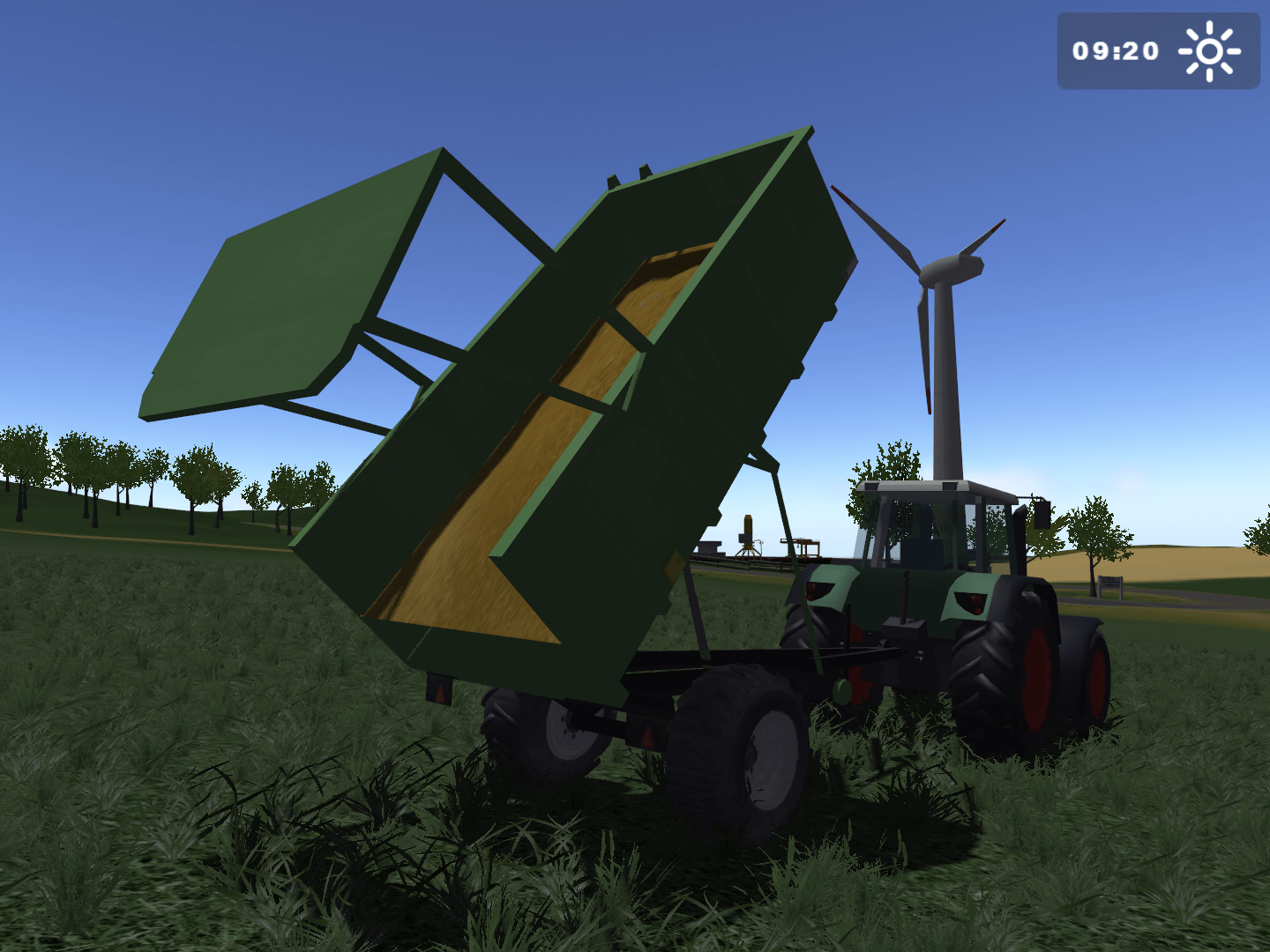
Pressing F3 plays all animations present in the loaded savegame, most notably on tippers.
Wireframe renders#
Pressing F4 renders wireframes of every rendered 3D model. 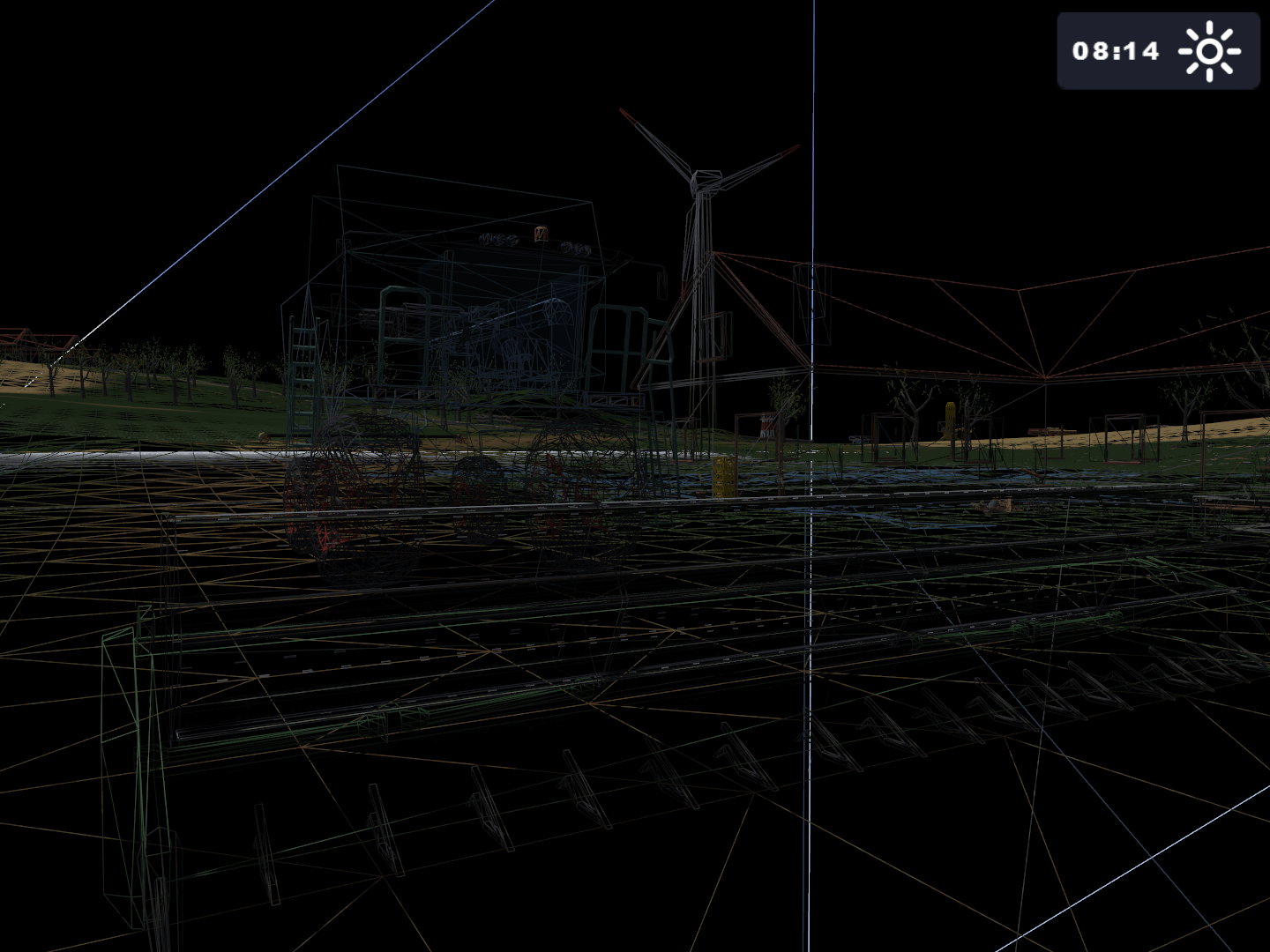
Light sources, collision bounds and unknown property rendering#

|
This needs some investigation. |
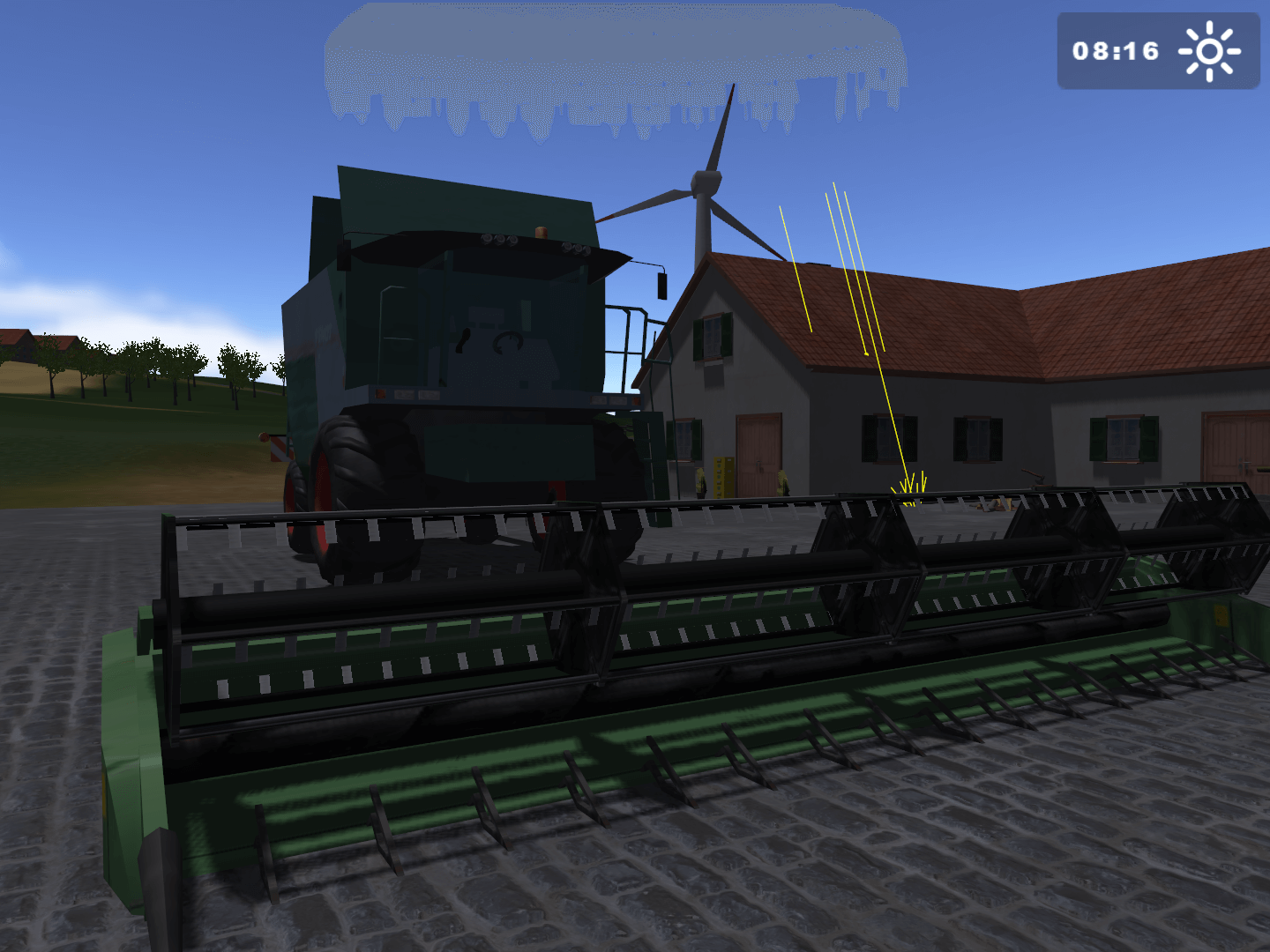
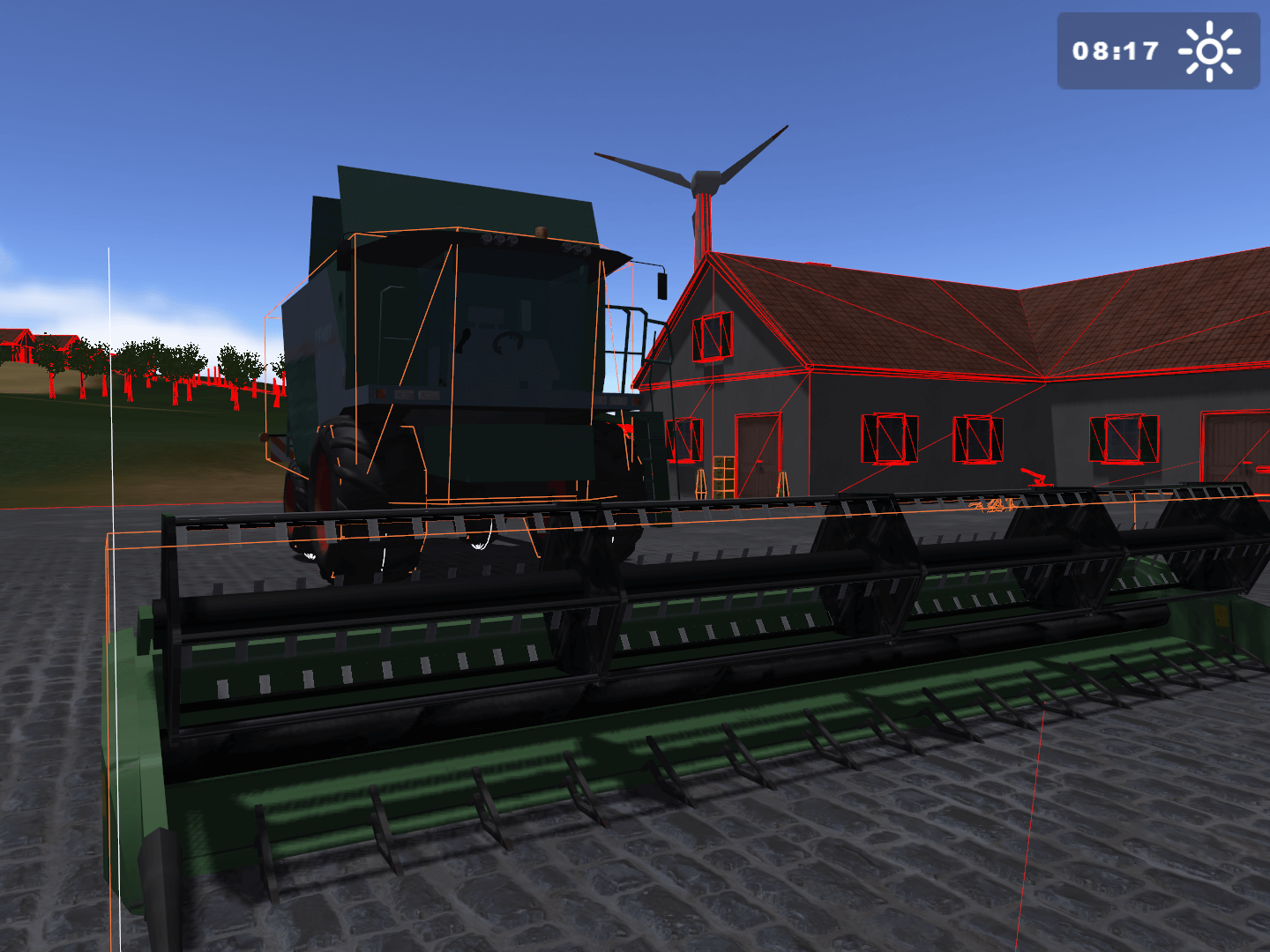
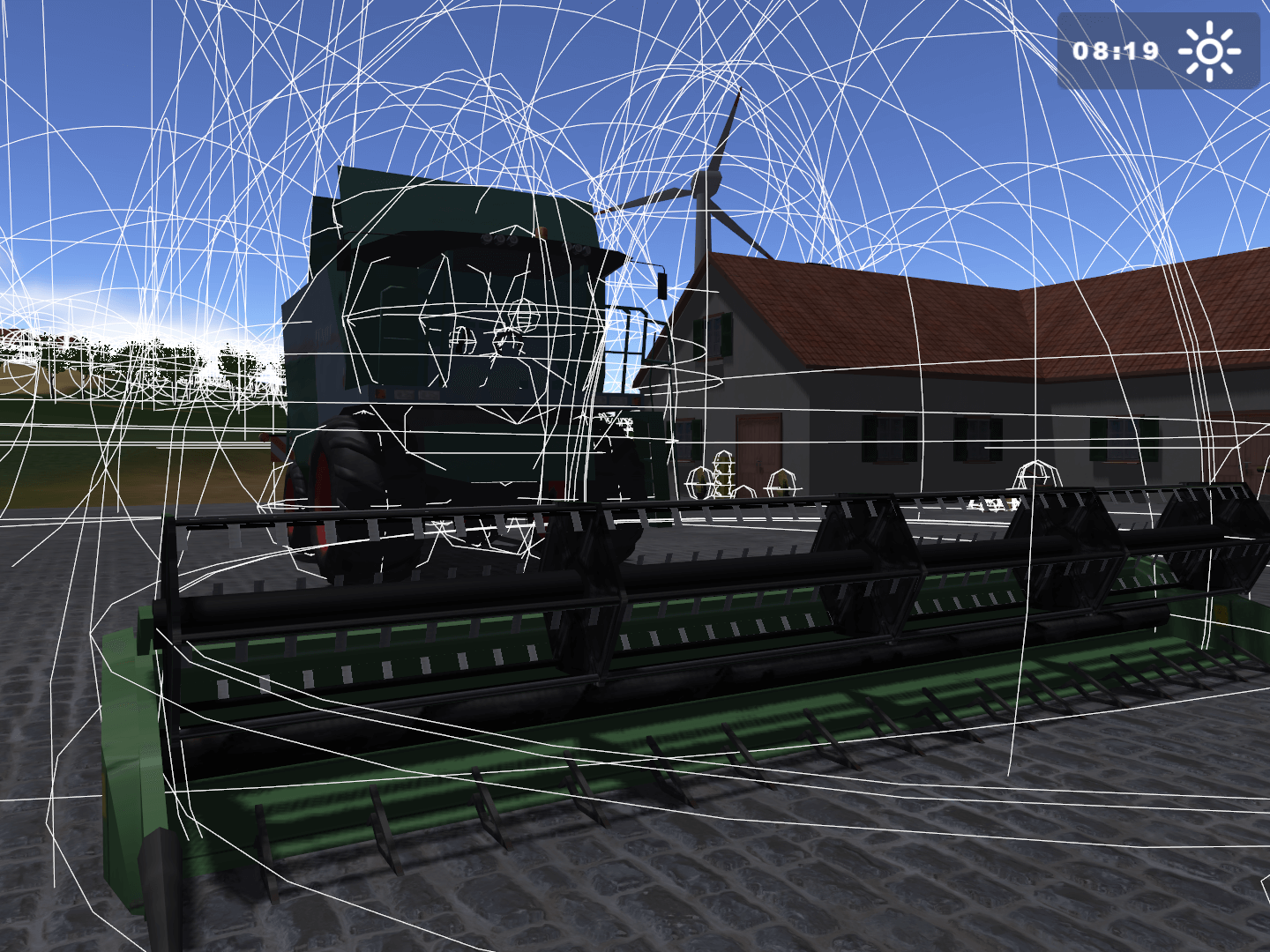
Pressing F5 cycles through three debug-related renders:
Various map cameras#
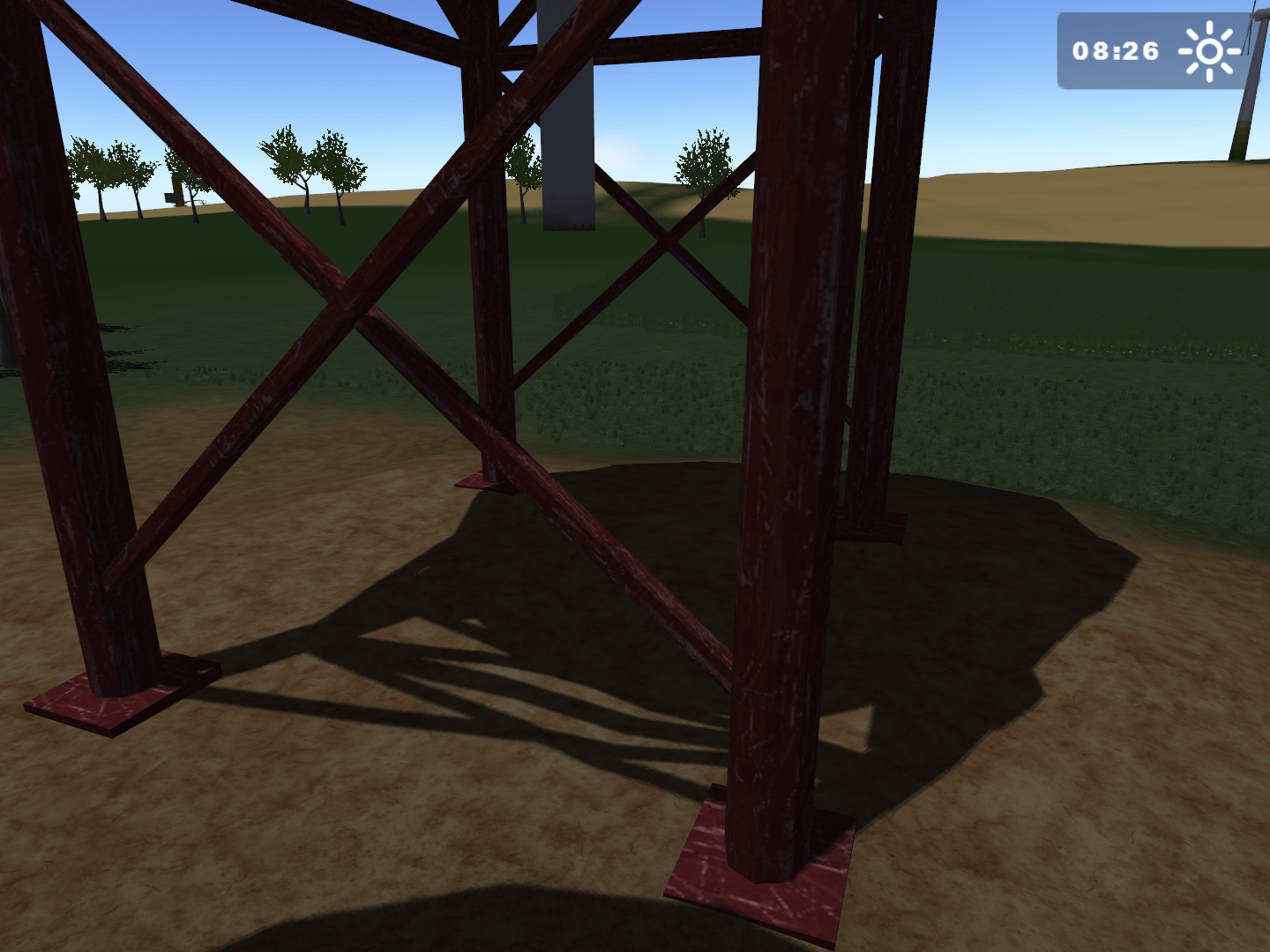
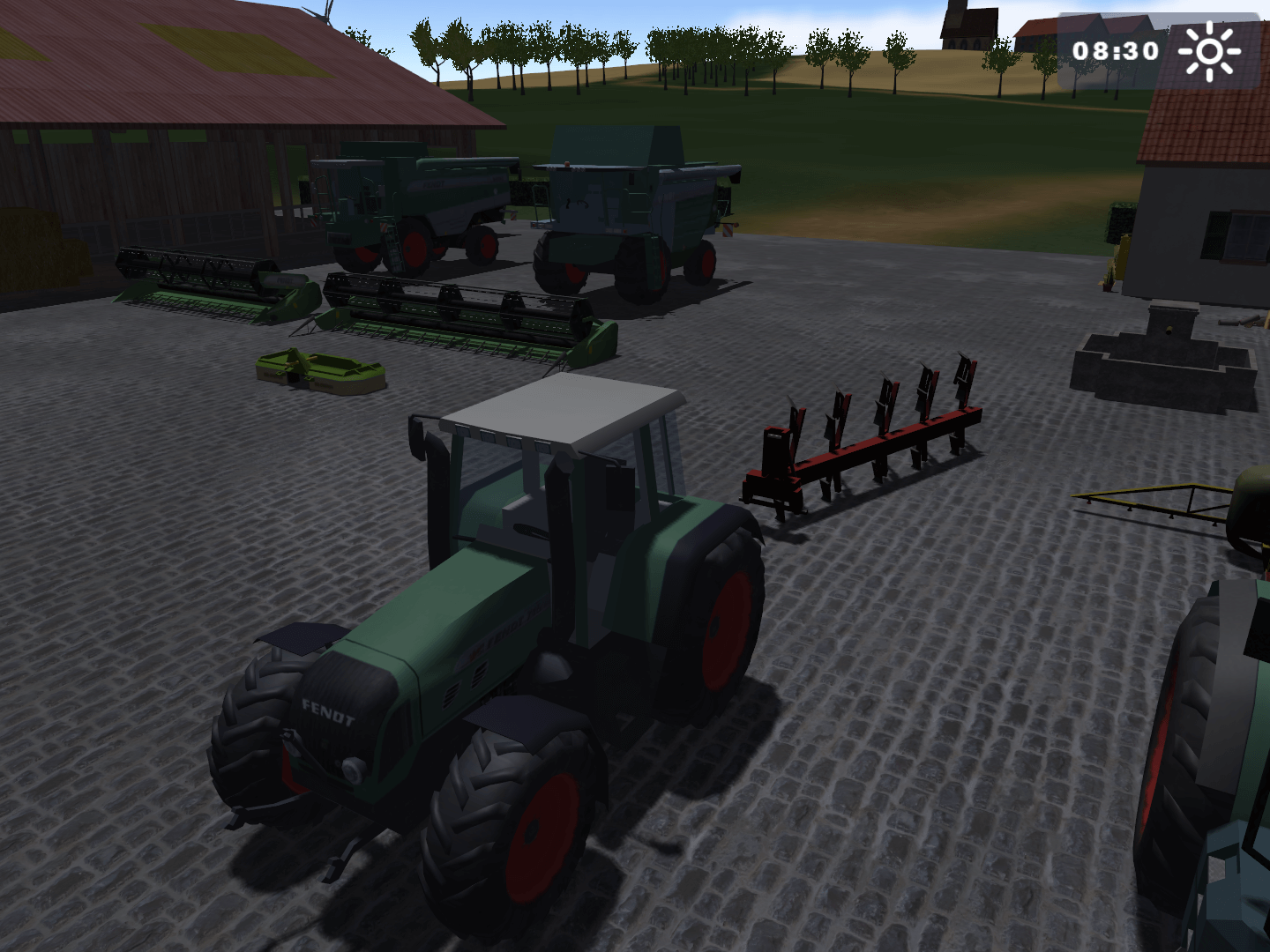
When being outside a vehicle and pressing F7, the player can scroll through every present camera view in this order:

Various savegame stats#
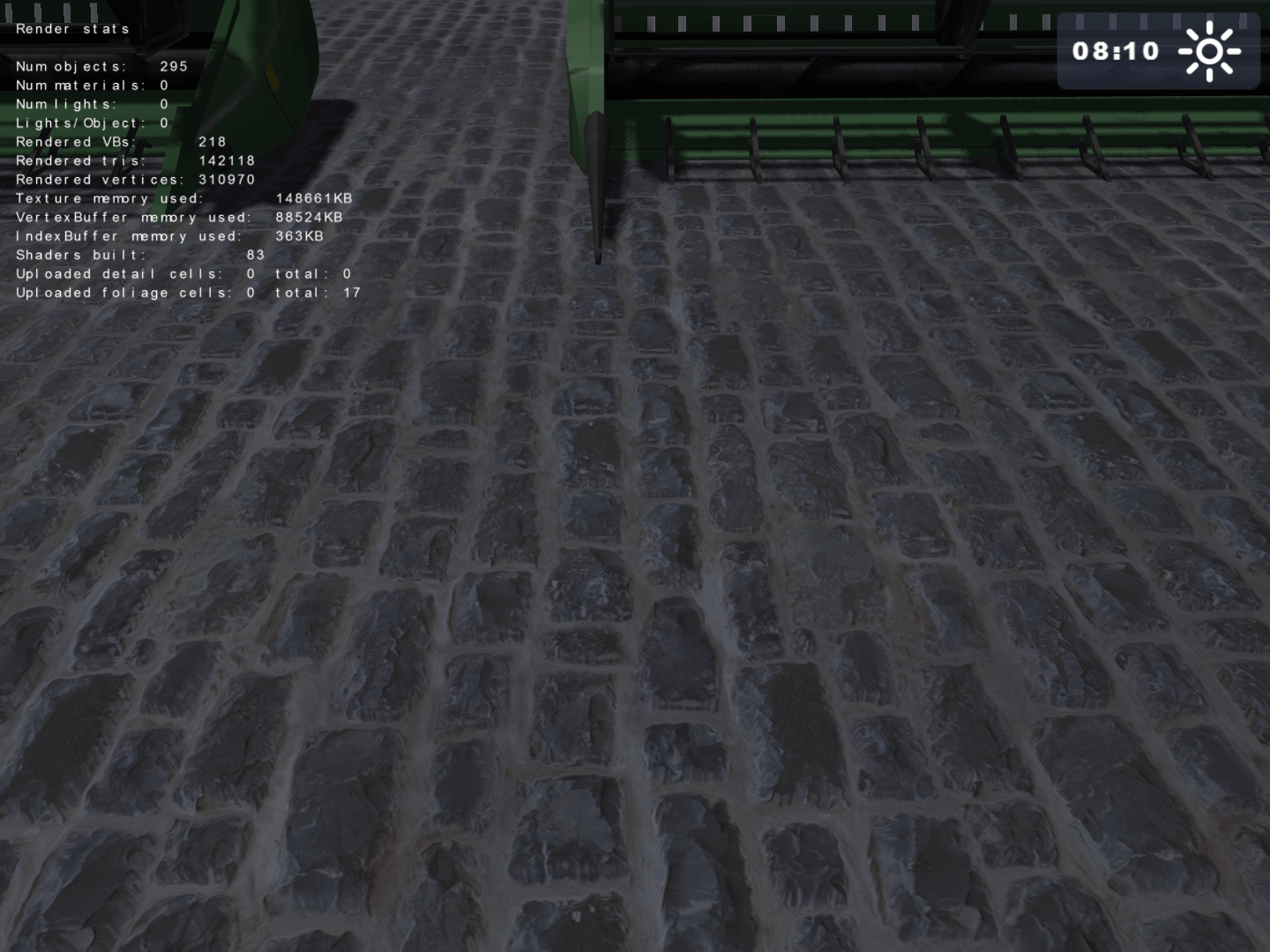
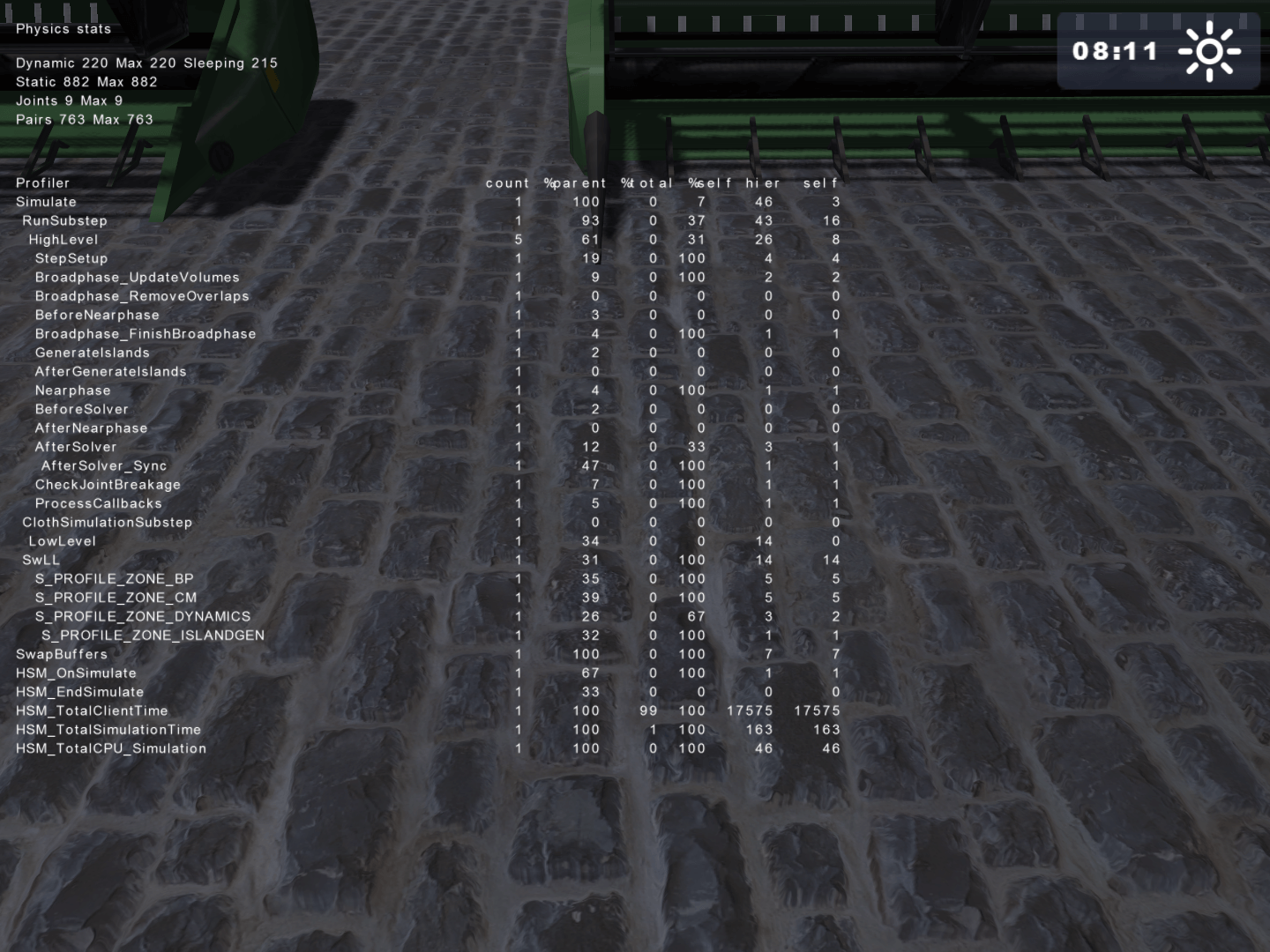
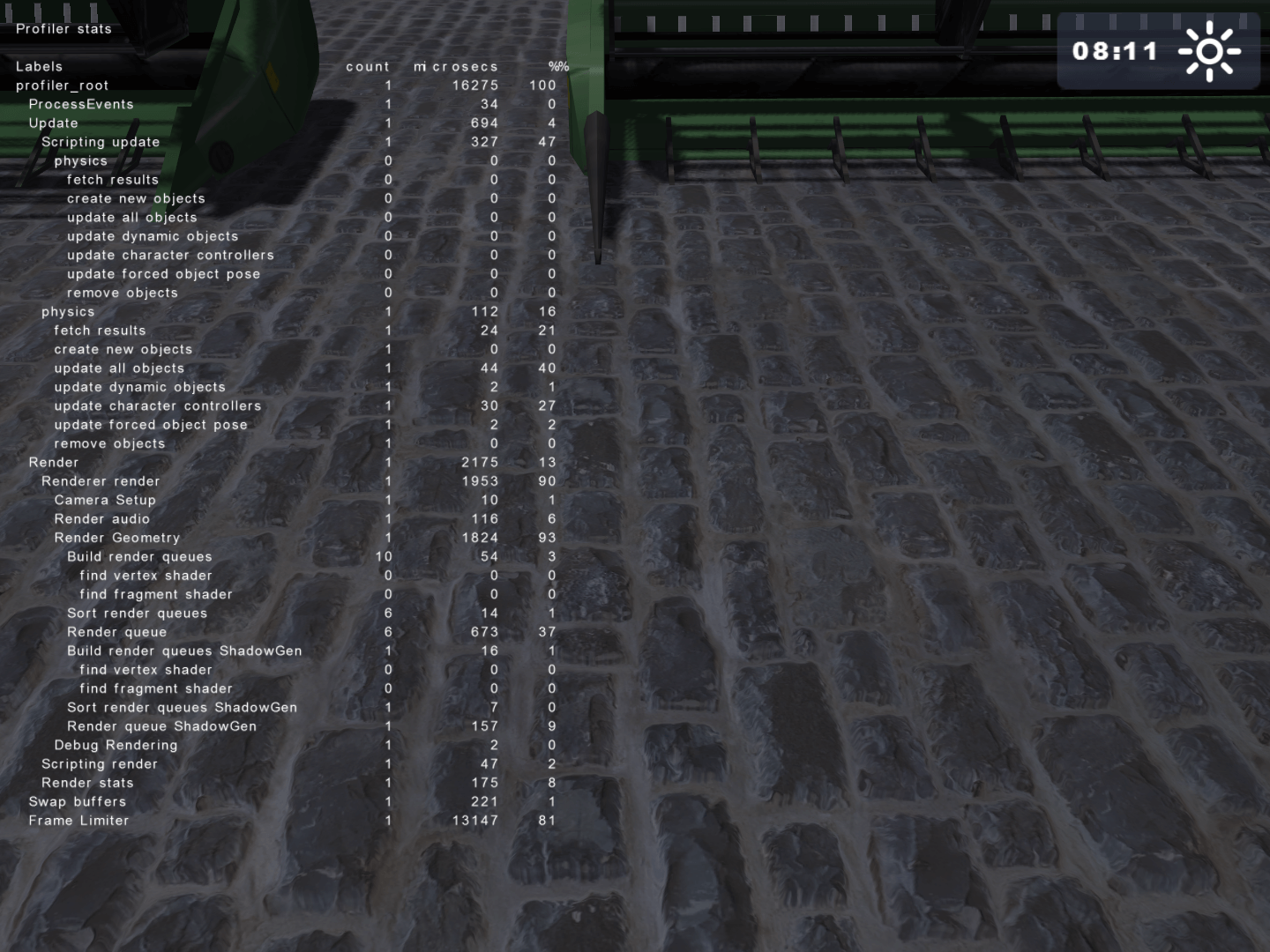
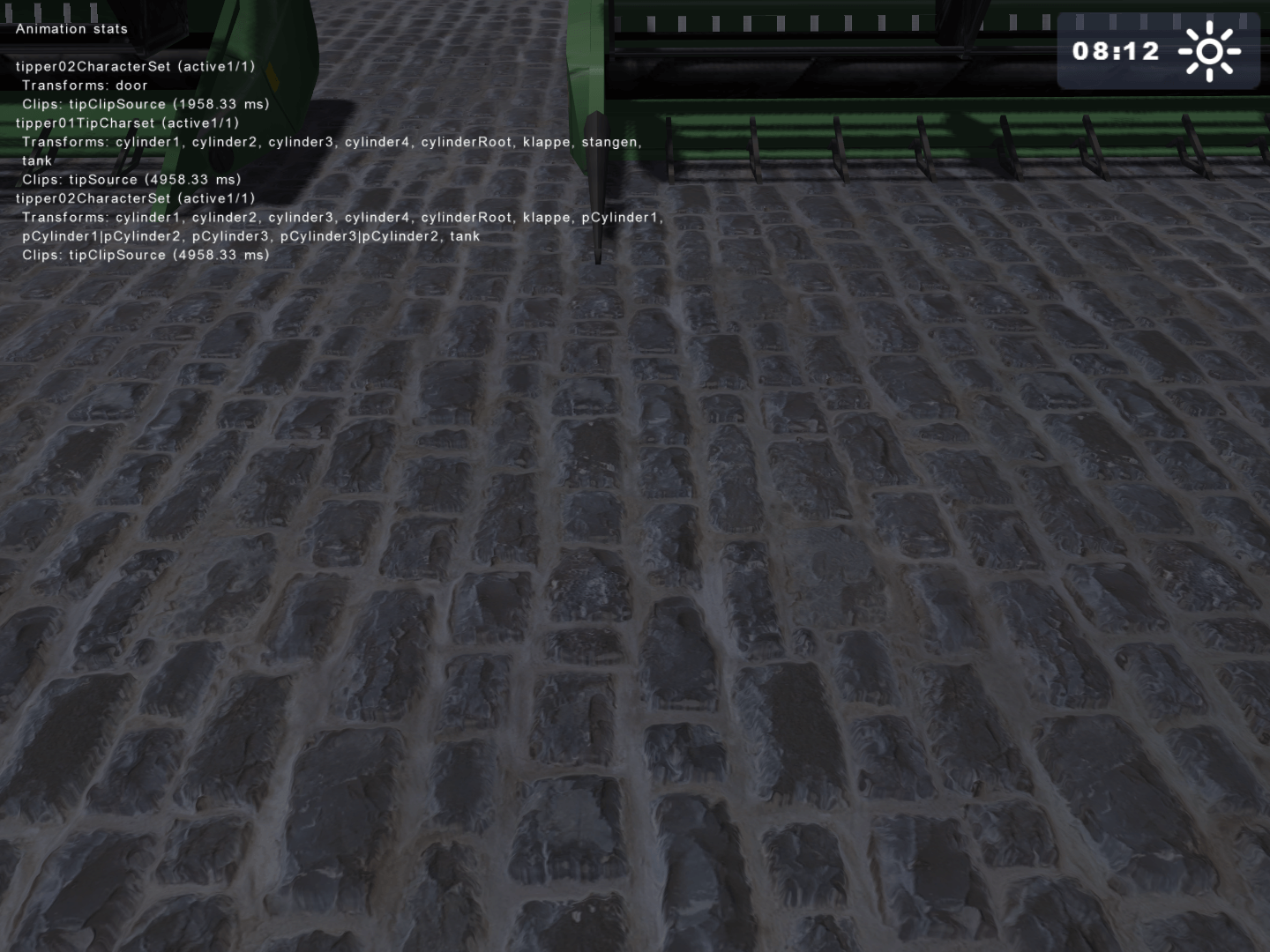
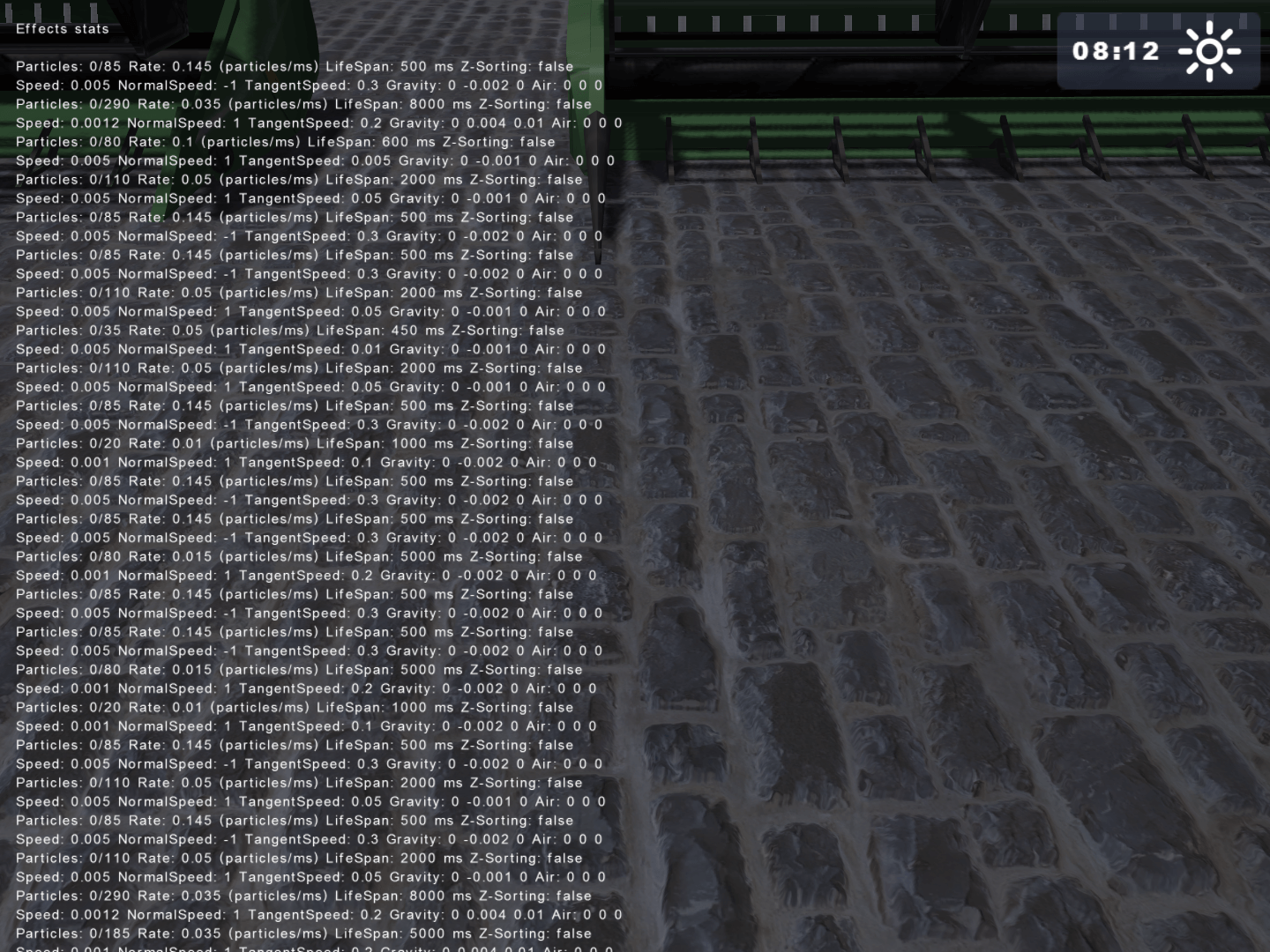
Pressing F9 allows you to scroll through various statistics related to the loaded savegame. The viewable stats are the following:
- Rendering stats.
- Physics stats.
- Profiler stats.
- Animation stats.
- Effect stats.
Connect to NVIDIA PhysX Visual Debugger#
Pressing F9 connects the game to an open Ageia/Nvidia PhysX Visual Debugger window. 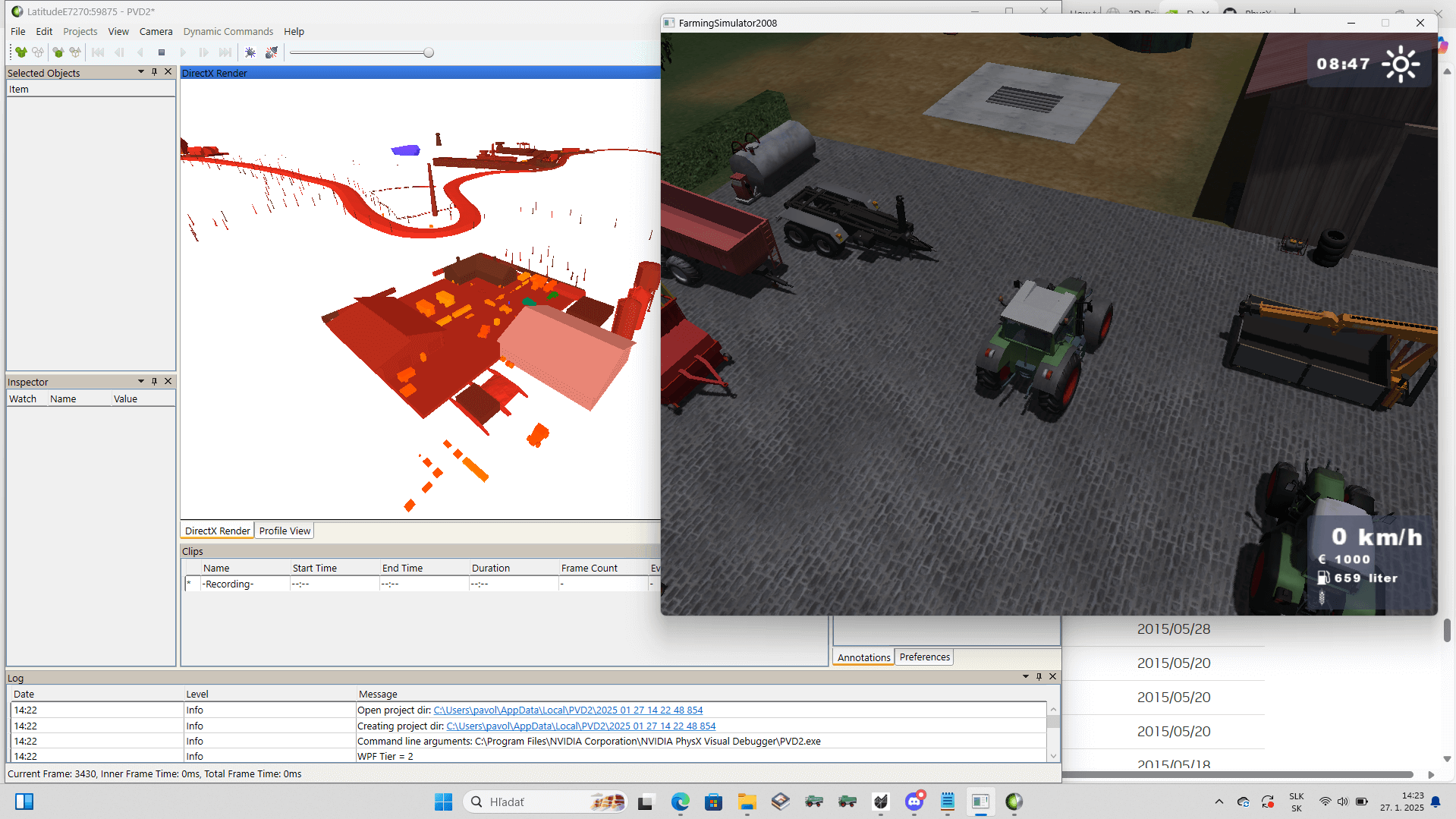
(Source: Morc)
Save/update profiler.csv#
Pressing F12 saves or updates the profiler.csv file found in the game's installation folder.
Console Commands#
|
|
This needs some investigation. |
Upon opening the console, starting a line with ~, and pressing Tab ↹, the player can scroll through a selection of debugging commands. The commands are executed by pressing ↵ Return. The available commands are the following: 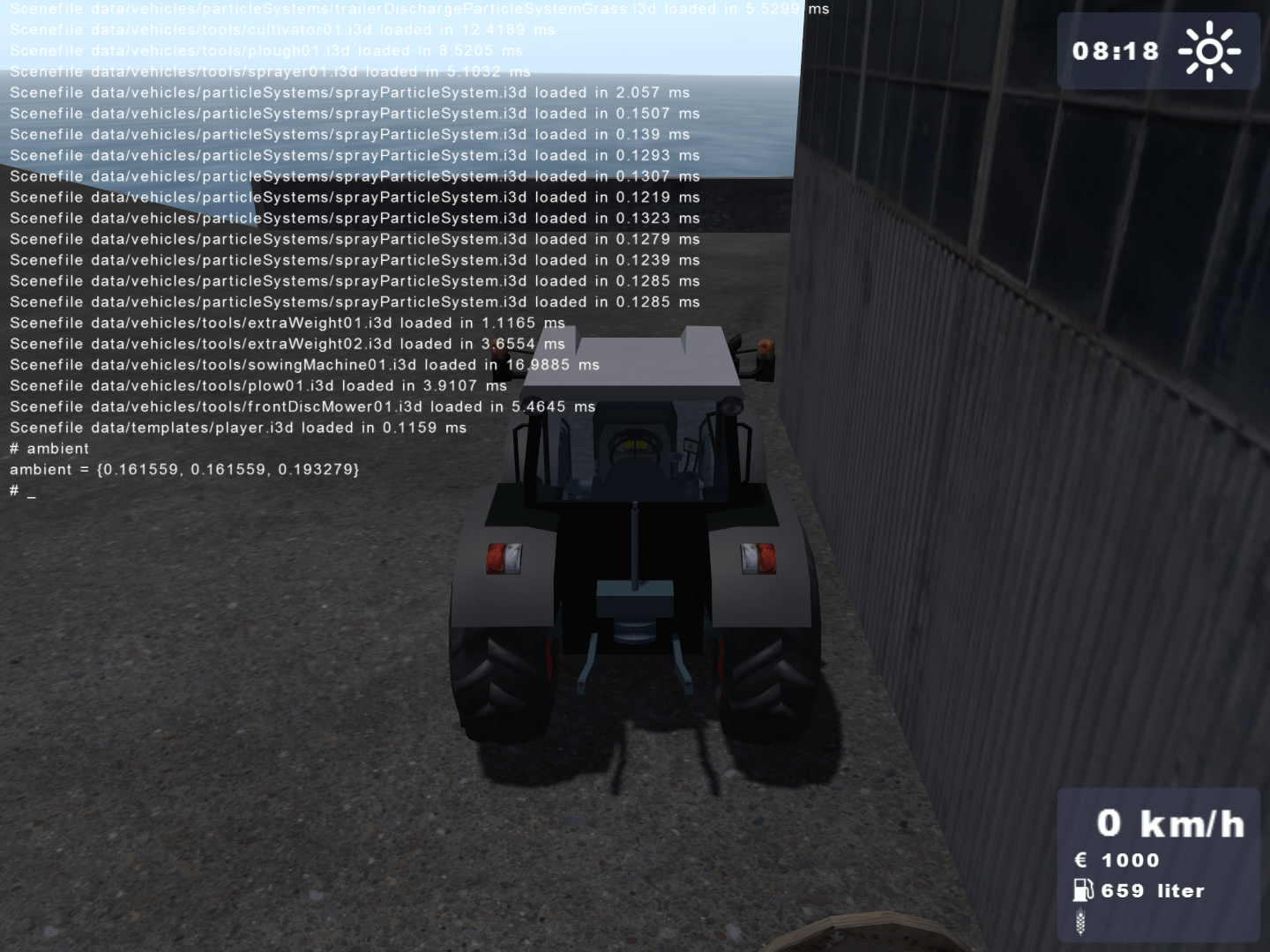
ambient#
Lists the 0-1 RGB value of the present world lighting.
enableFramerateLimit#
Enables a set framerate limit. This same command can also be activated through the F3 keybind.
exit, q and quit#
Closes the game.
framerateLimitFPS#
Sets an input framerate limit.
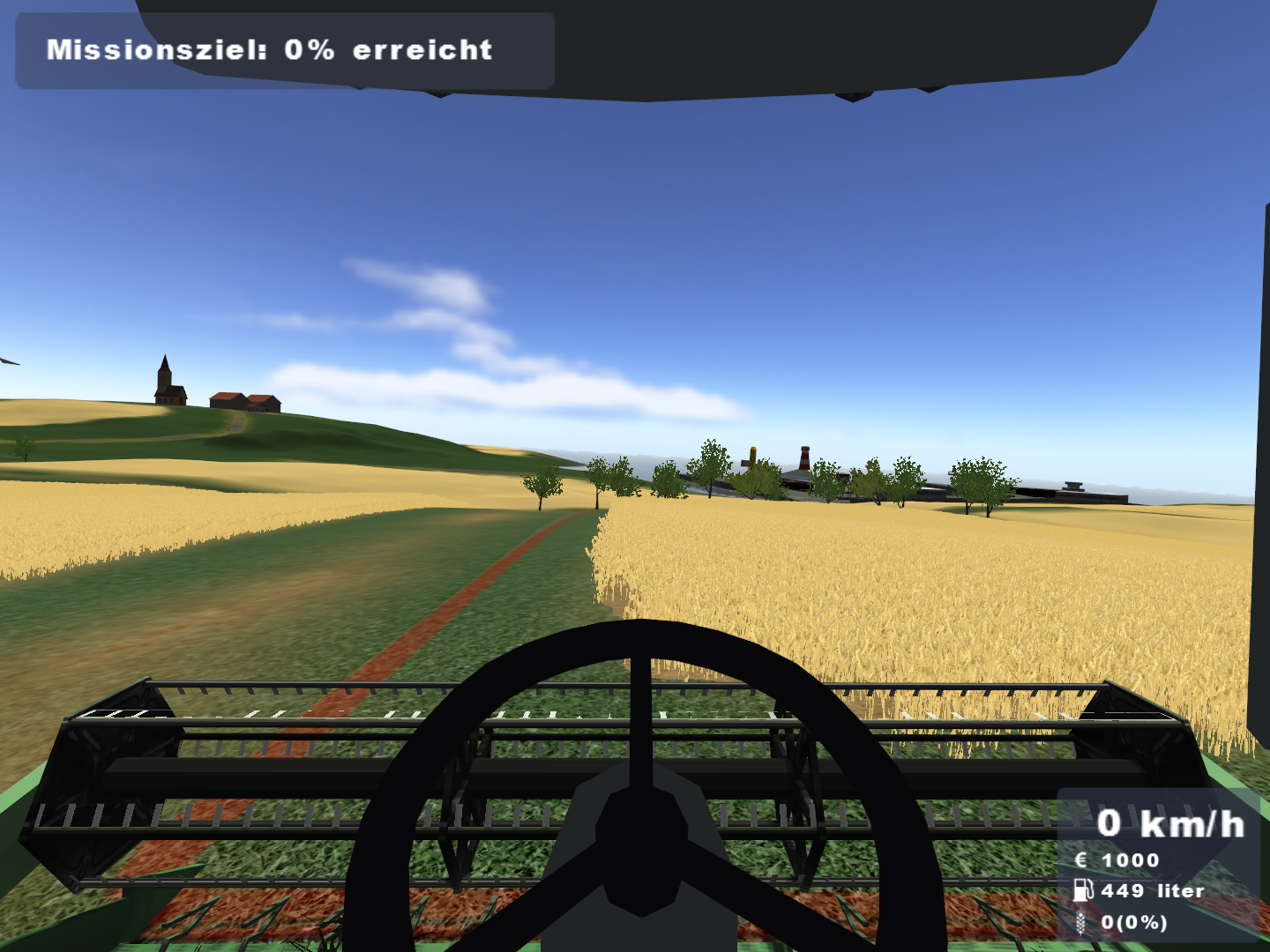
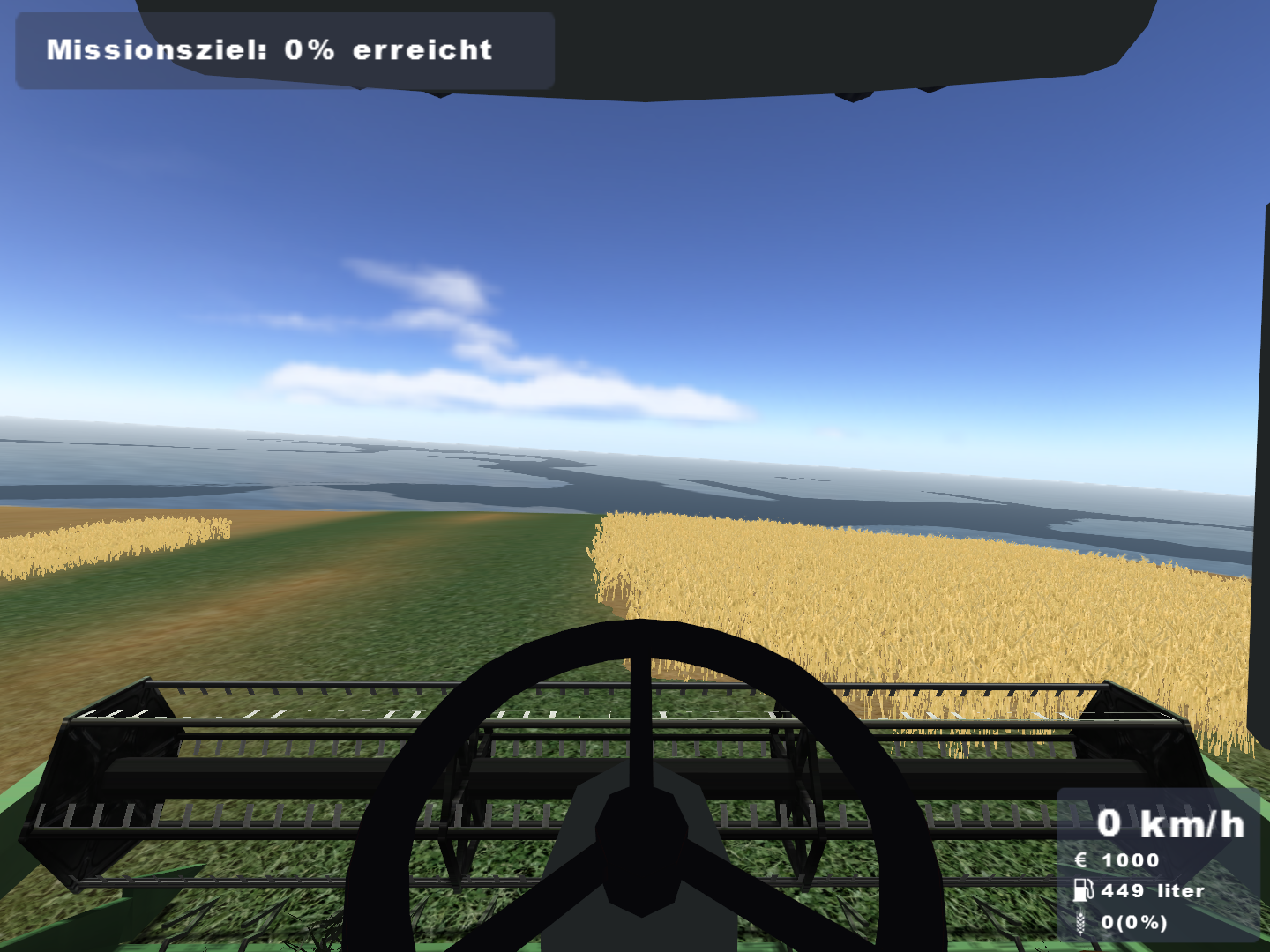
globalClipDistance#
Changes the global clipping/rendering distance.
|
The normal culling distance. |
The culling distance set to 1. |
|---|---|
|
|
globalCullOverride#
Toggles culling. (Enables and disables the rendering of unseen geometry.)
listEntities#
Prints a list of all entities present in the loaded savegame.
listResources#
Prints a list of the sources of all entities present in the loaded savegame.
parallelRenderingAndPhysics#
Toggles parallel rendering and physics (switches the rendering and physics processes to run on different CPU threads).
profilerSaveHistory#
Enables/disables profiler.csv saving.
reload#
Reloads a resource with given name.
reloadAll#
Reloads all resources with the same given type.
showControlMeshSubds#
Something currently unknown.
show_fps#
Toggles the FPS counter. This same command can also be activated through the F2 keybind.
sortGeometry#
Sorts render queue by material sort ID.
subdsLevelOverride#
Something currently unknown, likely related to the terrain model's subdivisions.
subdsMaxLevel#
Something currently unknown, likely related to the maximum level of subdivisions the terrain model can have.
Unused Bergmann HTW trailer#
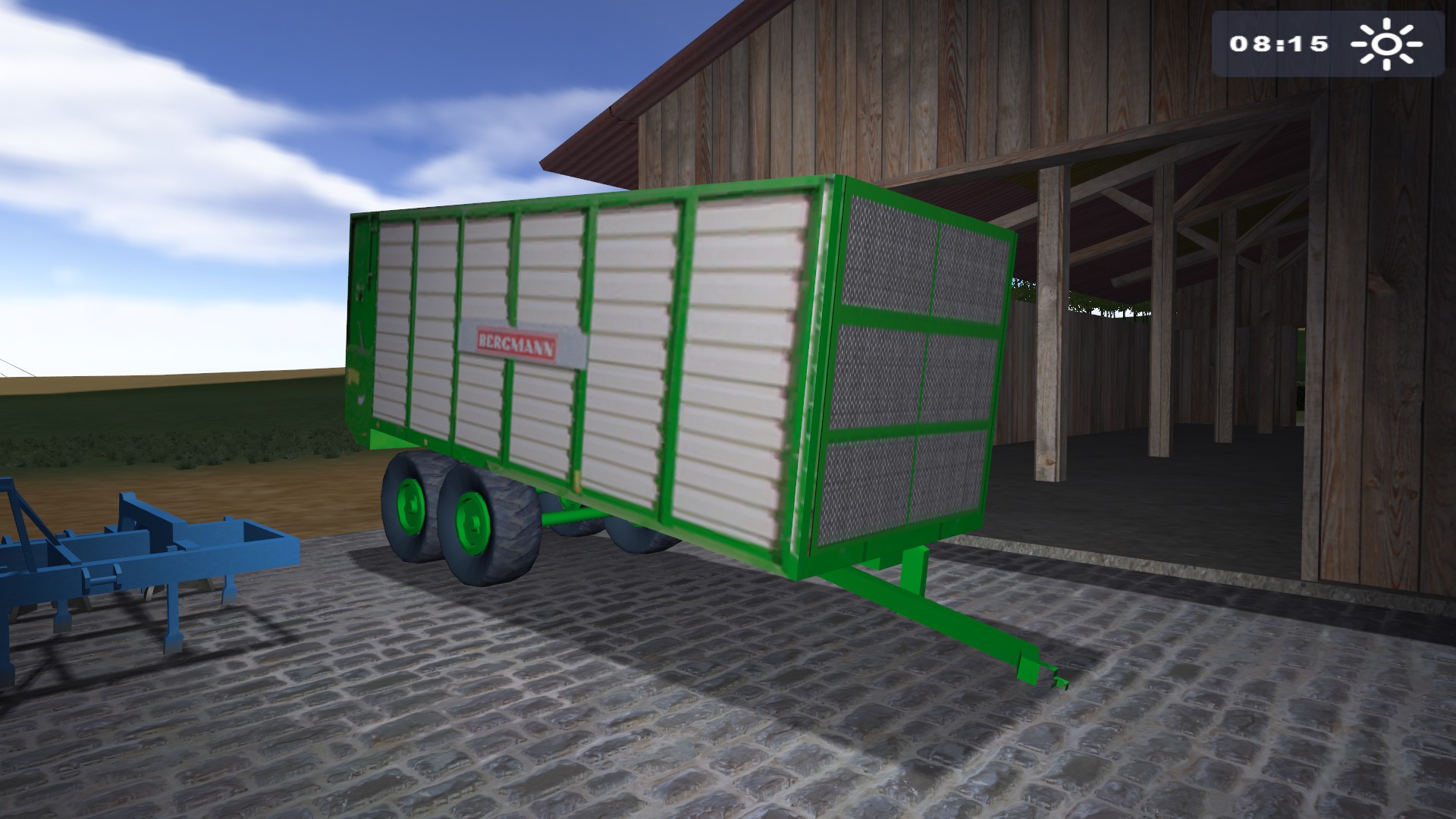
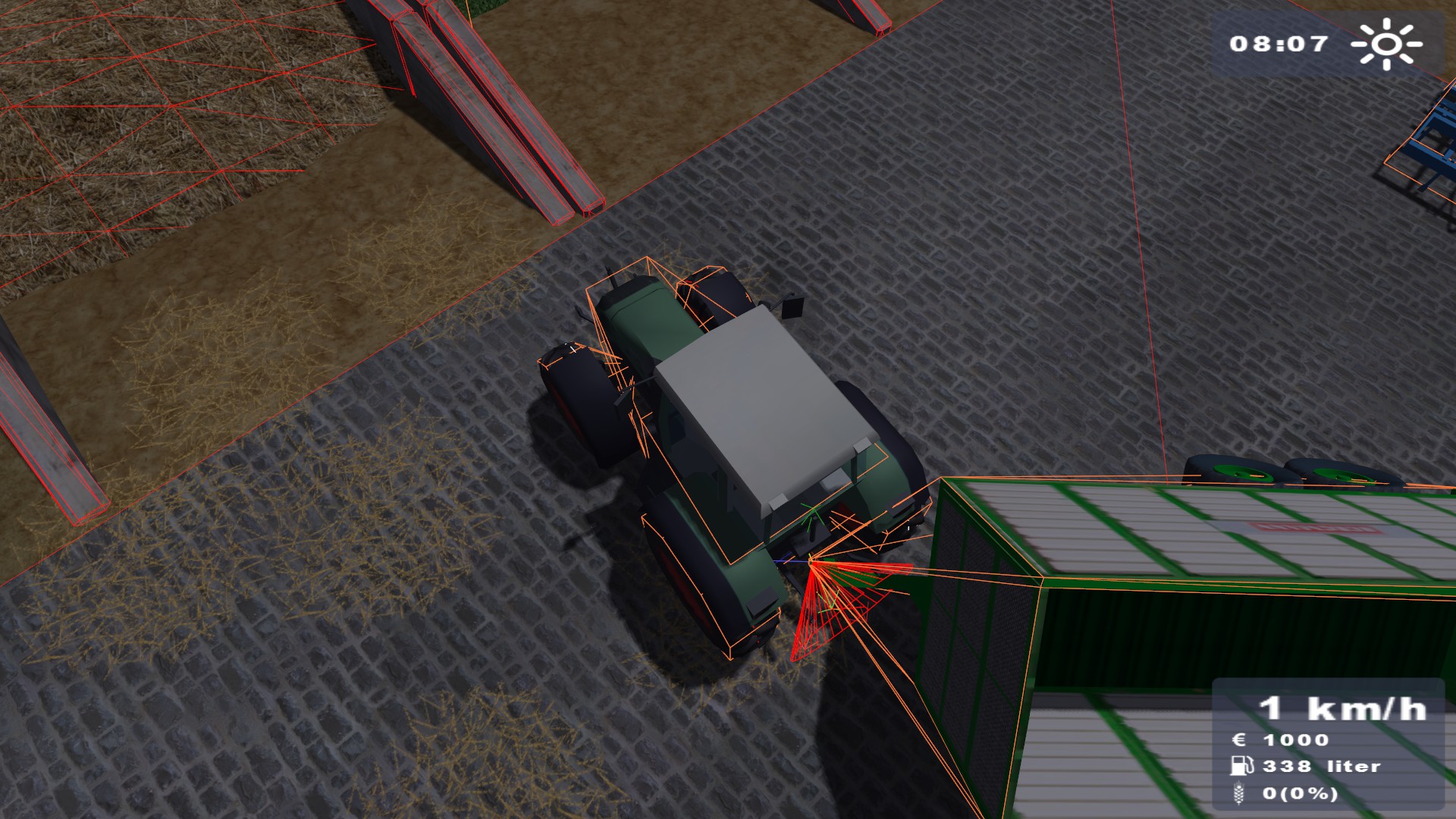 In the trailers folder there is a completely unused Bergmann HTW silage wagon. Loading it into the game does not work as the .xml file is seemingly supposed to be used with an older version of GIANTS Engine, evidenced by the file using
Fixing the bracket issue allows the trailer to be loaded, however the trailer is pretty much unusable due to an absurd collision shape, hence the trailer flinging and swaying around when attached to a tractor. Other than that, the wheel movement is broken, but the trailer works for it's intended use, which is transporting grain. Good luck doing that though...
The trailer is featured in multiple prerelease captures, in which it seemed to work properly. The trailer was likely never updated to work on the final version of GIANTS Engine either because of the Bergmann licensing, or due to the lower model quality compared to the other vehicles.

(Source: Boleklolo, Benzinly)
"Respect Copyright Laws" sticker on Large Tipper#
The Large Tipper has a sticker on it's tailgate with the text "Respektuj Prawo Autorskie", which translates to "Respect Copyright Laws". Oddly, despite GIANTS Software being located in Switzerland, the text is written in Polish, and what makes this even weirder is that this text is also present in the original German release, not just the Polish one. 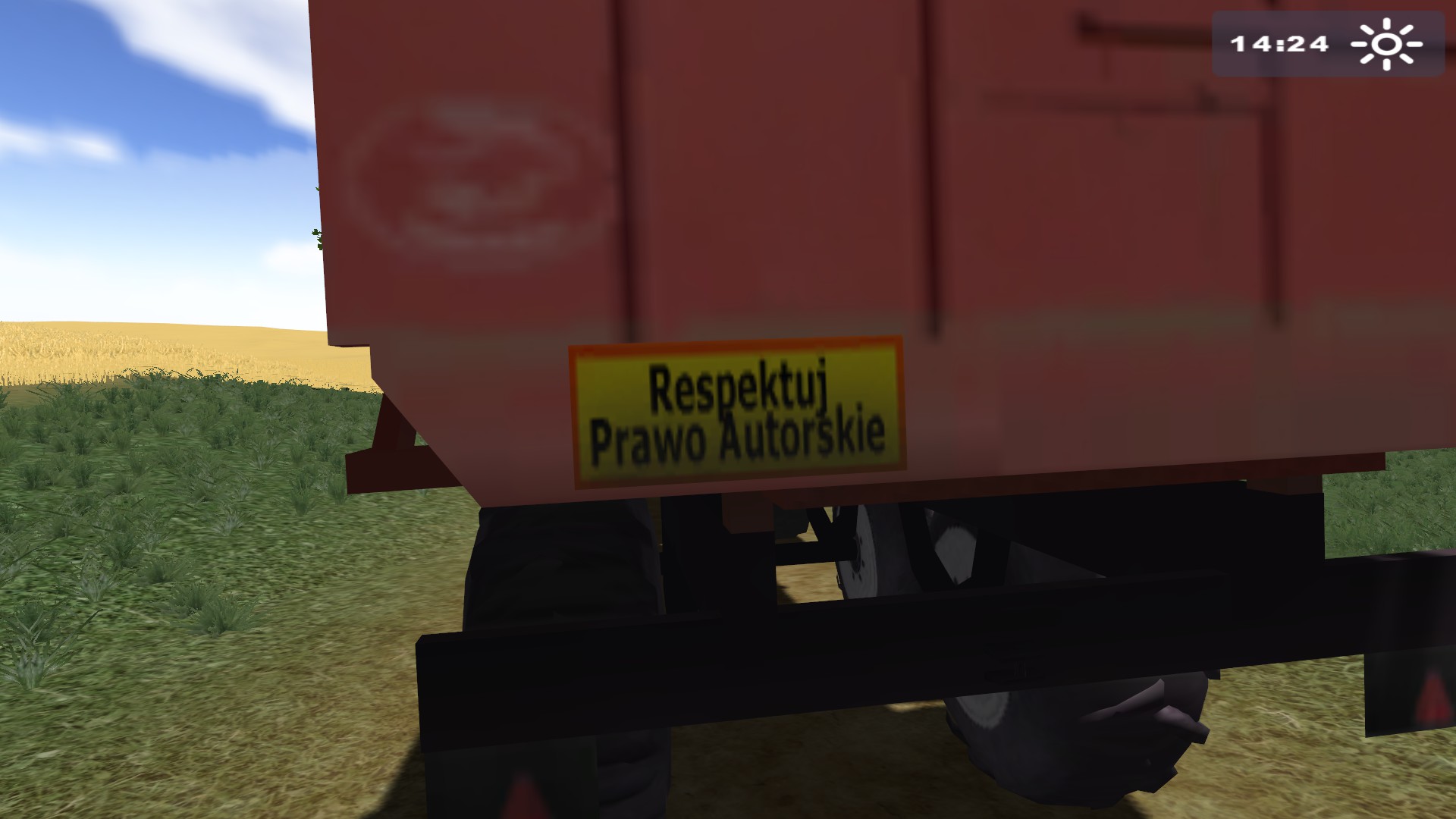

(Source: Boleklolo, Benzinly)
|
The Farming Simulator series | |
|---|---|
|
Windows, Mac OS X |
|
|
Xbox 360, PlayStation 3 |
|