 This article has a talk page!

|
This page contains no introduction. |

|
To do:
|
Debug Mode#

The Japanese version contains several leftover debug features. To access them, use the following Codebreaker code:
00CF9F58
00000001- A level select is activated for arcade mode. Highlight the option on the main menu and press D-Left/D-Right to change the starting stage.
- Two extra options will appear at the bottom of the main menu: "field viewer" and "robot viewer". However, there is no way to return to the main menu from these screens. You can reset the game by pressing A+B+X+Y+Start.
- A "DEBUG" option will appear at the bottom of the options menu.
- Debugging information will also appear on-screen in the Virtuaroid Customize mode.
Field Viewer#

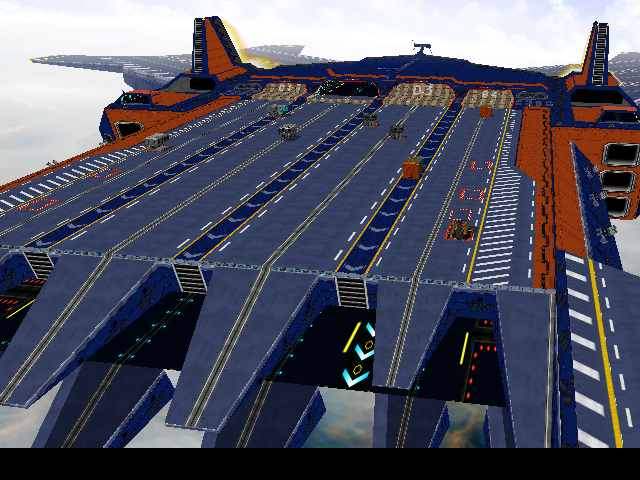
Allows you to freely view all the stages in the game.
Controls:
- D-Pad — Move camera forward/back/left/right.
- Analog Stick — Move camera forward/back/left/right (fast).
- L/R — Rotate camera left/right (fast).
- B+D-Pad — Rotate camera up/down/left/right.
- Y+D-Pad — Pan camera up/down.
- Y+Analog Stick — Pan camera up/down (fast).
- A+X+Y+Start — Reset camera position.
- A+B+Start — Return to field selection menu.
Robot Viewer#


Allows you to view the models for all the Virtuaroids in the game, including their animations.
Note that the last entry "MAN" will display the model for the workers that normally appear in the Continue screen for most Virtuaroids.
Controls:
- Analog — Zoom in/out.
- D-Pad — Rotate models up/down/left/right.
- Y+D-Pad — Pan camera up/down/left/right.
- A/B — Cycle through animations forward/backward.
- L/R — Cycle through animations forward/backward (fast).
- X — Open thruster jets on certain "dash" animations.
- Start — Pause animation.
- A+X+Y+Start — Reset model positions, cycle between 100% and 0% V-Armor damage.
- A+B+Start — Return to model selection menu.
While paused:
- A/B — Advance frame forward/backward.
- D-Pad — Rotate models up/down/left/right.
- Y+D-Up — Toggle lighting on/off.
Virtuaroid Customize#

Debugging information will appear on-screen in the customization mode. A full palette window will also appear upon opening the "color edit" menu.
Debug Options#
|
|
To do: |


A "debug" option will also appear at the bottom of the "options" screen.
- MUTEKI — Presumably turns invincibility on/off, but it doesn't seem to work.
- EMB — Set to BOTH OFF/1P ON/2P ON/BOTH ON.
- COM1 — Set to OFF/GOLD/SILVER.
- COM2 — Set to OFF/GOLD/SILVER.
- MSB — Toggle the M.S.B.S. Ver. 5.2 option unlock ON/OFF.
- OPENING MOVIE — Play the opening movie.
- ENDING MOVIE — Play the ending movie.
- MAKE KOT FILE —
- EXIT — Return to options menu.
Regional Differences#
- The Japanese version supported online multiplayer (through a now defunct service), Internet functions and link cable multiplayer, along with a Virtuaroid Customize option to create and save custom Virtuaroid colors to then use the VMU in an arcade cabinet of 5.66.
- The US version adds the Activision logo and a legal screen to the opening boot sequence, but hides the Link Cable option behind a button combination (hold A+L+R then press Start at the title screen), and removes any internet functionality along with the Virtuaroid Customize menu option.
|
The Cyber Troopers Virtual On series | |
|---|---|
|
Arcade |
|
|
Sega Saturn |
|
|
Dreamcast |
|
|
PlayStation 2 |
|