 This article has a talk page!
Uncharted 2: Among Thieves follows another adventure with Nathan Drake, who along with some new and old friends, searches for the Cintimani Stone and Shangri-La whilst racing against another group of evil mercenaries.
Dev Menu#

|
This needs some investigation.
|
To enable this, you'll need a PlayStation 3 Reference Tool (Dev Kit) and v1.00 of the game (A reduced menu is available on later versions).
If you do not have a Dev Kit PS3 then you will only have access to the basic menu, this is the same as The Last of Us debug menu, except that Debug Text works. See The Last of Us Debug Menu.
The offsets to unlock it through PS3API/Debugger or by making your own EBOOT.BIN are 0x007964C4 3800000198191DC4480002A0, though a premade EBOOT.BIN can be found here. In either case, place the file in dev_hdd0/game/BCES00727/USRDIR/ and start the game.
Now, during gameplay press L3 + Start for the Dev Menu, L3 + Select for the Quick Menu, L3 + Triangle for Dev Text, or L2 + R2 for Debug Fly.
Main Menu#
After you enable the debug menu, you'll see FPS and CPP Text at the top-right of the screen, press L3 + Start to open the dev menu.
If you only see FPS then you have a reduced (Testers) menu and are running on a retail unit.
If you do not see FPS or CPP, then the menu is not enabled. Ensure the offset is applied and the Eboot is in the correct directory - "BCES00727" This may be a slightly different name depending on the disc region. 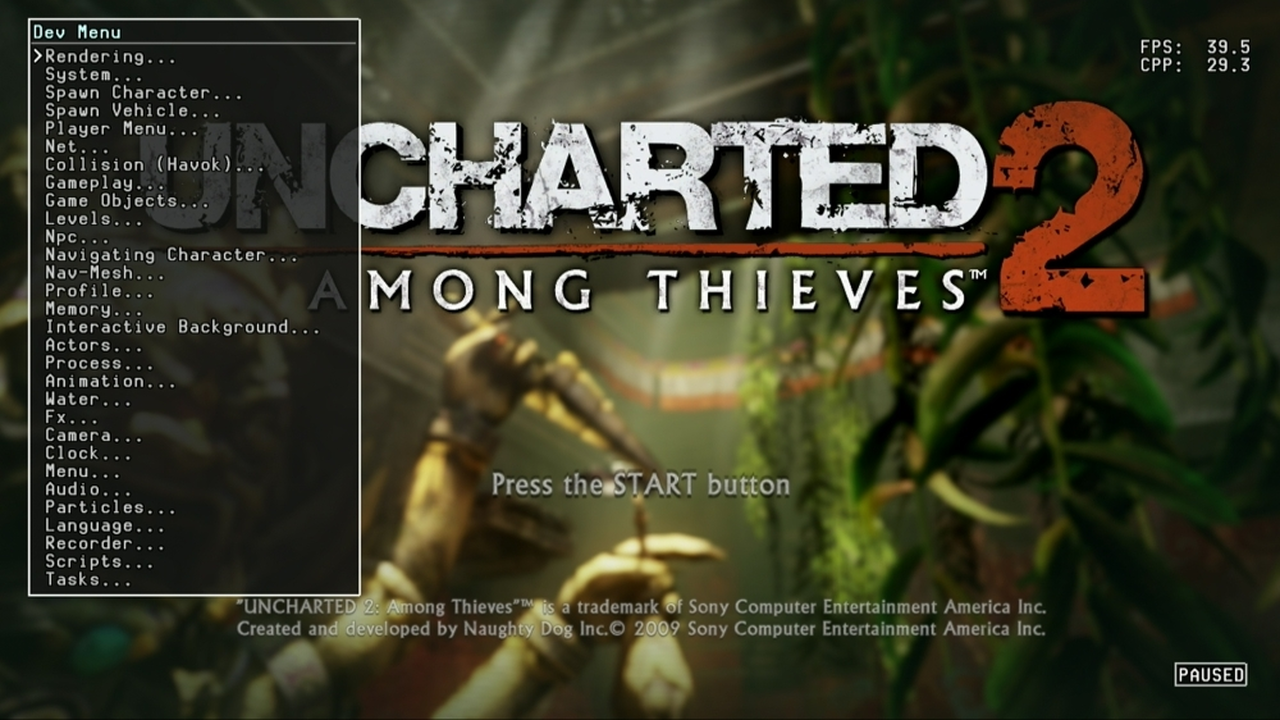
Rendering#
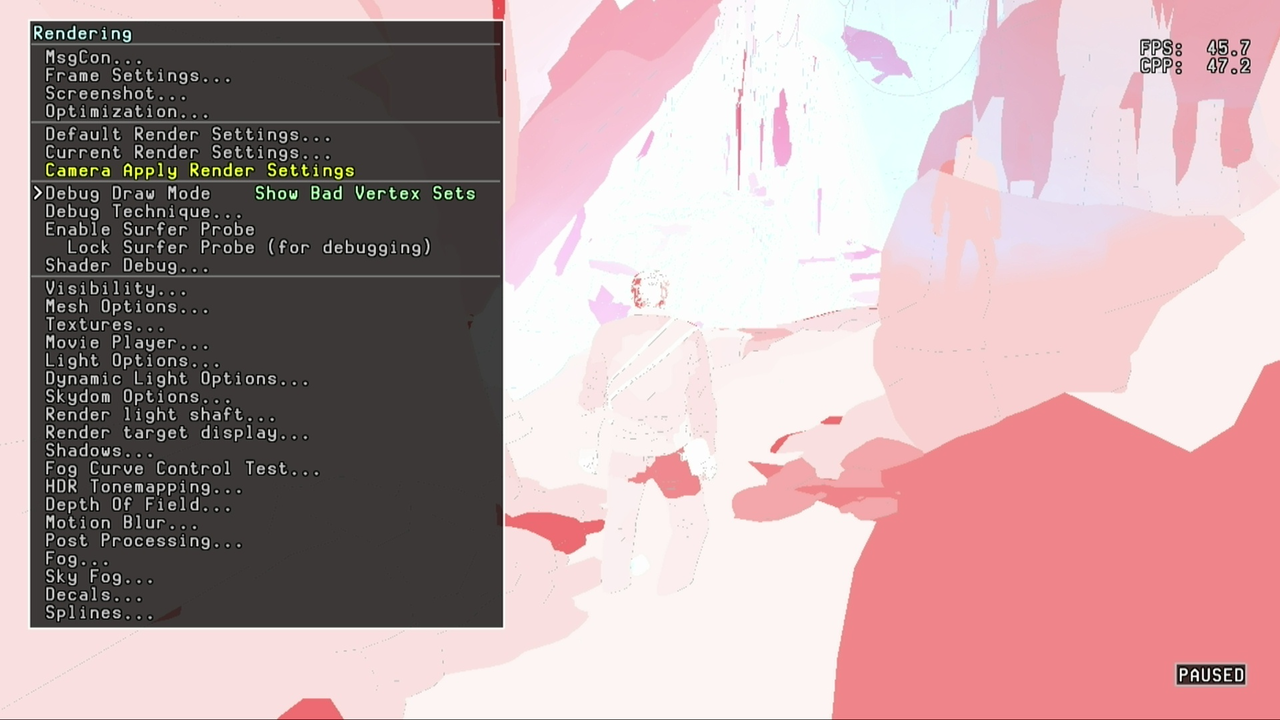
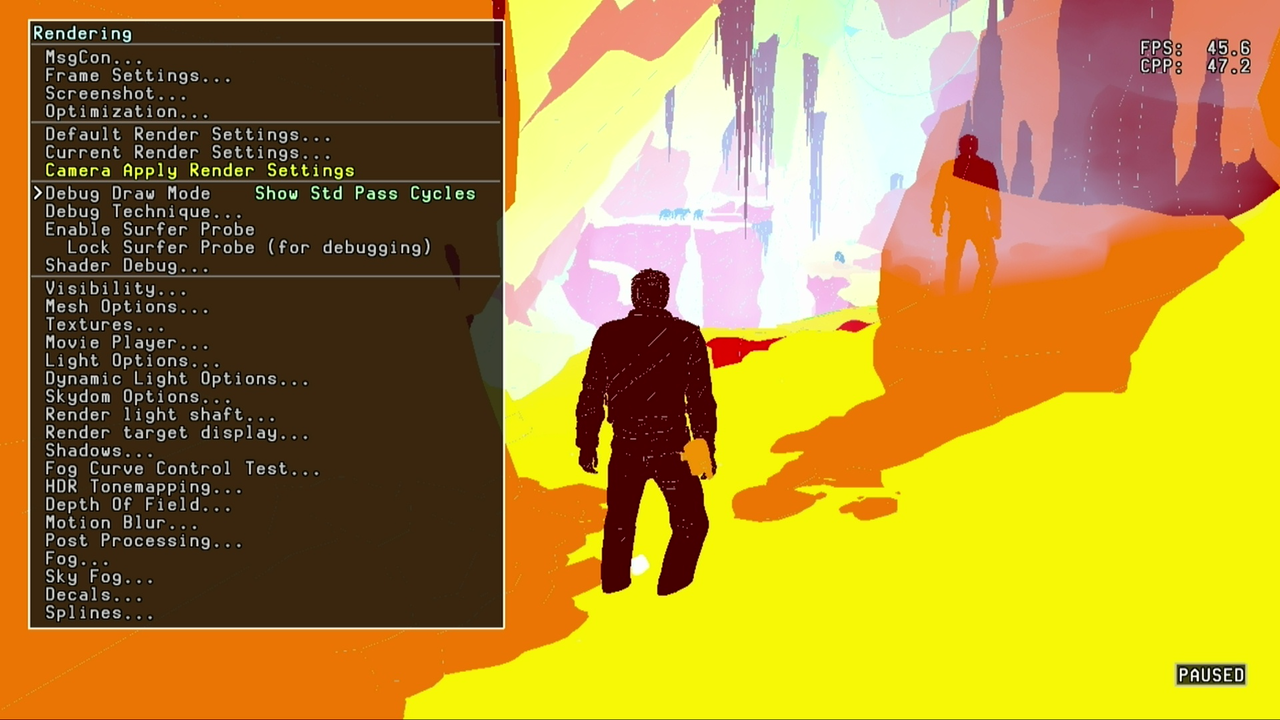
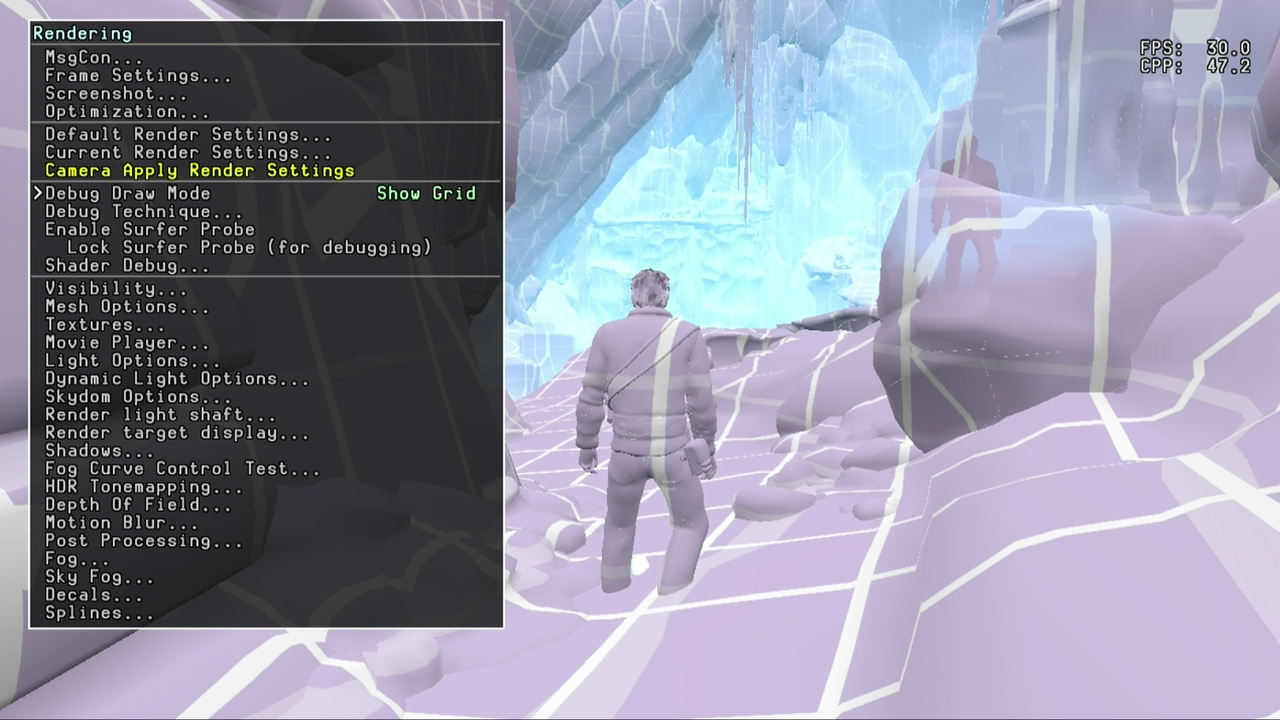
Rendering has many options for adjusting the game display, there are several debug render modes such as Wireframe and Points mode, as well as single texture rendering such as normal maps. 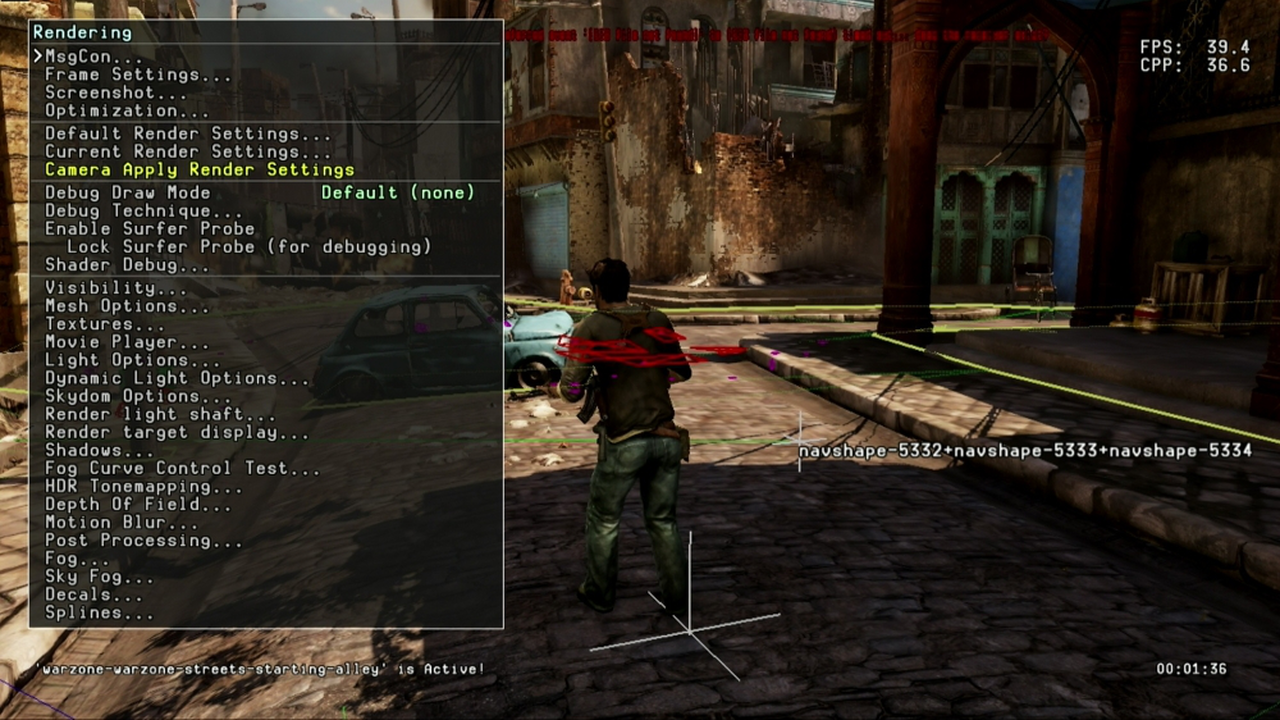
MsgCon controls the scale and content of the message in Debug Text, I would recommend disabling Message Output as it will clutter the screen in most levels with irrelevant errors and asset loading.
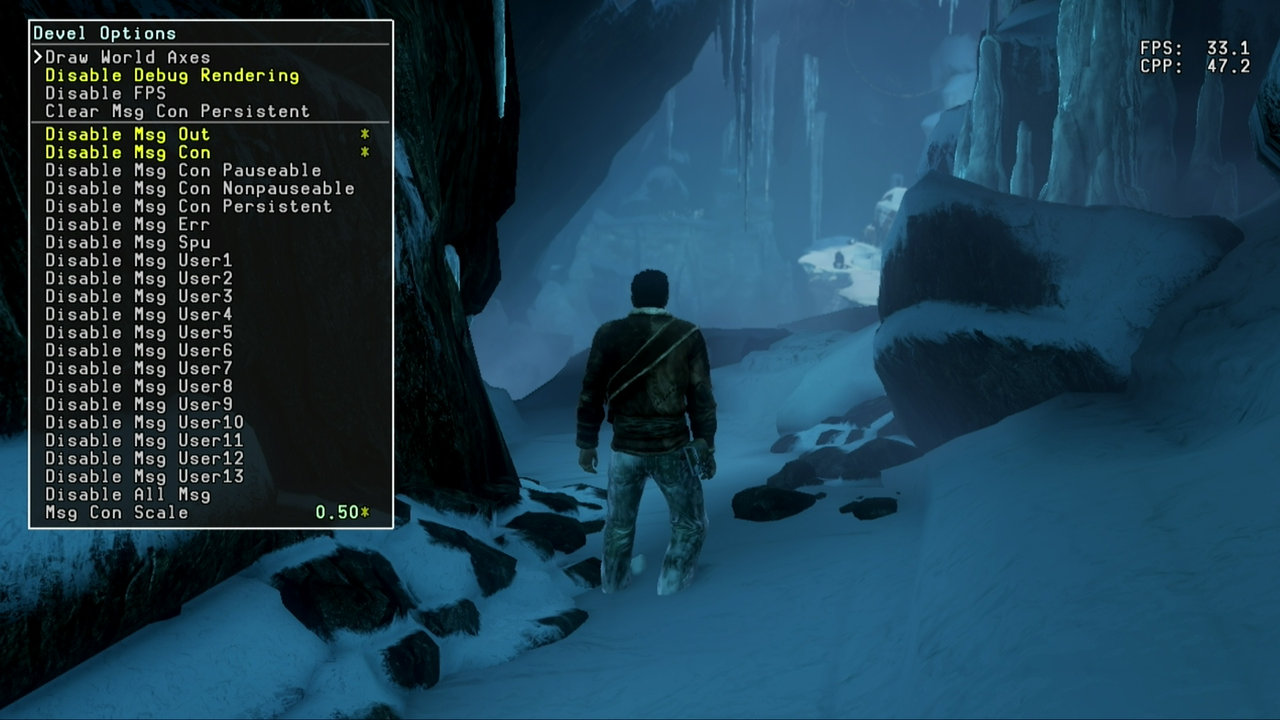
Frame Settings is for controlling the FPS cap and FPS/CPP display, setting Frame Lock to 1 raises the FPS cap to 60, and setting it to 0 removes the cap completely. 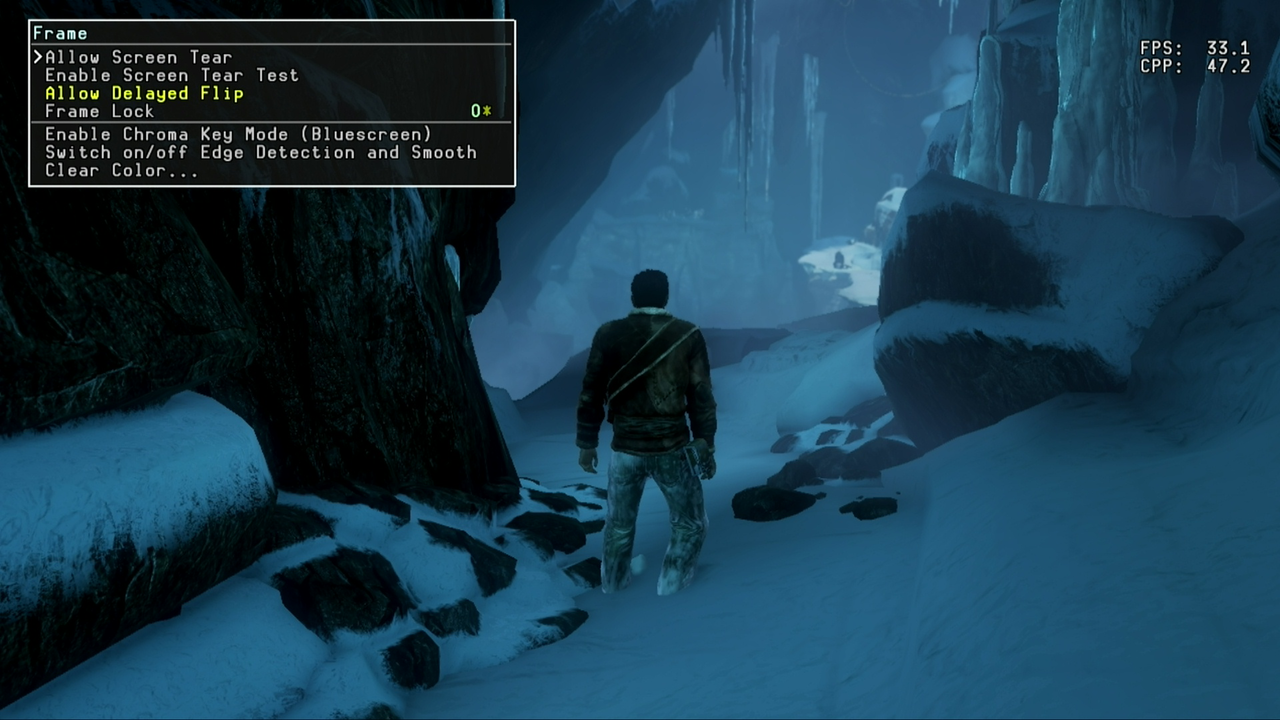
Screenshot will capture the screen's content behind the debug menu and can be configured to include debug data or not. 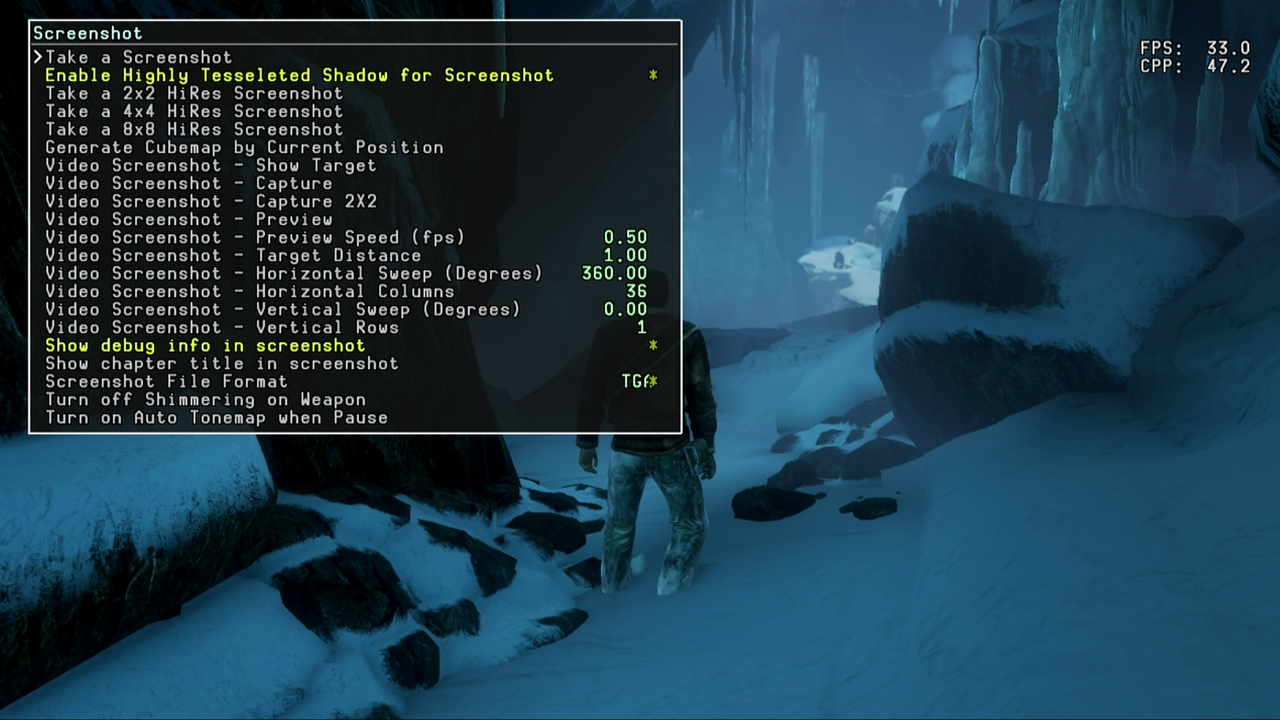
Debug Draw Mode#
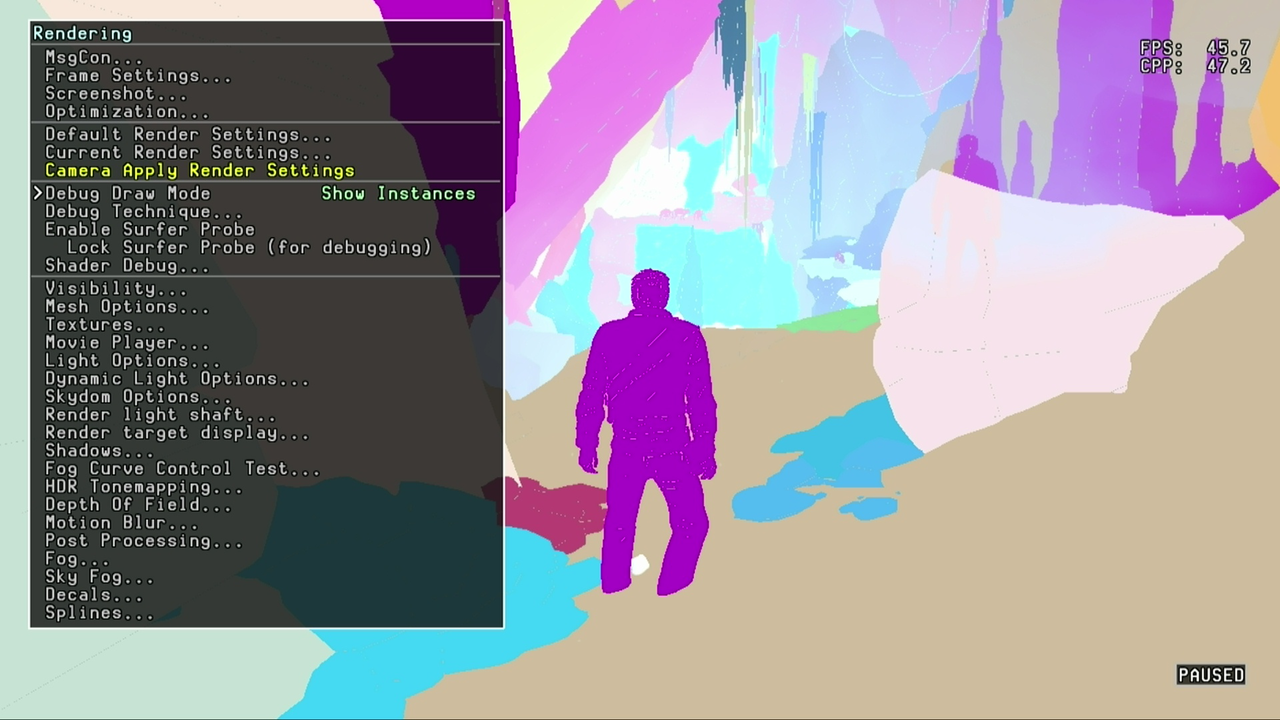
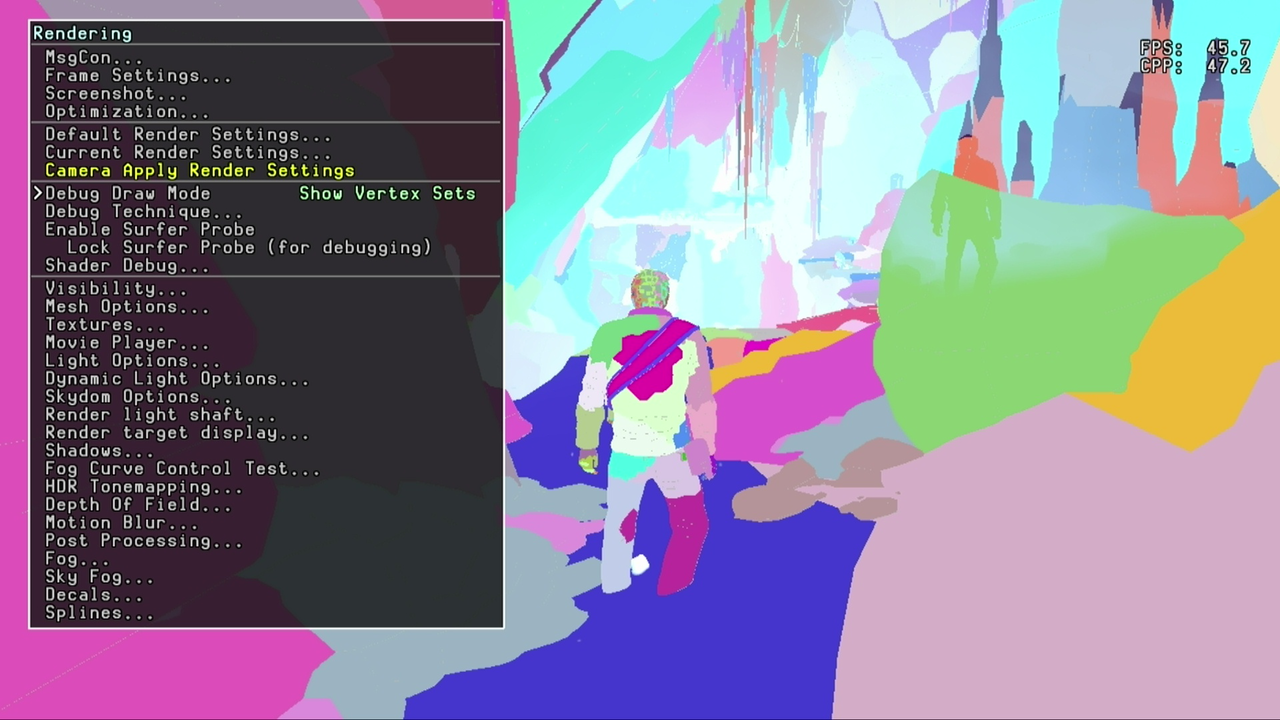
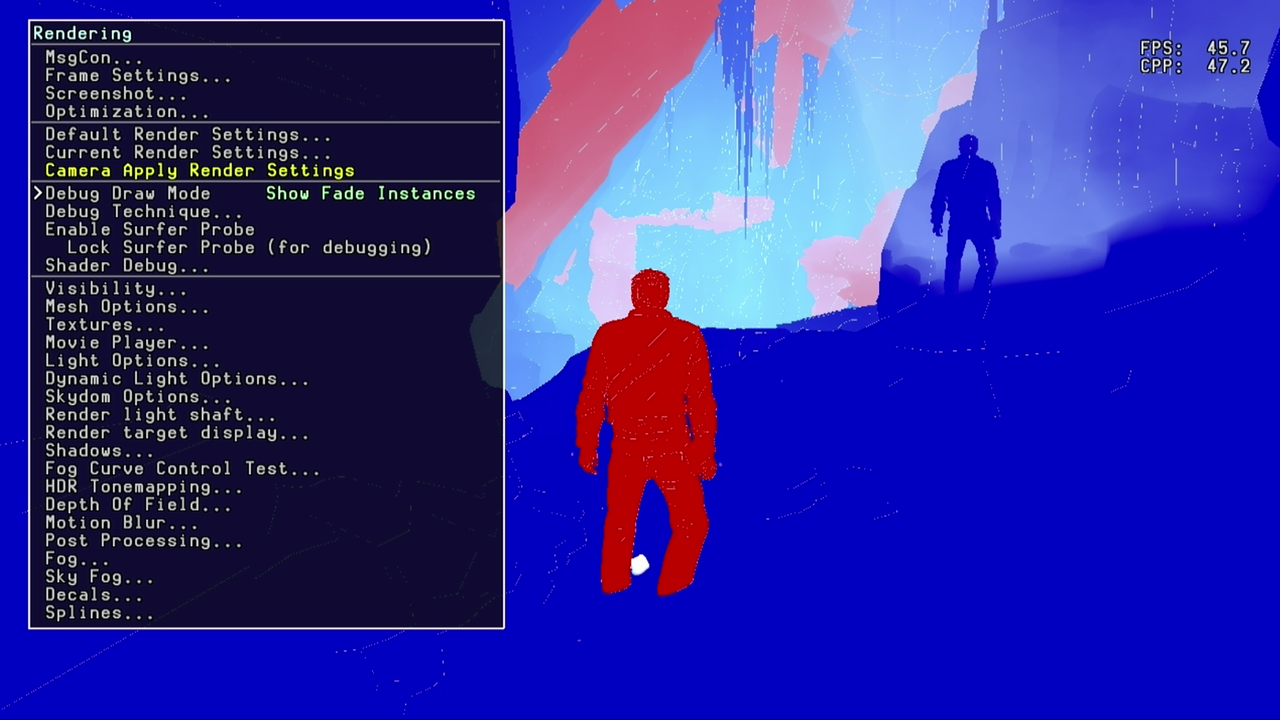
Visibility#
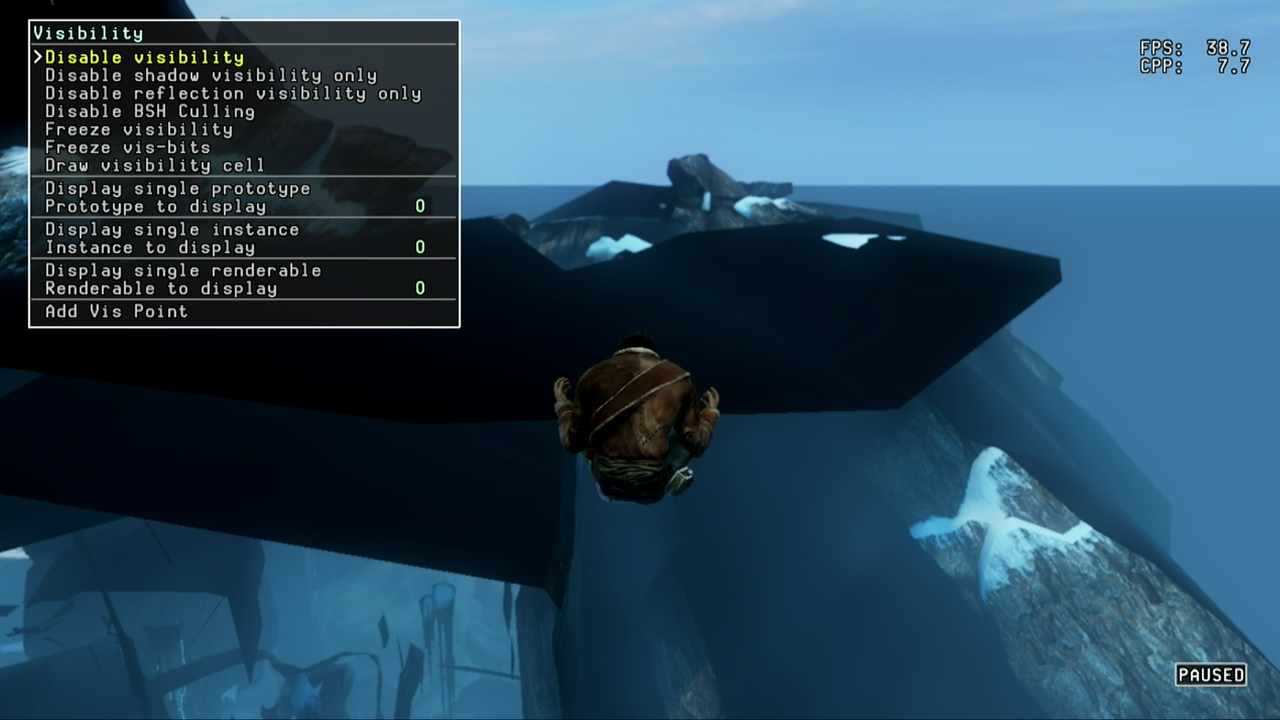
Disabling visibility stops the map from being culled when leaving the playable area, there is a slight decrease in framerate. Be careful when flying out of the playable area as going too far will unload the current section and cause a task restart even with god mode enabled.
Mesh Options#
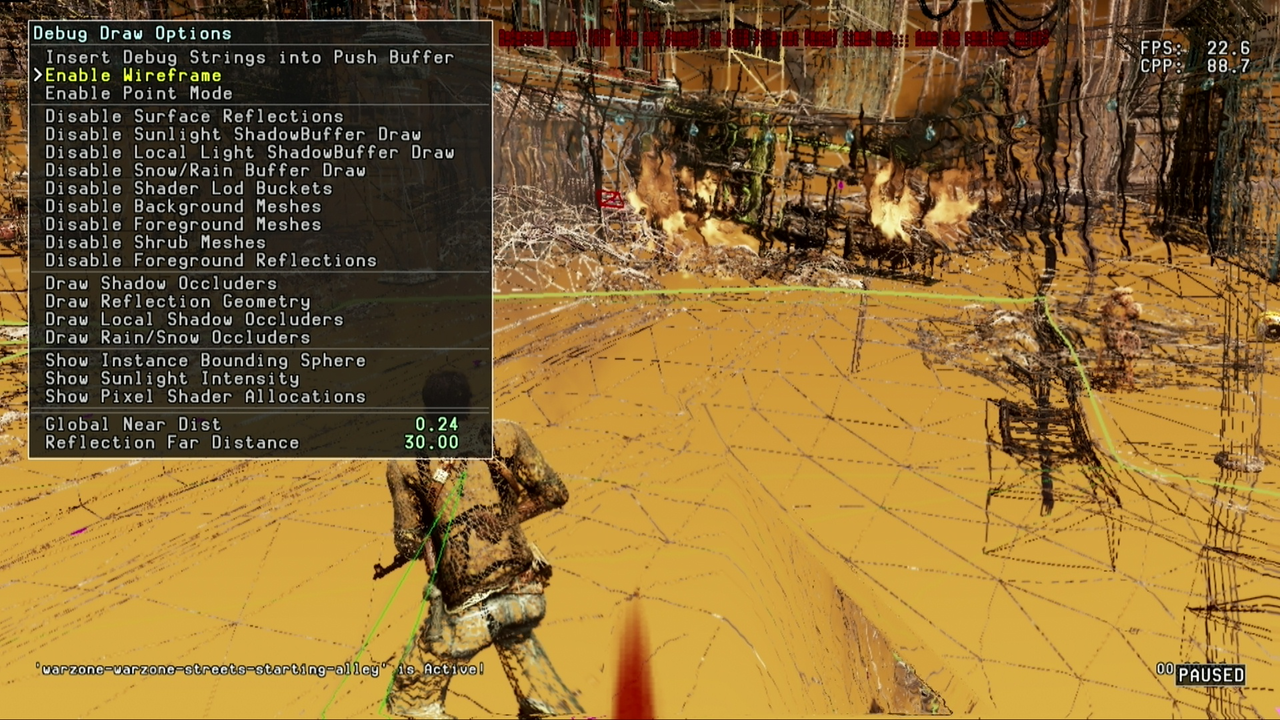
Mesh Options enable Wireframe Mode and Points Mode to display polygons. Wireframe Mode: Instead of the polygon face displaying the texture of the mesh; it will render the texture on the edges, meaning they will only be 1 pixel per edge, this makes large polygons, such as roads almost invisible, but character faces completely textured due to the density of the mesh. This will give an average FPS of 20.
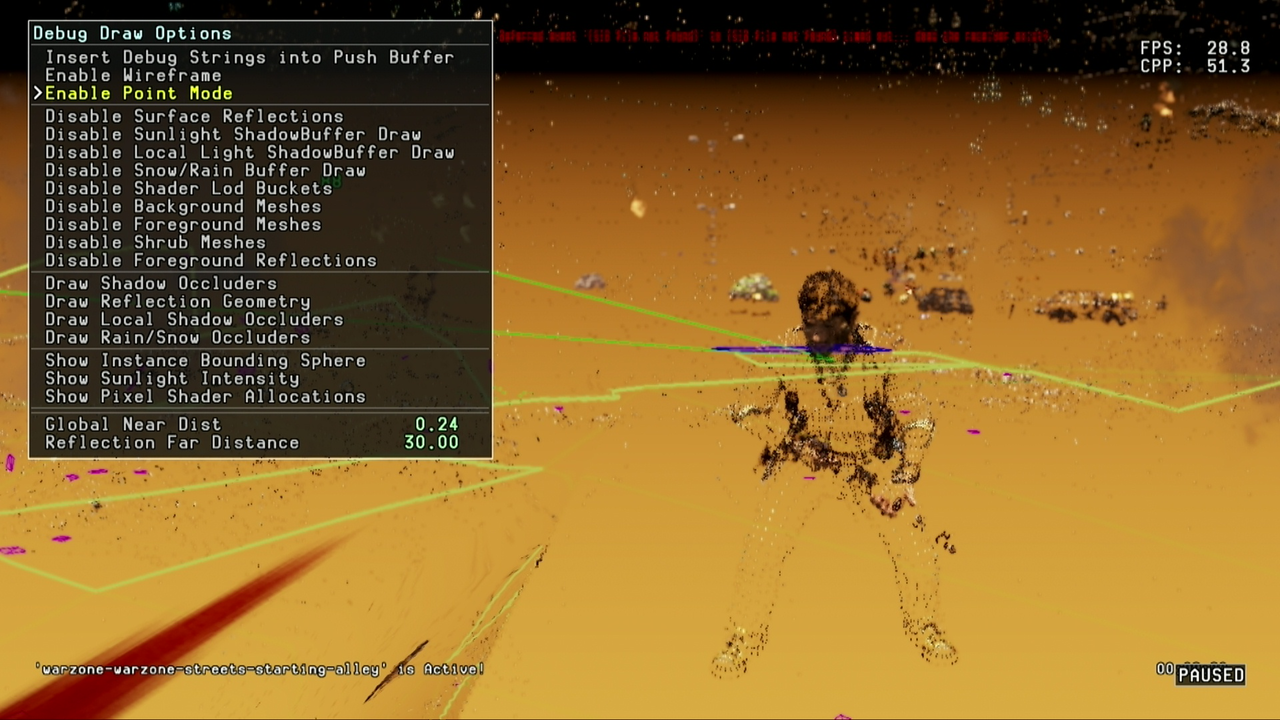
Points Mode: This is the same as Wireframe, except textures are rendered on vertices only, so there is much less to see on-screen.
Shadows#
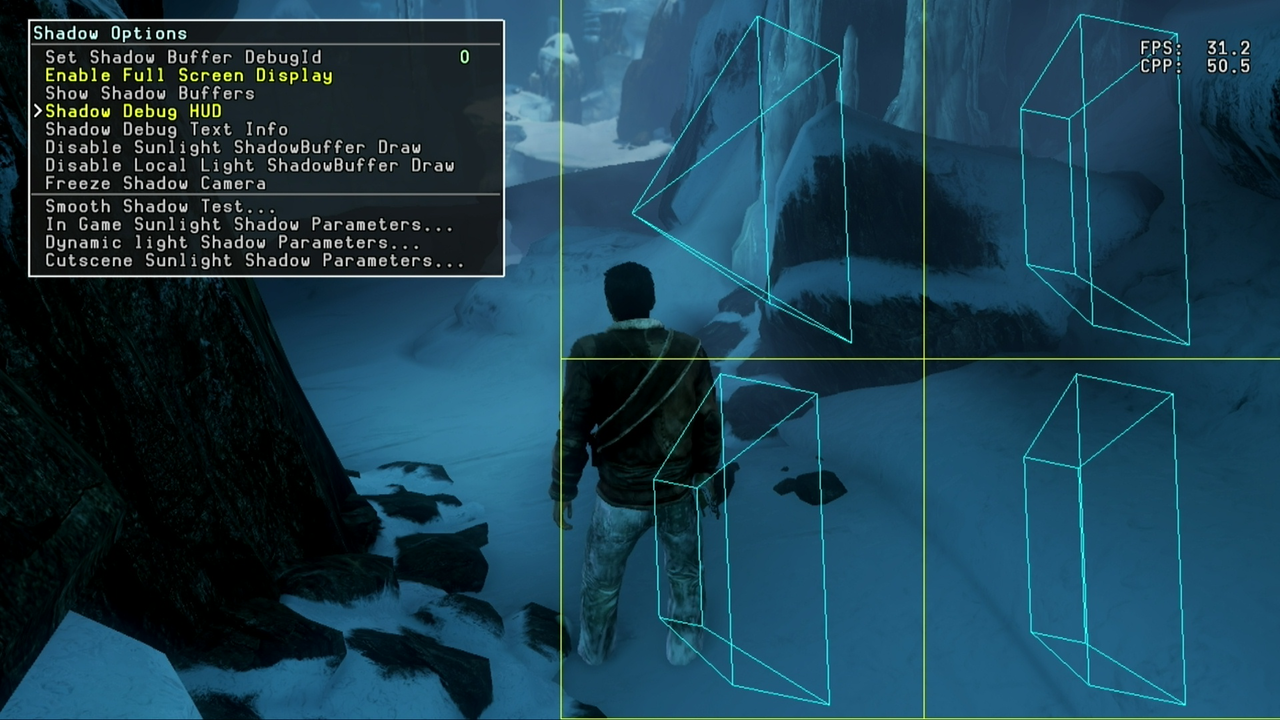
This renders 4 polygons on-screen, that rotate based on the player's direction, I am currently unsure what this is used for.
Decals#
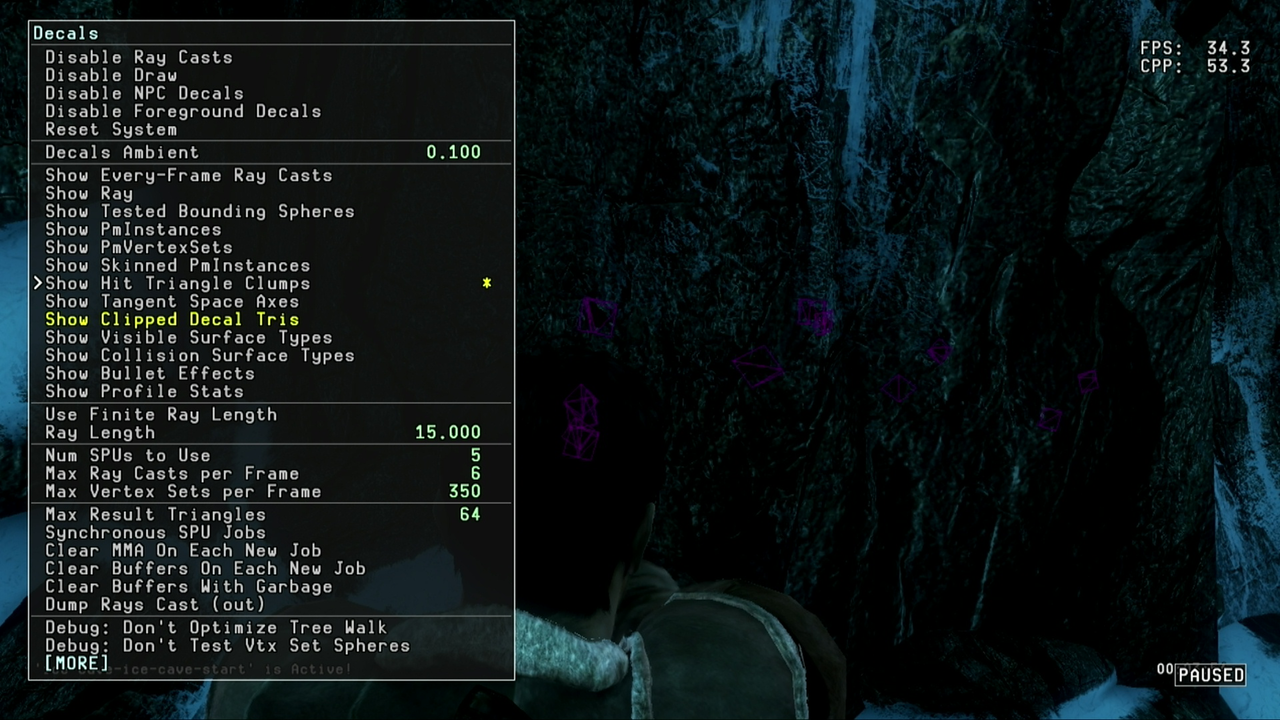
Hit Triangle Clumps will highlight the surrounding meshes of a bullet impact in red, they will de-render after a few seconds. 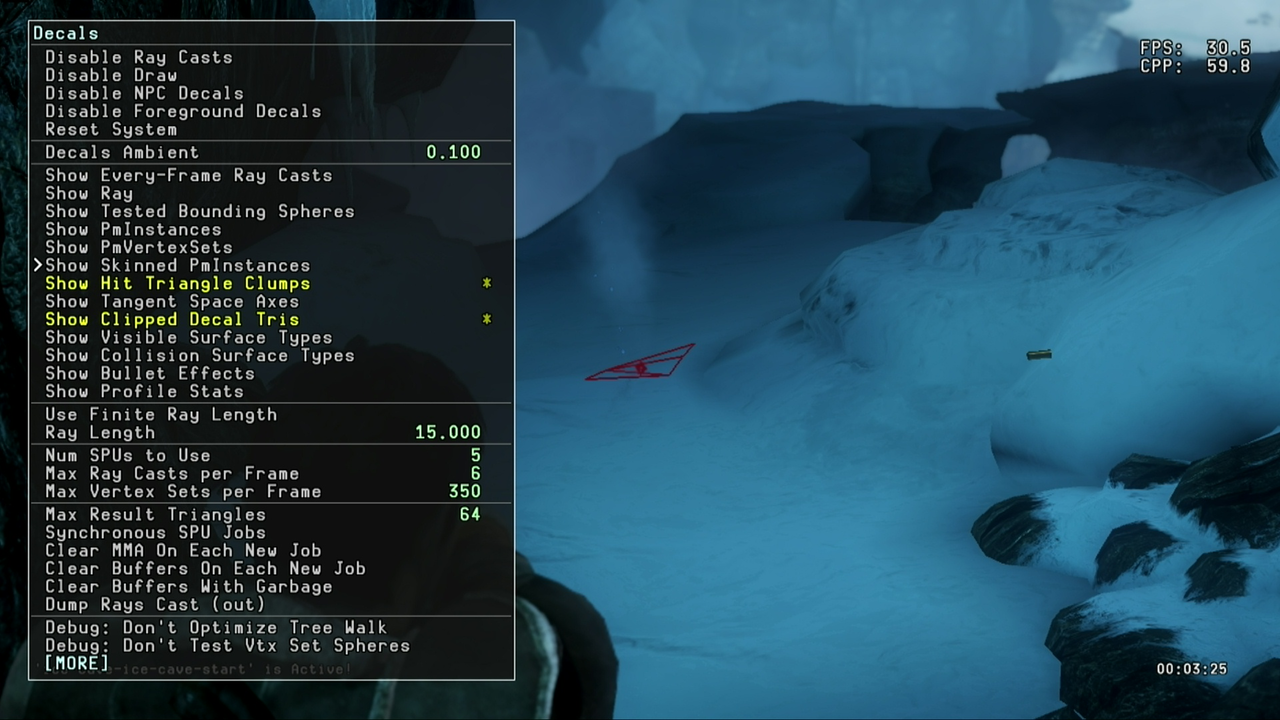
Clipped Decal Tris highlights the bullet impact mesh in purple, and does not de-render until the bullet impact is removed by the engine.
Spawn Character#
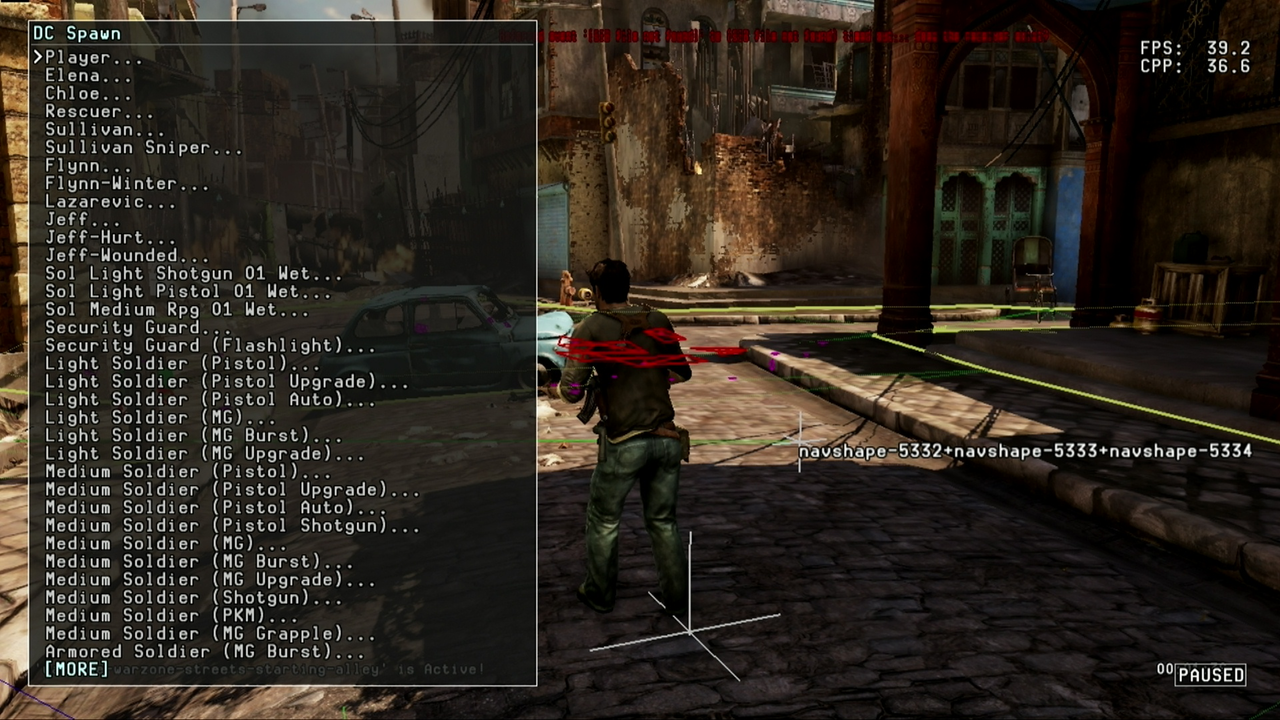
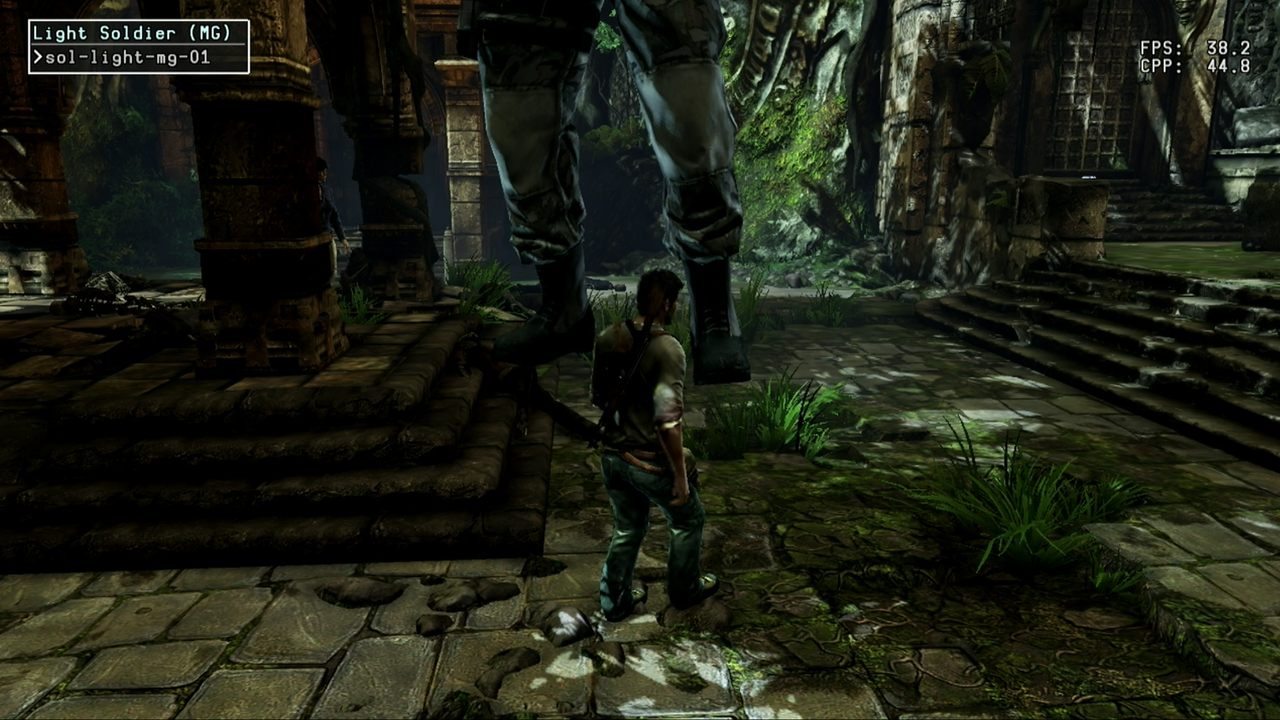
This will let you spawn most characters in any task, except for Harry Flynn, his assets do not load in most tasks, it should also be noted that it is very easy to crash the game when loading in characters, common soldier types are usually okay up to 6 or 7, but main characters will crash at around 3 or 4. If a test level can be loaded then more could be spawned due to the free up of resources, but none of the test tasks load from the dev menu.
Collision (Havok)#
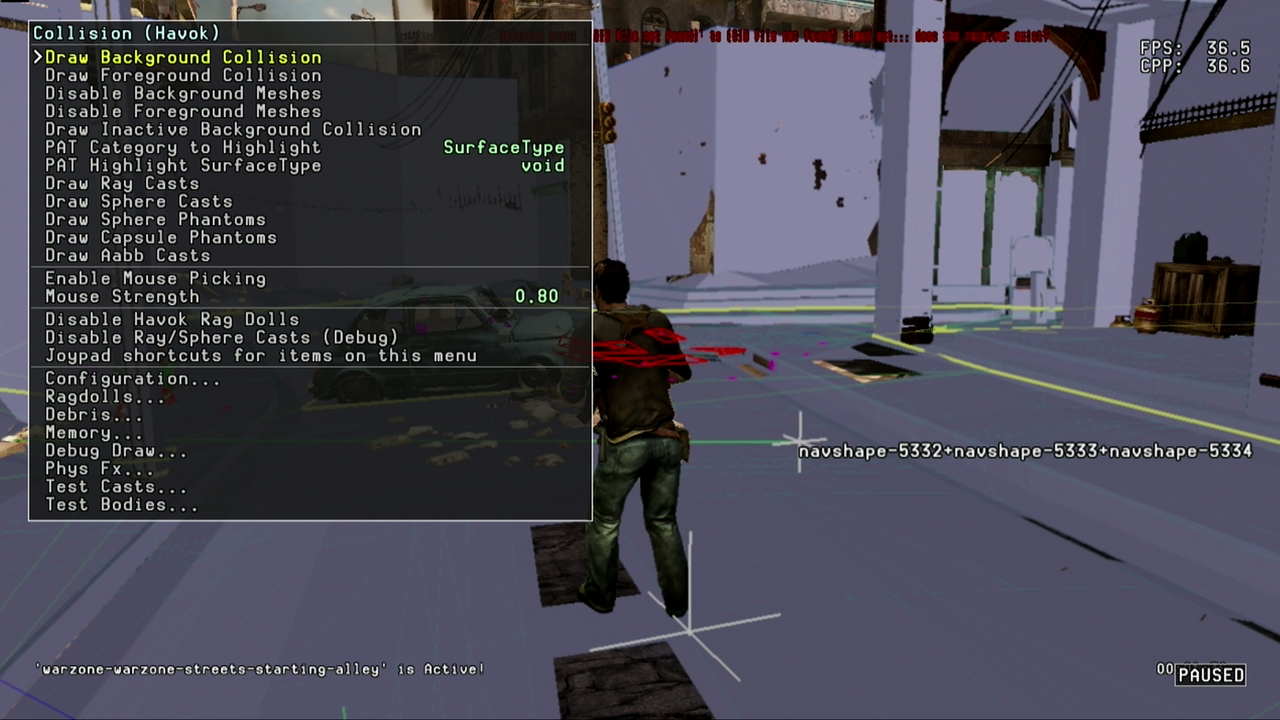
Background collision draws all the collision meshes in grey, this slightly reduces framerate, but not by more than a few FPS. Foreground Collision is the player body collision that is drawn in green and does not show the faces of the mesh.
NPC#
NPC allows the drawing of AI stats beside each character, such as health or cover status, this is continuously updated.
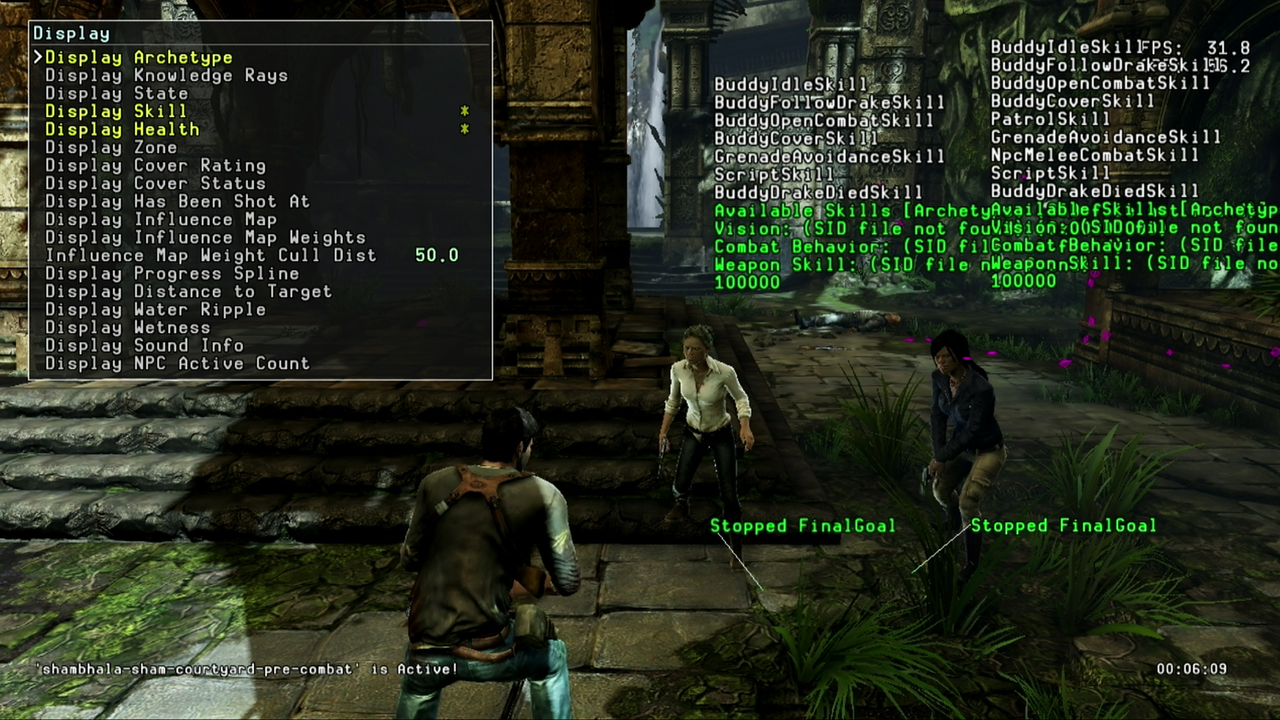
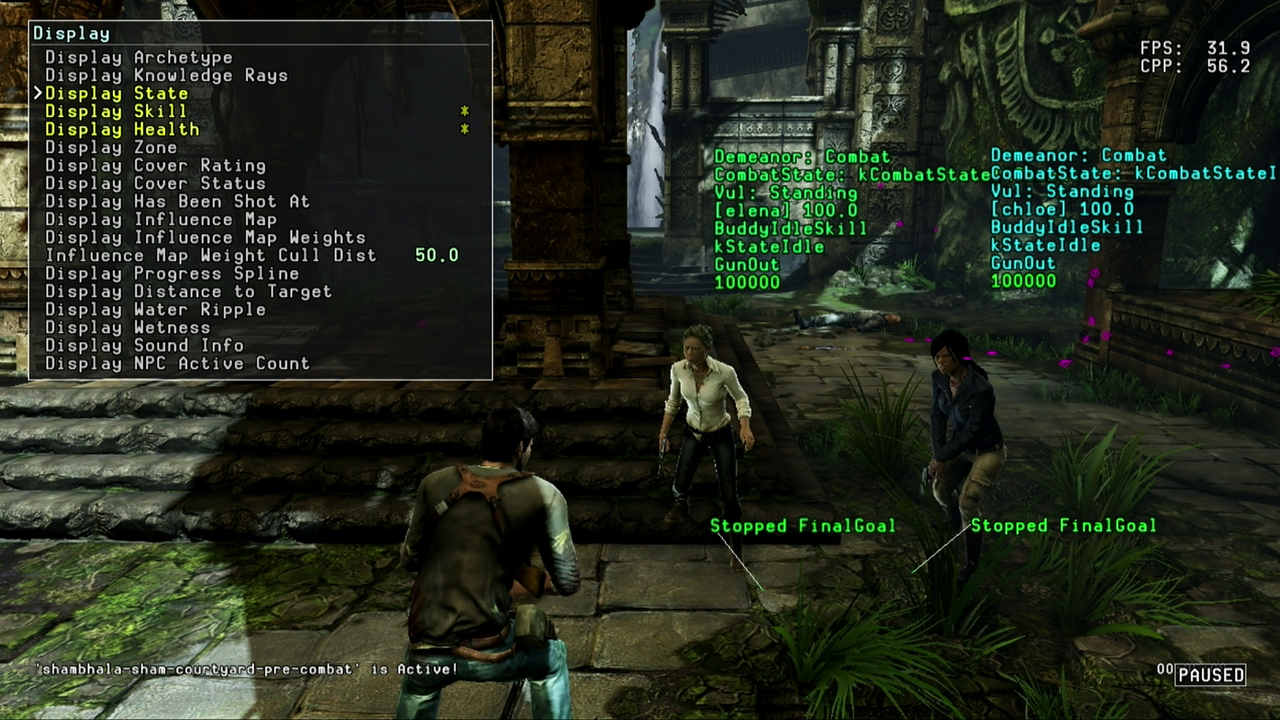
Nav-Mesh#
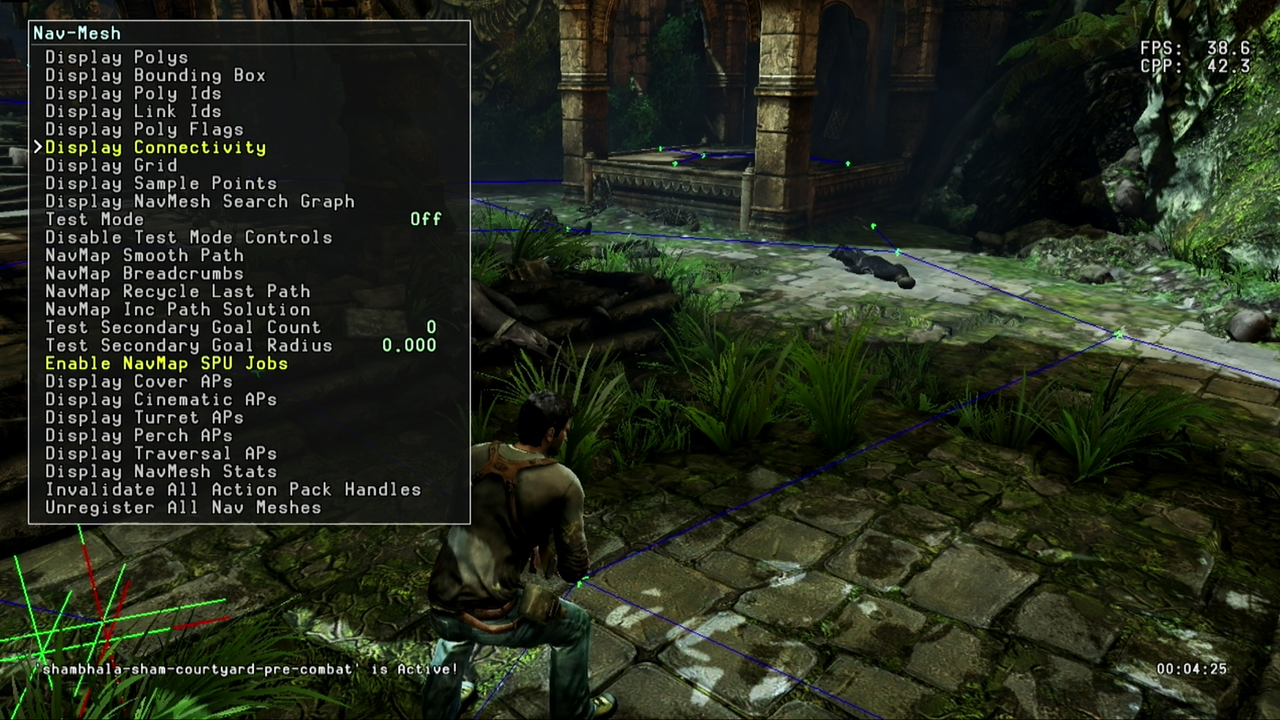
The Nav-Mesh can be rendered on-screen, with a lot of customizing options, such as highlighting sections when AI is interacting with it, or drawing the poly IDs and checking the connections between each mesh.
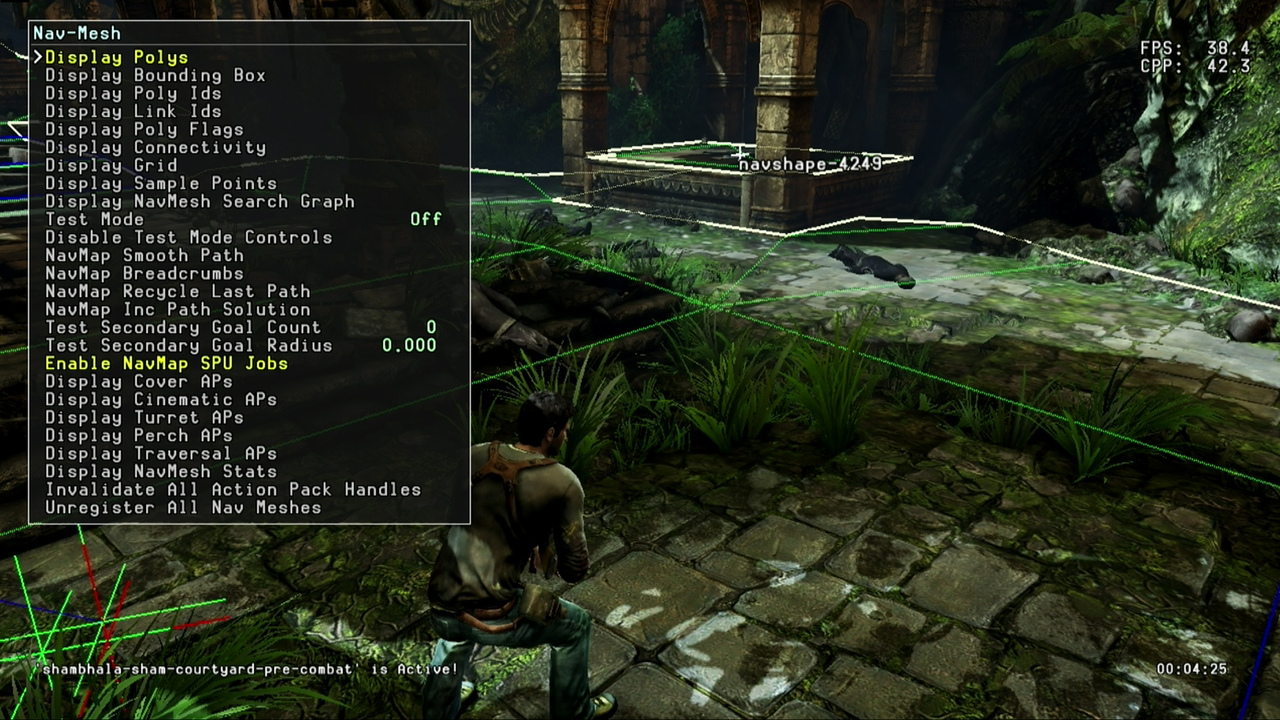
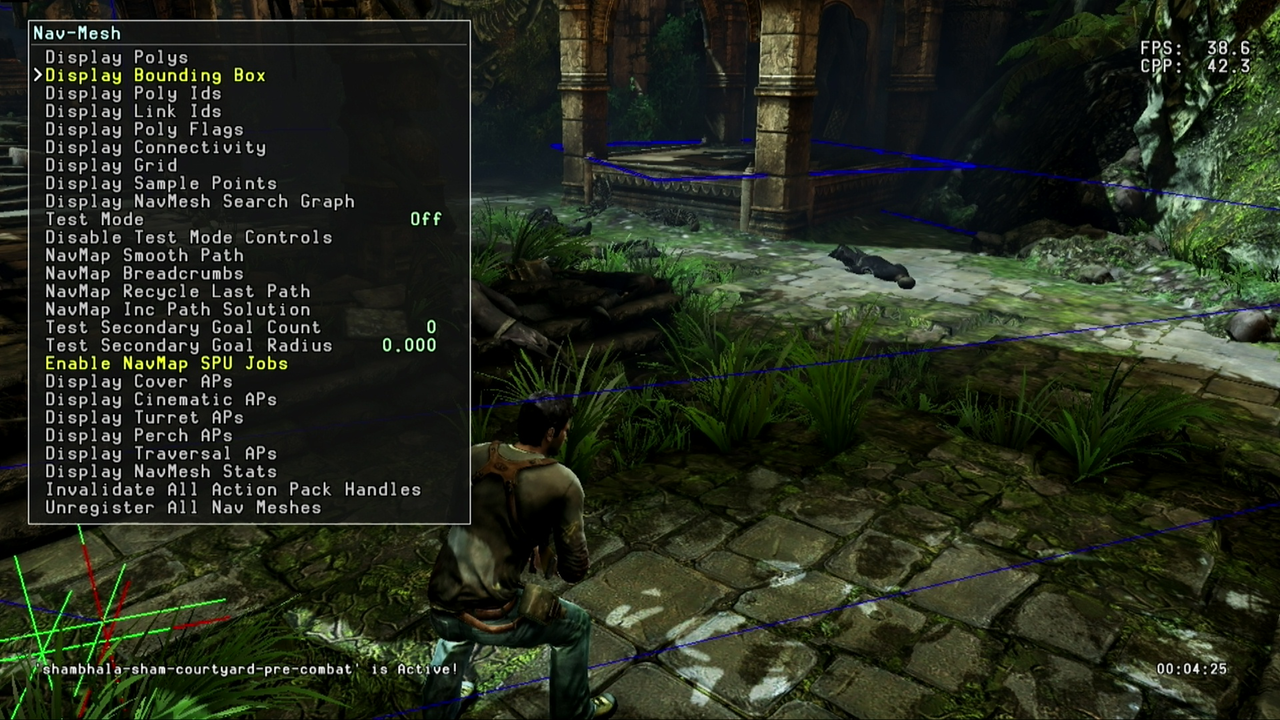
Profiles#
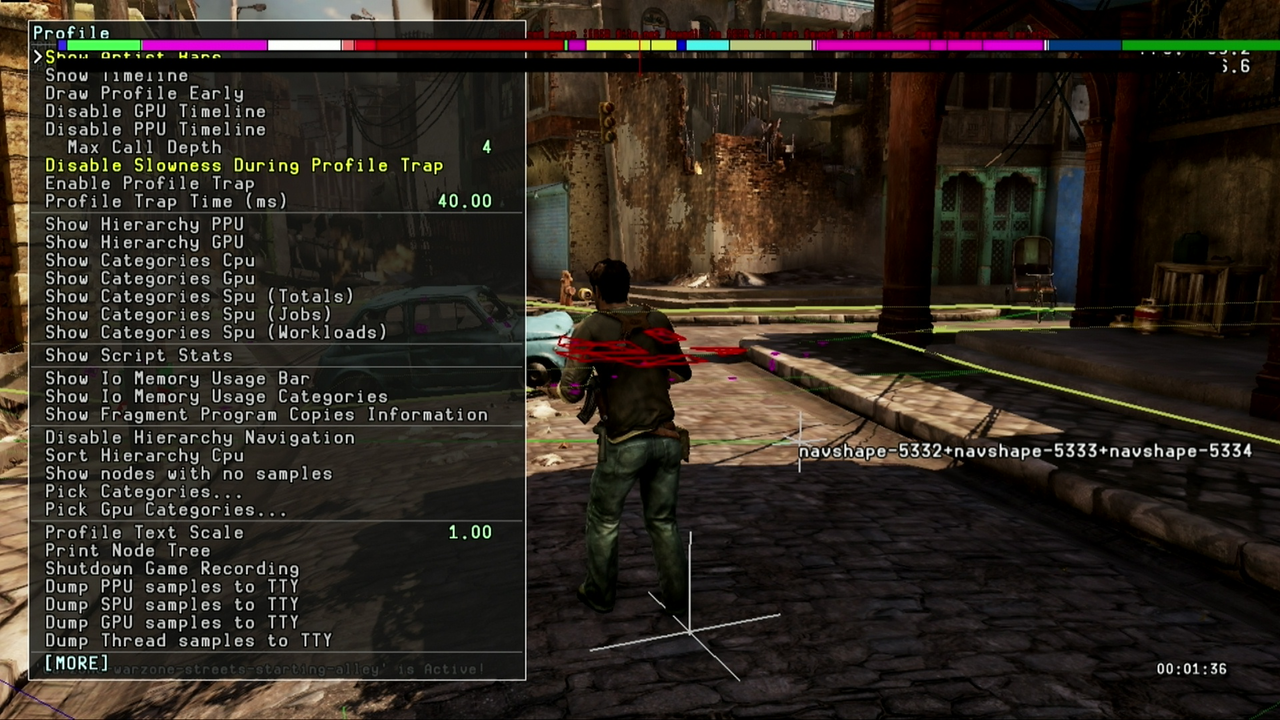
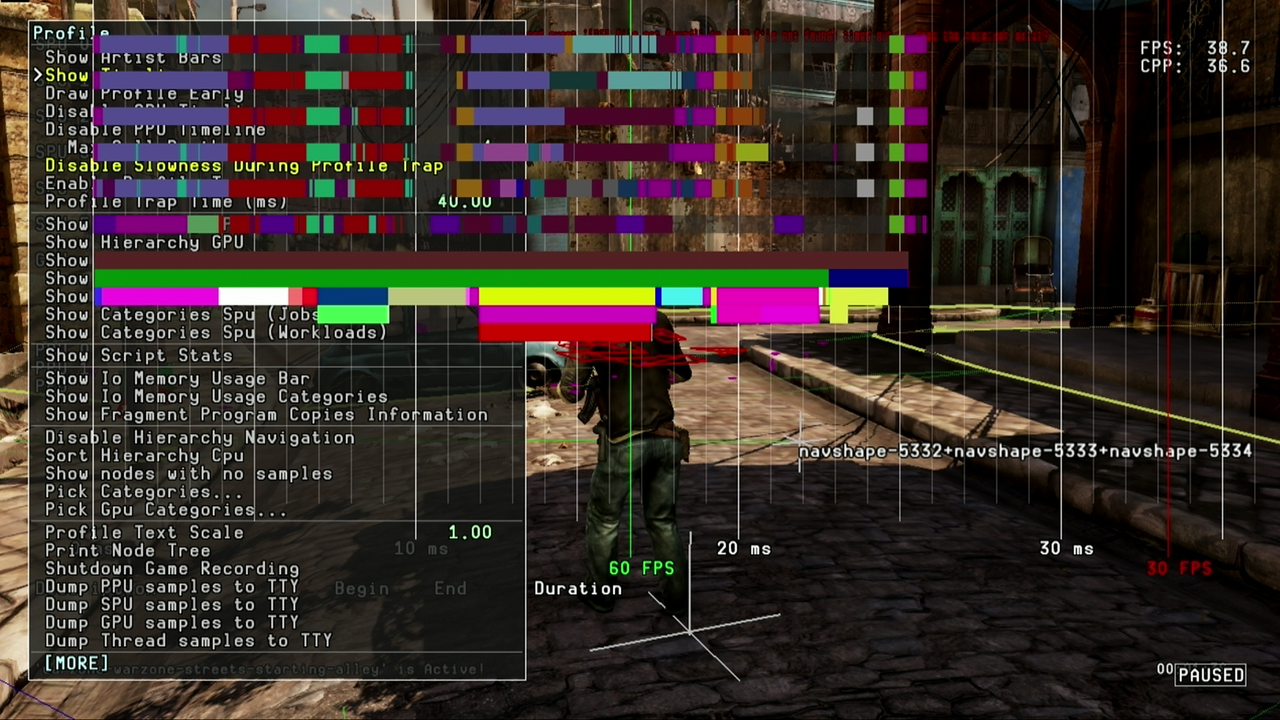
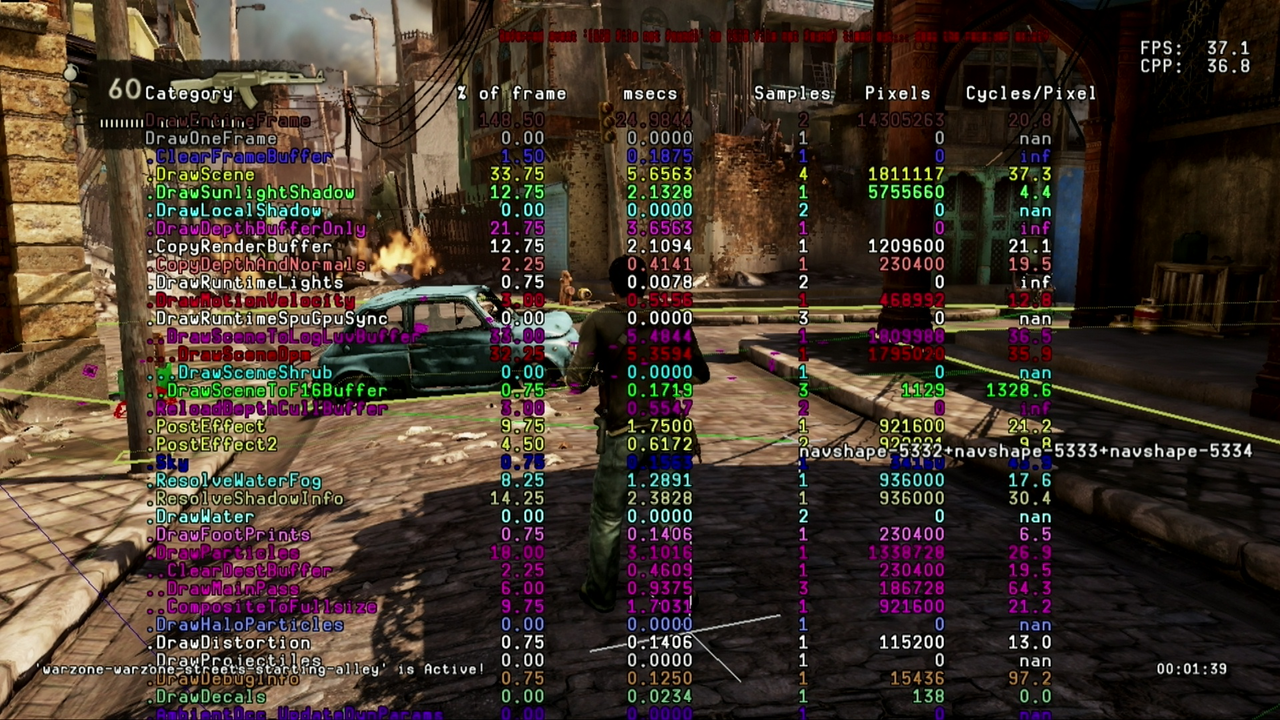
Profiles lets you render 2D graphs and lists to analyze performance on the GPU, CPU, and memory.
Animation#
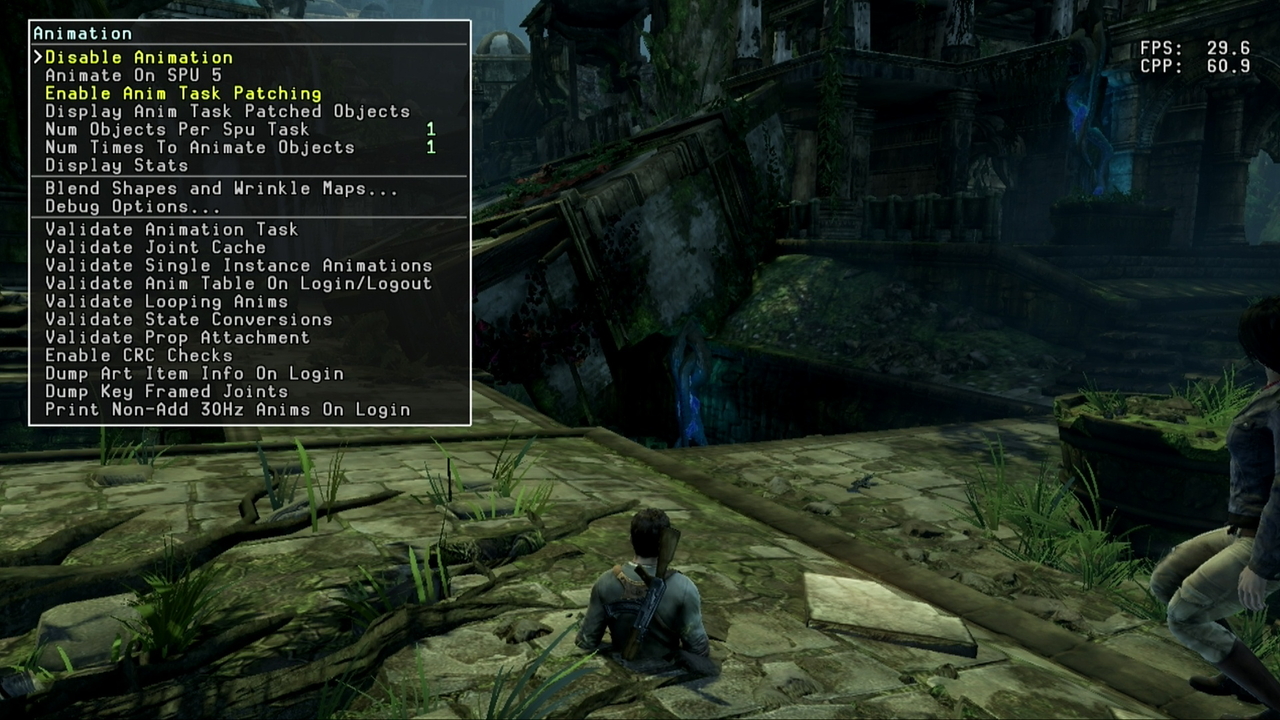
Animations has some options for customization, but disabling all animations works a little different when compared to Uncharted 1, firstly, the player body will gradually fall through the floor and out of sight, and secondly, AI does not go to T-pose, but instead lock on the position of their last animation frame.
FX#
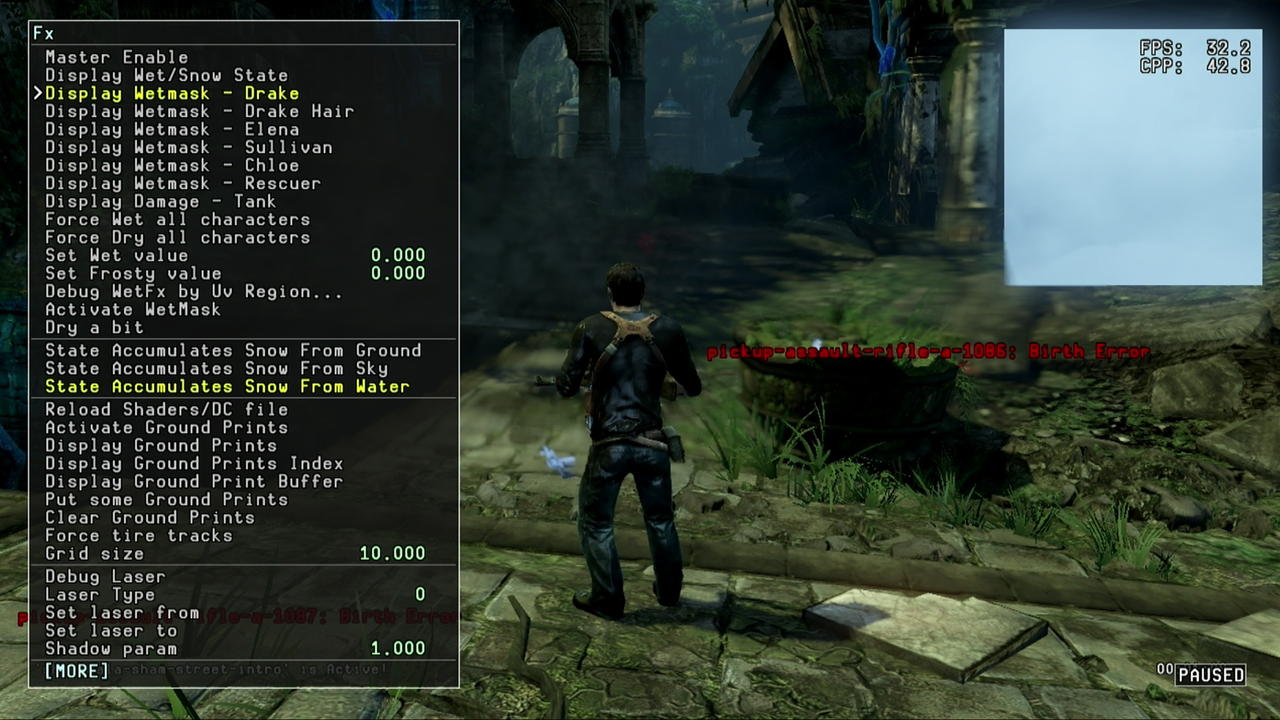
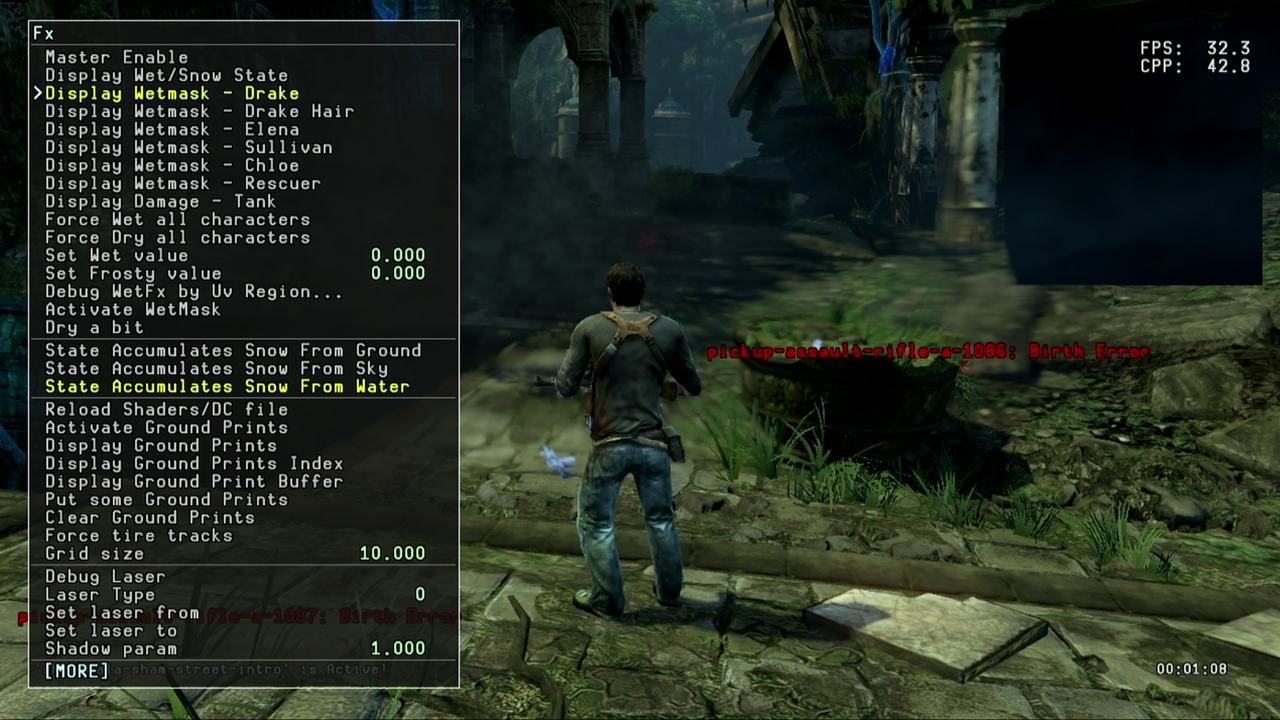
These pictures show the texture mask used for the characters Wet state, black means there is no sign of wetness, white, is fully wet.
Menu#
This will allow you to reload the devmenu.cfg config file if you have made manual changes. The devmenu.cfg files are for saving your debug menu settings and will be loaded on game startup, this can save a lot of time with enabling options you would always start with like Disabling Visibility and FPS cap.
Scripts#
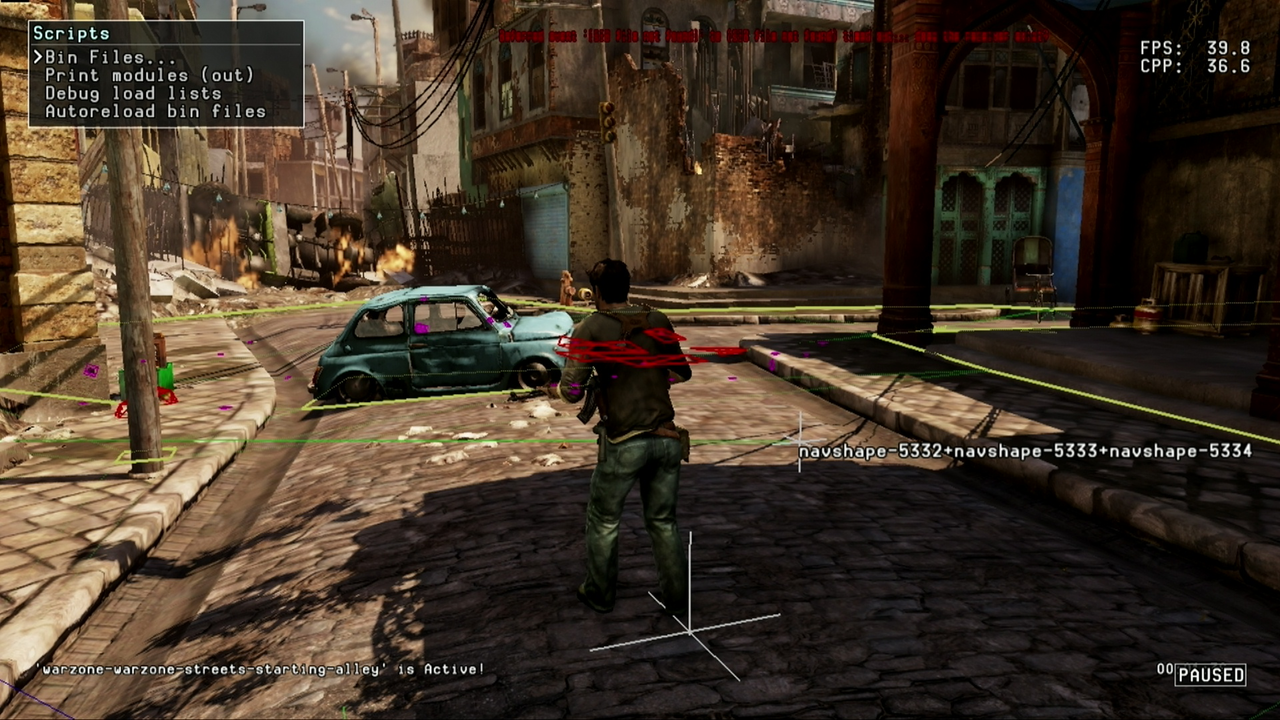
Once in the Scripts sub-menu, you will see 3 options, do not try to open the "Bin Files..." sub-menu as this will crash the game with a memory leak, presumably it will call the raw scripts files before they are compiled which are not in the final game.
Tasks#
You can choose any task you want to play in the single-player chapters. The Testing chapters do not load, and the Online chapters crash the game. 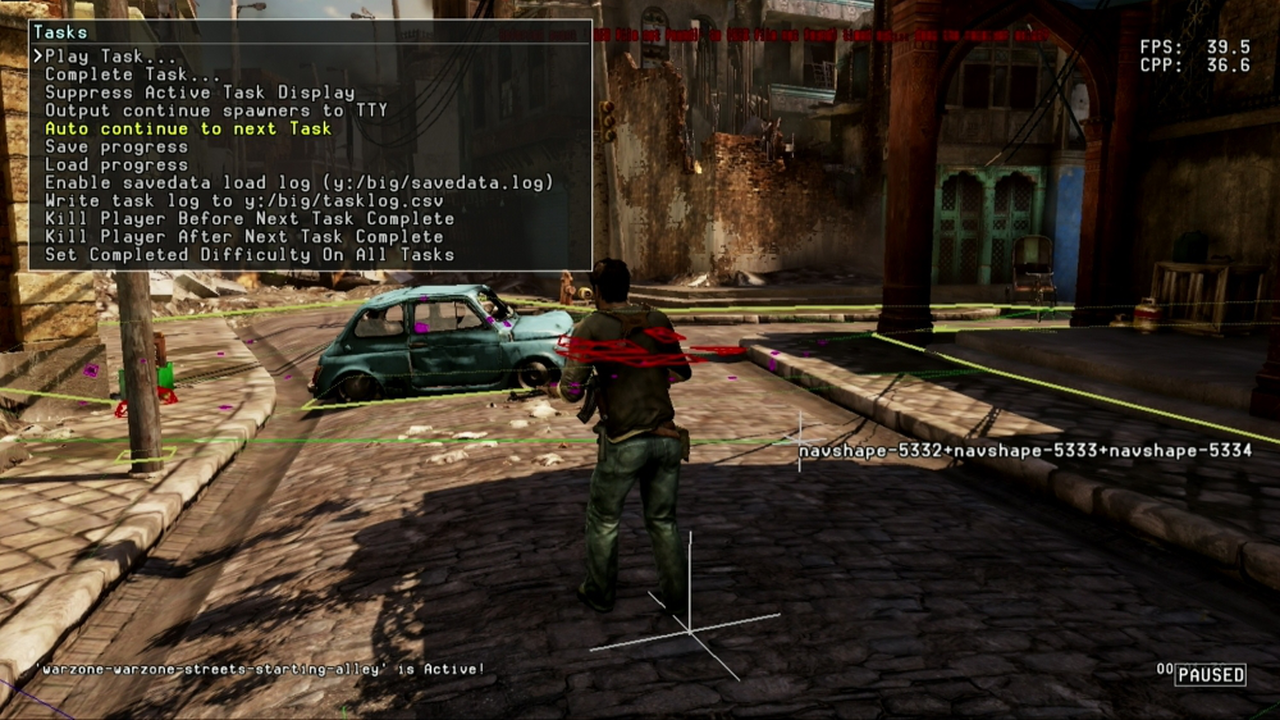
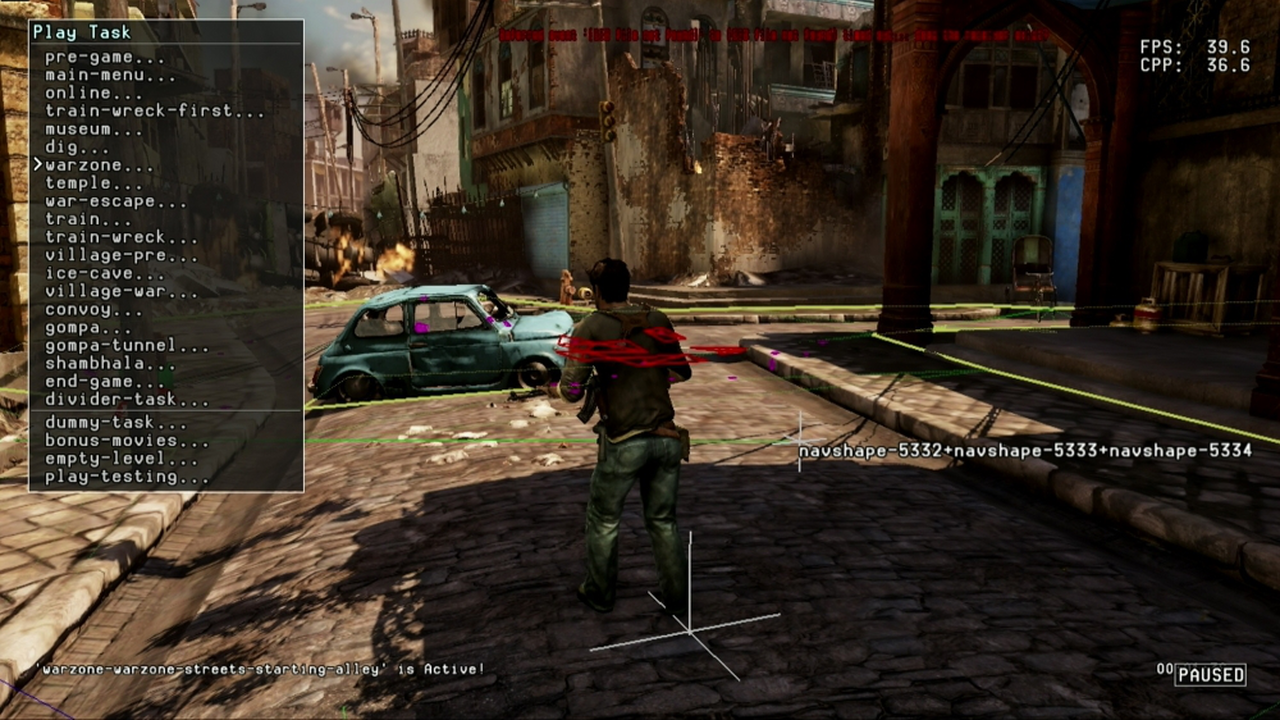
(Checkpoints and cinematics of every stage) 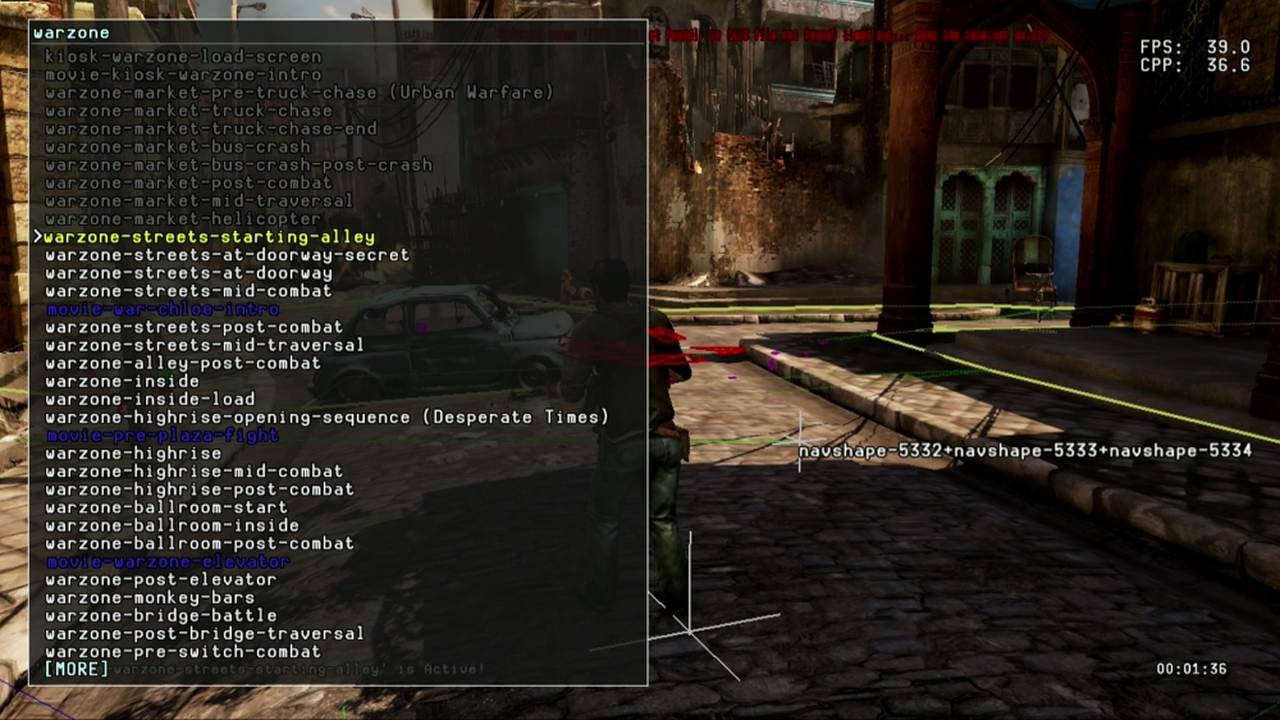
Quick Menu#
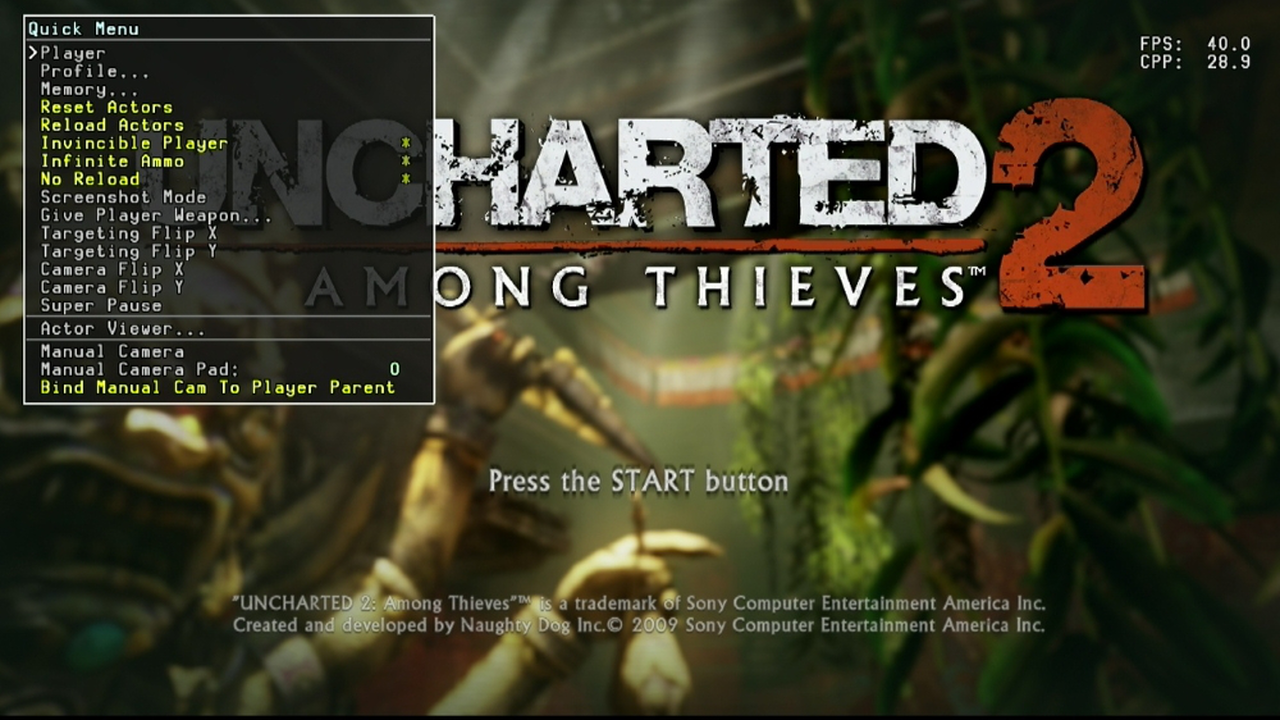
Has some additional options, such as Player, Infinite Ammo, Invincible Player, No Reload, and Give Player Weapon.
Player Attributes#
Player reloads the player "Actor" and pulls through all the assets associated to the player character, this can be used in any active task including the Main Menu to spawn the player and associated mechanics.
Invisible Player disables damage taken, but the blood effect on the HUD will appear when shot.
Infinite Ammo prevents ammo depletion, but does not stop the clip emptying.
No Reload prevents weapon clip depletion.
Actor Viewer#
This lets the player inspect most models in the game, and play appropriate animations.
Give Player Weapon#
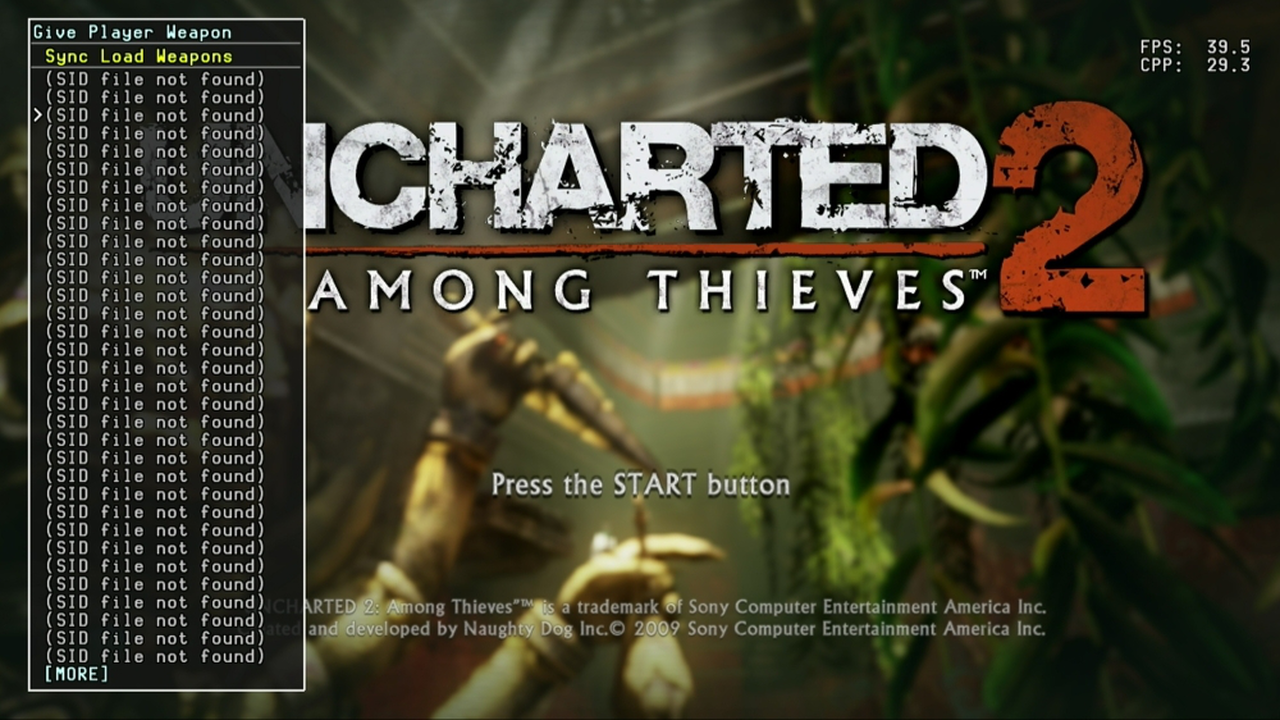
Most weapons can be used, some can't be loaded, and the menu will flash the weapon SID in red, it will not crash the game.
Misc Options#
Reset Actorswill put all interactable game objects back to the level starting position such as picked up treasures being put back in the spawn point.
Reload Actors will reload all interactable assets like characters, and game objects such as treasures running in the level, this will pull through all their assets and reset their status, so any changes made to raw textures or models in the pak files will update in-game.
Screenshot Mode hides all HUD and debug elements so a clear picture can be taken through Target Manager if running in debug mode.
Videos#
Here are a few videos I have recorded showing some of the features of the debug menu.
Convoy#
Show Vertex Sets rendering on the Convoy escape level, not particularly useful, but quite interesting to see.
High-Rise#
This is an external view of the high-collapse in the Warzone level, it shows how the building is shifted in the world.
Train#
The Train level being shown with Wireframe render mode. It causes poor performance as it renders all vertex, including those that would normally be covered by other faces. It takes FPS from 35~ to around 20.
Ice Cave#
This video shows some of the AI debug rendering as well as spawning Lazarević in the Ice Cave level where he does not appear in the game.
|
The Uncharted series | |
|---|---|
|
PlayStation 3 |
|
|
PlayStation 4 |
|