This is a sub-page of Sonic Championship.
Like Sega AM2's other Model 2 games such as Virtua Fighter 2 and Fighting Vipers, this game contains an extensive debug mode. To activate debug mode, a series of inputs are required. Hold down "Service SW" (Service Coin) and using P1 controls press RIGHT, RIGHT, PUNCH, LEFT, RIGHT, PUNCH, KICK, RIGHT, RIGHT, UP, PUNCH. There will be no confirmation the code has been entered correctly, but this enables debug functions.
(Source: BiggestSonicFan & SuddenDesu)
Alternatively, you can save this script as sfight.xml in the cheat folder of MAME.
<mamecheat version="1">
  <cheat desc="Easy Debug Mode">
    <comment>Hold Service Coin and press P1 Punch for Debug</comment>
    <script state="on">
      <action>maincpu.md@1978=08</action>
      <action>maincpu.md@1979=20</action>
    </script>
  </cheat>
</mamecheat>
(Script: Biggestsonicfan)
Strangely, If debug mode is enabled on the Model 2 Emulator, Depending on the hardware you're running the emulator on, It causes all the HUD elements will disappear. Including the debug menus, Making it harder to use.
Debug Display#
To enable a display that gives debug information such as a "CTRL_TIMER", "GAME_TIMER" and current program modes, use the debug mode enabling cheat and set DIP-SW 1 on. This also has the additional effect of giving a clear visual indicator that the debug functions were successfully enabled, as well as displaying "debug_mode" at the top of the screen when that has been enabled.
Disable Foreground#
To disable foreground textures, such as the HUD with health bar and timer information, as well as the "INSERT COIN" graphics, use the debug mode enabling cheat and set DIP-SW 7 on. This will override the debug display DIP-SW setting.
Enable Debug Mode#
After entering the code, the debug mode itself must be enabled manually, which is done by holding P2's BARRIER button and pressing P2 START. This renders the game in a frozen state in gameplay. Pressing P1 START will advance the game forward 1 frame. The primary function of this mode is allowing access to the debug menu, which is done by pressing and holding P2 START once more. Immediately, the menu shows an Exit option, which if pressed will exit debug mode altogether.
Debug Menu#
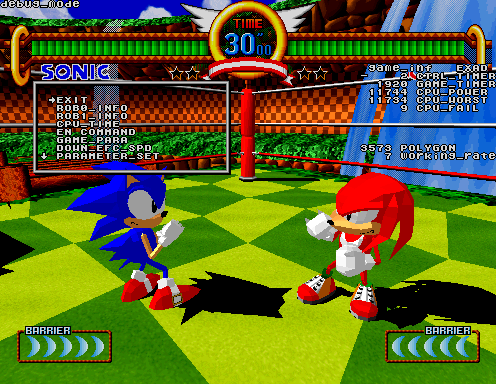
Returning to the menu, it can be navigated as long as P2 START is held using P1's directional controls. Only a single press of up or down is read at a time by default, but holding P1 BARRIER whilst doing so will make the cursor quickly scroll through the options. To access a debug menu's submenu, press P1 START over the option you wish to select. Note that holding P2 START is no longer required once in a submenu. The options available in this menu include:
PARAMETER_SET#
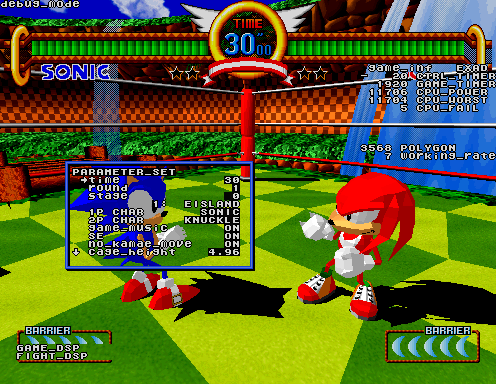
This will allow you to change fighting settings on the fly such as the characters and stage in play, the set number of time and rounds, for music and/or sound effects to play etc.
BGM_TEST#
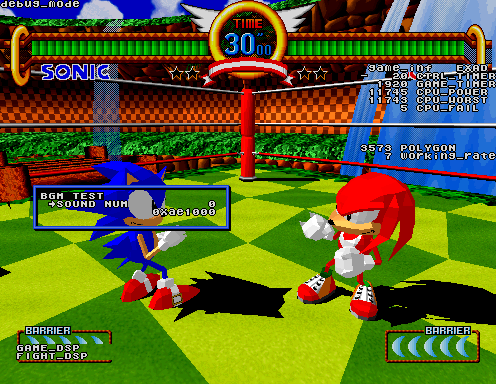
This menu lets you change the current music to any listed in the sound test. No. 20 in this menu is a pause option that will stop whatever is currently playing.
SCROLL_TEST_2#
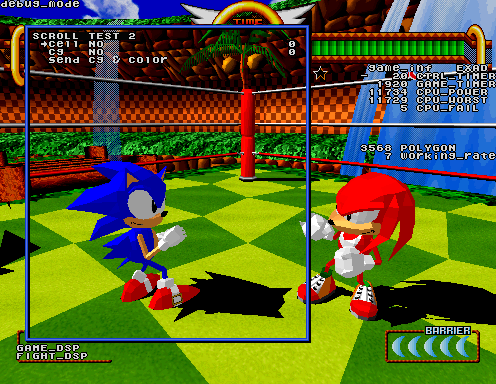
This menu lets you scroll between all the sprite graphics listed in its IDs. The "cell NO" option contains the sprites in question. "cg NO" contains the game's list of sprite decompression algorithms, which can be enabled by pressing the "send cg & color" button. Certain sprites will only display as intended when combined with the correct cg variable.
POLYGON_TEST#

This menu lets you scroll between all the the game's 3D Models listed in its IDs. A given model can be rotated in the X, Y and Z positions and axiz respectively through a combination of inputs from the P1 and P2 controller.
CAMERA#

This menu sets the camera to be above the fighters at an angle. The various options can be used to alter the camera's position. Should gameplay resume, the camera will scroll back to its original position.
CELL_DISP#
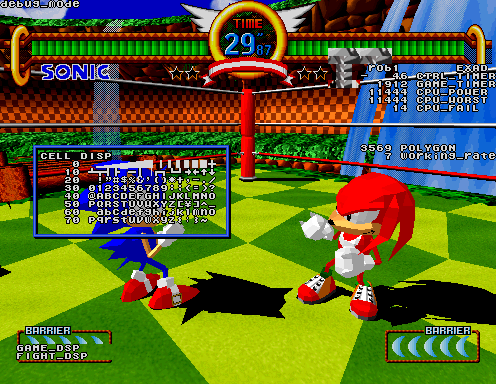
This menu seems to display the game's currently loaded 2D cell graphics in their compressed form. The contents are naturally dependent on the game's current state, if not whatever the player manually loaded in the Scroll_Test_2 menu. Of interest, this menu seems to give us an idea of how the game handles its graphics RAM to an extent. The total loaded cells only seems to go up to 4000 before it starts to display blue garbage data.
COIN_SETTING#

This menu allows one to adjust the game's settings for reading inserted coins.
COLOR_TEST#
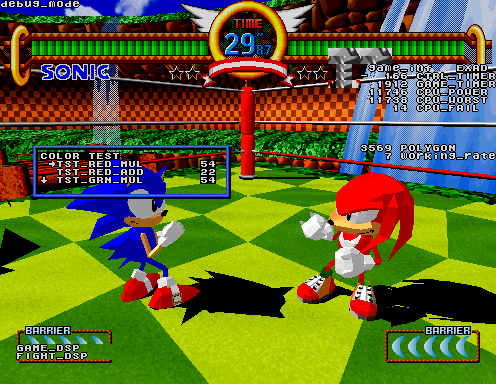
This menu allows one to set a red, green and blue tint across the currently loaded 3D models.
CPU_TIME#

This menu displays an assortment of details relating to the game's usage history since start-up.
OBJECT_TEST#
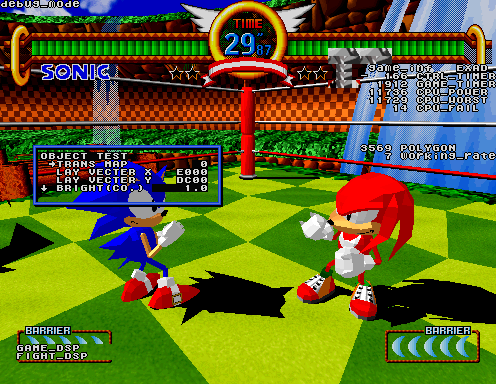
This menu allows for altering elements of the game's 3D objects. Namely, the "BRIGHT (CO.)" will adjust the game's current lighting strength and direction.
PARTS_TEST#

This menu seems to function similarly to the POLYGON_TEST menu, aside from offering additional settings to alter the game's model parts.
SKY_EYE#
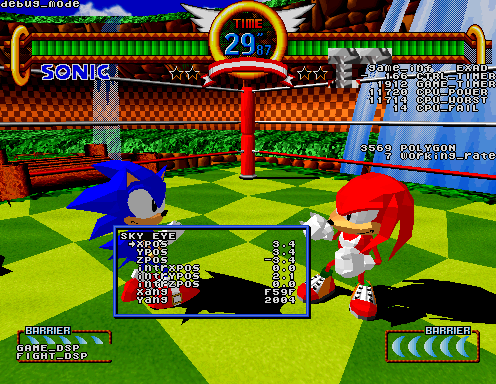
This menu seems to function similarly to the CAMERA menu, aside from not altering the camera position immediately upon accessing the menu.