 This article has a talk page!
This is a sub-page of Need for Speed: ProStreet.
Present in all versions of the PlayStation 2 release, debug mode can be accessed on an emulator by renaming 04PROSTR.BIN to 04PROSTR.ELF and launching it, as it is just a renamed ELF file.
To do this on a PS2 console, one must instead make a copy of 04PROSTR.BIN, and re-name it to replace the executable/ELF file in the root directory (this file is "SLES_550.02" in the PAL release, for instance), and include the files IRX281N.BUN and IRX281N2.BUN from Need for Speed Underground 2 or Most Wanted Alpha 124 in the NFS folder. Then, the ISO must be re-built in order to either run it directly with a launcher such as OPL, or the ISO must be patched using freedvdboot-ESR or a similar exploit before burning it to a DVD.
Debug mode adds various features to the UI, and allows access to a very extensive debug menu that even contains leftovers from previous Need for Speed titles.
The contents of the debug menus are different from version to version, so the contents of debug menu functions only present in Xbox 360 prototypes will also be documented here.
Debug Message Printing#
When debug mode is enabled, the game prints various messages to a console. An example of what the game prints can be seen below.
WARNING:  bOpen() cannot open file NFS¥IRX281N2.BUN
Loading network configuration
Error occured loading network configurations
Build Type: PSX2 MilestoneOpt

Executable Size:  6867K (code = 5168, data = 862, globals = 835)
Changelist: Unknown

[Juice] Build Label: [PROST_psx2_INT_2007_10_03_23_40_America_351635]... Returning [PROST_psx2_INT_2007_10_03_23_40_America_351635]
Loading front end...
MEMCARD: Profile Save file size used: 5444 of: 10240
Memcard: OnSaveDone entry ATCRF
Memcard: OnLoadDone entry: C01
Unloading front end...
Loading region L7R_Autopolis...
CodeOverlayLoadingGame  .overlay_start 0x693a00  .overlay_end 0x6e3c78  .overlay_size 328312
MEMCARD: Profile Save file size used: 5444 of: 10240
Memcard: OnSaveDone entry ATCRF
MEMCARD: Career Save file size used: 382900 of: 460800
Memcard: OnSaveDone entry C01
Build Information#

Upon startup, the game prints a short build information string to the screen. It starts with the game name in a shortened fashion, followed by the console it was built for, a build configuration identifier, the date and time it was built, the region it was built for, and the number of revisions made to the game during development.
SmokeTest#

|
To do: |
Pressing L1 + R1 simultaneously (LT + RT on Xbox 360) on the "press start" screen starts the "smoke test", a way for the developers to check if any core gameplay mechanics have broken. The game runs as fast as it is able to and automatically reads inputs from a series of scripts, specifically, "SmokeTest.hoo" which in turn loads "SmokeTestRace.hoo" and "SmokeTestGarage.hoo". After the scripts have successfully finished running, the game attempts to write to a file called "GlobalSmokeTestSuccessful.tag". The contents of the scripts are also printed to the console.
Debug Car Test#
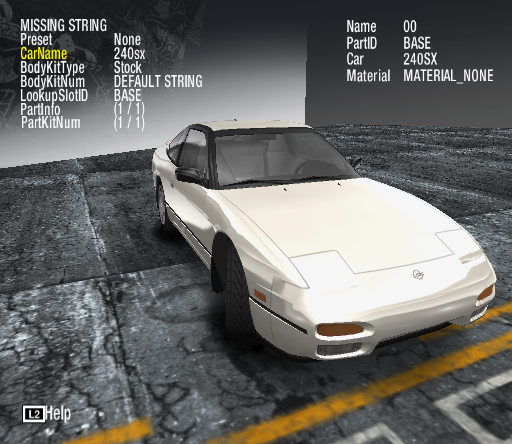
Entering the Career menu in debug mode reveals another button below the Save function, called "Debug Car Test". It is able to view any car in the game, both stock and preset, along with all of their respective customization parts.
Use the D-Pad or Left Stick to navigate the various menu options, and press R2/RT to save the game. Pressing L2/LT doesn't do anything, despite the button referring to a help menu of sorts.
Debug Cameras#
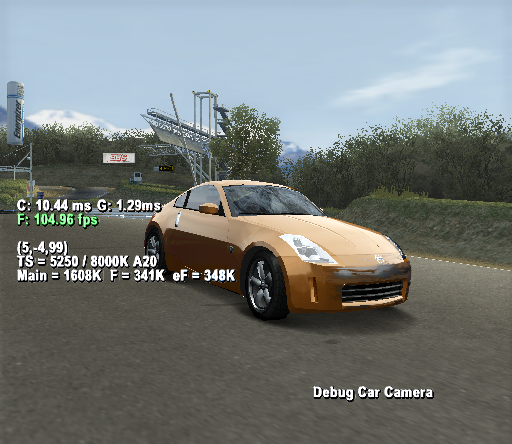
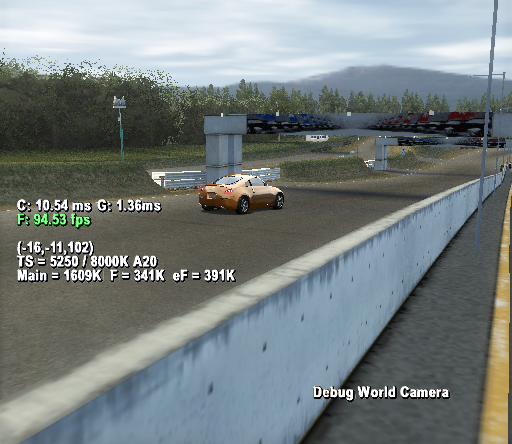 Connecting a second controller enables use of the two debug cameras available in debug mode. The Debug World Camera can move freely about the game world, whereas the Debug Car Camera can orbit freely around the player's car.
Pressing Select/Back switches between the regular car camera and the debug camera modes.
Debug World Camera controls:
- Left Stick/D-Pad: Look around. Up/Down are inverted.
- Right Stick: Move forward/backwards/left/right.
- L1/LB: Ascend.
- L2/RB: Descend.
- R1/LT: Lesser speed boost.
- R2/RT: Greater speed boost.
- Cross/A: Move forward (does not affect y-axis).
- Circle/B: Strafe right (does not affect y-axis).
- Triangle/Y: Move backwards (does not affect y-axis).
- Square/X: Strafe left (does not affect y-axis).
- Start: Teleports player car to camera position.
Debug Car Camera controls:
- Left Stick: Rotate camera.
- Right Stick Forward/Back: Moves camera in or out.
Debug Menu#
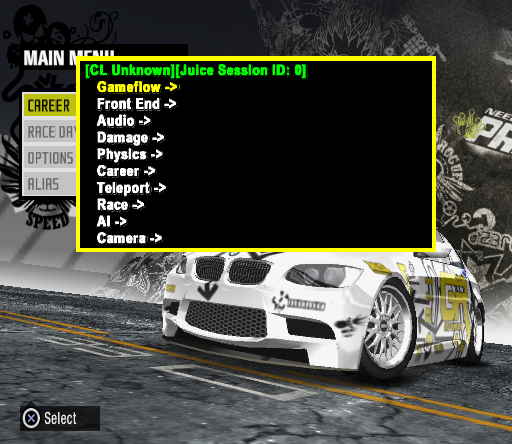
The debug menu can be opened from anywhere in-game by pressing L3/LS and R3/RS in quick succession. The game also pauses itself whenever the menu is open.
- NIS Text Display: Displays detailed information about the NIS currently playing. It displays the time elapsed, which frame it's on, which camera track is currently active, and the description given in the file. This is the only menu button not in any of these categories.
Gameflow#
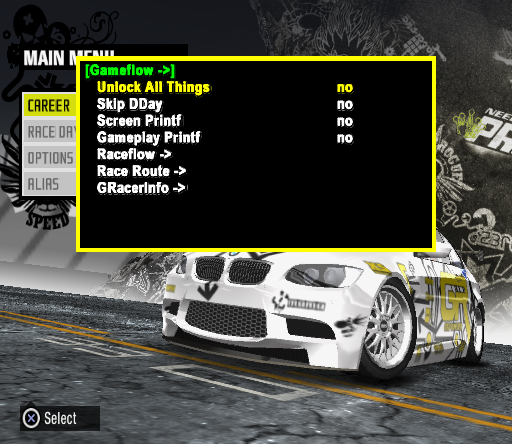
This section contains shortcuts to commonly used debug functions to make progression easier.
- Unlock All Things: Does exactly as mentioned, but is now able to be toggled on or off compared to the cheat code.
- Skip DDay: Skips the prologue race for when a new career is started, referred to as "d_day" in the game's files.
- Screen Printf: Prints various things to the screen, such as coordinates, framerate, and the filename of the menu you're currently on. Some debugging functions require this to be on in order for them to work.
- Gameplay Printf: Doesn't seem to do anything.
Raceflow#
This section contains various "debugging" functions that involve racing in-game.
- Force Finish in Place: Finishes the race in whatever position has been chosen as long as the rankings haven't already been decided.
- Finish Time: Accompanies the above button, but doesn't actually do anything.
- Teleport everyone to near end of race: This button puts all racers on the last lap of the race (or just in front of the finish line if the race is point-to-point) and arranges them in a single-file line.
- Speed Boost Button: Setting this to "yes" replaces the nitrous oxide button with a button that instantly catapults you to whatever speed you have set.
- Speed Boost Speed (MPH): This is where you set the speed for the speed boost button. It can be adjusted to anything between 0 and 350.
- Toggle AI Control: This toggles whether an AI can drive your car or not. It has to be re-enabled after menu transitions.
- g_DisableTotalledState: Setting this to "yes" disables the "totaled state", meaning cars can be smashed and flipped with no repercussions. Setting it to "no" returns it to normal.
Race Route#
This is an empty submenu.
GRacerInfo -> PctComplete#
GRacerInfo is a submenu which only contains another submenu called PctComplete. All of the functions in this menu do nothing.
- Twk_DrawAIDriveLine: Does nothing. Togglable to "yes" or "no".
- Tweak_DrawNavAndCurrentCookie: Does nothing. Togglable to "yes" or "no".
- Twk_DrawNavPlayerOnly: Does nothing. Togglable to "yes" or "no".
- DBG_AI: Does nothing.
- DBG_WROADNETWORK: Does nothing.
- Twk_ShowDistanceToStartGridPlane: Does nothing. Togglable to "yes" or "no".
Front End#
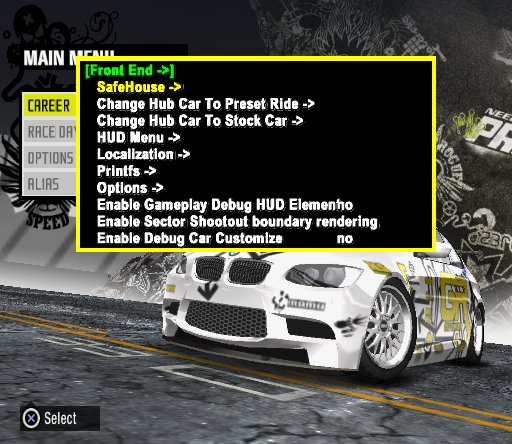
 This section of the debug menu contains debugging functions related to the game's mechanics, career and UI.
- Messenger Enabled: Disables pressing the right stick to open EA Messenger. Only seems to work in later debug-enabled Xbox 360 builds.
- Enable Gameplay Debug HUD Element: Doesn't seem to do anything.
- Enable Sector Shootout boundary rendering: Doesn't seem to do anything.
- Enable Debug Car Customize: Doesn't do anything as the debug car test menu is always visible in debug mode.
- Video Mode (PAL:0 PAL60:1 NTSC:2): Displays the current video mode.
- Damage cars in the hub: Increments the damage level on the player's current car while in the Race Day hub, from levels 0 (undamaged) to 3 (totaled).
- Show Silver, Gold, and Platinum Marker Select Screen: None of these buttons seem to do anything other than close the menu.
- Display Hidden Markers: Doesn't seem to do anything.
- Save Joylog File: Was supposed to save a Joylog file (.jlg) somewhere. Not much is known about it other than the fact it's used to record inputs.
- Front End Drawing: Enables or disables the drawing of UI elements and the like to the screen. A side effect of this setting being enabled is the ability to see through loading screens.
- Toggle Game Tips: Enables or disables the ability to cycle through game tip loading screens. Loading tips only used in next-gen versions of the game are present on PlayStation 2, along with a couple of unused loading tips. Use L1/LT and R1/RT to cycle through them.
Once a tip is on-screen, the only way to remove it is to press Toggle FEng Test Screen in the debug menu. - Display FMV Filename: Displays the filename of the FMV that is currently playing, if any. Requires Screen Printf to be enabled.
- Trigger Dirty Disc: Triggers the console's "dirty disc" screen. Only present in Xbox 360 debug menus.
- Force LOD: Forces a certain LOD to be drawn for all cars, regardless of distance. Requires being pressed in order to have an effect.
- Toggle FEng Test Screen: This button toggles what seems to be a test screen on or off. The "test screen" itself just gets rid of any UI elements that are on-screen. Toggling this on and off causes some menus to default to what seems to be the placeholder values for that menu. It is very easy to softlock or even crash the game with this function.
- Toggle Debug Car Screen: Doesn't do anything.
- Test Career Customization: Also doesn't do anything.
- Save Highlited BP To File: If Screen Printf is enabled, it prints an error message to the screen stating that "blueprint saving can only be done on PC...".
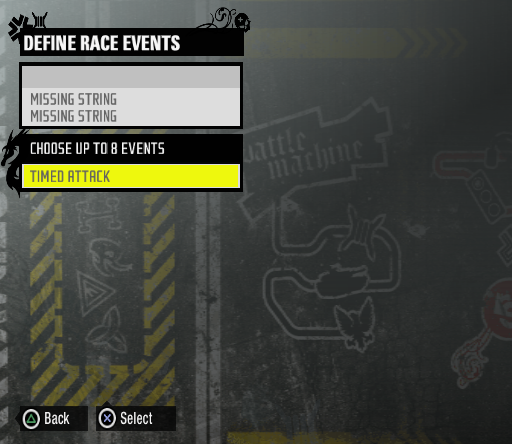
- Play FMV: Opens a list of most of the available full-motion-video sequences present in-game. The menu also references files not present in the final game. Attempting to play these just results in a black screen as they do not exist.
Press a filename to play it. To stop playing it, simply open the menu and press the filename again. - Summon Chyron: "Summons" an online-specific notification in the bottom right corner of the screen with the amusing placeholder text "Chyron cometh. Doom is near."
- Add Chyron Icon: Adjustable from 0 to 7. Pressing the button will summon an online-specific notification with a certain icon with the placeholder text "Adding a cycling icon display."
- Dismiss Chyron Icon: If an online-specific chyron that has been summoned persists, adjust the number to that of the chyron that should be dismissed, and it will remove it from the screen. Set this to -1 to dismiss all chyrons.
- Summon Music Chyron: "Summons" the "now playing" notification with placeholder text.
- Display Loading Time: After loading into a different world, displays the loading time in red, in milliseconds, in the bottom left corner of the screen.
- Log Loading Time to JUICE: Does nothing. Togglable to "yes" or "no".
- Enable Alias Delete: Does nothing. Togglable to "yes" or "no".
Note that all of the functions related to online-specific chyrons do not work on PlayStation 2 as that version does not have online functionality.


SafeHouse#
This submenu contains things that affect career data and the main menu.
- Unlock All Things: Same option as the one above. It unlocks everything when you set it to "yes".
- Change CarPosition: Changes the position of the car in the main menu. Curiously, is adjustable from 0 to 10, despite many of the
- Award Cash (+10,000): Adds $10,000 to the loaded career's cash amount.
- Win a lottery (+1 000 000): Adds $1,000,000 to the loaded career's cash amount, hence the name.
- Award Free Car Marker: Awards a Free Car Marker to the loaded save file.
- Full Impound Strikes: Leftover from Need for Speed: Carbon. Doesn't do anything.
- Get One Of Each Marker: Awards one of each type of marker available if they haven't already been maxed out.
- Car Guys Camera: Allows free rotation of the camera in the menus.
Use Right Stick to move the camera, R1/RT to zoom in, and L1/LT to zoom out. - Render Lookat Point: Doesn't seem to do anything.
- MaxOutCars: This puts seemingly random stock cars into the save file's garage until the maximum amount of cars has been reached. This does not account for pre-tuned cars.
- Change Hub Car To Preset Ride: This menu would change the player's car to a preset car present in the list, but there aren't any preset cars to select from.
- Change Hub Car To Stock Car: This menu changes the player's car in the hub to any stock car present in the list. It does this by simply assigning the selected car for every race mode. An unintentional side effect of doing this in a Challenge Race Day is that the selected car is awarded to the player after dominating the race day. Doing this on the PlayStation 2 version has no effect as that version does not have the hub area present in next-gen versions.
- Write Current Gen Skin To File: Attempts to write a file somewhere, but fails. Only present on Xbox 360 builds.
- Write Next Gen Skin To File: Also attempts to write a file somewhere, but fails. Only present on Xbox 360 builds.
HUD Menu#
This submenu contains various things related to the in-game HUD.
- Tach Damage Level (-1 uses real damage): Doesn't do anything. Likely would've changed the tachometer damage indicator to that of the user's choice.
Mini Map#
Nothing in this menu works. It contains a few debugging functions related to minimaps in-game.
- Print Hash Str: Does nothing.
- 180 Flip: Does nothing.
- Generate Mini Map splines for current region: Does nothing.
- Generate Mini Map splines for all regions: Does nothing.
Turn Indicators#
This submenu contains a bunch of stuff related to the on-screen turn indicators.
- Do It!: "It" means "nothing" in Black Box debug menu language, it seems.
- Turn Indicator (-1=off): Enables or disables the turn indicators.
- Turn Indicator Dir (0=Left): Judging from the name, this probably was supposed to change the direction of the turn indicator. Doesn't appear to do anything, though.
- Turn Indicator Level/Colour (-1=use real data): This did do something at one point, as colored turn indicators based on the amount of braking you'd have to apply did appear in pre-release footage. This does nothing in the final game as all of the turn indicators are white.
Localization#
This menu contains functions involving the game's different translations.
- Dump Loc Tracking: Doesn't do anything.
- Enable Language Cycling: Setting this to "yes" lets you cycle through all of the game's available languages, including just the bare labels used by the game to determine what string should take its place. Use L1/LT and R1/RT to cycle through. Enabling Screen Printf also displays what language is currently displayed at the bottom of the screen.
- Enable Loc Tracking: This enables or disables printing of error messages regarding in-game subtitles to the console. An example is provided below.
WARNING: bOpen() cannot open file SUBTITLES¥Intro02SD.subPrintfs#
This branch displays all of the screen print functions available. Many of these do not work in the PlayStation 2 version.
- Screen Printf: Enables or disables the printing of various information to the screen.
- Audio Printf: Doesn't do anything.
- FMV Timer Printf: Displays a timer at the top of the screen during FMV playback.
- DVD File Stats: Prints statistics related to disc reading. It displays timestamps for when a file was read from, and the delay between reads, followed by the size of the chunk of data being read, followed by the file that was being read from. Reads are also sorted into categories which are visible on the right side of the screen.
- Customization Printf: Doesn't do anything.
- Juice Printf: Doesn't do anything.
Options#
This branch displays miscellaneous controller settings.
- Controller Configuration: Switches between 1 of 2 controller configurations, but without having to go into the controller configuration menu.
- Transmission: Switches between Automatic, Manual, and Manual Clutch transmission types.
- Force Rumble On: Turns the controller rumble setting on or off.
Overlays -> Loading Screen#
Brings you to a menu where you can view the loading screen overlays. You will have to use the Toggle FEng Test Screen function to get rid of them.
Audio#
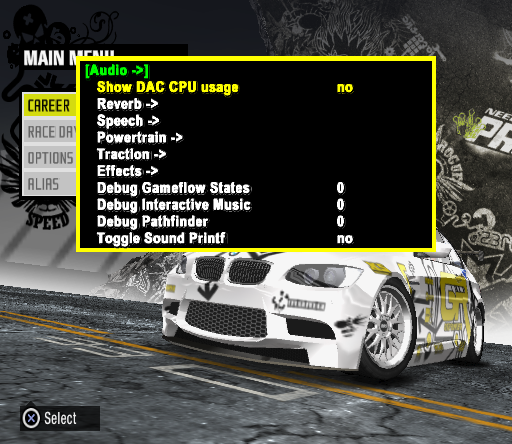
This menu features a lot of functions for debugging the game's audio.
- Show DAC CPU usage: Does nothing in the PlayStation 2 version, but it prints various usage statistics to the screen in the Xbox 360 version.
- Debug Gameflow States: Doesn't do anything.
- Debug Interactive Music: This shows debug information for the interactive music system. It prints to the screen, but it doesn't work.
- Debug Pathfinder: Displays information relating to the volume of music and the path events attributed to the music that plays in-game.
- Interactive grip songID: Does nothing. Only present in the Xbox 360 version.
- Toggle Sound Printf: Enables or disables the printing of what menu sounds have been played. If no sound has been played for a certain amount of time, the reading will disappear until the next sound is played.
The game also prints what sound has been played to a console. - Show Localization Info: Prints the filenames and locations of the localized speech data files to the screen.
- Print engineaudio info: Doesn't do anything.
- Debug EATRAX: Doesn't do anything.
- Show attrib songnames in jukebox: Doesn't do anything.
Reverb#
None of the options in this menu branch seem to do anything.
Speech#
This branch contains various debugging functions related to the announcers who speak in the hubs, and commentate races.
- Toggle JUICE Evlogs: Doesn't do anything.
- Toggle Speech AI Debug: This prints information related to what speech event is being played. Screen Printf needs to be enabled for this to work.
- Toggle Speech Event Playback Debug: Does the same thing as Toggle Speech AI Debug.
- Toggle Speech Ditching: Doesn't seem to do anything.
- Debug Speech Collisions: Doesn't seem to do anything.
- Force Speaker ID: Setting this to 5 makes the announcer disappear once the next voice clips start playing. Settings 0 through 4 don't seem to do anything, though.
- Trigger random sample: Doesn't seem to do anything.
- Turn on crowd emitter: Doesn't do anything.
- Crowd X,Y, and Z: None of these options do anything.
Test Speech Events#
Brings you to a menu where you are able to listen to all of the game's speech clips. Effectively a sound test.
- Speech Event: Lets you select a speech event bank to play audio from. Some of these contain unused audio, and some are unused altogether.
- Param1 through Param4: Each of these settings are adjustable from 0 to 31. They seem to be used for selecting a specific audio file from the sound bank you're in, but don't actually seem to do anything.
- PLAY EVENT: Does nothing on its own, but plays the next speech event if PLAY SPEECH EVENT REPEATEDLY is set to 1.
- PLAY SPEECH EVENT REPEATEDLY: Setting this to 1 plays speech events repeatedly and does not stop until it is turned off.
Powertrain#
Empty submenu in the PlayStation 2 version. A few options are present in the Xbox 360 debug menu, however:
- View engine inputs: Doesn't seem to do anything.
- View BandAid inputs: Doesn't seem to do anything.
- Damage ratio override: Doesn't seem to do anything, but it's adjustable from 0 to 0.9.
- Debug SFXOBJ_INDUCTION: Does nothing.
Traction#
None of the options here seem to do anything.
Effects#
A few extra screen print functions are present in this submenu. Show Surfaces is the only button available in the PlayStation 2 menu, but there are three extra options in Xbox 360 debug menus:
- Show Surfaces: Prints information about the car being driven and the surface it's on to the screen.
- Debug Whoosh: Implies that it prints debug information about "whooshes", but doesn't seem to do anything.
- Debug Scrapes: Prints debug information about scrape audio to the screen whenever a scrape sound effect is played.
- Collision debug: Implies that it prints debug information about collision audio, but doesn't do anything.
Damage#
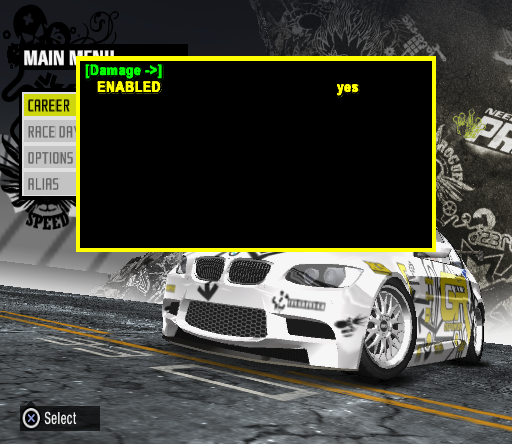
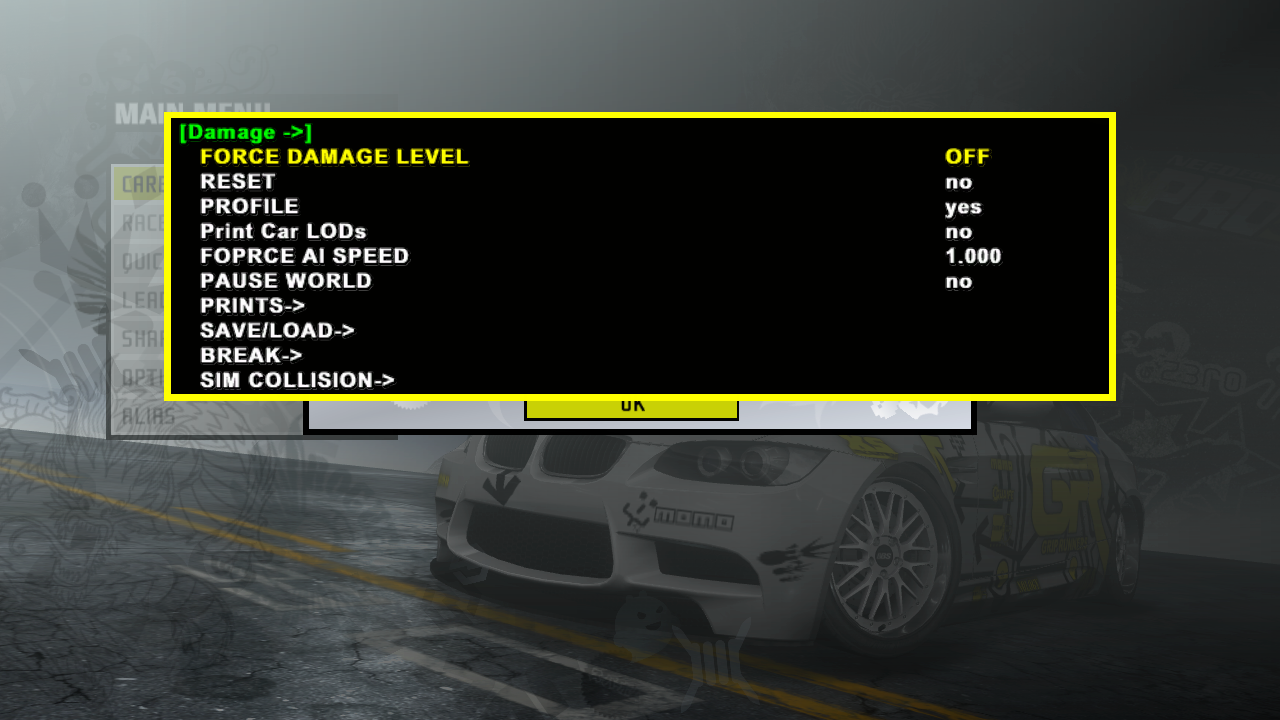
In the PlayStation 2 debug menu, the only thing in the damage menu is an option to enable or disable the damage system. Even though the damage is there visually, nothing is actually affected.
In debug-enabled Xbox 360 prototypes, more debugging functions can be accessed:
- FORCE DAMAGE LEVEL: Forces the damage level to either level 0 (no damage/cosmetic), level 1 (light damage), level 2 (heavy damage), or level 3 (totaled). This takes effect once the car comes into contact with something that affects the damage level.
- RESET: Resets visual damage.
- PROFILE: Unknown.
- Print Car LODs: Prints the level-of-detail model being used for each car that is loaded. Only present in the October 14th Xbox 360 build.
- FOPRCE AI SPEED: Defaults to 1.000. Setting this to 0.000 forces all AI vehicles to stop, and setting it back allows them to move normally. Only present in the October 14th Xbox 360 build.
- PAUSE WORLD: Pauses the game. It's unknown why this button is in this location in the October 14th Xbox 360 build.
- TEXT DUMP: Unknown. "Yes" immediately switches to "no" once the menu is closed.
PRINTS#
- PRINT DAMAGE SOCKETS: Doesn't seem to do anything.
- PRINT DAMAGE: Prints damage morph weight values as well as the current damage level of the player's car. Requires Screen Printf to be on.
- PRINT PART DAMAGE: Doesn't seem to do anything.
SAVE/LOAD#
- Test Save Damage: Crashes the game.
- Test Reset Damage: Crashes.
- Test Apply Damage: Crashes.
BREAK#
- BREAK LATCHES: Forces the breaking of all latches present on all vehicles.
- DONT DETACH PARTS: Enables or disables the detaching of car parts.
- DONT ANIMATE PARTS: Enables or disables physics for car parts, which also affects whether they detach or not.
- EASY BREAK PARTS: Makes parts fall off at the slightest touch.
SIM COLLISION#
This menu is only present in the October 14th Xbox 360 build.
- Speed (MPH): Sets the speed of the simulated collision.
- RESET ALL: Resets the damage of all vehicles.
- FRONT: Simulates a collision at the front of all vehicles.
- REAR: Simulates a collision at the rear of all vehicles.
- LEFT: Simulates a collision on the left side of all vehicles.
- RIGHT: Simulates a collision on the right side of all vehicles.
- FRONTLEFT: Simulates a collision on the front left side of all vehicles.
- FRONTRIGHT: Simulates a collision on the front right side of all vehicles.
- REARLEFT: Simulates a collision on the rear left side of all vehicles.
- REARRIGHT: Simulates a collision on the rear right side of all vehicles.
OTHER#
- DISABLE TOTALLED STATE: Enables or disables the ability to total cars.
- FORCE PIXEL DAMAGE: Implies that it forces scratch textures, but doesn't seem to do anything.
- PIXEL DAMAGE FROM MORPH: Enables or disables scratch textures adapting to mesh damage.
- ENABLE MESH DAMAGE: Enables or disables the ability for car parts to crumple up upon being hit.
- PLAY INSTANT REPLAY: Unknown.
- ADD CAR: Spawns a static copy of the player car. The game will crash if too many cars are spawned.
- SPEED 50 MPH RECORD: Doesn't seem to do anything other than act as a 50 mile-per-hour speed boost button.
- SPEED 50 MPH COMPARE: Does the same thing as the above button.
Physics#
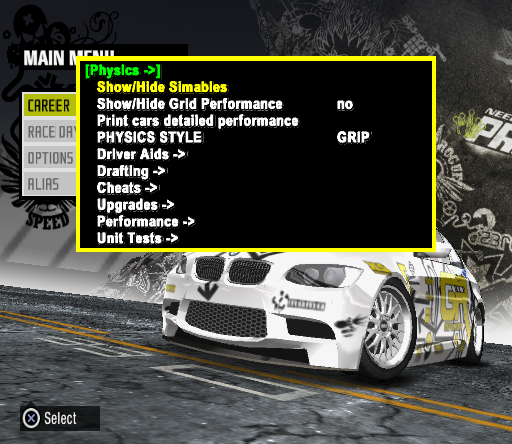
This branch shows debugging functions related to the game's physics system.
- Show/Hide Simables: This button shows or hides the attributes of the other vehicles present in the game world. It displays the type of car, whether the car is in the loaded section of the world or not, and if its model is that of a high or low resolution, the physics mode it is currently in, and its coordinates. If the car is being controlled by a player, it will say which controller port is currently using it.
- Show/Hide Grid Performance: This button show or hides "grid performance". Not really sure what it is.
- Print cars detailed performance: Does nothing.
- PHYSICS STYLE: Changes the physics mode to that of the Grip, Drag, Drift, or Speed Challenge modes. In an event, it even carries over mode-specific properties, like being able to blow up the engine in a drag race.
Driver Aids#
This menu lets the user adjust each aspect of the driving assists.
- Show DriverAids: Doesn't do anything.
- Set DriverAssist Mode: Sets the driving assist mode, regardless of what the player chose when creating a new save file.
- ABS: Adjusts the intensity of the anti-lock-braking system.
- TRACTION CONTROL: Adjusts the intensity of the traction control system.
- ESC: Adjusts the intensity of the electronic stability control system.
- RACELINE ASSIST: Determines how much the car sticks to the racing line.
- BRAKING ASSIST: Adjusts the amount of automatic braking applied to the car.
- DRIFT STEERING: Determines how much the car steers automatically while drifting.
- DRIFT STICK TO ROAD: Determines how much the car stays on the road while drifting.
- DRIFT DYNAMIC BRAKE: Determines how much the car controls the braking while drifting.
- DRIFT SPEED LIMIT: Adjusts some sort of speed limit put in place while drifting.
Delton's SD Tweaks#
This Driver Aids submenu lets the user adjust other physics values at will. Most of these do have an effect on gameplay, but the changes are basically unnoticeable.
- Downforce Multiplier: Adjusts the downforce multiplier. Maximum is 5.
- Grip Multiplier: Adjusts the grip multiplier. Maximum is 2, minimum is 0.
- Fishtail Force: Adjusts whatever the fishtail force is. Default is -200, but is only adjustable from 0 to 10000.
- Less gas when braking: Doesn't seem to do anything.
- Auto initiate steering: Does not automatically initiate steering, even if it is set to "yes".
- CornerExit: Oversteer Dampening: Adjusts the amount of oversteer dampening when exiting a corner.
Drafting#
This physics submenu contains options to draw the drafting zones and toggle the drafting effect on or off. None of these options do anything, though.
Cheats#
This aptly-named submenu contains various buttons that propel the player's vehicle forward.
- Speed = 50, 100, 150, and 200 MPH: Sets the speed of the vehicle to whatever speed is labeled on the button.
- Launch Car-a-pult: Sets the car's speed to 125 MPH.
Upgrades#
This physics submenu only has a functionless button that reads "Compare car with high end".
Performance#
This physics submenu only has one button labeled "Compare Real vs Simple Dyno Performances" that crashes the game when pressed.
Unit Tests#
This submenu contains buttons that seemingly overrode whatever transmission setting was selected (manual clutch, automatic). None of these buttons work.
Debug Draws#
This submenu is only present in the debug-enabled Xbox 360 prototypes. It contains many options for printing physics debug information to the screen, all of which don't do anything.
- Show Physics Debug Info: Does nothing.
- Select Preset: Provides a list of "presets" that show certain types of physics debug information.
Steering#
This menu has one button, labeled "Draw Steering". It does nothing.
Engine#
This menu has three buttons, each labeled "Draw Engine RPM", "Draw Cruise Control", and "Draw Clutch". They all do nothing.
Tires#
This menu has many buttons, each for drawing certain aspects of tire physics to the screen. They also do nothing.
Custom Graphs#
This menu lets the user configure a custom telemetry graph. Unfortunately, there are no graphs to be found.
Tire Model Graphs#
This menu is supposed to draw certain "tire model" graphs, presumably as a reference. No graphs are drawn.
Career#
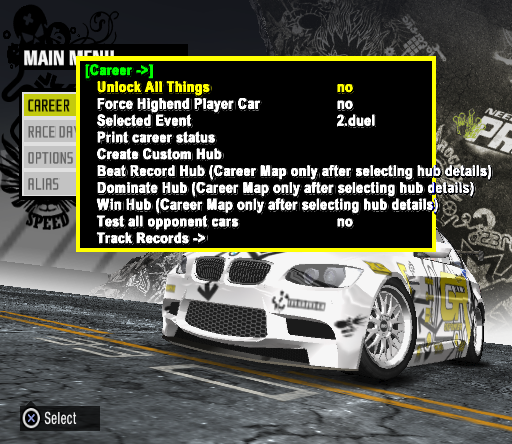
This menu contains all sorts of debugging functions related to the career mode.
- Unlock All Things: Same thing as described in Gameflow.
- Force Highend Player Car: Changes the car performance attributes of the player's car to that of a fully upgraded model.
- Selected Event: Likely was supposed to change the selected event to one present in the list, although all of the race bins are from Carbon, which makes this menu item useless.
- Print career status: Doesn't do anything.
- Create Custom Hub: Loads a nameless Battle Machine hub (Rogue Speed on Xbox 360) with the first available or last selected quick race cars. A 1/4 mile drag race and a 1/2 mile drag race are the only events present. Attempting to play either of them results in an infinite loading screen as the game tries to load event IDs "crnridx0" and "crnridx1".
- Beat Record Hub (Career Map only after selecting hub details): Pressing this and then re-entering the career map posts a new hub record on whatever was selected. It adds 1 point to the previous record in the player's name.
- Dominate Hub (Career Map only after selecting hub details): Pressing this and then re-entering the career map dominates the selected hub.
- Win Hub (Career Map only after selecting hub details): Pressing this and then re-entering the career map wins the selected hub.
- Test All Opponent Cars: Doesn't do anything.
- Check Dynamic AI Skill Level: Doesn't do anything.
- Toggle milestone debug: Seems to be a leftover from Carbon. Does nothing.
- NIS Safe Mode: Forces default NISes (non-interactive-sequences) to be played.
- Skip NISs: Does nothing.
- Skip DDay: Skips the introductory race upon starting a new career.
- Gameplay screen prints: Prints various gameplay elements such as detailed hub information and the status of various career mode specific elements to the screen.
Track Records#
This career submenu looks like it was supposed to add a track record for the race type selected. None of the options do anything, however.
Startup Hub#
Pressing a hub name in this submenu while in the career map loads that race hub regardless to what is actually selected. The menu also contains hub menus not accessible in the final game!
Hub ID |
Hub Name/Location |
Notes |
|---|---|---|
N/A |
Selectable blank space. Invalid hub. |
|
N/A |
Same thing as above. |
|
an.2.1 |
Autobahnring |
React Team Sessions event. |
an.2.2 |
Autobahnring II |
React Team Sessions event. |
an.3.1 |
Challenge: Autobahnring |
Super Promotion event. |
an.3.2 |
Autobahnring II |
Super Promotion event. |
an.8.1 |
Autobahnring |
Nitrocide event. |
as.2.1 |
Autopolis |
React Team Sessions event. |
as.2.2 |
Challenge: Autopolis |
React Team Sessions event. |
as.2.3 |
Autopolis II |
React Team Sessions event. |
as.2.4 |
Challenge: Autopolis II |
React Team Sessions event, Collector's Edition only. |
as.7.1 |
Autopolis |
Noise Bomb event. |
as.7.2 |
Autopolis II |
Aki Kimura boss fight. |
ca.0.1 |
Chicago Airfield |
Prologue race. Crashes the game upon loading. |
ca.1.1 |
Chicago Airfield |
Battle Machine event. |
ca.1.2 |
Chicago Airfield II |
Battle Machine event. |
ca.1.3 |
Showdown: Chicago |
Super Promotion event. |
ca.3.1 |
Chicago Airfield |
Super Promotion event. |
ca.6.1 |
Chicago Airfield |
Rogue Speed event. |
crnr |
N/A |
Invalid hub. |
ctm0 |
Custom Race Day slot 1 |
Invalid if loaded this way due to there not being a location or set of events defined. |
ctm1 |
Custom Race Day slot 2 |
Same thing for the rest of these. |
ctm2 |
Custom Race Day slot 3 |
|
ctm3 |
Custom Race Day slot 4 |
|
ctm4 |
Custom Race Day slot 5 |
|
dlc.an.1 |
Autobahnring |
Unused React Team Sessions event with a 2-lap Grip race on A-54 Interloop and a 1/4 mile drag race. |
dlc.la.9.3 |
Tokyo Expressway |
Booster Pack-exclusive Freestyle Race Day. Invalid if loaded without the DLC. |
dlc.lg.9.3 |
Leipzig |
Booster Pack-exclusive Freestyle Race Day. Invalid if loaded without the DLC. |
e3.in.1 |
Infineon |
Unused stage demo hub with a single 1/4 mile drag race. Its respective video has an entry in the "Play FMV" menu. |
e3.na.1 |
Nevada Highway |
A Top Speed Run on Nevada Highway B used in later stage demos. |
e3.so.1 |
Tokyo Dockyard |
A 3-lap Grip race on Iikura Canyon. Used in the earliest stage demos until it was replaced with the 2-lap race on the Autobahn. |
eu.2.1 |
Ebisu |
React Team Sessions event. |
eu.2.2 |
Challenge: Ebisu |
React Team Sessions event. |
eu.3.1 |
Ebisu |
Super Promotion event. |
eu.7.1 |
Ebisu |
Noise Bomb event. |
eu.8.1 |
Ebisu |
Nitrocide event. |
f.an.9.1 |
Autobahnring |
Freestyle Race Day hosted by Super Promotion. |
f.as.9.1 |
Autopolis |
Freestyle Race Day hosted by React Team Sessions. |
f.ca.9.1 |
Chicago Airfield |
Freestyle Race Day hosted by Battle Machine. |
f.eu.9.1 |
Ebisu |
Freestyle Race Day hosted by React Team Sessions. |
f.eu.9.2 |
Ebisu II |
Freestyle Race Day hosted by Noise Bomb. |
f.in.9.1 |
Infineon |
Freestyle Race Day hosted by Super Promotion. |
f.mk.9.1 |
Mondello Park |
Freestyle Race Day hosted by React Team Sessions. |
f.na.9.1 |
Nevada Highway |
Freestyle Race Day hosted by Super Promotion. |
f.na.9.2 |
Nevada Highway II |
Freestyle Race Day hosted by Nitrocide. |
f.pd.9.1 |
Portland International Raceway |
Freestyle Race Day hosted by Battle Machine. |
f.pd.9.2 |
Portland International Raceway II |
Freestyle Race Day hosted by Rogue Speed. |
f.so.9.1 |
Tokyo Dockyard |
Freestyle Race Day hosted by Super Promotion. |
f.ty.9.1 |
Texas World Speedway |
Freestyle Race Day hosted by Super Promotion. |
f.ws.9.1 |
Willow Springs |
Freestyle Race Day hosted by Battle Machine. |
f.ws.9.2 |
Willow Springs II |
Freestyle Race Day hosted by GEffect. |
in.3.1 |
Infineon |
Super Promotion event. |
in.3.2 |
Infineon II |
Super Promotion event. |
in.3.3 |
Challenge: Infineon |
Super Promotion event, Collector's Edition only. |
in.6.1 |
Infineon |
Rogue Speed event. |
in.6.2 |
Infineon II |
Karol Monroe boss fight. |
la.9.1 |
Tokyo Expressway II |
Booster Pack-exclusive Super Promotion career mode race day. |
la.9.2 |
Tokyo Expressway |
Booster Pack-exclusive Super Promotion career mode race day. |
lg.9.1 |
Leipzig |
Booster Pack-exclusive React Team Sessions career mode race day. |
lg.9.2 |
Leipzig II |
Booster Pack-exclusive React Team Sessions career mode race day. |
mk.2.1 |
Mondello Park |
React Team Sessions event. |
mk.2.2 |
Mondello Park II |
React Team Sessions event. |
mk.2.3 |
Mondello Park III |
React Team Sessions event. |
mk.3.1 |
Mondello Park |
Super Promotion event. |
mk.5.1 |
Mondello Park |
GEffect event. |
na.1.1 |
Challenge: Nevada |
Battle Machine event. |
na.1.2 |
Nevada Highway II |
Battle Machine event. |
na.3.1 |
Nevada Highway |
Super Promotion event. |
na.3.2 |
Nevada Highway II |
Super Promotion event. |
na.4.2 |
Showdown: Nevada |
Ryo Watanabe boss event 1 of 2. Curiously identified as "4.2", implying that this used to be the 2nd half of Ryo's Showdown. |
na.8.1 |
Nevada Highway |
Nitrocide event. |
na.8.2 |
Nevada Highway II |
Nate Denver boss fight. |
pd.1.1 |
Portland International Raceway |
Battle Machine event. |
pd.1.2 |
Portland International Raceway II |
Battle Machine event. |
pd.3.1 |
Portland International Raceway |
Super Promotion event. |
pd.6.1 |
Portland International Raceway |
Rogue Speed event. |
so.2.1 |
Tokyo Dockyard |
React Team Sessions event. |
so.2.2 |
Tokyo Dockyard II |
React Team Sessions event. |
so.3.1 |
Tokyo Dockyard |
Super Promotion event. |
so.4.1 |
Tokyo Dockyard |
Ryo Watanabe boss event 2 of 2. Curiously identified as "4.1", implying that this used to be the 1st half of Ryo's Showdown. |
so.7.1 |
Tokyo Dockyard |
Noise Bomb event. |
ty.1.1 |
Challenge: Texas |
Battle Machine event. |
ty.3.1 |
Texas World Speedway |
Super Promotion event. |
ty.5.1 |
Texas World Speedway |
GEffect event. |
ws.1.1 |
Willow Springs |
Battle Machine event. |
ws.1.2 |
Willow Springs II |
Battle Machine event. |
ws.1.3 |
Challenge: Willow Springs |
Battle Machine event, Collector's Edition only. |
ws.3.1 |
Willow Springs |
Super Promotion event. |
ws.5.1 |
Willow Springs |
GEffect event. |
ws.5.2 |
Willow Springs II |
Ray Krieger boss fight. |
Teleport#
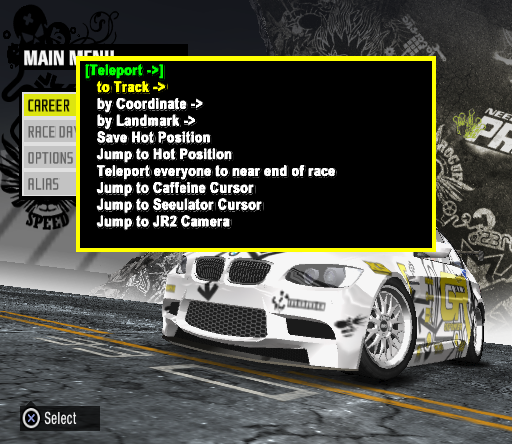
This menu allows the user to teleport to and around the game's race tracks.
- Save Hot Position: Saves the player's current position. Doesn't seem to work on PCSX2.
- Jump to Hot Position: Would jump to the player's saved hot position but does nothing as position saving doesn't work.
- Teleport everyone to near end of race: Explained earlier.
- Jump to Caffeine Cursor through Jump to JR2 Camera: All of these do nothing.
to Track#
This submenu contains a list of tracks that can be teleported to. This only works in the main menu. Teleporting to a track directly enables freeroam as no gamemode is loaded.
by Coordinate#
This submenu allows teleportation via world coordinates. Scroll down and press "Engage!" to teleport.
by Landmark#
This submenu contains various points of interest in the game world to teleport to. Practically everything from Carbon is present, and attempting to teleport to the leftover locations will simply yield a broken teleport, unless the game fails to register the last surface you touched, in which case, teleporting will succeed, but the car will either endlessly fall or succumb to broken physics.
Specific Locales#
This provides a list of specific places in the game world to teleport to. Speed Challenge teleports the user to the start of the track's speed challenge route, if it has one.
Pursuit Breakers#
This leftover menu contains every single pursuit breaker that can be teleported to, including ones that went unused in Carbon. Teleporting to any of these results in a broken teleport, though, as many of these locations are in the voids of tracks.
Splines#
This other leftover menu allows teleportation to each of Palmont City's individual road splines. As stated before, trying to teleport to them results in a broken teleport as the locations for them are in the void.
Race#
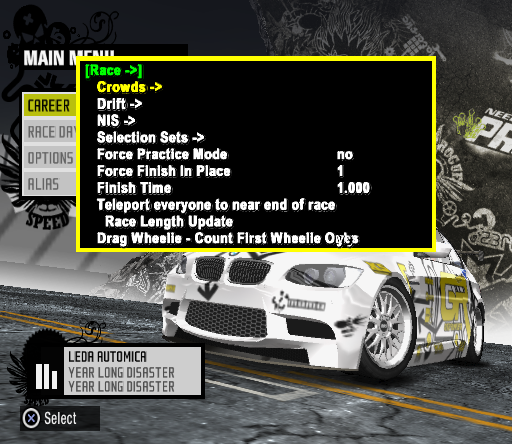
 This menu contains various debugging functions related to racing in-game.
- Force Practice Mode: Does nothing.
- Force Finish in Place: Explained earlier.
- Finish Time: Explained earlier. Still does nothing.
- Race Length Update: Does nothing.
- Drag Wheelie - Count First Wheelie Only: When disabled, it allows the wheelie distance counter to keep counting even if the front wheels have already touched the floor. Enabled by default.
Crowds#
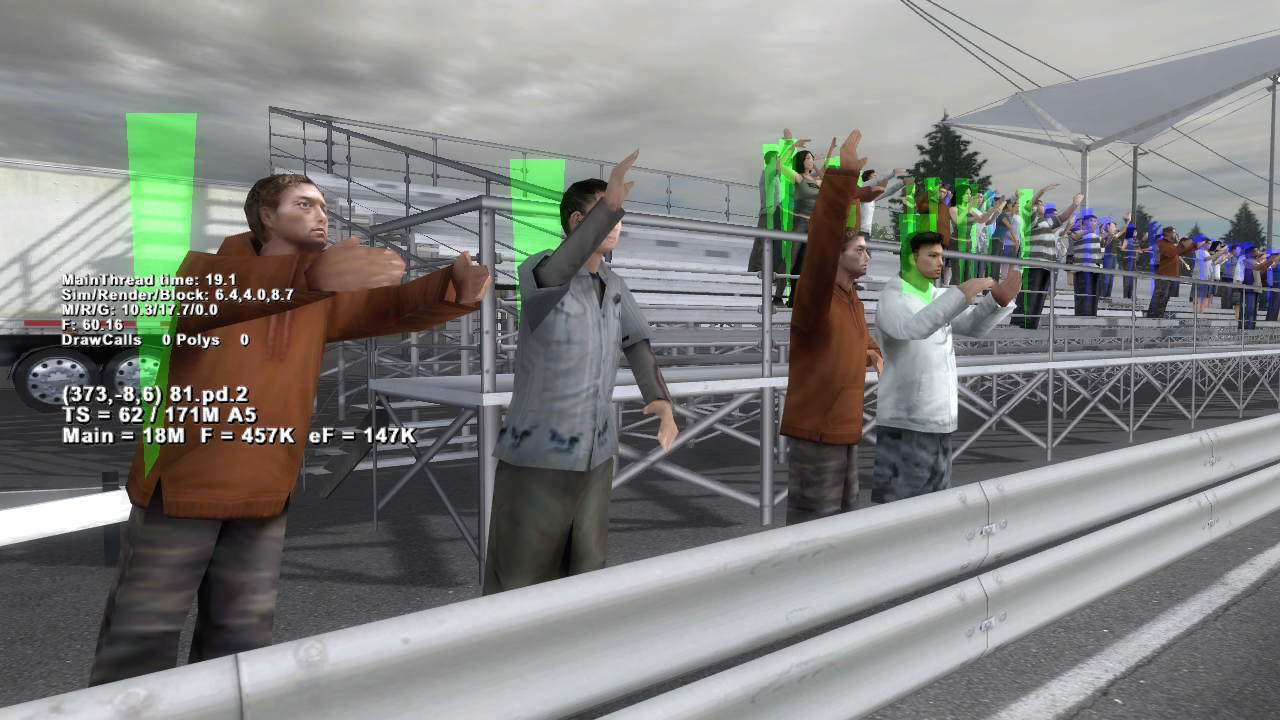
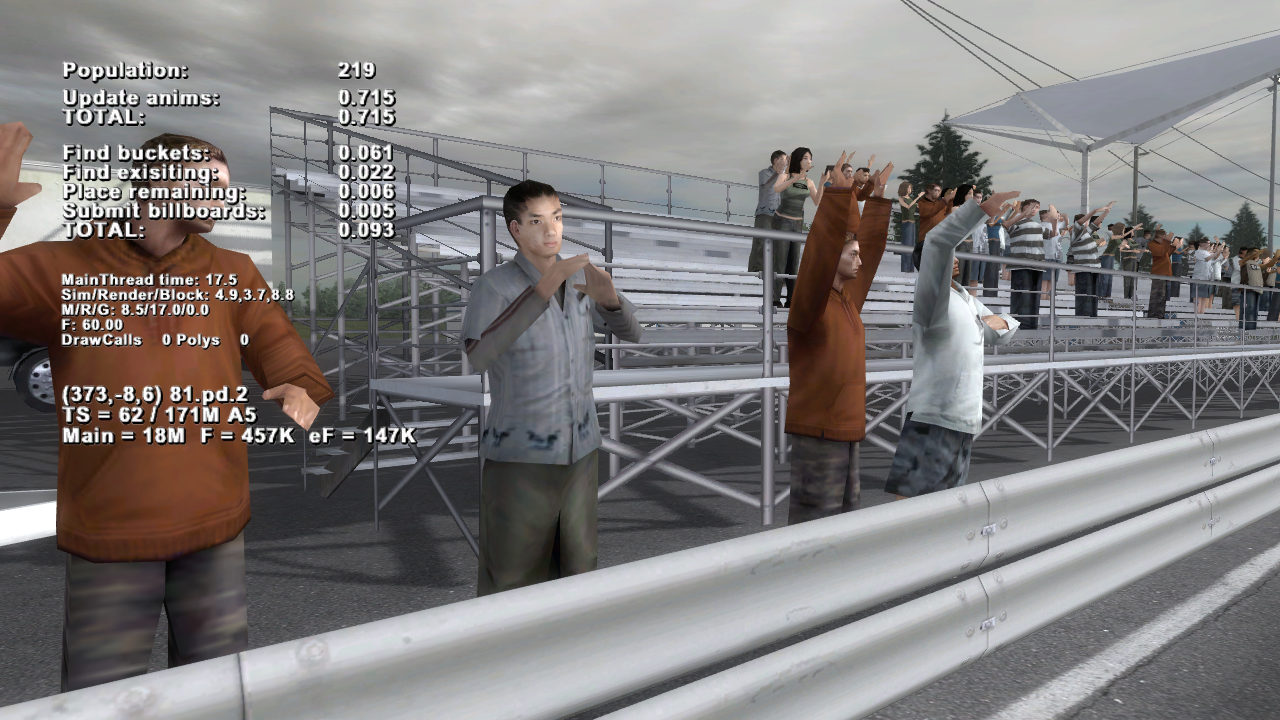
This menu contains various debugging functions related to the crowds in-game. On Xbox 360, most of the debugging functions in this menu work as intended, but on PlayStation 2, nothing happens since track-side crowds are not present in that version.
- Load Crowds: Enables or disables the track-side crowds.
- Use Scenery Groups: Enables or disables the use of specific scenery groups for crowds. Only takes effect after a loading screen.
- Draw Crowds: Setting this to "no" disables the drawing of crowds past a certain point.
- Update Crowd LOD: Seems to just make the crowds disappear.
- Animate Crowds: Enables or disables crowd animations.
- Draw Crowd LODs: Draws a triangle on each crowd character indicating which level of detail is currently loaded for that character. Green is high-detail, blue is low-detail, yellow is unknown.
- Draw Crowd Profile: Prints various profiling information about crowds to the screen. Requires Screen Printf to be enabled.
- Draw Meter Stick: Enables or disables a meter stick that is always drawn in the center of the camera's view.
- low lod: Unknown. Togglable from 0 to 1.
- high lod: Unknown. Togglable from 0 to 1.
- max high poly: Changes the distance at which high-polygon crowd models are drawn.
- max low poly: Changes the distance at which low-polygon crowd models are drawn.
- max cross quad: Unknown. Adjustable from 0 to 4000 in increments of 400.
- view distance: Changes the distance at which crowd models can be seen. Adjustable from 0 to 1000 in increments of 25.
- frustrum: Changes the distance at which out-of-view crowd models are culled out.
- center bias: Unknown. Likely related to the "frustrum" setting.
- red, green, blue, and alpha: Unknown. Seems to have been used to adjust the RGBA values of something. These all have their own positions in the menu and are all adjustable from 0 to 255.
Drift#
This submenu contains various debugging functions related to the game's drift mode.
- Show/Hide Drift Scoring: Enables or disables the printing of drift scoring statistics to the screen. "Total Prostreet Score" displays the total drift score as displayed on the HUD. "Current Prostreet Score" displays the current drift score, which resets whenever a new drift is started. It is not known what purpose the "Carbon Score" counters serve. Only works when Screen Printf is on.
- Show/Hide Wheel Surface: Enables or disables the printing of what surfaces the car's wheels are currently on. Only works when Screen Printf is on.
- Deactivate Time Limit: Presumably a leftover from Carbon as there was a time limit that would disqualify the player from the drift race if the car was idle that is not present in ProStreet.
- Deactivate Drift Bonuses: Enables or disables the game's drift bonuses being awarded to the player.
- Reset Drift Score, Award Big Drift Score, Award 1000, 100, and 10 points buttons: All of these do nothing.
NIS#
This submenu allows different pre-race NISes to be played. Any intro containing "HD" does not exist in the PlayStation 2 version and will instead play the default NIS specified for that event. Likewise, any intro containing "SD" does not exist in Xbox 360 versions and will instead play the default NIS for that event.
- Reset: Resets the NIS selection to the default for that race type.
One Car#
Would display a list of the different one-car NIS intros available for selection, but serves no purpose as there are none.
Two Cars#
Displays a list of the different two-car NIS intros available for selection.
Three - Six Cars#
Displays a list of the different three-to-six-car NIS intros available for selection. Oddly, the Grip Class intro NISes are present and in fully working order, despite the gamemode being missing from the PlayStation 2 and Wii releases. "Six Cars" is also mentioned as these intros are also used in the Wii version.
Four Cars#
Displays a list of the different four-car NIS intros available for selection.
Seven - Twelve Cars#
Displays a list of the different seven-to-twelve car NIS intros available for selection. The mention of "twelve cars" is a fairly odd one as there are no twelve-car races in any version of the game. Five extra racer names for each tier exist within the game's language files, however.
Debug#
Displays a list of the different NIS intros used for debugging purposes. FGirlStartTemplate does nothing as there are no flag girls in the PlayStation 2 or Wii releases. In debug-enabled Xbox 360 prototypes, the shadows adjust to the time of day, and the player car pulls up to the start line. No flag girl is present. HUBDEFAULT is used, but as it is not meant to be used as a pre-race intro, it softlocks the game. INTRODEFAULT is used for when the specified race intro is not found. It can be seen by toggling on "NIS Safe Mode" and launching a race, or starting a race in one of the unused hubs.
Selection Sets#
Nothing in this menu does anything on PlayStation 2, but on debug-enabled Xbox 360 prototypes, it loads a selection set for a course. A "selection set" is a group of objects that are loaded in after the main map. The first few options are both times of day and race organizations, and pressing those unlocks more options which are for track layouts.
AI#
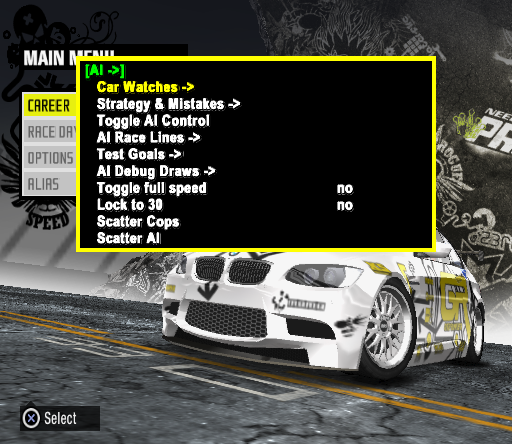
This menu contains a lot of debugging functions related to AI in-game.
- Toggle AI Control: Enables or disables AI control of your car. Needs to be re-enabled after a loading screen.
- Toggle full speed: Enables the game to run at full speed. It freezes the screen and exits the menu once pressed, but the game is actually still playable. If one somehow manages to toggle this off, the game returns to normal speed.
- Lock to 30: Toggles the game's 30 frame-per-second limiter on or off.
- Scatter Cops: Leftover from Most Wanted and Carbon. Throws all cop cars in the game world in random directions. Does nothing in ProStreet as cops weren't included in this game.
- Scatter AI: Throws every AI car on the track in random directions.
- Hide GPS arrow: Leftover from Most Wanted and Carbon. It would hide the GPS arrow displayed at the top of the screen if it was present. There's no freeroam in ProStreet, however, so this goes unused.
- AI Random Turns: Doesn't do anything.
- Do not Hide Shortcuts: Doesn't do anything.
Car Watches#
This submenu allows racer cars, traffic cars, and cop cars to be watched as if they were being controlled by a player.
- Toggle Watch Cop and Traffic Car: Puts the camera at the centerpoint of the map as no such cars exist in the game world.
- Toggle Watch Racer Car: Focuses the camera on an AI car. Use L1/LT and R1/RT to switch cars. On PlayStation 2, if the part of the world the player car is in ends up unloading, the car will fall into the void.
Strategy and Mistakes#
This submenu contains a lot of functions for adjusting how smart the AI drives in-game.
- Toggle Draw AI: Doesn't seem to do anything.
- Disable All Mistakes: Toggles that AI mistakes system on or off.
- Use NOS: Enables or disables AI nitrous usage.
- Toggle Mistakes: Doesn't seem to do anything.
- Draw Mistakes and Draw Strategy: Neither of these buttons do anything.
- Aggression Level 0 - 9: Adjusts the amount of a specific AI aggression level. All of these options are adjustable from 1 to 3. These settings are barely noticeable in actual gameplay.
- Mistake Level 0 - 9: Adjusts the amount of a specific AI mistake level. All of these options are adjustable from 1 to 3.
AI Race Lines#
This submenu contains various functions for creating AI race lines. None of these options do anything.
- Generate Debug Race Line (Quick): No function.
- Generate Final Race Line (Takes longer): No function.
- Generate Debug Race Line and write to file: No function.
- Generate Final Race Line and write to file: No function.
- Generate Final Race Lines for current region: No function.
- Generate Final Race Lines for all regions: No function.
Test Goals#
This submenu only contains one button, Steering Test. Activation requires AI control to be on, and once pressed, performs some sort of steering test. The test in question teleports the car to the center of the map and turns the car at various speeds and angles starting from 10 MPH and repeats every 10 seconds.
AI Debug Draws#
This submenu contains three functionless debug buttons related to the AI. The strings for these seem to be missing as these are the only buttons that start with "DBG_".
- DBG_AI: Does nothing.
- DBG_WROADNETWORK: Does nothing.
- DBG_WRACELINE: Does nothing.
Camera#
This menu contains only one button labeled SmartLookAheadCamera. It enables a camera feature where it looks ahead to the next turn to increase the turn's visibility. This feature was present and used in Carbon but it is not known whether it still exists in ProStreet. 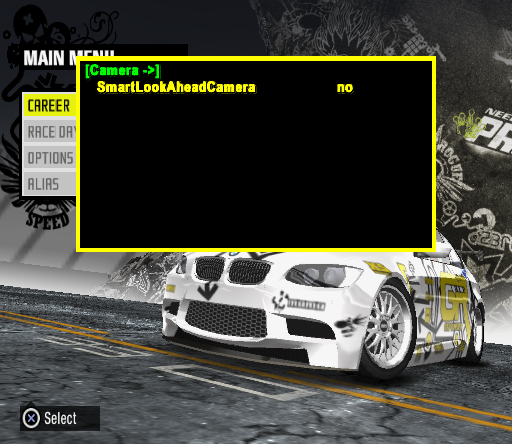
Car#
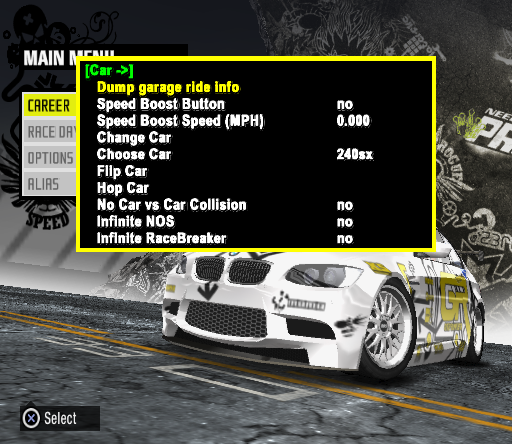
This menu contains a lot of debugging functions related to cars in-game.
- Dump garage ride info: Crashes the game.
- Speed Boost Button: Toggles the speed boost button.
- Speed Boost Speed: Adjusts the speed boost speed.
- Change Car: Does nothing as the button below it serves the function this once had.
- Choose Car: Switches the car. Attempting to switch to a car that does not exist in the game switches it to a working car entry before or after it. Use any directional button left or right to choose one. This also breaks a lot of the game's sounds. The game also prints an error to the console if an invalid vehicle is detected. An example of what is printed is shown below.
ERROR bmwmz4 has no valid collision geometry
ERROR camaron has no valid collision geometry
ERROR civicsi has no valid collision geometry
ERROR corvette67 has no valid collision geometry
PVehicle::Construct ERROR invalid vehicle attributes- Flip Car: Rotates the car forward 180 degrees.
- Hop Car: Propels the car very far into the air.
- No Car vs Car Collision: Enables or disables car collision.
- Infinite NOS: Toggles infinite nitrous on or off.
- Infinite RaceBreaker: Leftover from Most Wanted and Carbon. It's supposed to toggle infinite Speedbreaker on or off, but does nothing in ProStreet as there is no Speedbreaker. Also reveals that Speedbreaker was called "RaceBreaker" at some point.
- Display Car Memory: Prints some sort of memory statistics to the top of the screen. Requires Screen Printf to be enabled.
- Manual Shift: Toggles manual shifting on or off. Only works after teleporting to a track from the front end.
- Tuned Cars: Displays a list of supposedly "tuned" cars available to switch into, including those of the PC, Xbox 360, and PS3 versions. "gtrproto2" is actually a Porsche 911 Turbo. "showdown_king" is a rear-wheel-drive Mitsubishi Lancer Evolution X used for Ryo as the regular all-wheel-drive Evo is unable to drift.
- Untuned Cars: Displays a list of supposedly "untuned" cars available to switch into, including those of the PC, Xbox 360 and PS3 versions. "997tt_slotcar" is a Porsche 911 Turbo that accelerates really fast, despite the menu name.
Online#
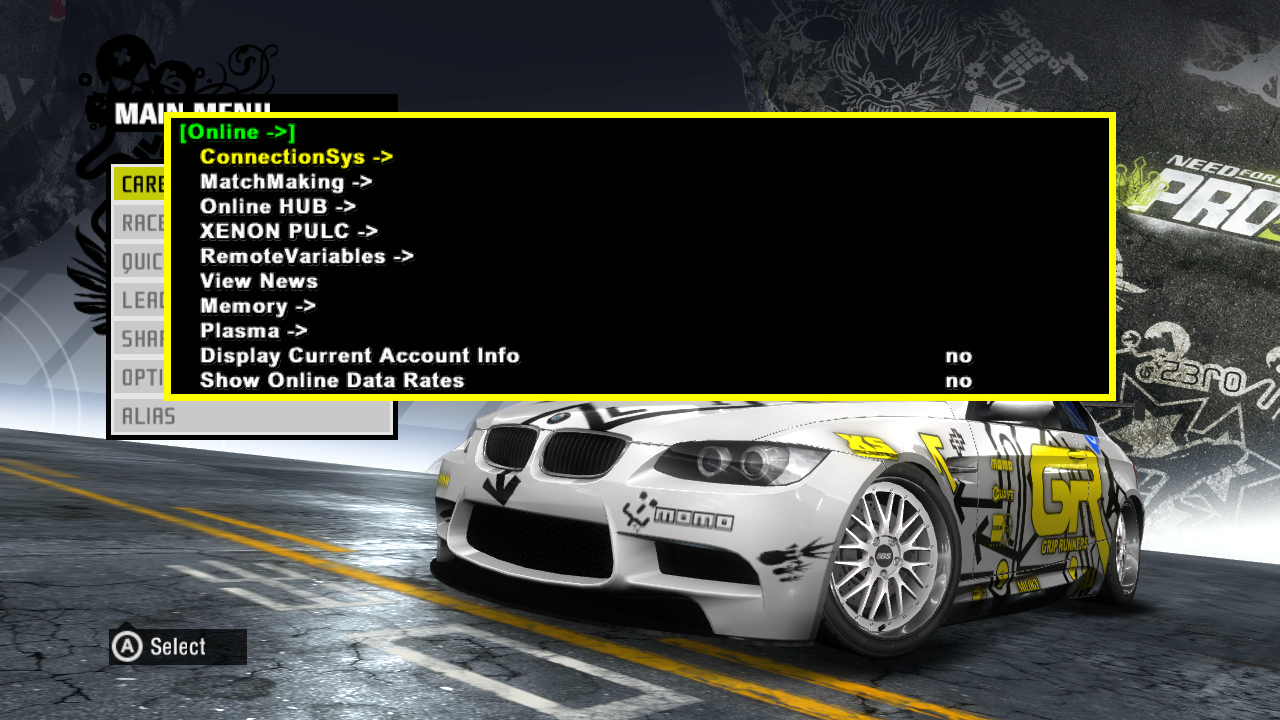
This menu is only in the Xbox 360 debug menu and provides many online debugging features that do not work, either due to not having a private server available, or the buttons not actually doing anything.
Rendering#
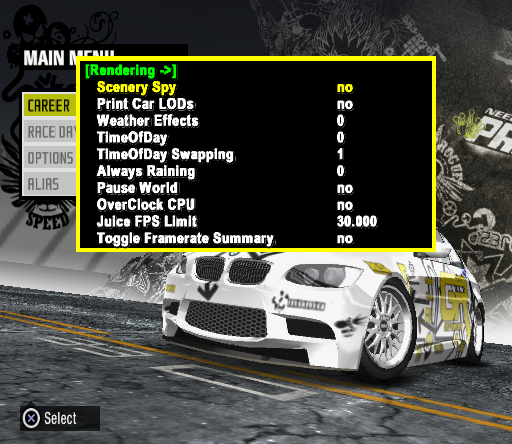
This menu displays a few different debug rendering options.
- Scenery Spy: Does nothing.
- Weather Effects: Leftover from Most Wanted and Carbon. Does nothing as there are no weather effects in ProStreet.
- Smoke Debug: Does nothing and is only in Xbox 360 builds.
- TimeOfDay: Leftover from Most Wanted and Carbon. Does nothing in all ProStreet versions.
- TimeOfDay Swapping: Leftover from Most Wanted and Carbon. Also does nothing.
- Always Raining: Leftover from Most Wanted and Carbon. Does nothing.
- Pause World: Pauses or unpauses the game world.
- OverClock CPU: Overclocks the CPU.
- Juice FPS Limit: Doesn't seem to do anything. Adjustable from 20 to 65.
- Toggle Framerate Summary: Doesn't seem to do anything.
- Visual Look Filter: Enables or disables the "visual look filter", which only increases the brightness. Only in Xbox 360 builds.
- Preculler Mode: Changes the properties of the preculler. "Blinking" makes preculled things flash on and off the screen. The purpose of the "FullSpeed" setting is unknown.
- Set Preculler BooBoo: Updates a file called "PrecullerBooBooScript.hoo". Not much is known about what this file does. Pressing this throws an error on-screen stating that the file cannot be opened.
- Clr Preculler BooBoo: Clears the "preculler booboo script". Pressing this throws an error on-screen stating that the file cannot be opened.
ICE#
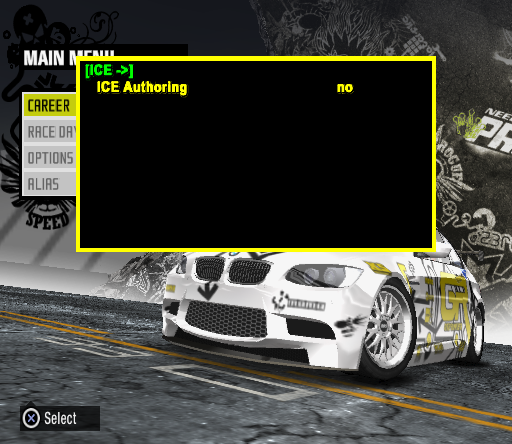
This menu only contains one switch labeled ICE Authoring which does nothing. ICE was something very commonly used to record non-interactive-sequence (NIS) cutscenes in Need for Speed games of this era.
Rub Test#

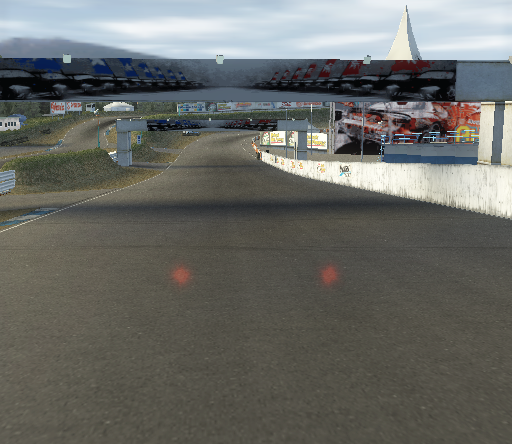 This menu contains a few more rendering debugging functions.
- Draw Collision Surfaces: Draws all of the collision geometry to the screen.
- Draw Triggers: Draws all triggers to the screen, such as that of destructible objects, and race checkpoints.
- Draw Objects: Does nothing.
- Draw Rigid Bodies: Does nothing.
- Draw World: Enables or disables the drawing of visual world geometry. Collision geometry is still functional.
- Draw Cars: Enables or disables the drawing of car geometry.
- Print Scrape Type: Does nothing.
Screenshot#
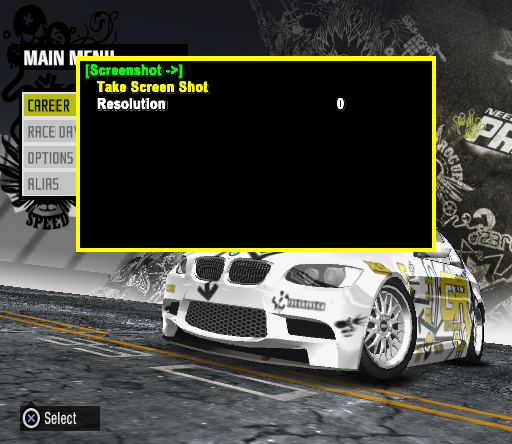
This menu contains two options relating to taking in-game screenshots.
- Take Screen Shot: Takes a screenshot and saves it as a .tga. Doesn't seem to work as the game throws a lot of errors that state it can't open the screenshot file.
- Resolution: Upscales the screenshot resolution if set to something more than 0. Seems to save the upscaled image in parts. Doesn't work for the same reason stated above.
1st Playable#
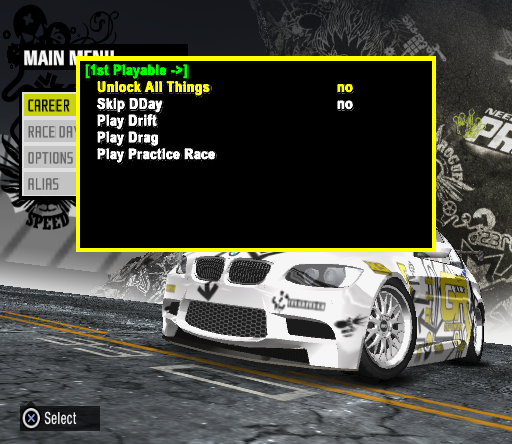
The final section in the debug menu contains a few buttons related to first-time-play.
- Unlock All Things: Unlocks everything.
- Skip DDay: Skips the prologue race.
- Play Drift: Doesn't do anything.
- Play Drag: Doesn't do anything.
- Play Practice Race: Doesn't do anything.