 This article has a talk page!
Gearheads is a strategy game in which players perform battles of wind-up toys.
Sub-Pages#


Unused Text#
Text |
Notes |
|---|---|
Sudden Death |
Evidently, there was once a Sudden Death round (see below). |
No gearhead.ini file in the Windows directory! |
Without gearhead.ini, the game fails to load, with a different error message. |
Right player don't look! Left player pick four toys, then press OK |
Part of the unused Toybox Contents screens (see below). |
Left player don't look! Right player pick four toys, then press OK |
Unused Graphics#


Developer Message#

In the Credits window, there is a message hidden in plain sight: 'No animals were harmed in the production of Gearheads'. It is accessed by clicking on the bottom item in the list box (an empty string, offering no indication of anything there). Other empty items yield empty text boxes. It is unclear whether this message was meant as a joke, to convey the developers' stance on animal rights, or both.
Debug Content#
There's a lot of debug functionality, and it allows configuration way beyond what's normally possible. One of the game's designers, Eric Zimmerman, mentions in his book Rules of Play: Game Design Fundamentals that an early prototype featured screens that enabled players to tweak the toys' attributes.1 It is possible that these are leftovers.
(Source: Original TCRF research)
These menus and screens are only available in English, even in the French, German, Spanish, Italian, and Dutch versions of the game, strongly suggesting that they were not meant to be accessed by players.
Full Menu#

This menu can be accessed by using a hex editor to change gear_en.exe's value at offset 000286A2 so that it reads "FullMenu" (without the quotes) rather than "SignMenu". Alternatively, resources can be edited (e.g. menu items can be copied to SIGNMENU, or the menus can be swapped) with a resource editor. The game screenshots in the manual appear to use this menu. Despite its name, FullMenu is missing the options menu (containing items to enable/disable the sound and music, and the joystick setup screens), an item to access the high scores (although this is accessible from its screen select), and an item for the normal credits.
Screenshots in the manual have this menu, as do some pre-release screenshots.

|
To do: |
- New Game - Restarts the current match (unlike the "New" item on the normal menu, which takes the player back to the main menu).
- Main - Takes the player to the main menu, but does not stop any music playing, unlike the normal menu.
- Left Toybox and Right Toybox - These enable the modification of each players' toybox. This is not affected by the maximum number of toys in a match, and it is possible to create seriously mismatched toyboxes. Using this seems to break the automatic and random assignment of toys (for both players, whether computer or human), resulting in players with no toys unless they're manually selected using either this or the normal toy selection screen (pressing "Random" on the normal toy selection screen empties the toybox). The only known way of getting them working again is quitting and restarting the game.


- Keys Left and Keys Right - These are the same as Options -> Left Keyboard Controls... and Right Keyboard Controls... on the normal menu respectively: they simply bring up the keyboard controls dialogue box.
- Setup - Loads the App Setup dialogue box.
- Toys - Loads the GearHead Control dialogue box.
- Obstacles - Loads the Obstacle Control dialogue box.
- Collision Box - Loads the Collision Box dialogue box.
- Save Settings - Self-explanatory: settings are saved in gearhead.ini (see below). Sometimes, if these screens have been used to change settings, the player may be asked to save them on quitting if they have not already been.
- AI Friend and - AI Foe - These load the AI Weights dialogue box.
- AI Stat - Loads the AI Stat dialogue box.
App Setup#
This enables the configuration of game settings and rules. 
- Friction - The current friction setting (levels have their own), which, according to the "Level hacking" section in the gearhead.ini file, "doesn't do much".
- Wind Time - Affects the time it takes to wind toys up.
- Slowing Time - The time it takes for a toy that has run out of energy to wind down and come to a halt.
- Stopped Time - The amount of time a wound-down toy stays on the playfield before disappearing. Also affects the minimum wind-up amount to be allowed to release a toy.
- Max # of Toys - The maximum number of toys there can be on the playfield (the readme mentions such a limit, but does not say what it is.).
Winning Score, and Frames/Sec are self-explanatory.
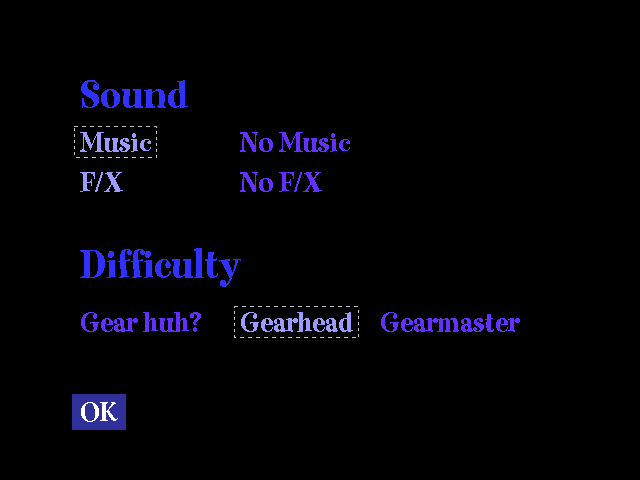
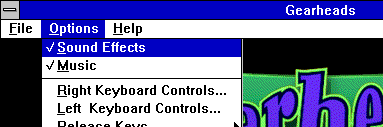
Clicking OK also disables the sound effects. The likely cause of this is that the original version of this window had a Sound tick box, which was later removed (likely because the Sound toggle was moved from a screen to the Options menu), and it seems the code still looks for this tick box. As it's not present, it's not checked; therefore, the window saves the value false to the Sound toggle. This can be fixed by hex-editing three octets (that are somewhat near the beginning of the file) of a group consisting of 00 00 A3 66 6D FF to read 00 00 90 90 90 FF. On an unmodified gear_en.exe file, the A3 is at 5BF9.
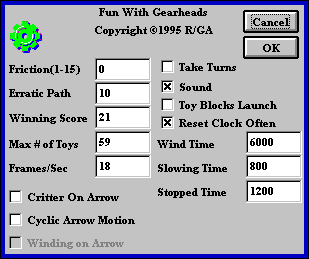

There are some additional settings (most of which appear to pertain to cut features) hidden below the dialogue, accessible by editing it with a resource editor and extending the dialogue:
- Critter On Arrow - The selected toy appears above the player's arrow.
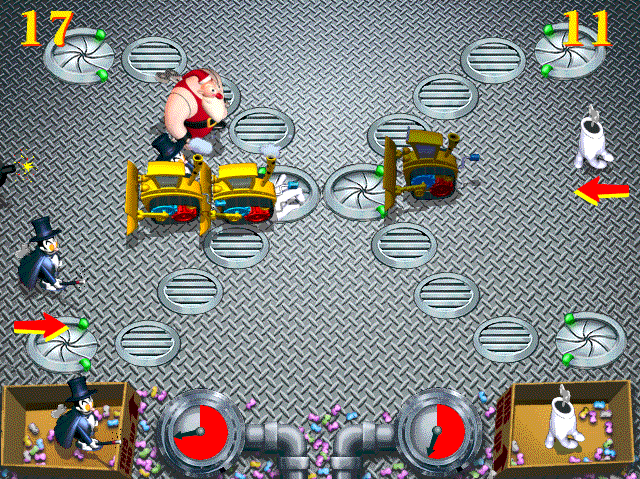
- Cyclic Arrow Motion - Arrows can wrap from the top to the bottom and vice versa.
- Winding on Arrow - This is disabled, and doesn't appear to do anything. As it (partially) works in prototypes, this appears to have been cut; its function had something to do with the arrows' appearance. That style of arrow also appears on pre-release screenshots.
- Take Turns - Players take turns to release toys: the player whose turn it is not has a broken arrow until the other player releases a toy, when it becomes that player's turn. Only works properly in two-player mode. In single-player mode, it is always the CPU's turn once you release a toy.
- Toy Blocks Launch - Toys cannot be launched (broken arrow) if there is already one too close in front of the arrow.
- Reset Clock Often - Toys need to be rewound when changed.
- Erratic Path - Controls how often toys with an erratic movement pattern change direction. Lower values mean a higher frequency.
GearHead Control#
|
|
To do: |

Enables players to change the stats of the toys. P is the movement pattern: 0 is straight, 1 is diagonal, and 2 is erratic. Vim sets the rate the toy uses energy (the higher, the faster). Most of the rest is obvious. Changing these values starts a new game.
Obstacle Control#

This enables the alteration of the level's obstacles. Most of the settings are self-explanatory. Changes are saved to gearhead.ini immediately.
Collision Box#
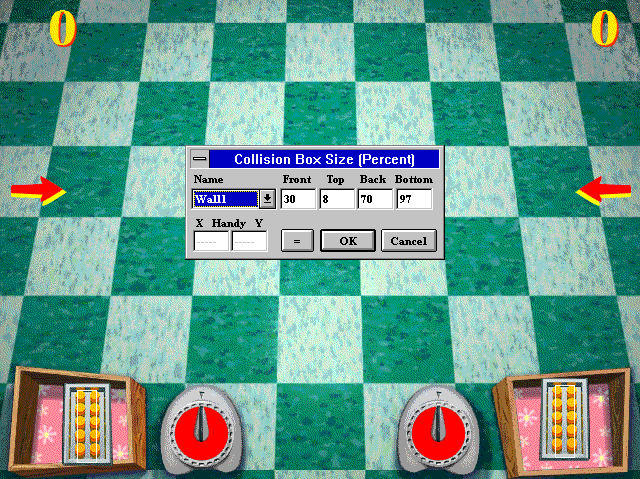
Enables the modification of each object's (not just toys) collision box. The "=" button advances the game to the next frame. The selected object and its collision box are shown in the toyboxes. The X Handy Y boxes determine the position of Handy when one is winding the toy up.
AI Weights#
|
|
To do: |
There are two versions of this dialogue: Friend and Foe. The Foe version controls how much the AI favors each toy based on which toy the player currently has selected. The column headings refer to the player-selected toys. Changes are automatically saved to ai0.txt in the game's directory. In this file are two comma-separated values for each entry; the first is the Friend value, and the second is the Foe value. However, when the game launches, these values are either not loaded or reset to default. 
AI Stat#

|
This needs some investigation. |

Changes are automatically saved to ai1.txt in the game's directory. However, these values are reset on game startup.
It appears that this window's appearance is deceiving; it seems that these values do not actually have anything to do with the toys, for the 'Zap' value is in fact the sound that plays on the quit screen (by default, this is the Gearheads logo sound): its default value is 'und$logosound', which is of course nothing to do with Zap-Bot, and changing it to (for example) 'und$winsound' makes the win sound play when you quit the game.
Save Level#


Clicking Save saves the current level and its settings to gearhead.ini. Most of the options are self-explanatory. If this dialogue box is copied to the demo version, saved levels appear in the Level menu. The Coloring and Icy Level settings still work.
Robot Menu#

- Grey - In the demo, this greys the screen. In the full game, this does nothing.
- ReColor Playfield - In the full game, this switches between two colors depending on the level's Coloring setting. In the demo, this switches to another random color.
- Force Win Left and Force Win Right - These do exactly what they say on the tin. Well, almost: they don't take into account the fact that players need to be ahead by two points in order to win, and simply set the chosen player's score to the winning score. The game won't declare that player the winner if (after his score is set) he's only one point up, and the game will continue with it still being entirely possible for the other player to win. In fact, there are situations where trying to force a win on one player actually makes the other player win!
It is also possible for the player to play on the left side against the AI on the right.
Screen Selection#


Players can jump to various screens from this list.
- main - Jumps to the main menu.
- phillips - Jumps (the player doesn't go back to where he was) to the Phillips logo. The next screen is the R/GA logo.
- rgai - Jumps to the R/GA logo. The next screen seen is "anime".
- anime - Jumps to a game "animation" as seen at game startup.
- gearlogo - Jumps to the Gearheads logo after the "animation".
- help - Goes to the help screen.
- helpscores - Goes to the high scores screen.
- quit - Jumps to the closing screen just before the game actually quits.
- reallyquit - Actually quits the game.
- attract - Starts a short game demonstration, as if there was a period of idleness.
- at_highs - High scores. The high scores screen is displayed after the "attract".
- longdemo - This appears to be the demo (as in autoplay) mode normally accessed by running the executable file with the -q parameter.2
- longdemo2 - Same(?) as above.
- design - Unclear what this does. A screen saying "loading design" is momentarily seen, and the current match restarts.
- p1_start - Jumps to the playfield settings screen in Vs Computer mode.
- 9p1_toys - Jumps to the toy selection screen (the normal one, not the debug one) in Vs Computer mode.
- docompvshume - Loads the last match played (in any mode) in Vs Computer mode.
- qgoon1 - Jumps to the post-match menu in Vs Computer mode.
- dual - Jumps to the playfield settings screen in Vs Human mode.
- 9dualtoys Vs Human mode left player normal toy selection.
- 9play2toys - Vs Human mode right player normal toy selection.
- dohumevshume - Loads the last match played (in any mode) in Vs Human mode.
- qgoon2 - Post-match menu in Vs Human mode.
- nl_option - Jumps to the Tournament level select screen.
- nl_attain - Tournament level select with level 13 selected and apparently locked (even if it's not locked: clicking it will take the player to that level is this is the case).
- nl_101 - Tournament level 1 toybox screen (as opposed to actually starting the match).
- nl_413 - Tournament level 13 toybox screen.
- nl_1025 - Tournament level 25 toybox screen.
- nl_restore - Loads the last Tournament level played.
- nl_start - Jumps to the toybox screen of the last Tournament level played.
- do_nl - Loads the last Tournament level played.
- nl_gameover - Game Over screen.
- nl_victory - High score name entry screen.
- nl_winners - High scores.
- staff - Loads the hidden staff screen (as opposed to the normal credits window). The player is taken to the main menu afterwards.
Hidden Credits#

This is Accessible from the "View a Setup Screen" dialogue (Help -> Screens -> staff). Moving the cursor over each person displays their names. The image can be found in gearage.dll.
App Menu#
Provides menu items for toybox control, App Setup, Obstacle Control, level saving, and screen selection, as well as the standard Options menu sans the joystick setup functions. Accessed by changing the string at offset 000286A2 to "AppMenu" (without the quotes) with a null at the end.


Demo Menu#
A very minimalistic menu, and appears to be the one used by the demo version. Accessed by changing the string at offset 000286A2 to "DemoMenu" (without the quotes).


Unused Dialogue Boxes#
Another App Setup Dialogue Box#

Named as "1" in the executable file, cannot be run from the Full Menu and appears to be a different version of the App Setup dialogue: it contains settings for Friction, Erratic Path, Winning Score, Max # of Toys, Framerate, Reset Clock Often, and Wind, Slowing, and Stopped Time.
Other Toybox Contents Dialogue Boxes#

These cannot be run from the Full Menu, and appear to be other versions (one for each player) of the Toybox Contents dialogue, the main difference being the presence of a string telling the other player not to look.
Another Assign JoyStick Functions Dialogue Box#
|
Unused |
Used |
|---|---|

|

|
Named "2" in the executable file, this is very similar to the used version, the differences being the length of the drop-down menus and the use of "Btn" instead of "Button". The unused version is only available in English.
Another Calibrate Joystick Dialogue Box#
|
Unused |
Used |
|---|---|

|

|
Named "3" in the executable file, this is almost identical to its used counterpart, the only noticeable difference being the word "Buttons" being singular. There is no non-English version of the unused dialogue box.
Undocumented gearhead.ini settings#
Field |
Default Value |
Notes |
|---|---|---|
Level |
1 |
Function unknown. It does not affect tournament starting level availability. |
LeftBoxs |
ABCDEFGHIJKL |
Controls the toyboxes of each player when the game boots up (the effect of this can be seen in the ToyBox Contents windows), but this seems to be absolutely pointless, as toyboxes are set at the start of a match anyway. |
RightBoxs |
||
Curved |
12 |
Function unknown. |
SuddenDeath |
300 |
Function unknown. |
Anim |
anim.dat |
Specifies the file from which to load the opening sequence animation data. If the file is missing, the game produces an infinite(?), rather chaotic sequence. |
Taketurns |
0 |
Controlled in the App Setup window. |
Maxtoys |
59 |
|
GaugeTime |
6000 |
|
DecayTime |
1200 |
|
SlowingTime |
800 |
|
Resetimeonpick |
1 |
|
Winningscore |
21 |
|
BlockLaunch |
0 |
|
FrameStep |
55 |
|
MaxFrameStep |
550 |
|
CritterOnArrow |
0 |
|
WindingOnArrow |
0 |
|
WrapArrow |
0 |
|
roach |
8 120 2 3 0 0 8 40 75 100 4 5 |
Toy stats and collision boxes, in the format: |
bomby |
78 45 0 25 83 0 4 55 60 100 0 -4 |
|
cluck |
250 40 2 18 80 28 15 60 75 120 5 27 |
|
zappa |
040 26 1 11 150 0 22 50 70 90 4 4 |
|
kanga |
35 30 1 9 70 0 15 19 60 68 2 20 |
|
bigal |
500 9 0 9 0 0 0 40 75 80 -32 -5 |
|
destr |
240 9 0 10 120 0 12 40 70 82 0 -13 |
|
stick |
80 27 0 9 50 0 27 40 76 80 -2 -5 |
|
goril |
210 8 0 8 40 92 8 80 60 120 -5 25 |
|
skull |
30 10 2 12 0 0 0 60 60 100 0 0 |
|
magnt |
8 50 0 18 0 0 0 60 60 100 18 30 |
|
handy |
10 70 0 6 120 0 7 40 68 90 0 0 |
|
small |
9 40 2 20 25 0 0 70 60 130 13 8 |
|
roket |
900 200 0 60 0 0 5 10 80 90 0 0 |
|
buggy |
30 20 2 1000 0 0 20 50 50 100 0 0 |
|
block |
500 0 4 10 0 0 10 10 90 90 0 0 |
|
wall1 |
8 0 4 10 0 50 30 8 70 97 0 0 |
|
wall2 |
8 0 4 10 0 50 28 10 70 97 0 0 |
|
wall3 |
8 0 4 10 0 50 25 9 72 97 0 0 |
|
wall4 |
8 0 4 10 0 50 27 9 70 66 0 0 |
|
puup |
0 0 0 0 100 100 |
|
dtrd |
0 300 10 10 90 90 |
|
utrd |
||
htrd |
||
crak |
0 100 45 70 60 120 |
|
tele |
0 0 10 25 40 75 |
|
hole |
0 50 10 10 90 90 |
|
glue |
||
oily |
0 20 0 10 90 90 |
|
rock |
0 0 10 10 90 90 |
Field |
Default Value |
Notes |
|---|---|---|
scoreAt |
20 10 |
|
firstSquare |
60 68 |
|
stage |
42 0 600 360 |
|
Startup animation sequence data#
In the Gearheads folder is a file named anim.dat. Despite the file extension, it can actually be opened and edited with a normal text editor (such as Notepad). Doing so reveals that the sequences actually have names:
star wars
bomb
break it up
chase
disast
disasteroid
ha, zap,boom
handybomb
hoedown
kanga and zig
zap and cluck
zap and orbit
krushto
pooral
These names are not displayed during the sequence or at any other time.
What's more, the data are editable, meaning you can customise existing sequences and even make your own. It it not obvious what the values mean, and there is no documentation of this whatsoever, yet the data are formatted and presented rather enticingly. As mentioned above, custom ones can even go in a separate file.
Animation sequence files start with Q<number of sequences (14 by default)>. You can put a larger number than there actually is; if the game selects a non-existent sequence, it jumps straight to the Gearheads logo screen. Each sequence entry begins with 'A -
- 0 - No toy
- 1 - Ziggy
- 2 - Walking Timebomb
- 3 - Clucketta
- 4 - Zap-Bot
- 5 - Kangaruffian
- 6 - Big Al
- 7 - Disasteroid
- 8 - Presto
- 9 - Krush Kringle
- 10 - Deadhead
- 11 - Orbit
- 12 - Handy
- 13 - Small Fry
- 14 - Rocket
If you have the debug menus enabled, you can go to Help -> Screens and go to anime to test changes without quitting and rebooting the game.
Development Text#
In gear_en.exe.
Build date at 28686.
May 23 19962C0CE
<<NMSG>>
R6000
- stack overflow
R6003
- integer divide by 0
R6009
- not enough space for environment
R6018
 - unexpected heap error
R6020
- unexpected QuickWin error
R6008
- not enough space for arguments
R6021
 - no main procedure
run-time error
_DOMAIN error
_SING error
 _TLOSS error
M6101: MATH
- floating-point error: invalid
M6102: MATH
- floating-point error: denormal
M6103: MATH
- floating-point error: divide by 0
M6104: MATH
- floating-point error: overflow
M6105: MATH
- floating-point error: underflow
M6106: MATH
 - floating-point error: inexact
M6107: MATH
- floating-point error: unemulated
M6108: MATH
- floating-point error: square root
M6109: MATH
- floating-point error: integer overflow
M6110: MATH
- floating-point error: stack overflow
M6111: MATH
- floating-point error: stack underflow
M6100: MATH
- floating-point error: explicitly generated
R6002
- floating-point support not loaded
2BAA0
Read Sprites
Missing archive
Bad Type
Error
Too many sprites--increase MAXDIB
Too many sprites
2BB35
Missing ini file
[LEVEL
Not enough room for level names
LEVEL
288A5
LEVEL
Overwrite old level?
The 'Save this Level' window simply overwrites already-existing levels.