 This article has a talk page!
This is a sub-page of Proto:The Legend of Zelda: Ocarina of Time Master Quest/Camera Editor.
The following functions are used with the third controller.
The Camera Debugger gives you full control over the camera. It allows you to watch levels, Link and cutscenes from any position you wish, and it allows you to record small introduction videos (like the ones shown when you enter an area for the first time).
Turn on GameShark code 8111D394 0001 and press Start to enable it. It has three different modes, which you can switch between using the Z button.
Debug Camera#
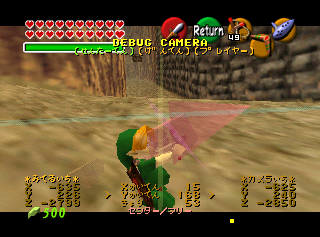
The Debug Camera has three modes. Use C-Left to switch between them.
DEBUG CAMERA |
|---|
(Center Point) |
Center Point#
When this mode is activated, the camera will stop following Link and freeze in place in the center of the screen. This allows the player to run in and out of the frame.
A transparent red ghost camera follows Link, indicating the camera's usual position. In addition, a transparent red arrow hovers over Link's head to indicate which way the camera is facing.
Translation#
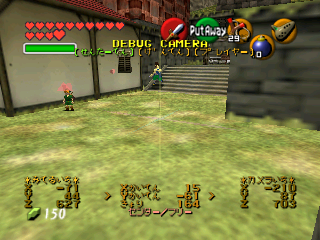
Center Point |
|---|
*Viewpoint* |
X |
Y |
Z |
Center Point: Free |
Controls#
A + B + L + R |
Analog Stick |
||
|---|---|---|---|
A |
Zoom In |
Left |
Rotate Clockwise Around Y Axis |
B |
Zoom Out |
Down |
Rotate Backward Around X Axis |
L |
- |
Right |
Rotate Counterclockwise Around Y Axis |
R |
Reset Camera |
Up |
Rotate Forward Around X Axis |
Origin Point#
When this mode is activated, the camera will jump to the center of the map at (0,0,0) and remain fixed there. This allows the player to run in and out of the frame.
A transparent red ghost camera follows Link, indicating the camera's usual position. In addition, a transparent red arrow hovers over Link's head to indicate which way the camera is facing.
Translation#
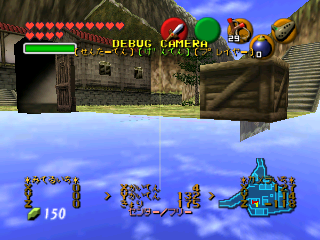
Origin Point |
|---|
*Viewpoint* |
X |
Y |
Z |
Center Point: Free |
Controls#
A + B + L + R |
Analog Stick |
||
|---|---|---|---|
A |
Zoom In |
Left |
Rotate Clockwise Around Y Axis |
B |
Zoom Out |
Down |
Rotate Backward Around X Axis |
L |
- |
Right |
Rotate Counterclockwise Around Y Axis |
R |
Reset Camera |
Up |
Rotate Forward Around X Axis |
Player#
In this mode, the camera will follow behind Link at a set distance, keeping him in the center of the frame at all times, without rotating to adjust for obstacles. This occasionally causes it to clip through the sides of the map.
A transparent red ghost camera follows Link, indicating the camera's usual position. In addition, a transparent red arrow hovers over Link's head to indicate which way the camera is facing.
Translation#
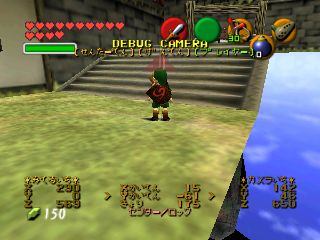
Player |
|---|
*Viewpoint* |
X |
Y |
Z |
Center Point: Locked |
Controls#
Zooming in or out will cause the camera to snap back into position.
A + B + L + R |
Analog Stick |
||
|---|---|---|---|
A |
Zoom In |
Left |
Rotate Clockwise Around Y Axis |
B |
Zoom Out |
Down |
Rotate Backward Around X Axis |
L |
- |
Right |
Rotate Counterclockwise Around Y Axis |
R |
Reset Camera |
Up |
Rotate Forward Around X Axis |
Demo Camera Tool#
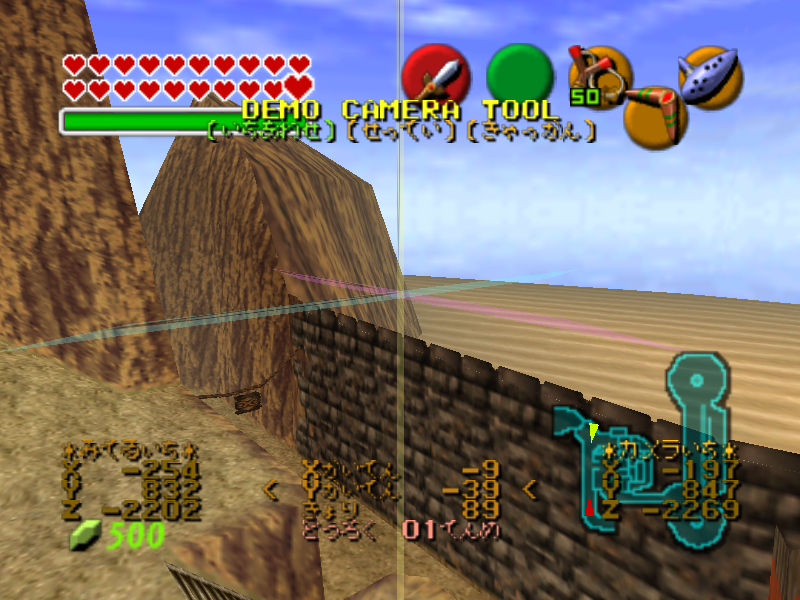
The Demo Camera Tool has three modes. Use C-Left to switch between them.
The Demo Camera Tool allows you to move the camera completely freely, independent of Link. It is mainly used to create the introduction videos. Again, it has three submodes, which you can select with the C-Left button.
DEMO CAMERA TOOL |
|---|
(Alignment) |
Alignment#
When this mode is activated, the camera will stop following Link and freeze in place in the center of the screen. This allows the player to run in and out of the frame.
Translation#

Alignment |
|---|
*Viewpoint* |
X |
Y |
Z |
Revision: <0 / <8 |
Revision:
Goes from <0 - <99, then :0 - :9, then ;0 - ;9. (This is likely a bug: the ASCII characters following '9' are ':', ';' and '<' in order. The same behaviour can be seen when the rupee counter exceeds 999.)
もうはいりません
Controls#
A + B + L + R |
Analog Stick |
||
|---|---|---|---|
A |
Zoom In |
Left |
Rotate Clockwise Around Y Axis |
B |
Zoom Out |
Down |
Rotate Backward Around X Axis |
L |
- |
Right |
Rotate Counterclockwise Around Y Axis |
R |
- |
Up |
Rotate Forward Around X Axis |
- In the first mode, you can simply move the camera around the map. The controls are the same as in the Debug Camera mode, except you can't use the R button to snap to Link. Instead, R is used to create a point for the introduction movie.
Settings#
When this mode is activated, the camera will stop following Link and freeze in place in the center of the screen. This allows the player to run in and out of the frame.
- The second mode allows for some advanced options. Use the D-Pad to navigate through the options and change the values. The first option simply moves the camera back and forth. The second option sets how many frames there should be between two points. The third option rotates the camera.
Translation#
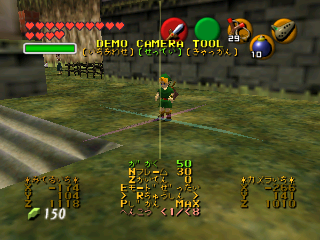
If E Mode is set to ぜったい (Absolute) or こてい (Fixed), use this translation:
E Mode: Absolute/Fixed |
|---|
*Viewpoint* |
X |
Y |
Z |
Revision: <0 / <8 |
If E Mode is set to そうたい (Relative), use this translation:
E Mode: Relative |
|---|
*Viewpoint* |
X Rotation |
Y Rotation |
Depth |
Revision: <0 / <8 |
Controls#
A + B + L + R |
Analog Stick |
||
|---|---|---|---|
A |
Zoom In |
Left |
Rotate Counterclockwise Around Y Axis |
B |
Zoom Out |
Down |
Rotate Backward Around X Axis |
L |
- |
Right |
Rotate Clockwise Around Y Axis |
R |
Reset Camera |
Up |
Rotate Forward Around X Axis |
Object#
When this mode is activated, the camera will stop following Link and freeze in place in the center of the screen. This allows the player to run in and out of the frame.
A transparent red ghost camera follows Link, indicating the camera's usual position. In addition, a transparent red arrow hovers over Link's head to indicate which way the camera is facing.
- The third mode allows you to preview your created introduction movie. Use the C-Up and C-Down buttons to go through all the created points, and hold the C-Right button to preview their introduction movie. The beginning of the movie is indicated with a rupee sound, while the end is marked with a recovery heart sound.
Translation#
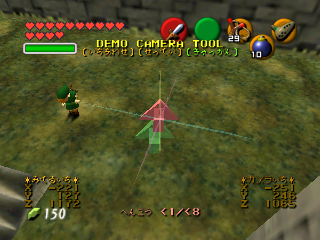
Object |
|---|
*Viewpoint* |
X |
Y |
Z |
Revision <0 / <8 |
Controls#
A + B + L + R |
Analog Stick |
||
|---|---|---|---|
A |
Zoom Camera In |
Left |
Rotate Clockwise Around Y Axis |
B |
Zoom Camera Out |
Down |
Rotate Backward Around X Axis |
L |
- |
Right |
Rotate Counterclockwise Around Y Axis |
R |
Don't Touch! |
Up |
Rotate Forward Around X Axis |
Playback Mode#

When this mode is activated, players can playback their newly recorded cutscenes.
Translation#
Playback Mode |
|---|
Frame |
Key |
Playback initiated! |
Additional Messages |
|---|
さいせいしゅうりょう |
キーフレームがたりません。 |
さいせいできません |
Demo Control#
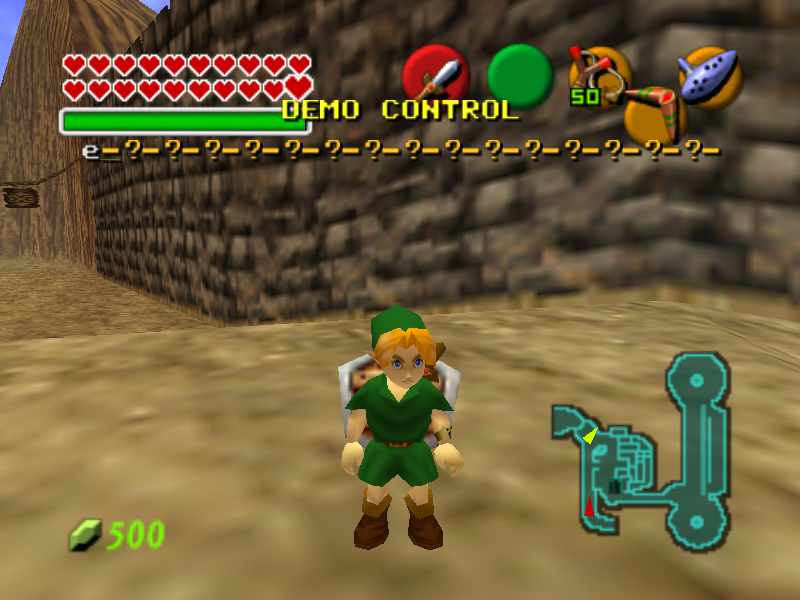
When this mode is activated, players can save custom cutscenes to a Memory Pak plugged into the third controller.
Screen 1 - Create Cutscene#

The first screen contains a row of question marks. Each question mark represents a cutscene slot. A small green line shows which slot is currently selected. Select a question mark and press A to save a cutscene to it. The cutscene will be given a letter.
Press D-Up or D-Down to access the Mempak options for the selected cutscene.
Saved cutscenes can also be moved between slots by holding the L button and using the D-Pad.
Controls#
A + B + L + R |
Analog Stick |
||
|---|---|---|---|
A |
Save Cutscene |
Left |
- |
B |
Delete Cutscene |
Down |
- |
L |
Hold to Switch Cutscene Slots |
Right |
- |
R |
- |
Up |
- |
Screen 2 - Mempak Options#
This screen allows players to save, load, or clear the selected cutscene.
Translation#

Mempak Options |
|---|
NEED |
FREE |
USE |
*Memory Pak* |
< Save > |
< Load > |
< Clear > |
Please don't remove the Memory Pak. |
Selecting a file to save, load, or clear will display the text below.
Save Messages |
|
|---|---|
ファイル[X]をセーブしてもいいですか? |
Is it OK to save File [X]? |
ファイル[X]をセーブしています |
Saving File [X]. |
ファイル[X]をセーブしました |
File [X] saved. |
ファイル[X]をセーブにしっぱいしました |
Failed to save. |
Clear Messages |
|
ファイル[X]をクリアしてもいいですか? |
Is it OK to clear File [X]? |
ファイル[X]をクリアしています |
Clearing File [X]. |
ファイル[X]をクリアしました |
File [X] cleared. |
クリアにしっぱいしました |
Failed to clear. |
You may encounter the following error messages as well.
style="text-align: center;" scope="row" colspan="2"| Other Error Messages |
|---|
メモリがたりません |
ファイル[X]をみつけられません |
Controls#
Zooming in or out will cause the camera to snap back into position.
A + B + L + R |
Analog Stick |
||
|---|---|---|---|
A |
Select Option |
Left |
- |
B |
Previous Screen |
Down |
- |
L |
- |
Right |
- |
R |
- |
Up |
- |
Playback Mode#

Playback Mode |
|---|
Frame |
Total |
Key |
Playback initiated! |
Sort#
|
Currently under revision file will be destroy. |