 This article has a talk page!
Unused Textures#
Several textures exist in the Test folder of the game, and go unused in normal gameplay. These textures do not fit in stylistically with any of the textures that do get used in the final game, and seem to be leftovers from early versions of the game before UGA went with the cyberspace theme.


Unused Enemies#
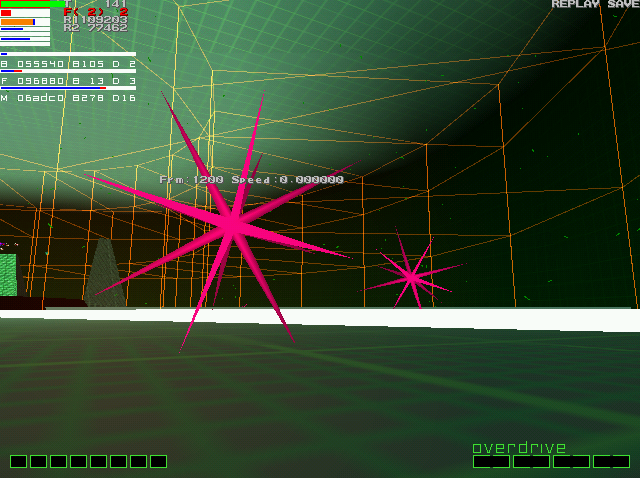
It is possible to spawn what seems to be a test enemy in the Venus boss battle, using the KODE debug mode. Interestingly, this enemy is the only one that actually has collision with the environment.
Unused Sounds#
A sample from Underworld's song "Rez" exists in the files for Area 1. Most likely a remnant from when the game was going to use Underworld's music for this level.
Debug Mode#
Gindows#
Sega's Gindows debug system can be accessed in the final version of the game. The byte at 0x8C28E08D is part of the system flags (2C instead of 8C for Demul with Cheat Engine). This byte, when set to C5, enables the debug mode. This gives access to almost all debugging features of the prototype, with the exception of the Nindows debug mode.
A Japanese keyboard is recommended (slot 4). It is advised to use a Dreamcast mouse (slot 2), but you can use a regular controller instead. A is left click and B is right click, and you can use both the thumbstick and D-Pad to move the cursor.
Keyboard Commands
Key |
Function |
|---|---|
Tilde |
Console |
F1 |
Performance Window |
F2 |
Memory Window |
F3 |
Mainflow Editor |
F4 |
GameInfo Window |
F5 |
Camera Window |
F6 |
Frame Stabilizer On/Off |
F7 |
Variable Editor |
F8 |
Free Camera |
F9 |
System Window |
F11 |
Reset Mainflow, Passflow and Gameflow Count |
F12 |
Hides/Displays Debug Mode |
Alt+F11 |
Loads Next Phase (In levels) |
Print Screen |
Debug Info |
Scroll Lock |
Advance Game by One Frame when Paused |
Pause/Break |
Pause Game |
Alt+Tab |
Switch Windows |
Ctrl+1 |
Auto Stabilizer 1 [Smooth, Heavy Performance] |
Ctrl+2 |
Auto Stabilizer 2 |
Ctrl+3 |
Auto Stabilizer 3 |
Ctrl+4 |
Auto Stabilizer 4 |
Ctrl+5 |
Auto Stabilizer 5 [Skips Frames, Lightest Performance] |
P [In Level Select] |
Unlock All Levels |
Console#
Accessible from the right click menu or by pressing the button under Escape, is a console menu. This prints very little information to the screen compared to the prototype.
Console Commands
Command |
Function |
|---|---|
Help |
Gives a list of commands [Some are in Japanese] |
CD |
Change directory |
Coloredit |
Execute color edit window |
Dumpwin |
Execute memory dump window |
Fullrange |
'OK! OK!' Appears, Japanese when typed again |
Heap_map |
HeapMap view |
Heap_overrun |
Heap overrun check |
Heapb_map |
HeapBaseMap view |
LS |
List directory |
Maxieditor |
Draws grid on screen, saves Maxidat[Number] files to VMU |
Palwin |
Execute palette window |
Play_log |
Prints your play log from the flash memory |
R_load |
Replay load |
R_save |
Replay save |
Varlist |
Displays a list of variables and some descriptions |
Varsearch |
Search for variables |
Varset |
Set variables |
Mainflow Editor#
The Mainflow editor can be used to place enemies and edit the events in a level, and these can be saved to a VMU. If a valid Mainflow file is found on the VMU, this will be loaded instead of the file on disc.
Mainflow Keyboard Commands
Key |
Function |
|---|---|
N |
New Command |
K |
Kill Selected Command |
C |
Mainflow Count Change |
S |
Save to VMU |
D |
Delete selected enemy |
Page Up/Down |
Change the Type of Command |
Enter |
Edit Command's Settings |
Command Editor Keyboard Commands
Key |
Function |
|---|---|
V |
Vector to Angle |
A |
Angle to Vector |
C |
Camera to Target |
Shift+C |
Target to Camera |
M |
Make |
P |
Disp On/Off |
Ctrl+U |
Undo |
Ctrl+C |
Copy to Buffer |
CTRL+V |
Copy from Buffer |
Free Camera#
Uses Player 1's Controller.
Button |
Function |
|---|---|
L+R |
Camera Movement Speed [1.0, 10.0, 100.0, 0.1] |
Thumbstick |
Rotates Camera Clockwise/Anti-Clockwise |
A |
Lower Camera |
X |
Raise Camera |
B |
Rotate Camera Downwards |
Y |
Rotate Camera Upwards |
D-Pad Up |
Move Camera Forwards |
D-Pad Down |
Move Camera Backwards |
D-Pad Left |
Move Camera Left |
D-Pad Right |
Move Camera Right |
Home |
Reset Camera to 0,0,0 |
Variable Editor#
The Variable Editor enables you to edit variables. This menu opens in Japanese but can be switched to English by clicking the HELP button. It can also be switched to a transparent mode by clicking on TRANS. You can save the current variables and load them from VMU using the Save_Variable and Load_Variable options respectively.
Regional Differences#
In the Japanese version of the game, the 'Travelling' mode is called 'Easy Rez'.
Oddities#
Pressing F12 on a Dreamcast keyboard without enabling the debug mode will save the game. In both the prototype and final, the debug level select refers to a 'STG50'. This is missing in both versions.