This is a sub-page of Ratchet & Clank (PlayStation 2).
All builds of Ratchet & Clank 1 have a built in debug menu. In retail and some prototype builds of the game, access to this menu is disabled but can be forcibly activated by setting the game mode value in memory.
In a few prototype builds, the debug menu can be activated by enabling a "cheat mode" that was left in the build. In these builds, cheat mode is either enabled by default or can be enabled with a button combination.
Cheat Mode

|
To do: |
Some prototype builds of Ratchet & Clank include a "cheat mode" which enables various debugging options to unlock weapons, gadgets and items, unlock all planets and access the debug menu.
Enabling Cheat Mode#
On builds that include "cheat mode", you can enable the functionality by entering the following button combination on the pause screen:
Up, Down, Up, Down, Left, Right, Left, Right, Square
If the code was entered successfully, a ***cheats enabled*** message will be added to the top of all pause menus.
The cheat mode can be disabled by re-entering the code on the pause menu.
Once cheat mode has been enabled, you can toggle the debug menu in most builds by pressing R3 in-game.
Non Cheat-Mode Builds#
In some builds that don't support the cheat mode button combination, cheat mode can be manually enabled by editing a memory address. In other builds, the debug menu can be forcibly opened via memory editing.
E3 Demo#
Cheat mode can be enabled in this build by setting the following value using a tool like Cheat Engine:
Enable Debug Cheats
Set 2019A924 to value 1
Unlike other builds, enabling cheat mode in the E3 Demo does not enable access to the debug menu using R3. To manually access the debug menu, set the following memory address:
Show Debug Menu
Set 2015274C to value 4294967295
Show Debug Menu (Alternate)
Set 20152790 to value 1
Hide Debug Menu
Set 2015274C to value 0
EB Games Demo#
Cheat mode can be enabled in this build by setting the following memory address:
Metropolis, Kerwan
Set 201AC224 to 1
Blackwater City, Rilgar
Set 201AC5A4 to 1
Retail (North America)#
There is no known way to enable cheat mode in this build, however, the debug menu can be activated by setting the following memory address:
Show Debug Menu
Set 2015F5C4 to 4294967295
Hide Debug Menu
Set 2015F5C4 to 0
The debug menu can also be enabled on real consoles using the following GameShark/CodeBreaker codes:
Enable Code (for console only)
9011A8F0 0C0469E4
Press L3 For Debug Menu
D013C95C 0000FFFD
2015F5C4 FFFFFFFF
Retail (Europe)#
There is currently no known way to enable cheat mode in this build, however, the debug menu can be activated by setting the following memory address:
Show Debug Menu
Set 2015F6A8 to 4294967295
Hide Debug Menu
Set 2015F6A8 to 0
Cheat Mode Features#
The following features only work while cheat mode is enabled unless other specified.
Enabling cheat mode will automatically unlock all planets in the Galactic Map.
It will also unlock any locked options in the Goodies menu (Sketchbook, Epilogue, 'Making Of' Video & Commercials).
Unlock Everything#
Pressing all shoulder buttons L1, L2, R1 & R2 on any pause menu will immediately unlock all weapons, gadgets and most items.
Unlock Items#
Highlighting a weapon, gadget or item in the respective menu and pressing L3 will toggle whether the item is unlocked.
Unlock Goodies Menu#
⚠️ This option only seems to work in the September 9th Review Build. It's possible that the Goodies menu did not exist in earlier cheat mode enabled builds.
Pressing the following buttons in sequence will toggle the Goodies menu: R1, R2, L1, L2.
This sequence works even without cheat mode enabled on builds that include cheat mode.
Debug Position#
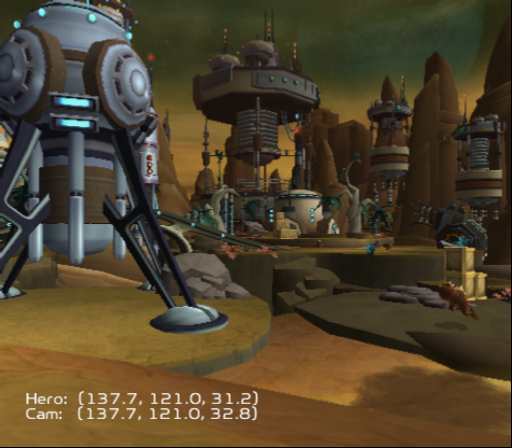
Holding L1 and L2 in-game will display debugging text on screen with the current player and camera position coordinates.
Debug Menu Options
The following is a run down of each of the options available in Ratchet & Clank 1's debug menu.
The top of the debug menu reads I-5, this stands for Insomniac - 5 and was the codename for Ratchet & Clank as it was Insomniac's fifth game.

Update#
Ratchett#
Determines whether Ratchet's state is updated or not. Toggle by pressing X.
Turning this option off "freezes" Ratchet in place. Any animations are frozen and the player is unable to move Ratchet until the option is turned back on.
Mobys#
Determines whether Mobys (movable objects) are being updated or not. Toggle by pressing X.
Turning this option off "freezes" almost all moving objects (except Ratchet) in place. Any updates to mobys such as Ratchet breaking a crate or attacking an enemy will be reflected when the option is turned back on.
Parts#
Determines whether particle effects are being updated or not. Toggle by pressing X.
Turning this option off "freezes" particle effects. Any new particle effects such as Pyrocitor flames will freeze in their initial state. If too many particle effects are being displayed on screen, new ones will no longer be created until the option is turned back on.
Camera#
Determines whether the camera is being updated. Toggle by pressing X.
Turning this option off "freezes" the camera. Ratchet can still move freely but the camera will not follow him and any manual camera control is disabled until the option is turned back on.
Step#
Automatically turns off all other "UPDATE" options and allows the user to advance any of the disabled "UPDATE" options by one frame when pressing L3 in-game.
After enabling Step, you can turn on other "UPDATE" options to return them to a normal state, with any remaining disabled options being frozen in their "off" state until pressing L3 at which point they'll advance one frame. For instance, turning on all other "UPDATE" options except Mobys will allow you to play through the level relatively normally while testing Moby animations one frame at a time.
Mode#
For all the options in this category, press X to select the next option and Triangle to select the previous option.
Control#
All of these values will automatically change the values in the "UPDATE" category, however you can manually enable/disable any of those "UPDATE" options after setting the Control mode.
- Normal: Standard game control
- Camera: Free-cam mode
- L1 and R1 to lower and raise the camera
- L2 and R2 to move the camera left and right
- D-Pad Up and Down to move the camera forwards and backwards
- D-Pad Left and Right to pivot the camera left and right
- Hold L2 + R2 and press D-Pad Up or Down to pivot the camera up and down
- Cam+Chr: Same as free-cam mode but attaches Ratchet to the camera so that he can be moved around the level
- Volume: Appears to be the same as free-cam mode but leaves Mobys and Parts enabled so that the level can be explored without objects and particles being frozen in place
Profile#
|
|
To do: |
⚠️ These options don't seem to be working on all builds. Notably, none of them appear to work on the September 9th Review or Retail Builds.
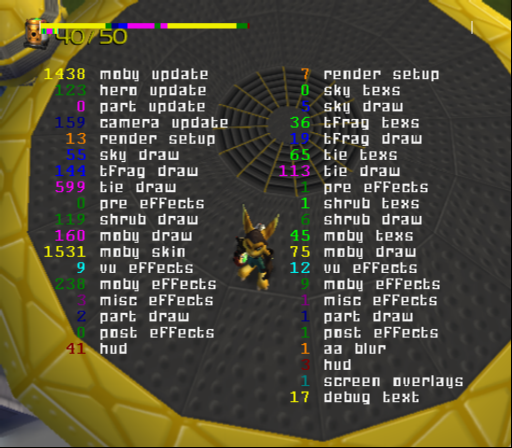
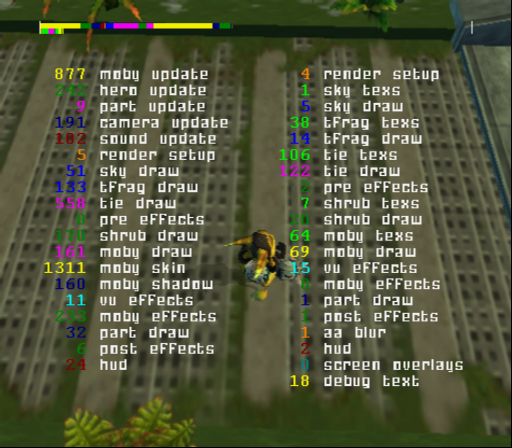
Shows system resource usage. There are several profiles to show how various parts of the game are impacting performance.
- Off: Disables the usage overlay.
- Bars, Render, Mobys, Ties, Shrubs, Occl: All these options seem to output the same two bars on screen which appear to be a measure of resource usage.
- CPU / GPU: Outputs the same two bars as previous options, plus a lot of debugging text that possibly relates to the number of draw calls each part of the game is making.
E3 Demo |
June 25 Proto |
Aug 2 Proto |
|---|---|---|
 |
 |
 |
Occl#
Sets the state of occlusion culling. This determines which objects should be drawn into the scene or culled out based on what the player camera can see.
- Active: Enables pre-computed occlusion. This is the default value.
- Off: Disables occlusion. This will essentially draw the entire map every frame, including objects the player can't currently see. This could cause the game to crash on real hardware, but is more likely to just impact framerate in an emulator.
- Freeze: Freezes occlusion. Any objects not currently being drawn will remain culled out until this setting is changed to Off or Active. This is useful for testing what's being occluded at any given moment.
Magnetic#
⚠️ This option was removed sometime prior to the August 2nd prototype.
It's unknown exactly what this does, and the option was removed sometime prior to the August 2nd Prototype build. It appears to be related to magnetic surfaces and possibly the cut spherical worlds. Given one of the values is "sphere" and the fact that the option was removed in the later prototypes this may be partially related to the planned spherical worlds which according to developer Mike Stout were planned but later cut and implemented in R&C 2 instead.

|
This needs some investigation. |
Setting this option to "off" while Ratchet is standing on a magnetic surface will cause him to fall off. However, if the player tries to walk on the surface again it'll work fine despite the option still being set to "off". Also, setting the option to "sphere" while walking in certain orientations has the same effect as setting it to "off" where Ratchet falls off or clips to the other side of the magnetic surface, but in other orientations it has no effect. Regardless of what this option is set to, if Ratchet does not have the Magneboots he will be unable to walk on magnetic surfaces and vice versa.
Additionally, setting the option to "sphere" and closing the debug menu causes the Ratchet and camera to momentarily jolt in a tilting/leaning motion before correcting itself. If Ratchet is in the middle of a jump when selecting the option the camera jolt is far more pronounced.
Bookmark#
|
|
This needs some investigation. |
Intended to allow programmers and testers to set "bookmark" locations that could they could later skip/teleport back to, however this option apparently requires a PS2 Devkit to function.
Invinc#
|
|
This needs some investigation. |
This is supposed to make Ratchet invincible, but it doesn't appear to work in all builds. When working correctly, Ratchet's damage animation should still play when taking damage but his health should not go down.
This option only seem to work on the June 25th Prototype, but does not appear to be working on any other prototypes nor the North American retail game.
Drawdist#
Determines the game's draw distance. According to developer Mike Stout this was apparently used during development to test levels that did not yet have occlusion data computed to prevent the game from crashing.
- Normal: Normal draw distance. This is the default option.
- Near: Reduced draw distance. Not everything is affected by this option, as certain effects such as fire, smoke, contrails and water still draw at a regular distance.
Coll#
Presumably related to collision, but doesn't appear to actually do anything. It's possible this option works on a PS2 Devkit.
- Hotspt: Unknown
- Camera: Unknown
- Sound: Unknown
Tv Mode#
|
|
This needs some investigation. |
Presumably sets the game to output in NTSC or PAL mode. However, this option doesn't appear to do anything and doesn't change the output framerate or resolution when tested in an emulator.
Screen#
When set to "small", this option pulls the camera way back to show the programmer or tester what's currently being drawn into the scene. This would have been useful to determine if anything is being drawn in at any given moment that doesn't need to be.
- Normal: Standard screen mode. This is the default option.
- Small: Moves the camera behind the scene that's currently being rendered.
Scene#
|
|
This needs some investigation. |
Selecting a scene number and closing the debug menu seems to trigger the corresponding in-game cutscene to play, however it seems to behave strangely. It doesn't work on all levels or with all cutscenes. It also doesn't take control of the player character, meaning that scenes involving Ratchet will have Ratchet missing from them while other Mobys such as his wrench will still be moved into the scene. Many cutscenes also crash the game and after selecting and playing a scene it doesn't seem to be playable again.
Segment#
Allows the user to mark segments of a level as complete (255) or incomplete (0). Level segments are normally triggered by reaching a certain area of a level, at which point the corresponding segment will be set to 255 (complete). This is most likely used for the game's mining system that prevents players from farming for bolts by revisiting completed level segments.
You can use X and Triangle to select the next/previous segment and Circle to toggle it as completed (= 255) or not completed (= 0).
Ship#
|
|
This needs some investigation. |
Presumably used to set the current ship that Ratchet owns since he switches between three different ships throughout the game. However, this option doesn't seem to actually do anything as changing the value doesn't change Ratchet's ship and reloading or changing planets resets the value.
Draw#
On most builds of R&C 1, none of these options work. In the June 25th Prototype, only the "text" option works. These options are likely intended for use with a PS2 Devkit.
Darken#
This was most likely meant to darken the background to make debugging text easier to see, but it doesn't appear to work in an emulator. This option may work on a Devkit.
Env coll#
Doesn't appear to function; likely would have shown the collision meshes for environment objects in the world.
Moby coll#
Doesn't appear to function; likely would have shown the collision meshes for active mobys.
Hero coll#
Doesn't appear to function; likely would have shown the collision meshes for the player character.
Bspheres#
Doesn't appear to function; likely would have shown the bounding spheres for objects in the world.
Cameras#
It's not known what this option does.
Cuboids#
Doesn't appear to work in this version, but would most likely have shown the cuboids for triggering enemy alert radii.
Samples#
It's not known what this option does.
Text#
⚠️ This option only seems to work in the June 25th Prototype.
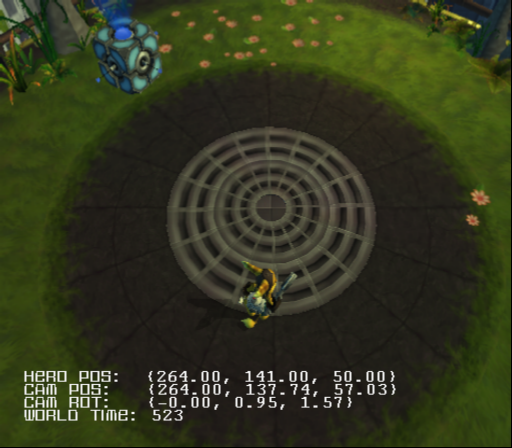
Outputs the following debug text to the screen:
- Hero Pos: X, Y and Z coordinates of the player character.
- Cam Pos: X, Y and Z coordinates of the camera.
- Can Rot: Pitch, Roll and Yaw rotation of the camera.
- World Time: Counter since last player respawn/load (presumably counted in # of frames).
Ammo#
The options in this section relate to weapon ammo, bolts and whether a weapon has been upgraded to the gold variant.
Pressing X on an option will increase the ammo count by one, pressing circle will decrease it by one.
Holding R1 while pressing X or circle will increase/decrease the ammo count by 60 (up to the maximum ammo value for the weapon).
Holding R2 while pressing X or circle will increase/decrease the ammo count by 600 (up to the maximum ammo value for the weapon).
Pressing square on an option with a brown value on the left hand side will toggle whether that weapon is upgraded to the gold variant. 0 represents a standard weapon and 1 represents an upgraded weapon.
The same functionality applies to the bolts option. The bolts option is in the Ammo section due to the fact that in early development bolts were used as ammo for the Blaster. In the E3 Demo, the bolts option still represents Blaster ammo instead of the player's actual bolt count. As a result, there is no way to alter the player's bolt count via the debug menu in that build.
Fog#
These options relate to the level's fog. Changing them can substantially alter the look of a level.
Hold X to increase any of these values, hold triangle to decrease them.
Tap R1 to increase the value by one or L1 to decrease it by one.
NearDst#
Determines the distance of foreground fog (near fog).
This option can be set to a range between 0 and 512.
NearInt#
Determines the intensity of foreground fog (near fog).
This option can be set to a range between 0 and 100.
FarDst#
Determines the distance of background fog (far fog).
This option can be set to a range between 0 and 512.
Setting this option to the same value as NearDst causes major rendering issues and significantly impacts the game's framerate.
FarInt#
Determines the intensity of background fog (far fog).
This option can be set to a range between 0 and 100.
Color#
There are three options for color, representing red, green and blue respectively.
Each of these values can be set to a range between 0 and 255. The higher the value, the more of that color exists in the level's fog. For example, a very high red value and lower blue and green values will result in a level with red fog.
Misc#
BattleCam#
It's not known what this option does.
Actuator#
It's not known what this option does.
AddSample#
It's not known what this option does.
When selecting this option with any of the face buttons (X, Circle, Triangle, Square) the following two lines are printed to the PCSX2 console (where x represents the loaded level):
open fail name ¥DATA¥LEVELS¥LEVELx¥occ_sample_deltas.dat;1
open fail name ¥DATA¥LEVELS¥LEVELx¥occ_samp.dat;1AddStart#
It's not known what this option does.
When selecting this option with any of the face buttons (X, Circle, Triangle, Square) the following line is printed to the PCSX2 console (where x represents the loaded level):
open fail name ¥DATA¥LEVELS¥LEVELx¥occ_sample_deltas.dat;1