 This article has a talk page!
This is a sub-page of MiniCopter: Adventure Flight.
Debug Menu#

Scene index |
|---|
02 |
A debug menu exists in the game, known as PetitCopter Wii Simple Menu, with several options and submenus to navigate by using the D-Pad to select between options and the 2 button to enter a submenu (assuming the Wii Remote is held sideways).
At boot, the function CApp::StartLocal checks whether the simple_menu option in /PCopter/Config.txt is set to 0 or not. If it's 0, the game boots normally, otherwise it loads into this debug menu.
Because the Config.txt file is first loaded after this function is executed, the flag will always be read as 0, so the game will always boot normally, even if this number is changed in the file. Either way, there seems to be no code left to parse this flag.
When accessing a mission using this menu, quitting/beating the mission or losing the game will return the player to this menu instead of the usual mission select menu (unless the player chooses the Title option). The debug System/User free heap displays appear in this menu.
Enable the following code and boot (or reboot) the game to access this menu:
JPN |
USA |
EUR |
|
|---|---|---|---|
Gecko Code |
|
|
|
The main screen plays the Map Selection music, while in each submenu the Shop theme is played.
Option Name |
Description |
Options |
|---|---|---|
Go Flight |
Starts the game with the selected options. |
|
Parts Select |
Goes into the Parts Select submenu. |
|
Room |
Selects a map. |
|
Scenary |
Selects a mission. |
|
Control |
Selects a controller layout. |
|
Sound Setting |
Goes into the Sound Setting submenu. |
|
Cheat Setting |
Goes into the Cheat Setting submenu. |
|
Multiplay |
Goes into the MultiPlay submenu. |
|
Title |
Goes into the Title Screen. When using this option, the player will start from the beginning of the game, as if they created a brand new save file. Although this is temporary, players must be careful not to save the game while in this state, or it may overwrite existing save files. To prevent this, players can always just load a save file. |
1: This option is disabled by default. It can be enabled by using the following code:
JPN |
USA |
EUR |
|
|---|---|---|---|
Gecko Code |
|
|
|
2: This option only works in the Japanese version. This is because its associated models are stored in MDL0 v10 format (the western versions only supports v11).
Parts Select#

Scene index |
|---|
03 |
This menu lets the player select between all the different helicopter bodies and accessories.
Option Name |
Description |
Options |
Notes |
|---|---|---|---|
Body |
Helicopter's frame selection. |
|
|
Color |
Helicopter's color selection. |
|
Not all frames have the special variant. Attempting to load this color with a frame that doesn't have it will load the unused variant in the Japanese version, and crash in the rest of the versions. |
Rotor |
Helicopter's rotor selection. |
|
|
Motor |
Helicopter's motor selection. |
|
S_Evolution seems to be unused? |
Gyro |
Helicopter's gyro selection. |
|
|
Battery |
Helicopter's battery selection. |
|
|
Cannon |
Helicopter's cannon selection. |
|
|
LiftCup |
Helicopter's suction cup selection. |
|
|
Etc |
|
||
Return |
Goes back to the main Debug Menu screen. |
1: This option only works in the Japanese version (except if the Body option is set to NRM_01). This is because all the models the game loads (except for that one) are stored in MDL0 v10 format (the western versions only supports v11).
Sound Setting#

|
To do: |

Scene index |
|---|
04 |
This menu lets the player change various sound-related settings, such as the sound mode and volume.
Option Name |
Description |
Options |
|---|---|---|
SoundOutPut |
Selects the sound mode. |
|
SE_Volume |
Selects the sound effects volume. |
|
BGM_Volume |
Selects the music volume. |
|
ENV_Volume |
Selects the environmental sound effects volume. |
|
Return |
Goes back to the main Debug Menu screen. |
Cheat Setting#

Scene index |
|---|
05 |
This menu lets the player choose between many cheats used by developers to debug and test the game.
Option Name |
Description |
Options |
|---|---|---|
HideInfo |
|
|
MoveCam |
Free camera debug functionality. |
|
CollDraw |
Collision display debug functionality. |
|
CollDisable |
Collision disable debug functionality. |
|
InfiniteBatt |
Grants infinite battery. |
|
InfiniteLife |
Grants infinite lives. |
|
DebugInfo |
Debug information display functionality. |
|
Return |
Goes back to the main Debug Menu screen. |
MultiPlay#

Scene index |
|---|
06 |
This menu lets the player start a multiplayer game (in the Type A mission variant only) with the selected settings. The reason why it doesn't support loading the Type B missions is likely due to the fact that these didn't exist in the Japanese version.
Option Name |
Description |
Options |
|---|---|---|
Start |
Starts the game |
|
Player1 Body2 |
Helicopter's body selection for the 1st player. |
|
Player2 Body2 |
Helicopter's body selection for the 2nd player. |
|
Room |
Selects a map. |
|
Window |
Selects the window splitting mode. |
|
LimitTime |
Selects the game's time limit. |
|
Return |
Goes back to the main Debug Menu screen. |
1: This option is disabled by default. It can be enabled by using the following code:
JPN |
USA |
EUR |
|
|---|---|---|---|
Gecko Code |
|
|
|
2: This option only works in the Japanese version. This is because its associated models are stored in MDL0 v10 format (the western versions only supports v11).
In the case of the helicopter frames, the unused variant will be loaded in the Japanese version, while the game will crash in the rest of the versions (unless both players select the NRM_01, the B44 Pronghorn helicopter).
Debugging Functions#
HideInfo#
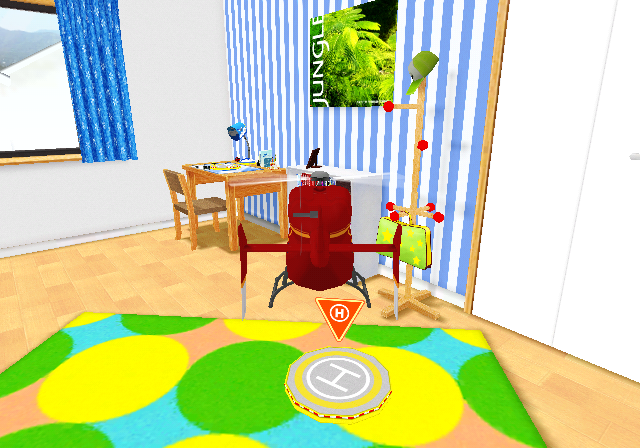
This function disables most of the HUD. It will also disable the debug information text even if it's set to enabled.
MoveCam#
This enables the ability to move the camera freely around the helicopter by using a Classic Controller plugged in the first Wii Remote (the Controller Setting must be set to either Motion or Pointer in order for this to work).
Controls |
Action |
|---|---|
D-Pad |
Rotates the camera. |
A |
Stops/Resumes the game. This freezes all objects, including the helicopter. |
B |
Resets the camera position to the back of the helicopter. |
L |
Zoom-in. |
R |
Zoom-out. |
CollDraw#
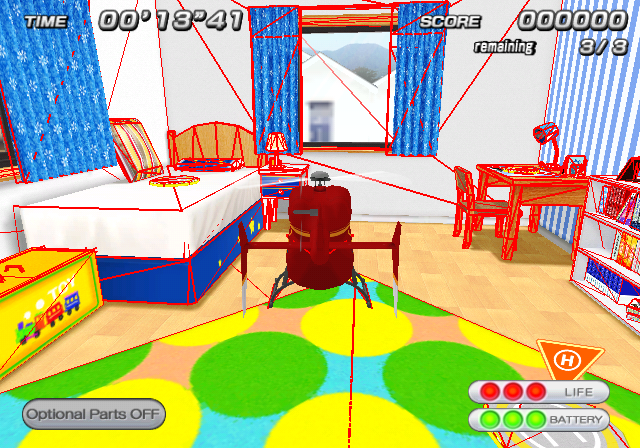
Draws the collision models' wireframe in red for everything present in the scene.
CollDisable#
Disables the collision of the whole map and objects.
The two height limit planes that are defined for each map are still present, preventing the player from exploring farther in the vertical axis.
Even so, the player can endlessly explore horizontally.
DebugInfo#
|
|
To do: |
Menus |
Multiplayer |
|---|---|
 |
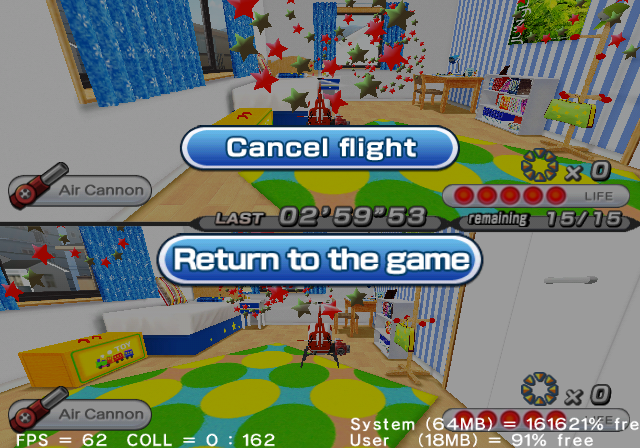 |
This function prints the free heap available for both the System (whole memory) and User (game's memory) areas. In menus, the function will display said amount both in bytes and as a percentage, while in multiplayer it only shows the percentage. The system's memory displayed is incorrect, as the value that is actually shown is its opposite. The following code corrects this issue:
JPN |
USA |
EUR |
|
|---|---|---|---|
Gecko Code |
|
|
|
Exclusive to multiplayer, two additional parameters are shown: FPS which displays the number of frames per second, and a parameter named COLL with two variables.
A screenshot found as an unused texture suggests that this display (as seen in multiplayer) was also present when playing in single player. In the final game, there is no code to display it in single player missions however.
While the exact meaning of both COLL variables is unknown, they seem to be related to the collision. There's code that updates the first variable in RAM address 0x800254f4 (PAL), inside the function CVColl::CheckColl_AreaList. However, it goes unused because it's only calculated in single player missions, but can only be displayed in multiplayer.
|
|
To do: |
Use the following code to view said value in multiplayer:
JPN |
USA |
EUR |
|
|---|---|---|---|
Gecko Code |
|
|
|
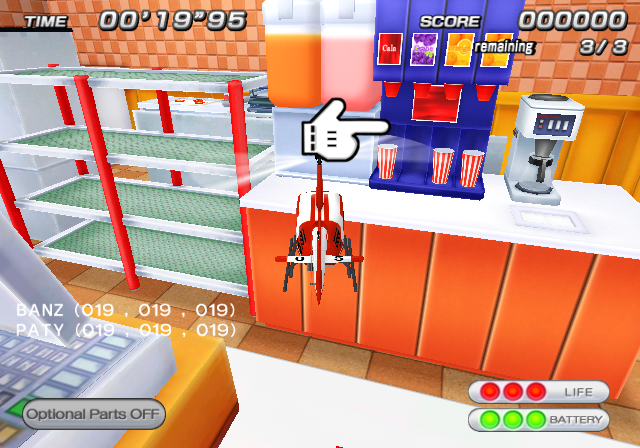
Additionally, playing in the Hamburger Shop's 5th mission will display 3 counters (one for each of the hamburgers that has to be made) for two parameters: BANZ and PATY. For each parameter, each counter will increase by 1 each second, and will stop when the heater for either the burger buns (BANZ) or the patty (PATY) respectively is opened. A counter will resume if the heater is closed again while its associated bun/patty is in it.
The purpose for this seems to be able to see at what moment the burger buns and the patty will be correctly cooked or otherwise burnt.
Disc Read Errors#
Error code = -1 |
Error code = -3 |
|---|---|
 |
 |
If an error occurs while loading a file from the disc, two error messages will be displayed depending on the error code returned by the function DVDReadPrio.
Save/Load Save Data BUSY String#

There is code in function CSceneMenuSDataCheak::RenderLocal that prints the string BUSY when loading the save data menu.
Assertion Strings#
Many assertion strings can be found in the executable, which are printed by function nw4r::db::Panic to the console when they trigger.
NW4R:Failed assertion resMdl.IsValid()
NW4R:Failed assertion mat.IsValid()
NW4R:Failed assertion genMode.IsValid()
NW4R:Failed assertion tevColor.IsValid()
NW4R:Failed assertion texCoordGen.IsValid()
NW4R:Failed assertion texObj.IsValid()
NW4R:Failed assertion texSrt.IsValid()
NW4R:Failed assertion tev.IsValid()
NW4R:Failed assertion ! texObj.IsValidTexObj(sdwTexMapId)
NW4R:Failed assertion numTevStages + numAddTevStages == numTevStageData
NW4R:Failed assertion mainCamera.IsValid()
NW4R:Failed assertion texProjCamera.IsValid()
NW4R:Failed assertion tagDL.IsValid()
NW4R:Failed assertion pResFile->GetResMdl(resMdl.GetName()) == resMdl
NW4R:Failed assertion bBindResult
NW4R:Failed assertion resScn.IsValid()
NW4R:Failed assertion bBound
NW4R:Failed assertion bPushBack1
NW4R:Failed assertion soundHeap.IsValid()
NW4R:Failed assertion readBytes > 0
NW4R:Failed assertion bRevision
NW4R:Failed assertion bAllBound
NW4R:Failed assertion bPushBack
NW4R:Failed assertion bTmp
NW4R:Failed assertion resNode.IsValid()

NW4R:Failed assertion mHeapStartAddr < mHeapEndAddr && reinterpret_cast<u8*>(mHeapEndAddr) - reinterpret_cast<u8*>(mHeapStartAddr) > headerSize
NW4R:Failed assertion pp->mParticleManager->GetLifeStatus() == ::nw4r::ef::ReferencedObject::NW4R_EF_LS_ACTIVE || pp->mParticleManager->GetLifeStatus() == ::nw4r::ef::ReferencedObject::NW4R_EF_LS_WAIT || pp->mParticleManager->GetLifeStatus() == ::nw4r::ef::ReferencedObject::NW4R_EF_LS_CLOSING

NW4R:Failed assertion pp->GetRefCount() == 0
NW4R:Failed assertion false
NW4R:Failed assertion !((u32)p & 0x1f)
NW4R:Failed assertion !((u32)p & 0x3)
NW4R:Failed assertion IsValid()
NW4R:Failed assertion GetValueType() == ResUserDataItemData::S32
NW4R:Failed assertion GetValueType() == ResUserDataItemData::F32
NW4R:Failed assertion GetValueType() == ResUserDataItemData::STRING
NW4R:Failed assertion bSuccess
NW4R:Failed assertion arenaSize > HEAP_SIZE_OF_SDK_DEMO
NW4R:Failed assertion sUser1Mem.hHeap != MEM_HEAP_INVALID_HANDLE
NW4R:Failed assertion arenaSize > HEAP_SIZE_OF_SDK_DEMO
NW4R:Failed assertion sSysMem.hHeap != MEM_HEAP_INVALID_HANDLE
OSReport Strings#
Several strings are usually printed to the console by the function OSReport that is common to most Wii games. Some examples are shown below:
Error Reporting#
NAND Close Error
NANDClose() failed. Result code: %d\nThis is displayed when the NAND has not been closed properly after being open to read/write the save file.
NAND Write Error
NANDWrite() failed. Result code: %d\nThis is triggered whenever the save file couldn't be read/written properly to the NAND (i.e. the retrieved save file's size is not equal to 0x1DC0).
Error While Loading BREFT/BREFF
cannot load file\nThis is displayed if the PCopterEffect.breft / PCopterEffect.breff file could not be loaded from the disc.
Heap Allocation Error
cannot allocate memory\nThis is displayed if there was a problem while allocating space from the heap before loading the PCopterEffect.breft / PCopterEffect.breff file.
Disc Open Error
cannot open file\nThis error string is displayed if the disc could not be opened.
Loading BREFT/BREFF#
loading file (%s) ...This is displayed before atemptting to load the PCopterEffect.breft / PCopterEffect.breff file from disc (with %s = filename/object name).
BREFT/BREFF Loaded Successfully#
Done\nThis is printed whenever the PCopterEffect.breft / PCopterEffect.breff file has been loaded correctly.
Loaded BRRES Files#
Load: %s\nThis is displayed whenever a BRRES file is loaded from disc (with %s = filename/object name).
Unloaded Files#
Unload: %s\nThis is displayed whenever a file is unloaded from memory (with %s = filename/object name).
Object Destroyed#
Destroy %s\nThis is displayed whenever an object is destroyed (with %s = filename/object name).
Unhandled Exception#

Whenever the game crashes with an unhandled exception, these contents are printed to the console.