 This article has a talk page!

|
This page contains no introduction. |

|
This page is rather stubbly and could use some expansion. |

|
This needs some investigation. |
Debug#
Debug Menu#
If enabled, a debug menu is shown upon the game starting.
The cheat codes for each version are as follows:
Enable Debug (Rev.A)
00099c7c 00000001

Enable Debug (Rev.B)
0106e440 00000009
0010527c 00000001


Play Map#


Play Vs Demo and Play Ending#


Change Player Status#

Debug GUI (Nindows)#
Sega's Nindows debug GUI system is present in Ver.A, but is not present in Ver.B, despite the menu option still being there.
Input will not work out of the box as Nindows tries to read input from Port A, which on NAOMI is always JAMMA, which Nindows does not support.
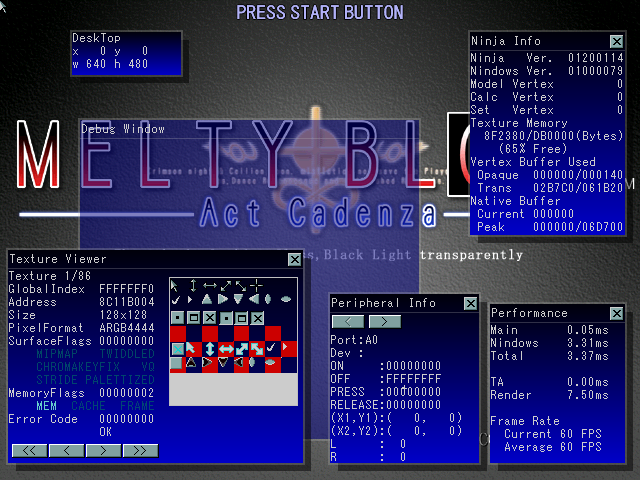
DispMemory and Motion overlays#
These can be enabled from the debug menu. Enabling Show Motion implicitly enables DispMemory too.
With Show Motion enabled, you can switch between the current character's motions by pressing Button 3 and Button 4.

|
The Melty Blood series | |
|---|---|
|
Arcade |
|
|
PlayStation 2 |
|
|
Windows |
|