 This article has a talk page!
This is a sub-page of Development:Hulk (Windows, Xbox, PlayStation 2, GameCube).
Fight Viewer#
This tool is called Fight Tree Viewer in the source code of the game. This tool is made by the developers to edit the levels,characters,character codes and much more. You can view character animations,levels and edit characters moveset using this tool. You need to do a few things to get this tool work properly.
How To Get Fight Tree Viewer To Work?#
First, extract the game's source code completely. Then go to Hulk\cd and copy the win32 folder as whole. Paste it inside the Hulk\cd folder. Now you should have two folders alongside with win32 and win32 - Copy Rename win32 - Copy to xbox and you're done with the files. Now go to tools\fightviewer folder and start ftviewer.exe On the top left, click File\Open Project Then inside The Fight Viewer go to The Hulk Source code and find scripts\fight\projects folder. The levels are named with four letters as .fip format, all.fip contains every character in-game. Select any level you want and you're free to do what you want with the levels. If the tool gives some kind of coding error, just press OK to avoid the error. This almost happens every time when you open the levels.
FigtoBin#
The figtobin.exe program in tools\fightviewer folder can be used to compress the .fig file of the character that you edited in Fight Tree Viewer to use it in-game. First, open CMD (Command Prompt) then type figtobin first. After that go to Hulk\scripts\fight you will see bunch of .fig fight files of the characters, put the location of the character after figtobin. For example: Hulk\scripts\fight\flux.fig this will select Flux Boss's fight file to compile. Then, put the output location where you want it to put the compiled .fig file. Finally, you can go the game's directory and replace the .fig file with the edited one, the .fig files are located in the fight folder at the directory of the game.
Choreo Viewer#
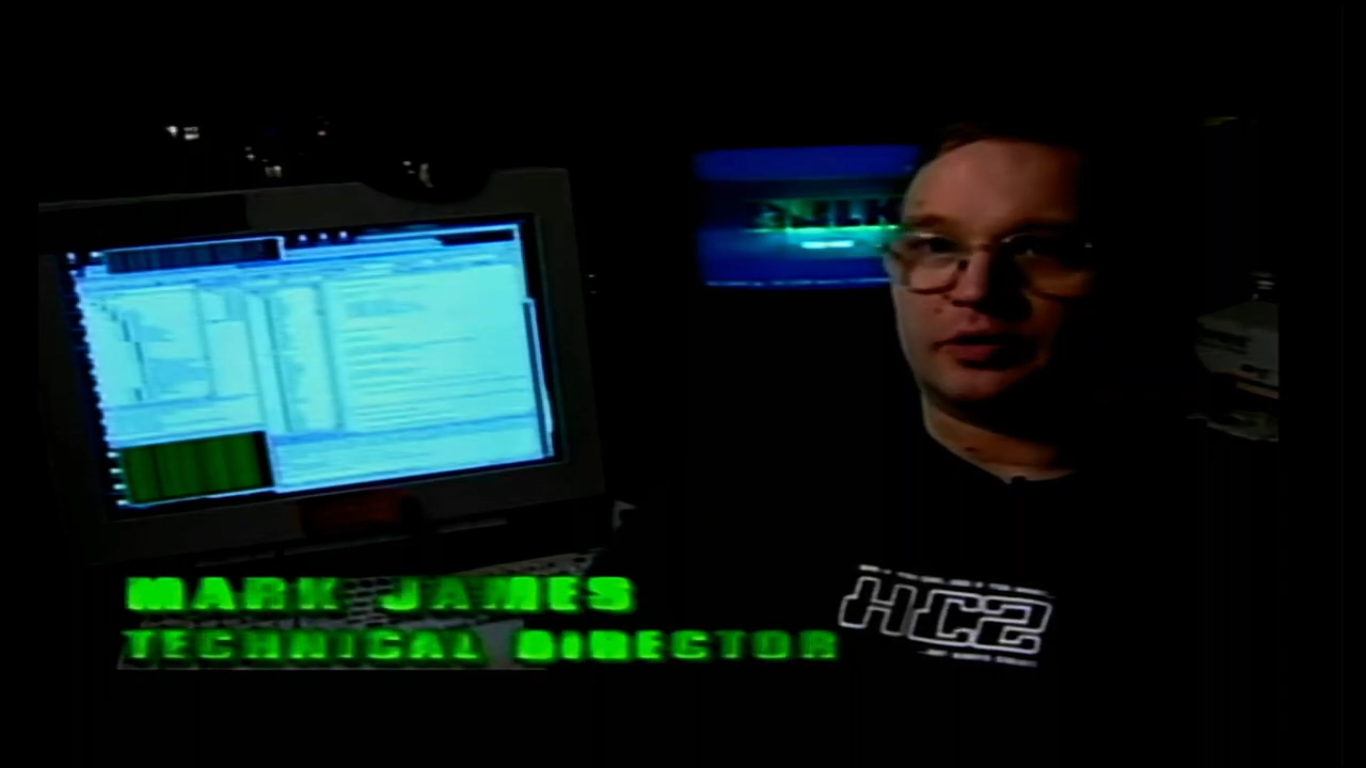
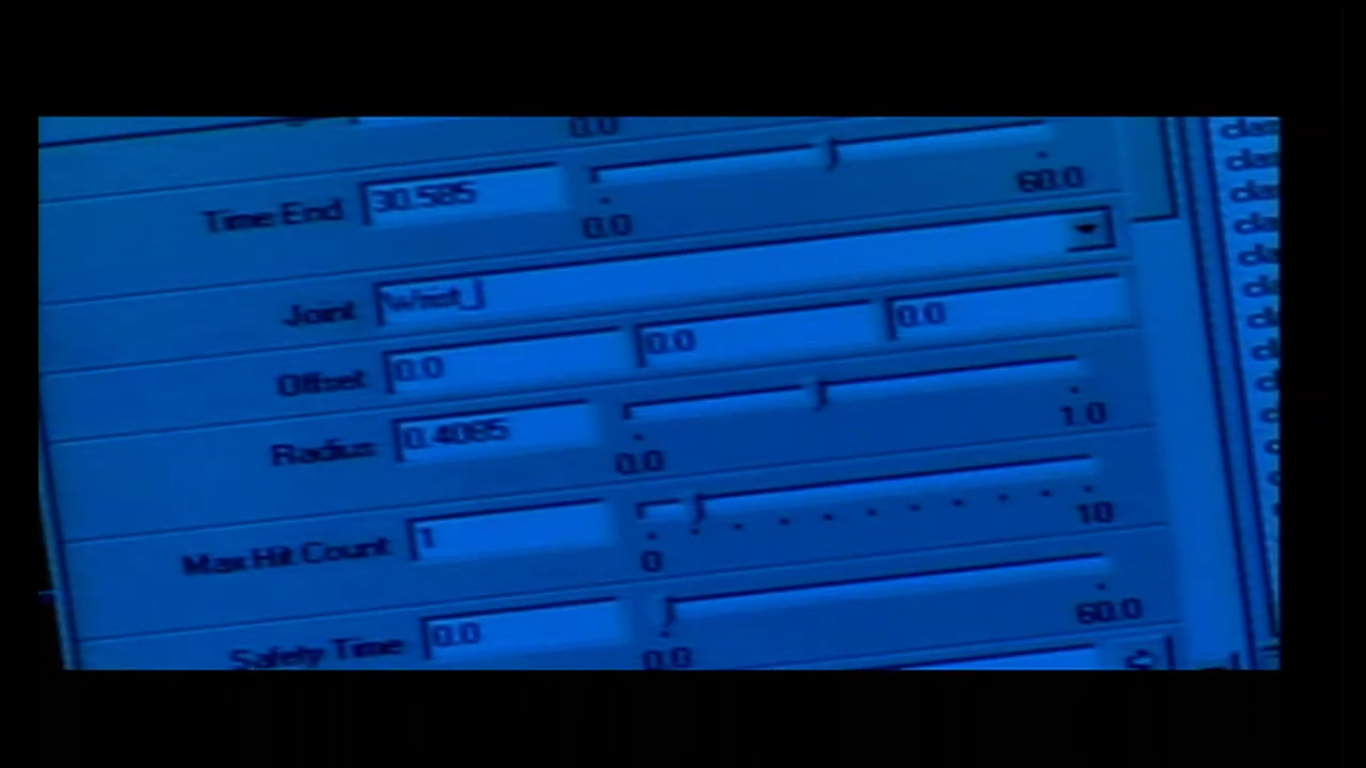
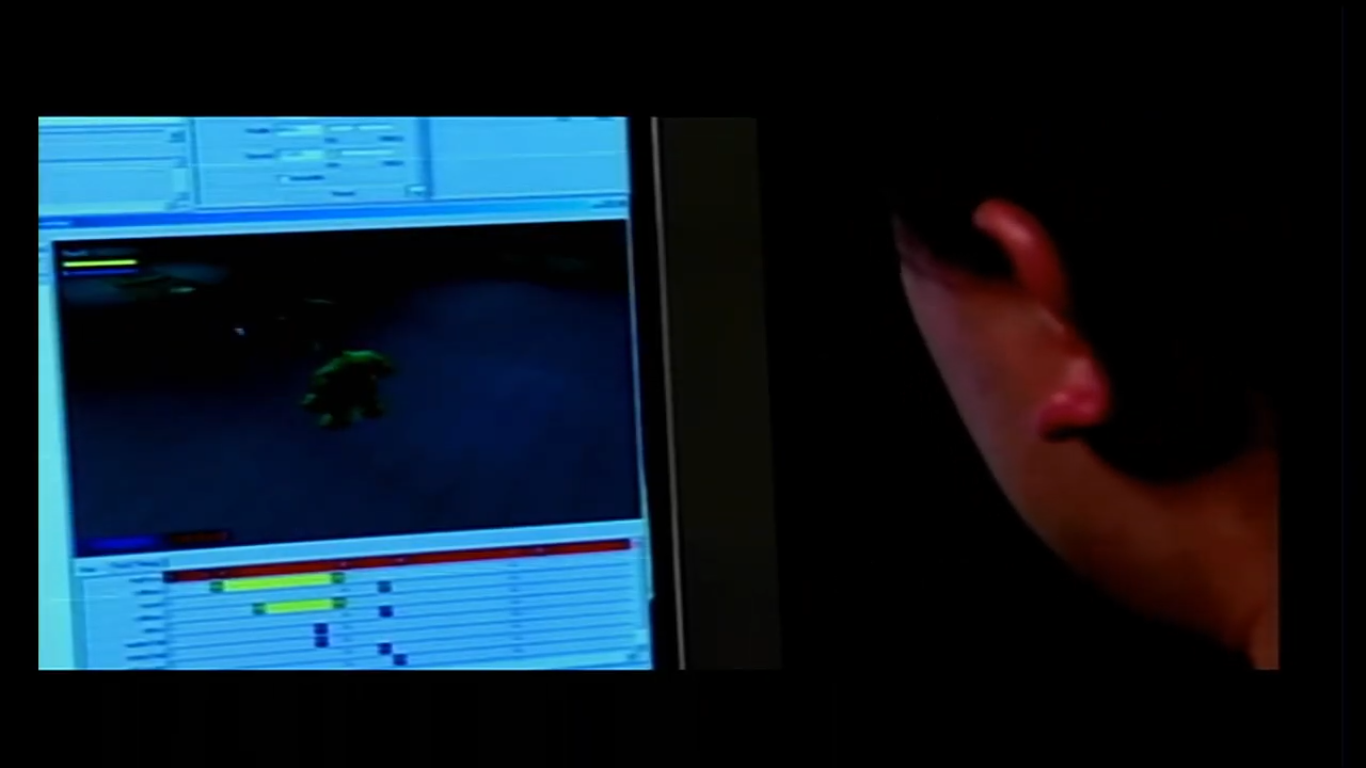
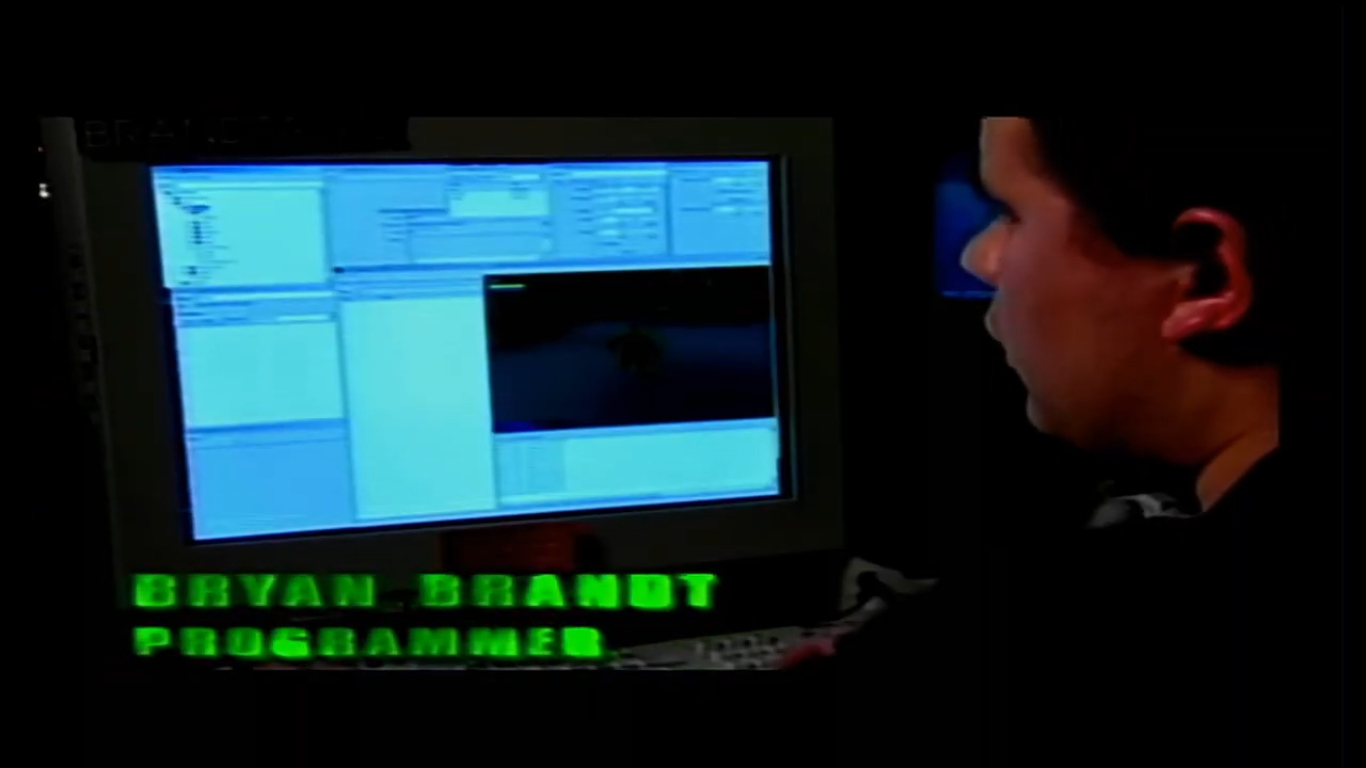
This tool is called Choreo Viewer in the source code of the game. This tool is made by the developers to edit choreoBanks, choreoBanks are used for characters to have animation names in an .txt like file .cho, so that their .fig (Fight File) can work. This tool can open .p3d, .cho and .txt files. You can see Camera Lock, PDDI Stats, Performance Stats, Terrain Stats, Foot Phase of this tool from View section. This tool also can edit button prompts. One of the other feature is that you're able to edit locomotion, 3D model and mesh skeletons. This tool and Fight Tree Viewer has a footage from The Making Of The Game video and even mentioned but it's blurred. This tool can be found in Hulk\tools\choreoviewer\chviewer.exe


Pure3D Viewer#
This developers tool is for the assets of the game. The tool can view textures,models and meshes, but sadly you can't edit them. Also when you try to change the platform rather than pc it opens a new tab and then says: Connecting to server.. after that the application crashes. This tool can be found in tools\p3dview_v18

Maya4.0#
Autodesk Maya is a leading, industry-standard 3D computer graphics software used for creating high-end animation, modeling, simulation, and rendering in film, television, and video games. It offers a comprehensive suite of tools for 3D character creation, visual effects (VFX), and virtual reality (VR) environments, allowing artists to produce complex, high-quality assets. The developers used this modelling program for the assets of the game including animations, models, effects and animations. The developers also created plugins for Radical Entertainment's compiled .p3d asset format. Which can be used with replacing the files of the program. The pluging are located in Hulk\tools\Maya4.0 folder.
P3DExplorer#
This tool let's you see textures,skins,shaders,meshes and more as names. You can delete files, save .p3d as (PSX CHUNKS .p3x) and import images in (.bmp,.png,.tga,.dxt,.raw) format, but this option only applies when a texture is an already existing file in the .p3d file. You can find this tool in Hulk\bin\p3dexplorer.exe


WinCementer#
This tool let's you see .rcf files as names. Hulk 2003 and other Radical Entertainment games store some of it's game data in archives that use the .rcf extension. These archives contain various game data, including 3D models and related textures used to show in-game objects and characters. You can create your own .rcf files in this tool or even print what's stored inside. You can also change PadNetSize, Alignment and Endianness in Properties. Alignment is the start position of the cement library's header information. This tool can be found in sdks\radcore\bin


MovieViewer#
This developer tool let's you view .fmv video cutscenes of the game. FMV files mostly belong to Bink Video Player. An FMV file is mostly a Full Motion Video file used to store and play back moving images and sound. It is common in video games and multimedia programs, where these files serve as cutscenes or cinematic sequences. In most cases, FMV files use specialized compression so that video can be played quickly without stressing the system. They are played by dedicated software such as Bink Video Player or Interplay MVE Player. This tool seems like Bink Video Player but it's code edited for the console versions of the game. You can select which movie you want to play on this tool from the movies folder of the game. Also .fmv cutscenes format change for every platform of the game because it has platform selector on the tool. This tool can be found in Hulk\sdks\radmovie\tools\bin Althrough XboxDbg.dll might be missing in this folder, so the program gives an error for it. To fix that, you need to search XboxDbg.dll file in the whole Hulk folder. When you found the file, copy-paste it on Hulk\sdks\radmovie\tools\bin folder.


Logoless .Exe Programs (CMD)#
The logoless .exe programs in Hulk/bin folder can be opened through Command Prompt (CMD) and is useable. For example, if you type p3dcompress on the command prompt, it will give you the date that the program was compiled and how to use it. If you type --help after the programs name you will get the instructions. Althrough there's usually tools for .p3d files in the bin folder but there's also other things such as sounds extracting from .p3d files, console version assets editing, .bmp splitter, and unicode quotes remover. The p3dcompress tool is a program to compress Pure3D files, Pure3D files are what Radical Entertainment used to contain their game assets such as 3D Models, Textures and Meshes. Here's a example command prompt to how to use the p3dcompress tool:
p3dcompress -f C:\Users\HulkFan\Desktop\hulkcompressed\C2L4.p3d
The -f line makes the compression faster sacrificing a little compression ratio for much quicker compression for the .p3d file. There's also more lines that you can use like -c, -s, -o and their explanation of what they do is written next to the line.
MkPs2Iso#
This tool lets you create a ps2 iso for the Sony Playstation 2 console. Iso files are commonly used in emulators to replicate a CD image. Emulators such as Dolphin and PCSX2 use .iso files to emulate Wii and GameCube games, and PlayStation 2 games, respectively. They can also be used as virtual CD-ROMs for hypervisors such as VMware Workstation or VirtualBox. This tool can be found in Hulk\tools\mkps2iso folder. Here are the instructions from the readme.txt file:
Given a directory structure and an existing license file, create a directly
burnable and bootable .iso image.

There are two required parameters, two optional parameters, and several
switches.  Run with no parameters to see help.

All switches, if given, must appear before any parameters.

The first parameter is the name of the directory containing the root
directory of the filesystem to burn.  It should contain SYSTEM.CNF,
your executable, and anything else you need to run the disc.  The
directory should NOT contain your license file.

The second parameter is the name of the .iso file; you must specify
the .iso extension, and you should not place the .iso file in the
burn directory since the .iso file is created before the directory
tree is traversed.

The third optional parameter is the license file name.  If left unspecified,
it is assumed to be SCPS-12345.000.  To create a license file, fire up
CDVDGEN, start the appropriate kind of project (CD or DVD), drag a bunch
of dummy files in, and go to the Volume pane and fill in the license info
to match what you're expecting to burn.  Then fire up the recorder, and
use File / Export Image to save out the .000 file.

The fourth optional parameter is the placement order text file.  Any
files here are placed earliest on the disc immediately after all directory
information.  Semicolons at the start of a line can be used to comment
out lines.  You'll get a warning if a file listed in the placement file
is not on the disc.  Here's an example file:

Place cnf file first, then executable, then IRX modules in order loaded:
SYSTEM.CNF
SLUS_123.45
SYSTEM\IOPRP253.IMG
SYSTEM\LIBSD.IRX
SYSTEM\MCMAN.IRX
SYSTEM\MCSERV.IRX
SYSTEM\MODHSYN.IRX

Note that you need backslashes as file separators, but otherwise the
string compare is not case-sensitive.  Directories themselves, and
all files not placed by the placement file, are in alphabetical order.

The switches control details of .iso creation.  The first time you
use this program you're probably going to have to experiment with your
burning software to get a bootable disc; different versions of EZ CD
Creator at least have different requirements to get a bootable CD-XA CD
on the PS2.  If you're already on DVD's, just specify the -dvd flag
and all should be well.

We use EZ CD Creator Platinum 5.3.1.154, but other versions are known
to work.  The Pioneer RecordNow DX software that came with our A04 seems
to work just fine with DVD's as well.


Example usage:

mkps2iso c:\burn c:\test.iso c:\temp\99999.000

Buils an .iso file out of everything under the c:\burn directory
structure, creates c:\test.iso, and uses license info contained in
the first 16 sectors of c:\temp\99999.000.


Things mkps2iso will catch:

- It will not allow you to go over the one-sector directory limit
  unless you specify the -nolimit switch on the command line.

- It will warn you if system.cnf is missing or malformed.

- It will warn you if the executable listed in system.cnf isn't found,
  or if the name doesn't match what's in the license file, or if the file
  is for the wrong media type (CD / DVD).

- It will not allow nonstandard 8.3 filenames (alphanumeric, dot,
  and underscore *only*).

If it keeps complaining about bad license info, make sure that the .000
file you're using is appropriate; it should be for a DVD image if you
have -dvd specified, otherwise it should be for a CD image.


It does NOT check the size of the final .iso; presumably your CD burning
software will catch that.  This means that you can burn an 80 minute
CD that will work on a PS2, something that CDVDGEN will not let you do.
If you're getting that close you really should make the jump to DVD.WavToRsd#
The tool is maintained by Tim Hinds.

Wavtorsd is a tool that the developers used to turn .wav audio files to Radical Entertainment's .rsd format. RSD files were used to contain these bunch of .wav audio files. This tool is able to turn these .wav files to .rsd through CMD (Command Prompt) This tool can only turn .wav audio format into .rsd other file formats won't work for this tool. The tool can turn either a single file of .wav audio or a bunch of these files into single .rsd files. This tool was used since 2001 until they decided to change their audio format of The Incredible Hulk:Ultimate Destruction. This tool can be found in both Hulk\sdks\radmusic\tools\bin & Hulk\sdks\radsound\tools\bin folders. Here's an example of how to use this tool:
wavtorsd.exe [-s|-f] ..\my\dir\ -t/xt/pt/wt/gt ..\my\target\dir\ -vagchunk 32000 -checkdate -silent-f
-s means source directory name where you will have your .wav audio files, -t/xt/pt/wt/gt means target name for which version of the game you're going to compile .wav files to .rsd. The .rsd files do in fact has different format for every version of the game. For example, if you want to compile these files for the PC version of the game, then you have to write -wt which means windows target name for it. -checkdate means to require target to be older than source, -silent means to inhibit a program display for the tool (althrough this command doesn't seem to work) After you enter this command line, you will get lines about that the tool is compressing .wav files to .rsd and then the process of the files being compiled will end eventually with OK and your .rsd files will be in your target directory.