This is a sub-page of Super Monkey Ball 2.
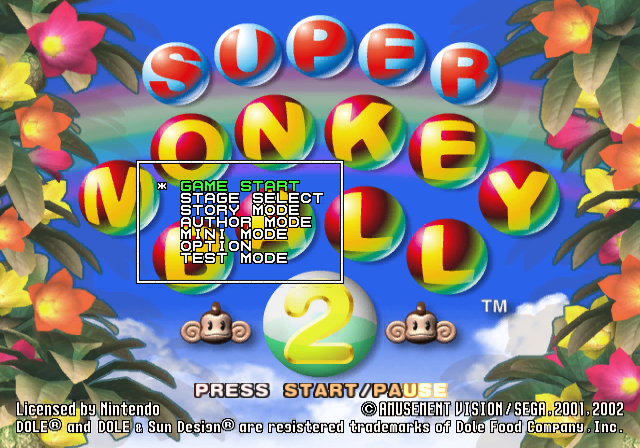
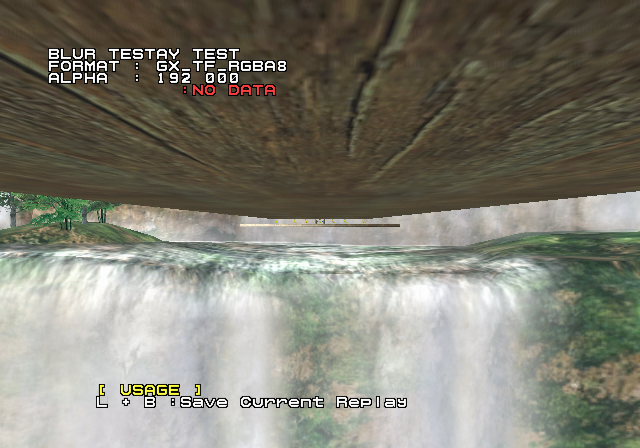
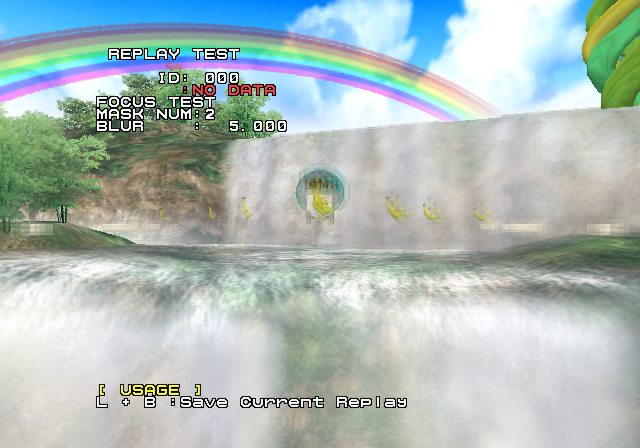
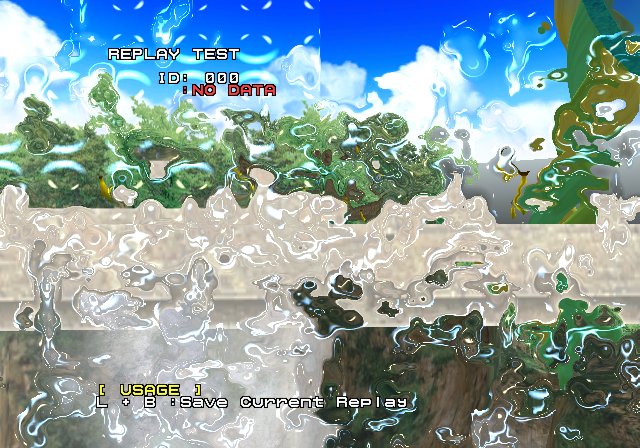
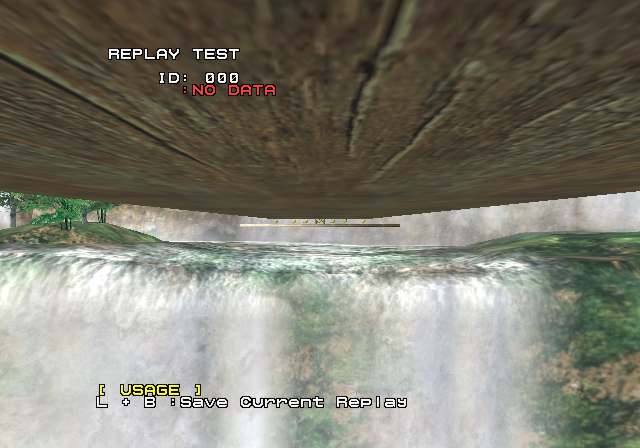
Just like the first game, Super Monkey Ball 2 features a debug mode. The debug mode includes a stage selector, full-fledged model viewer, effects testing, sound player, bitmap reader, and more. The debug menu can be accessed via the following Action Replay codes:
(Source: Ralf (EU Code), PatSter21 (JP Code))
Images#


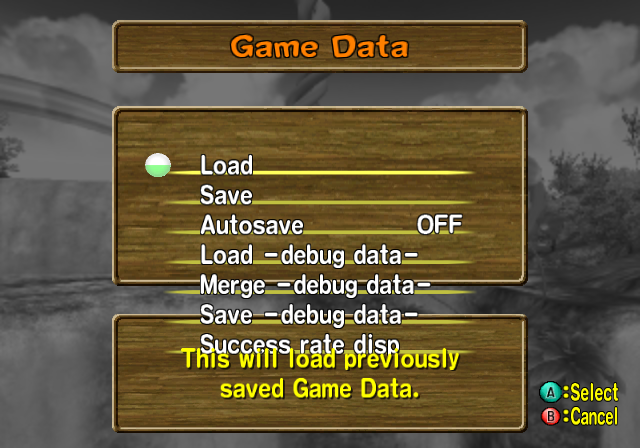
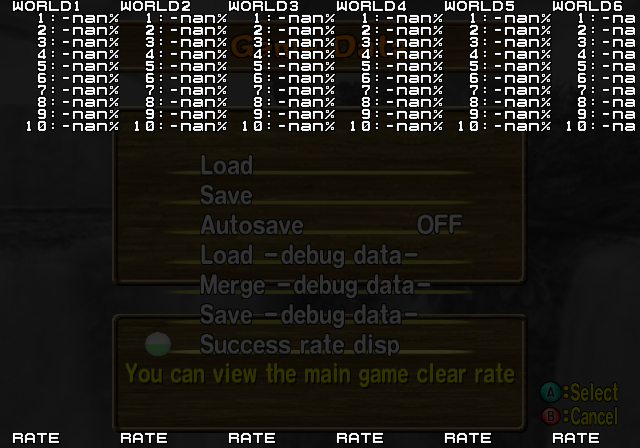
Test Mode#
Images#






Early Options Menu#
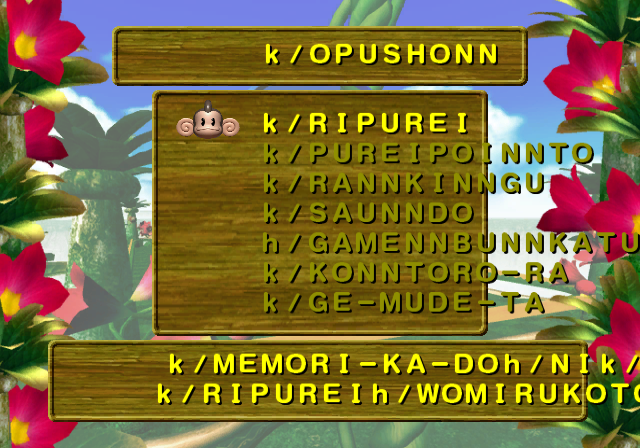
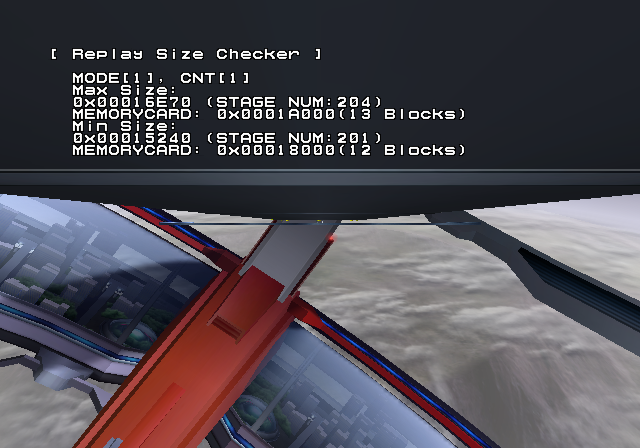
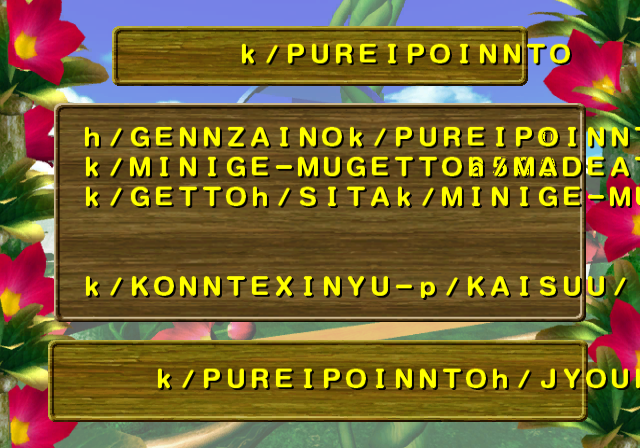
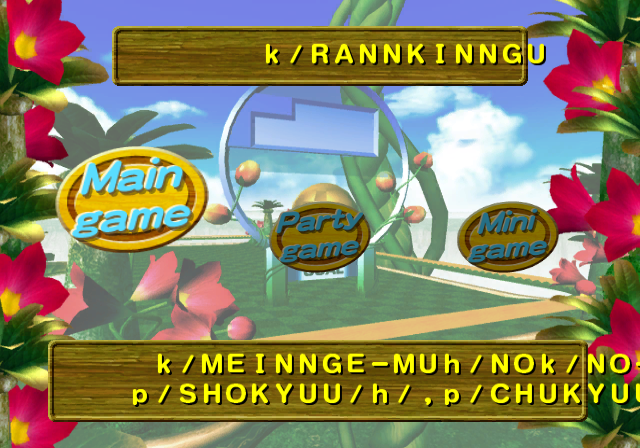
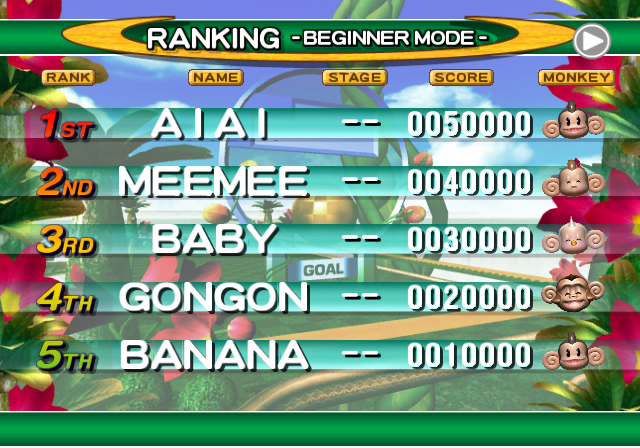
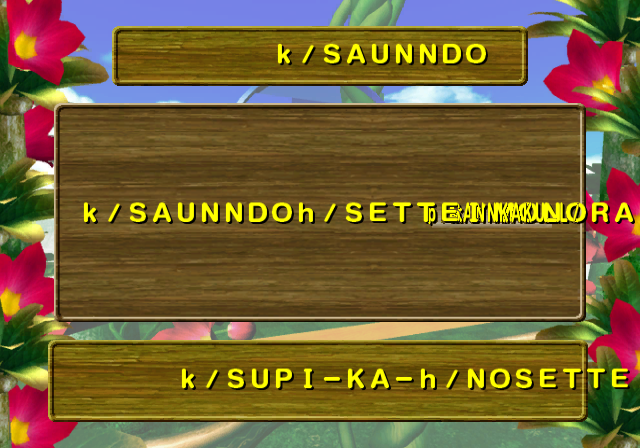
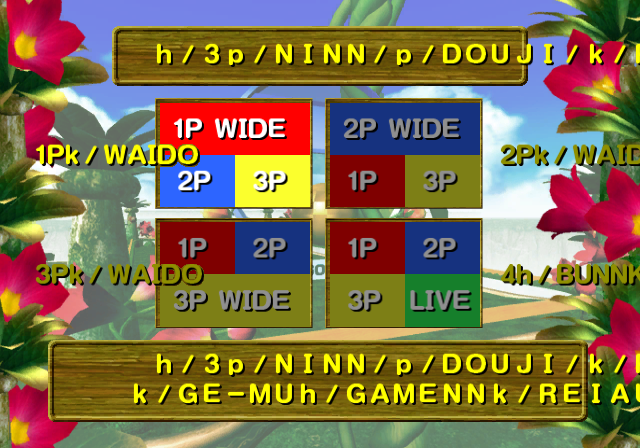
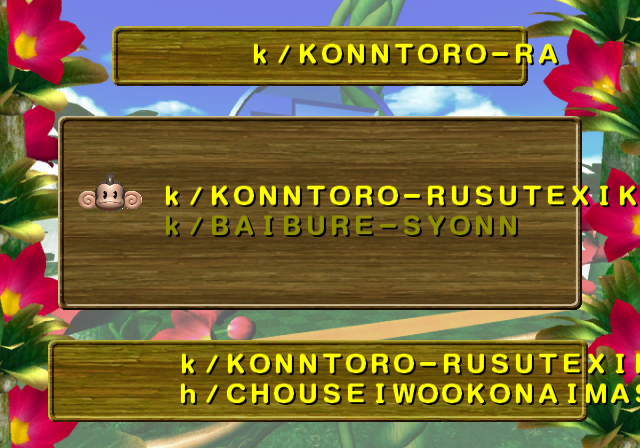
A very early version of the options menu is accessible through the main debug menu. It appears to be the version from Super Monkey Ball. The text is in Romaji (Japanese in Roman letters). However, since the SMB options menu was designed for English/Kanji, the Romaji breaks the layout and falls off the box or clutters up with other text. The options menu performs all the functions of the normal Super Monkey Ball options menu, except it doesn't load the old Replay manager because it was scrapped.
Gallery#
In-Game Commands#
A few cheat commands are also enabled in-game:
- Pressing D-Pad Up will add 100 seconds to the game's timer, with a maximum time of 360.96.
- Pressing X + Y will instantly complete the current level.
- The game can be debug paused with R + Start, which will display "DEBUG MODE" in the top right corner of the screen. Unpause with just Start.
- Pressing Z while debug paused will advance the game by one frame.
- Pressing L + Start brings up an in-game debug menu. Pressing L + Y closes it.
- Pressing X + B while debug paused will display a cursor that allows you click on UI elements with X or A and move them around the screen with the Left Stick.
- Pressing Y + B while debug paused will unlock the camera. Pressing again will reset it but it won't take affect until the game is unpaused. Unlocking the camera also disables the above cursor.
(Source: PatSter21)
Dip Switches#

|
This needs some investigation. |
By selecting DIP SWITCH on the debug menu, you can access another menu containing a number of extra debugging features.
- DIP_DEBUG - Enables the debug mode.
- DIP_DISP - Toggles the visibility of in-game debug menus (only seems to toggle whilst in-game).
- DIP_STCOLI - Displays the level's collision and out of bounds areas.
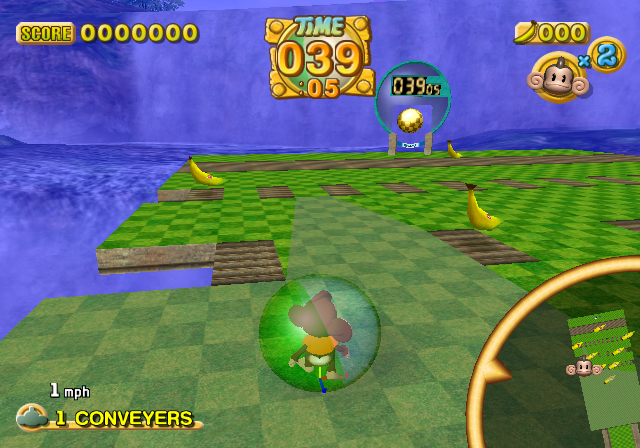
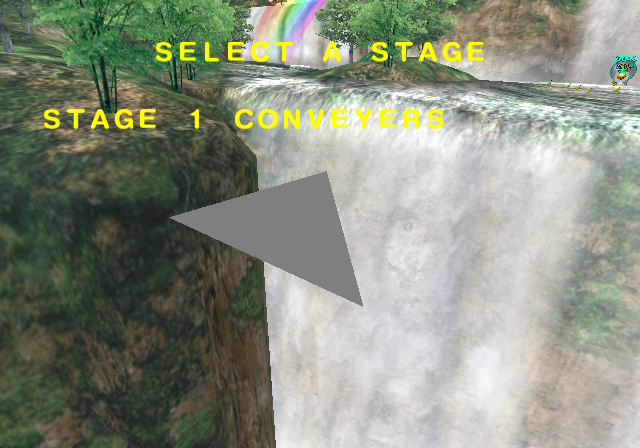
- DIP_TRIANGLE - Replaces the level model with a grey triangle.
- DIP_TAIKEN - Locks all stages as if starting a new save file.
- DIP_TIME_STOP - Freezes the timer at 60 seconds.
- DIP_NAMEENTRY - Unknown.
- DIP_FIX_WORLD - Stops the stage from visually tilting when you move the player monkey.
- DIP_TEST_CAM - Allows you to control the camera during gameplay.
- DIP_NO_INTR - While using "DIP_TEST_CAM" there is a multicolored sphere that appears, this switch toggles its visibility. (Whether or not this is the only thing that it does, is unknown.)
- DIP_CAPTURE - Unknown.
- DIP_PERF_ALWAYS - Unknown.
- DIP_PLAY_STG_ALL - Unlocks everything.
- DIP_PLAY_PNT_x10 - Multiplies the play points you earn by 10.
- DIP_SARU_0 - Sets the starting number of lives to 0, regardless of what life count is selected when playing Challenge Mode.
- DIP_SWITCH15 - Unknown.
- DIP_ONLY24MB - Unknown.
- DIP_SHADOW_DISP - Displays the shadows of each object as squares.
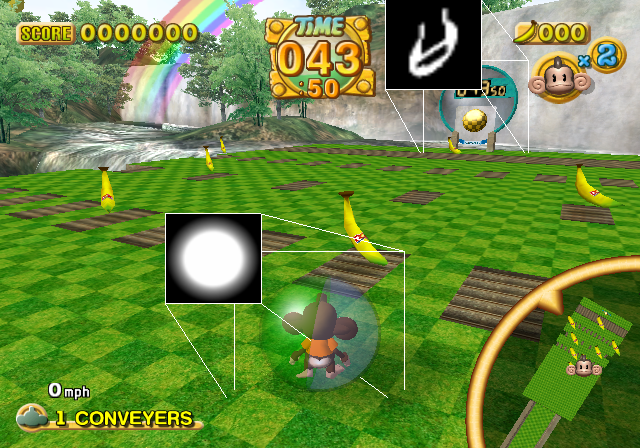
- DIP_SPRITE_OFF - Disables most 2D graphics.
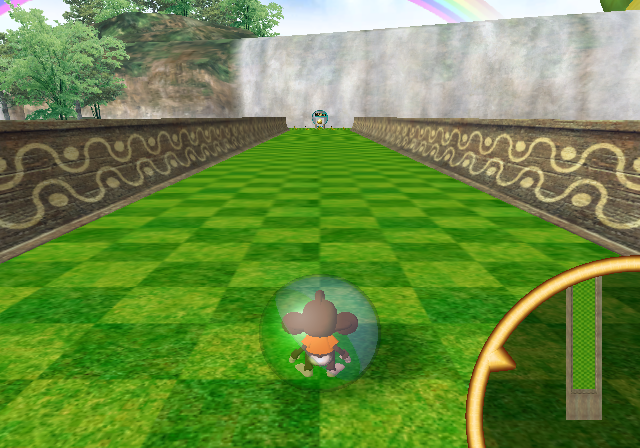
- DIP_SNDREQ_DISP - Unknown.
- DIP_SE_VOL_RESET - Disables most sound effects.
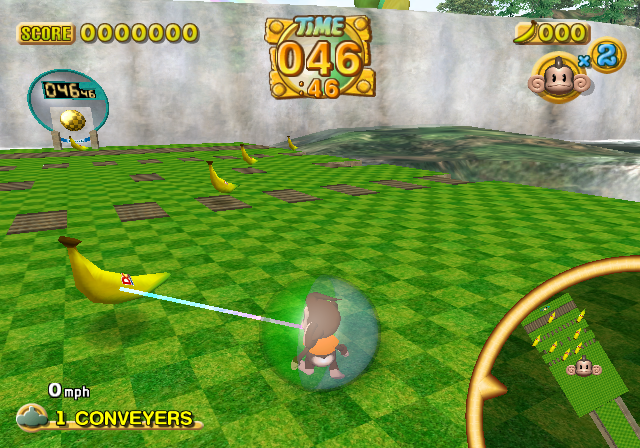
- DIP_APE_FACEDIR - Shows which banana your monkey is looking at.
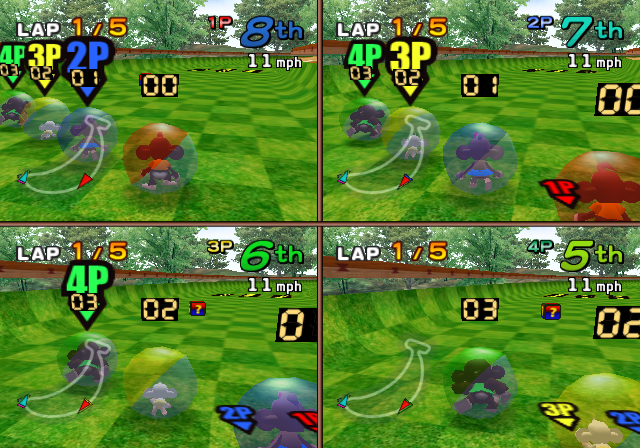
- DIP_SEL_ALL_CTRL - Allows you to control all four players in multiplayer with one controller.
- DIP_APE_NUMBER - Displays a number over each character indicating which player they are.
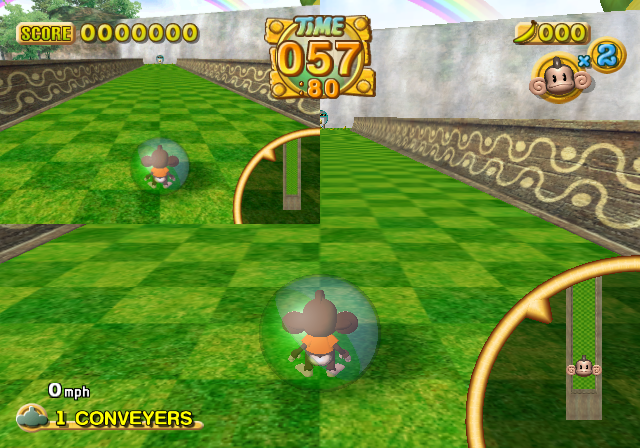
- DIP_1P_TEST_CAM - Unknown.
- DIP_PREVIEW_SAVE - Displays a preview at the upper left.
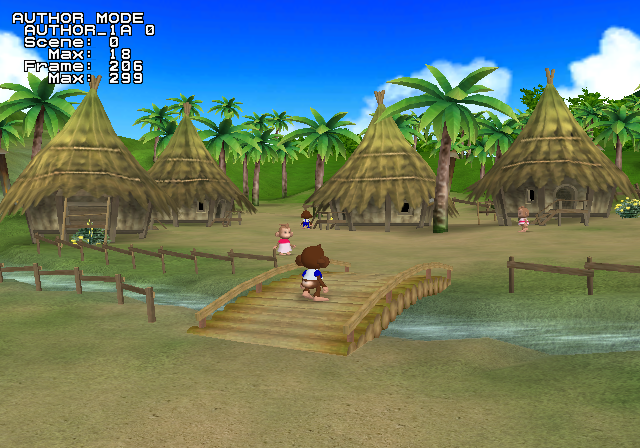
- DIP_AUTHOR_DEBUG - Displays some debug info during cutscenes.
- DIP_SWITCH27 - Unknown.
- DIP_SOA - Unknown.
- DIP_TEST_TEAM - Unknown.
- DIP_NO_MINIMAP - Disables the minimap.
- DIP_NO_STAGE - Makes everything except for backgrounds invisible.
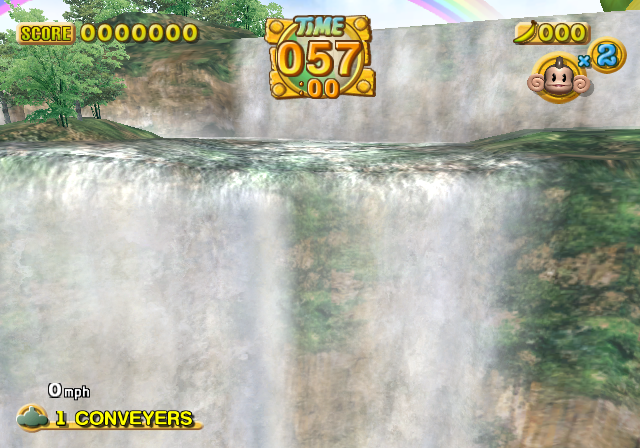
In-Game Debug Menu#
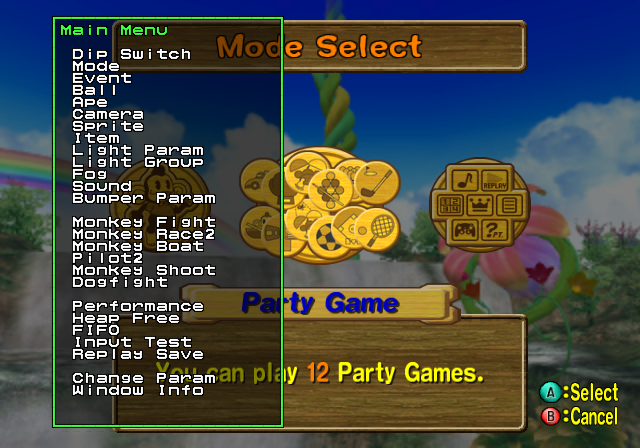
Pressing L + Start will bring up this debug menu. It can be navigated with the D-Pad, moved around the screen with the analogue stick and can be closed by pressing L + Y.
Dip Switch#
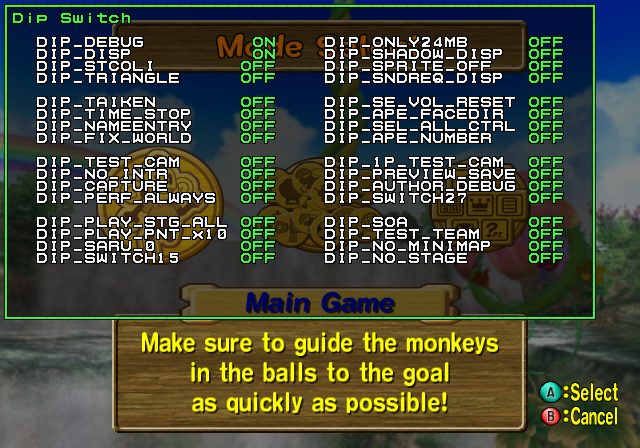
Displays the dipswitch menu.
Mode#
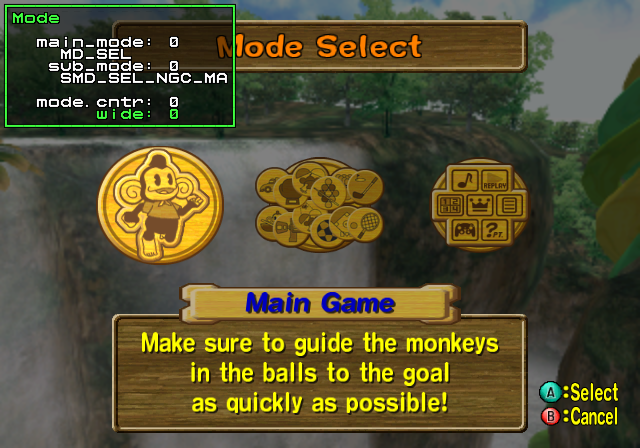
The only option in this menu that can be changed is wide which changes the current widescreen setting.
Event#
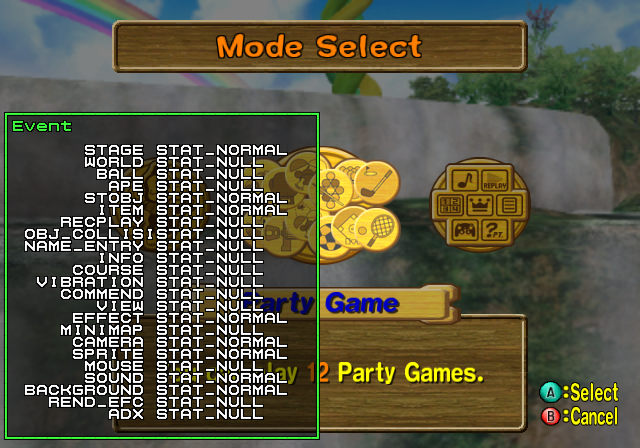
None of the options here can be changed.
Ball#
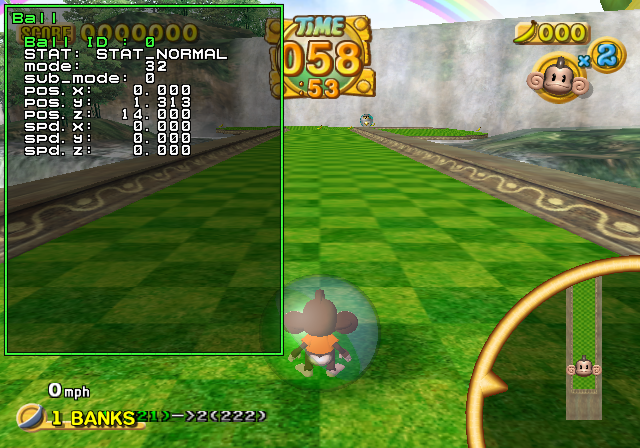
Displays info on your current position.
Ape#
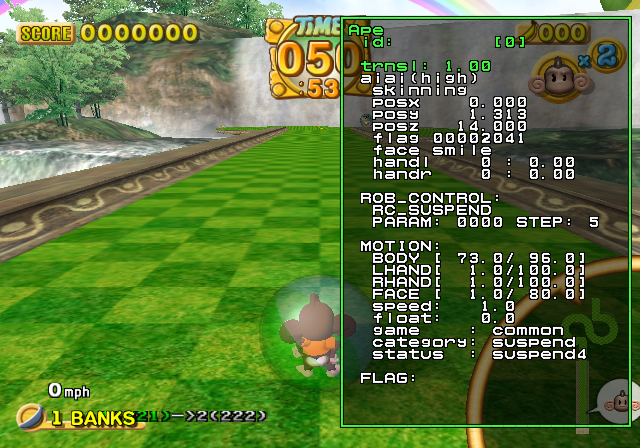
Displays info on character animations.
Camera#
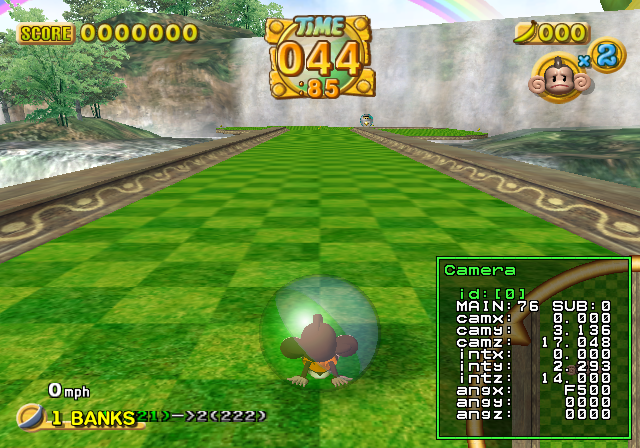
Displays camera info.
Sprite#
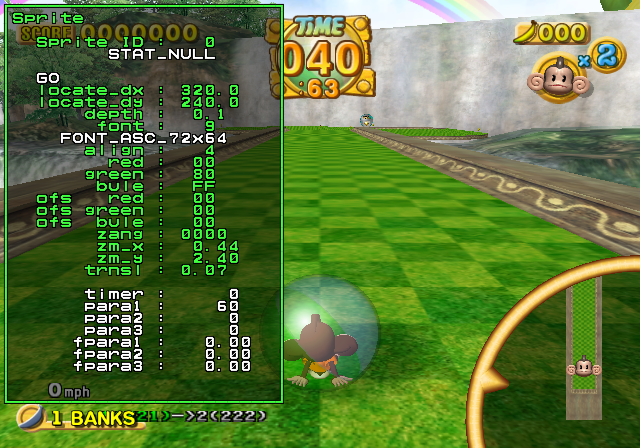
Allows you to edit some of the HUD graphics.
Item#
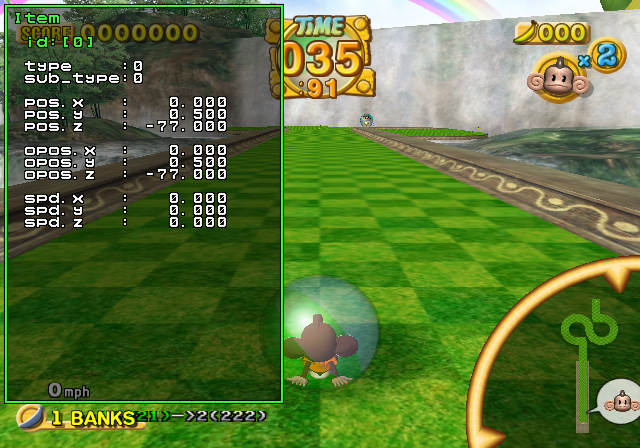
Displays object info.
Light Param#
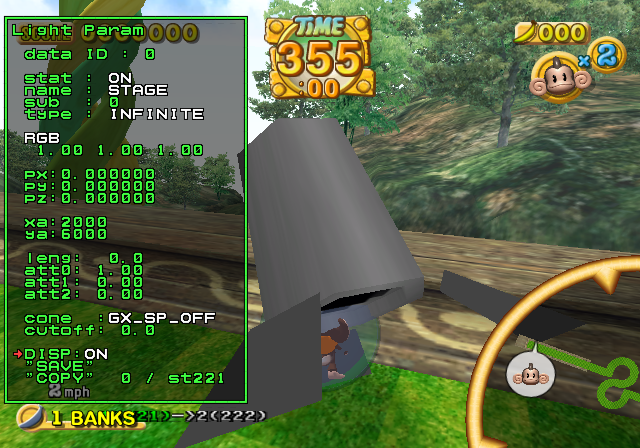
Allows you to edit the lighting on your character.
Light Group#
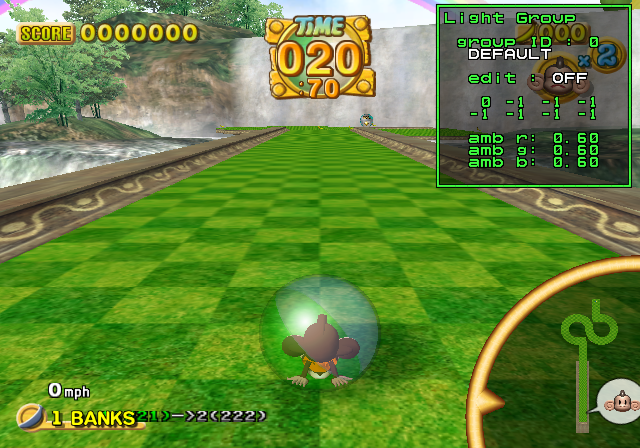
Allows you to edit the ambient lighting.
Fog#
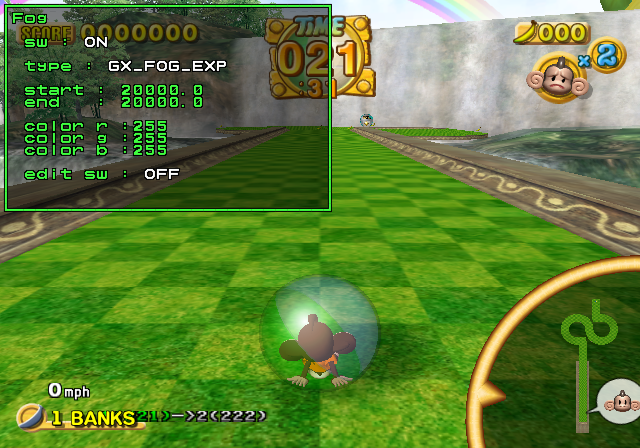
Allows you to edit fog.
Sound#
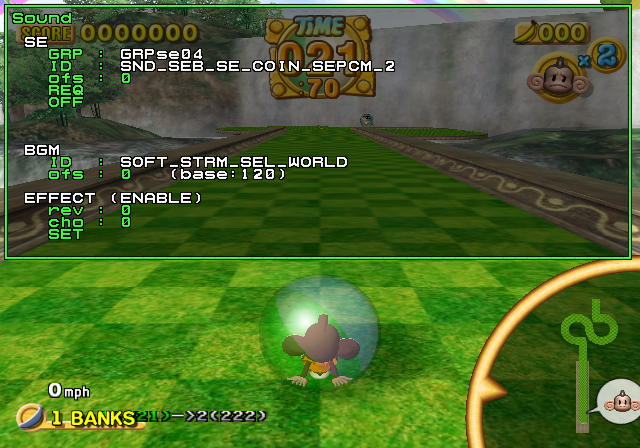
Allows you to change the current song and enable a reverb effect.
Bumper Param#
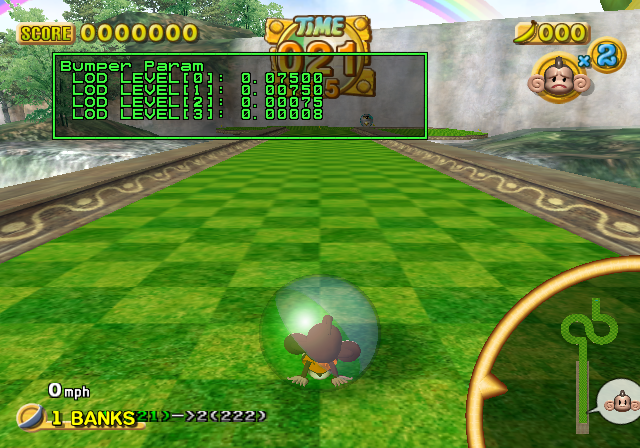
Determines when bumpers switch to lower LOD models (if available) based on distance to the player. Exact meaning of the numbers is unknown, but higher = stricter optimisation, i.e the bumpers switch to lower detail models sooner.