This is a sub-page of Chameleon Twist 2.

|
To do: |
Unlike the first game, Chameleon Twist 2 has a lot more features in the debug code leftover in the game. This includes a stage select, object viewer, texture viewer, sound test, and more!
Debug Menu#
By pressing A + Start, you can access the process menu by using the following code:
Version |
Gameshark code |
|---|---|
Japan |
800EAE65 0001 |
US/Europe |
800EC399 0001 |
Process Menu#

Using the D-Pad, you can cycle through all the features in the process menu. This requires either the "Display Debug Message Screen" or "Display Debug Message Memory" code to fix some of the issues when loading the debug features in-game.
- Game - Using the left or right D-Pad can cycle through the stage number. However, left and right are inverted. Pressing A will allow you to play on that level.
- Object - Allows you to view all the game's models and animations.
- Sprite - Allows you to view all the game's sprites.
- Texture - Allows you to view all the game's textures.
- Sound - Allows you to listen through the game's soundtrack and sound effects.
- Opening - Plays the opening cutscene.
- Ending - Plays the game's credits.
- Title - Does not send you back to the title screen, but instead the stage select screen.
- PackMenu - Sends you to the game pak menu.
- FirstPack - Makes you a new save, skipping the opening cutscene and selecting Davy. However, this is kind of buggy... Meaning that it will result in the game glitching out and crashing.
- StageClr - Clears the stage that you are in.
- Minigame - Same thing as Game, but selects either the training or minigame stages.
- PackTest - Sends you to another game pak menu, allowing to either read or write your game pak.
- Game Over - Gives you the game over screen.
- Intro - Plays the stage's intro.
- Message - Displays the messages in the game.
- Config - Sends you to the config menu. This can change either the chameleon, costumes, game region, etc.
Stage Select#
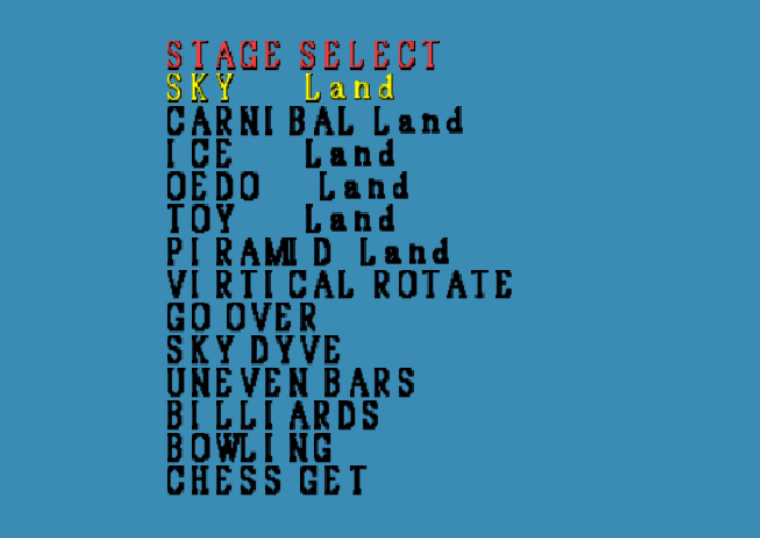
Pressing Z on the process menu will allow you to open up a stage selection, allowing you to go to anywhere you want. However, many of these stage names are misspelled.
Object Viewer#
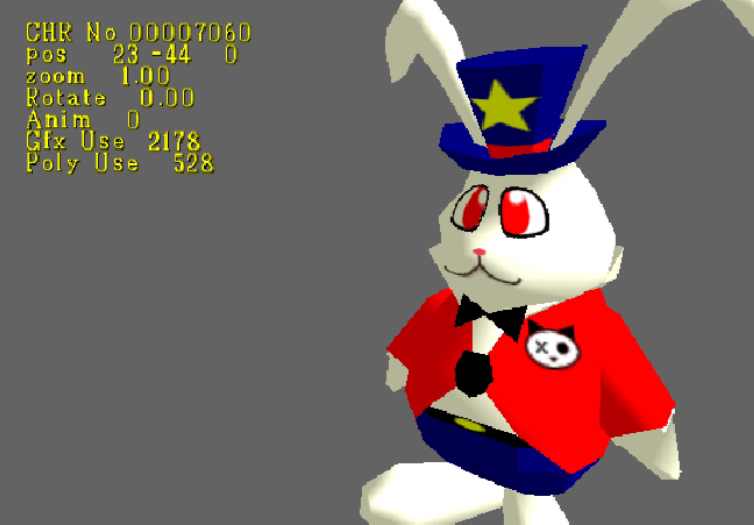
This menu will allow you to view all the objects and their animations. You can also view the graphics and polygons the model uses.
Common Operations:
- Z — Switches between normal mode and animation mode.
- C-Pad Up and Down — Switches the animation number.
- D-Pad Left and Right — Rotates the model left and right.
- D-Pad Up and Down — Rotates the model up and down.
- Control Stick — Moves the model around.
- L / R — Tilts the model left and right.
Normal Mode Operations:
- C-Pad Left and Right — Switches between objects.
- A — Zooms in on the object.
- B — Zooms out on the object.
- Start — Reset
Animation Mode Operations:
- A — Plays the object animation.
- B — Inceases the animation frame counter.
- Start — Places the object. Placing a lot of the object may cause issues, such as causing the game to freeze.
Sometimes the object viewer can get glitchy, such as glitching out the models to which some might not play any animation.
Sprite Viewer#
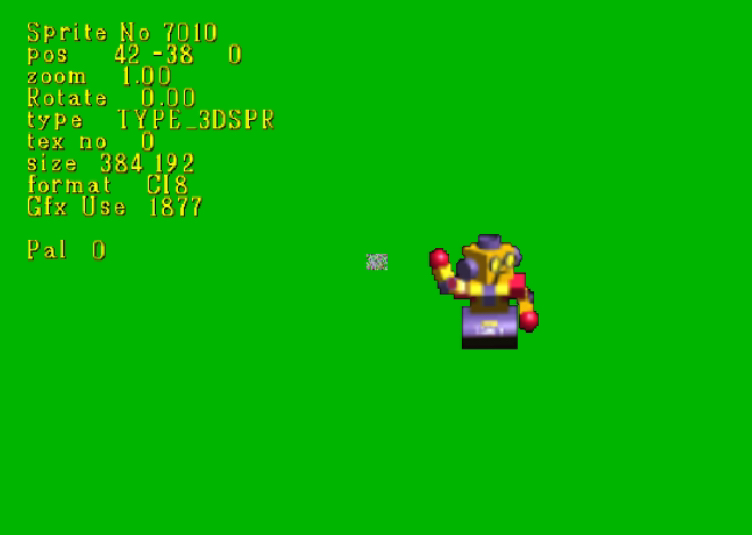
This allows you to see all the in-game's sprites, might get buggy where most of the sprites might get corrupted.
Common Operations:
- Z — Switches the sprite type between 3DSPR, POLYBORD, 2DSPR, BGFILL, BG, and COPYSPR.
- Control Stick — Moves the sprite around.
- Start — Reset
3DSPR / POLYBORD / 2DSPR / BGFILL / BG / COPYSR:
- C-Pad Left and Right — Switches between sprites.
- C-Pad Up and Down — Switches the sprite number.
3DSPR / POLYBORD / 2DSPR:
- D-Pad Left and Right — Rotates the sprite left and right.
- D-Pad Up and Down — Rotates the sprite up and down.
- L / R — Tilts the sprite left and right.
3DSPR / POLYBORD:
- A — Zooms in on the sprite.
- B — Zooms out on the sprite.
COPYSPR:
- C-Pad Up and Down — Switches the animation number.
- Hold A — Plays the sprite animation / Continuous sprite switching .
- B — Inceases the sprite frame counter.
- Start — Places the object. Placing a lot of the object may cause issues, such as causing the game to freeze.
Texture Viewer#

Views all of the texture in-game.
Controls:
- C-Pad Left and Right — Switches between textures.
- D-Pad Left and Right — Rotates the texture left and right.
- D-Pad Up and Down — Rotates the texture up and down.
- Control Stick — Moves the teture around.
- L / R — Tilts the texture left and right.
- Start — Reset
Sound Test#

Allows you to listen to the music and sound effects that are in the game.
Controls:
- C-Pad Left and Right — Switches the selected sound.
- A — Plays sound.
- B — Stops sound.
- Analog Up and Down — Changes the pitch of the sound.
- D-Pad Left and Right — Switches the selected music.
- D-Pad Up — Plays music.
- D-Pad Down — Stops music.
- Z — Switches between mono or stereo.
Controller Pack Test#

Controls:
- C-Pad Left and Right — Switches controller pak data.
- A — Load Data.
- B — Writes the loaded data. If it's not loaded, it will erase the data.
PackMenu#
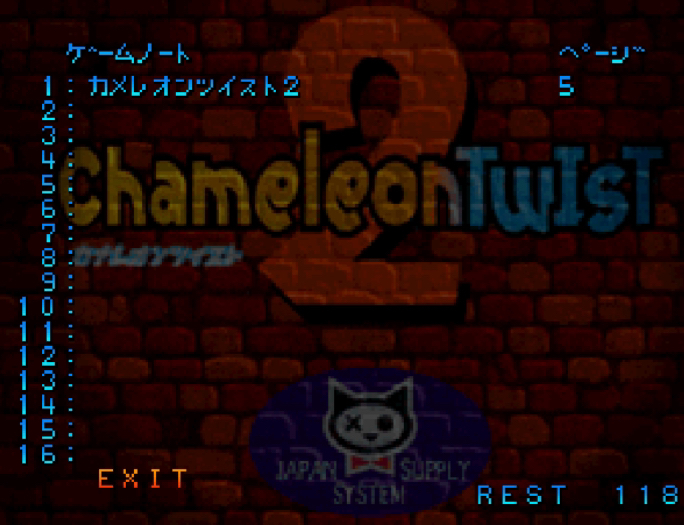
This allows you to check and erase save data on the game pak.
Message Test#

Allows you to see all and read through all the messages in-game.
Controls:
- C-Pad Left and Right — Switches between messages.
- C-Pad Up and Down — Switches the message numbers.
- A / B — Change message size.
- Control Stick — Moves the message around (Up and down are inverted.).
- Z — Switch between normal or proportional font.
- Start — Grows the message faster.
Changing the game's region through the config menu can change the language between English and Japanese.
Config#
|
|
To do: |
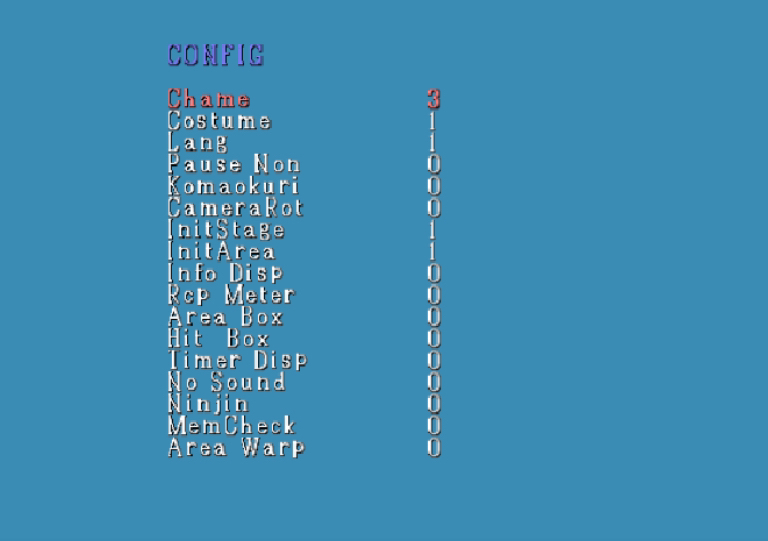
This changes the game's settings, allowing you to change chameleons, costumes, game region, etc. D-Pad Left and right are inverted though.
- Chame - Changes the player's chameleon.
- Costume - Changes the chameleon's costume.
- Lang - Changes the game region. It even allows you to play the international version early in the Japanese version.
- Pause Non - When enabled, the pause menu will be gone. Instead will freeze the game until unpaused.
- Komaokuri - When enabled with "Pause Non", pressing R will allow you to advance the game's frames.
- CameraRot - ???
- InitStage - ???
- InitArea - Specify the area number at the start of the stage (Kind of Buggy).
- Info Disp - Display the game's info.
- Rcp Meter - ???
- Area Box - ???
- Hit Box - ???
- Timer Disp - Displays a timer at the bottom.
- No Sound - Removes the game's sound.
- Ninjin - Have all the carrots.
- MemCheck - ???
- Area Warp - Enables / Disables area warp mode.
Area Warp Mode#
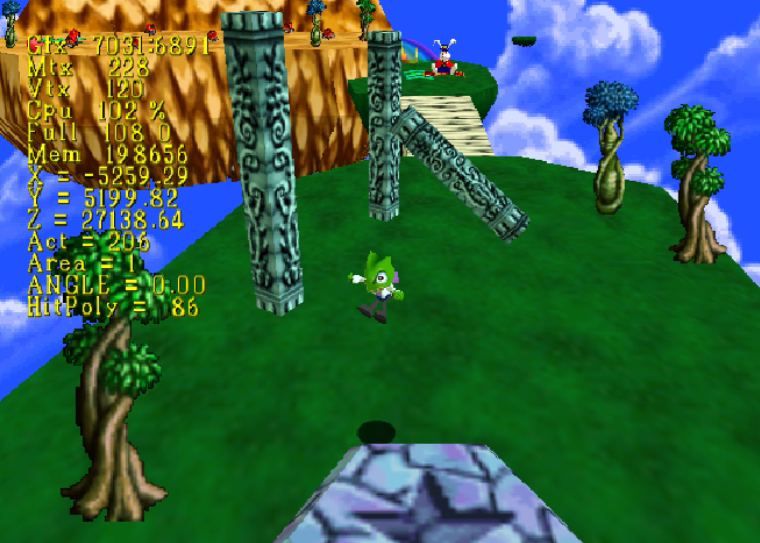
This can be enable in "Config" found in the process menu. It's pretty useful for exploring through the entire game's stages.
Controls:
- Control Stick — Moves the player around the area.
- D-Pad Up and Down — Changes the player's y-coordinates.
- D-Pad Right — Teleports the player to a different area in a stage.
- L — Switches the game's camera.
Debug Message Screen Display#
This prints debug messages in the screen by using the following code:
Version |
Gameshark code |
|---|---|
Japan |
|
Just because this is forced, it may result into the game freezing.
Debug Message Memory Display#
Fixes the debug messages that are printed in the memory, making it easier to read. This can be enabled by using the following code:
Version |
Gameshark code |
|---|---|
Japan |
|
Although it's a hassle, this method is less likely to cause the game to freeze.