 This article has a talk page!
This is a sub-page of Proto:Mario Kart 8 Deluxe.
Unlike the final game, this build has access to many different unique debugging functions. It is the Mario Kart with most debug content known to this date.
Debug Menu#

|
To do: |
A debug menu with simple controls can be accessed when pressing Start (+) and Select (-) at the same time. It allows you to tweak many variables, edit/initialize your save data, navigate to scenes, simulate network play, play replays and also run scripts. Note that there are pages that aren't listed here.
Controls:
Plus: Open/Close Debug Menu (Can only be done on root and when running script and not being executed on bootup)
Minus: Changes the "Course" option from "All" to "New" (Can only be done in the "Course" menu. Unknown function)
A: Select
B: Back
X: Changes value up for characters with more than one skin (Example: Yoshi)
Y: Changes value down for characters with more than one skin
DPad/Analog Stick: Change Selection
Options:
Course: Allows you to choose the course type, courses are in sorted groups named Battle, DLC, New and Classic. The last three, Test, Test(EAD), and Test(BNS) are also listed but empty.
Rule: Allows you to set the mode of the race.
Engine: Allows you to set the CC to common settings.
CPU: Allows you to set the CPU difficulty.
Kart(%i): Allows you to set player type, driver, kart parts and team.
Replay: Allows you to watch your replay data.
Viewer: ?
Script: Runs a script in Debug/Script/DebugMenu of your choice.
Network: Allows you to emulate online usage.
Flag: Allows you to edit flags on your save data or initialize the whole save.
Scene: Loads a given scene.
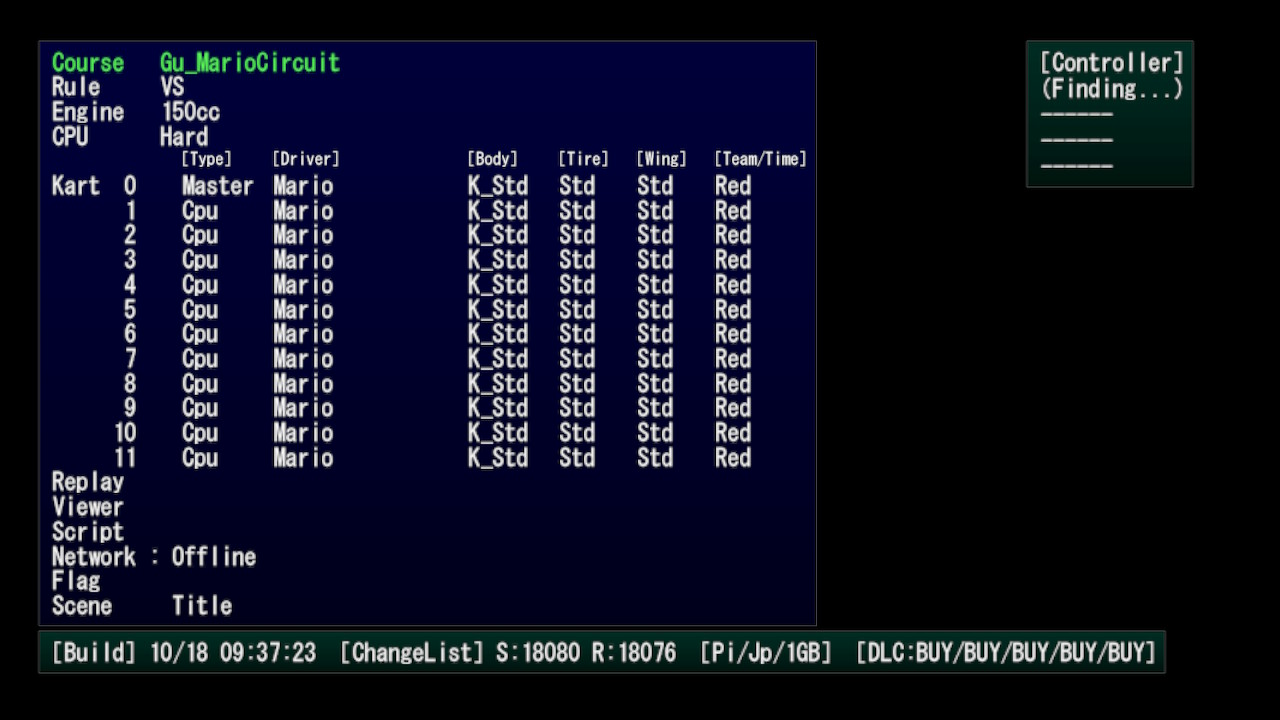
The text on the bottom of the menu shows the build timestamp, resource + source changelist revisions, build type, build region, device RAM (1GB or 2GB) and DLC slots.
There are differences if races/battles are started using the Debug Menu, they are considered as Debug Race/Battle.
Replay#
A replay watcher, allows to watch previous race replays saved to the savegame. Once selected, you'll start watching it on MKTV, and return to Debug Menu once closing. The replays can be deleted, copied to user and posted (to Twitter? YouTube?).
Options:
Replay Common: Replays from Grand Prix, Time Trials, VS and Battle.
ReplayUser: ?
GhostCourse: Replays from Time Trials, only from ghosts by you.
GhostDownload: Replays from downloaded ghosts.
ReplayCommon#
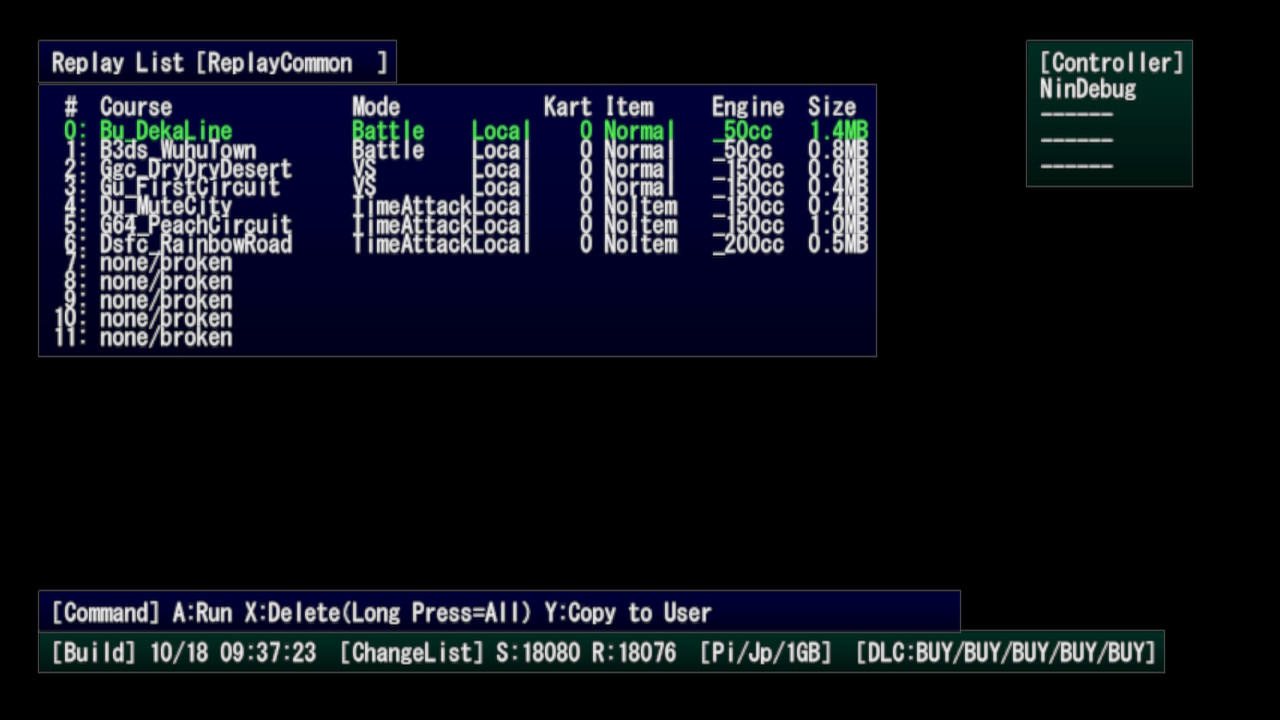
Replays from Grand Prix, Time Trials, VS and Battle. Displays the course, mode, kart ID of the racer, item mode, CC and filesize.
GhostCourse#
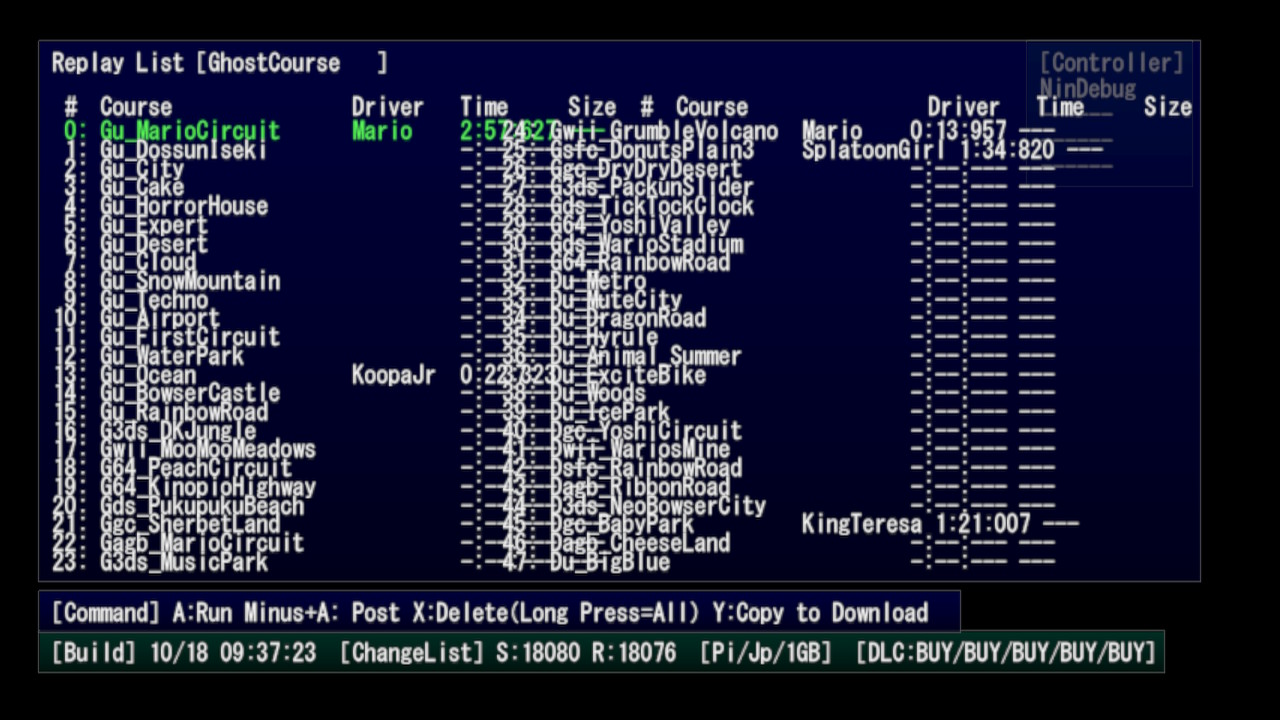
Replays from Time Trials, only from ghosts by you. Shows course, driver, time and size. Doesn't seem to be watchable, only visible to the list.
Script#
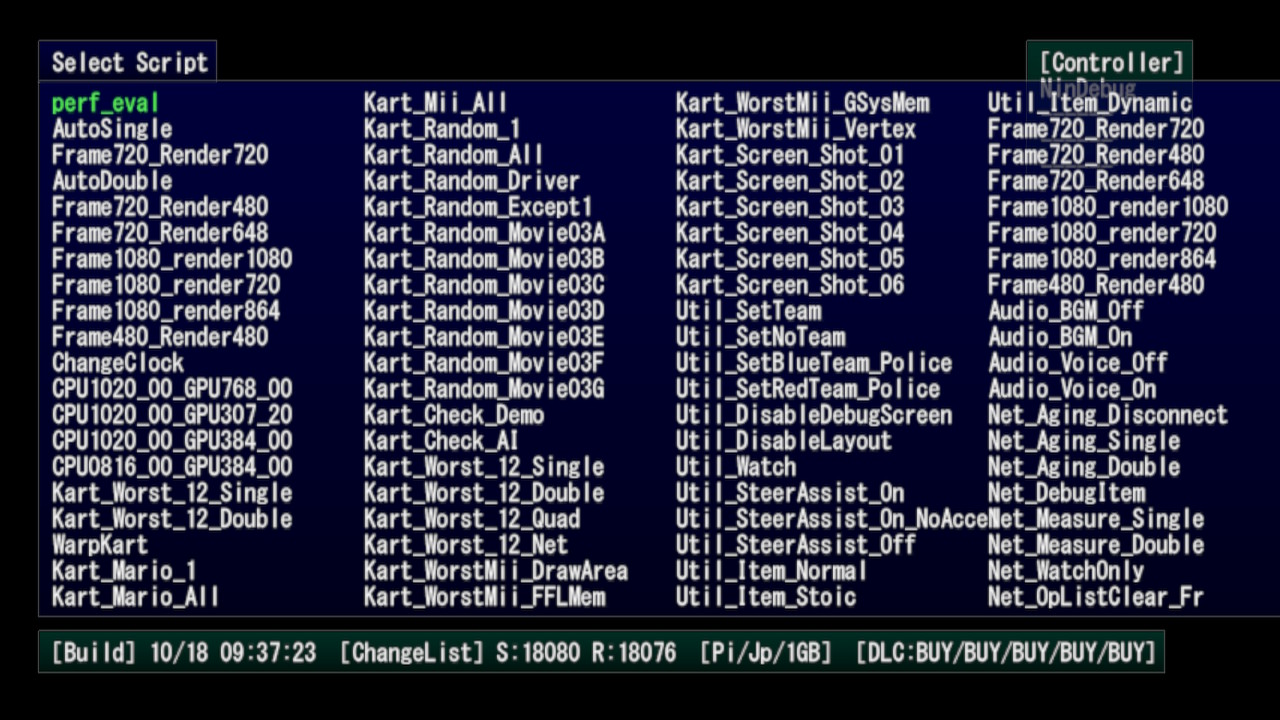
Has many scripts that does different things to the game. Only 80 scripts are visible, 20 of them are offscreen but can be selected, they continue after the last visible script at the right. Some of them crash the game, some don't seem to do anything, some changes the game resolution, changes game CPU clock, sets you to be an AI, changes your character and/or CPU character to different or sets of characters (such as many Yoshis of different color, Koopalings, Mario characters), changing team mode, disabling debug texts from screen, enabling and disabling smart steering with or without auto acceleration, changing item mode, disabling music and also character voices, enabling automatic always get item with auto item usage and more. Not all scripts were listed, but most of them does what was said above. Scripts can be enabled anywhere in the game, some of them will automatically get you in a race, some don't. Once enabled, they will always be applied, does not matter how you start the race or if you leave the race or change the mode. Very few scripts will not allow to reselect other scripts, forcing you to close the game to select other scripts.
Network#
CompeEdit#
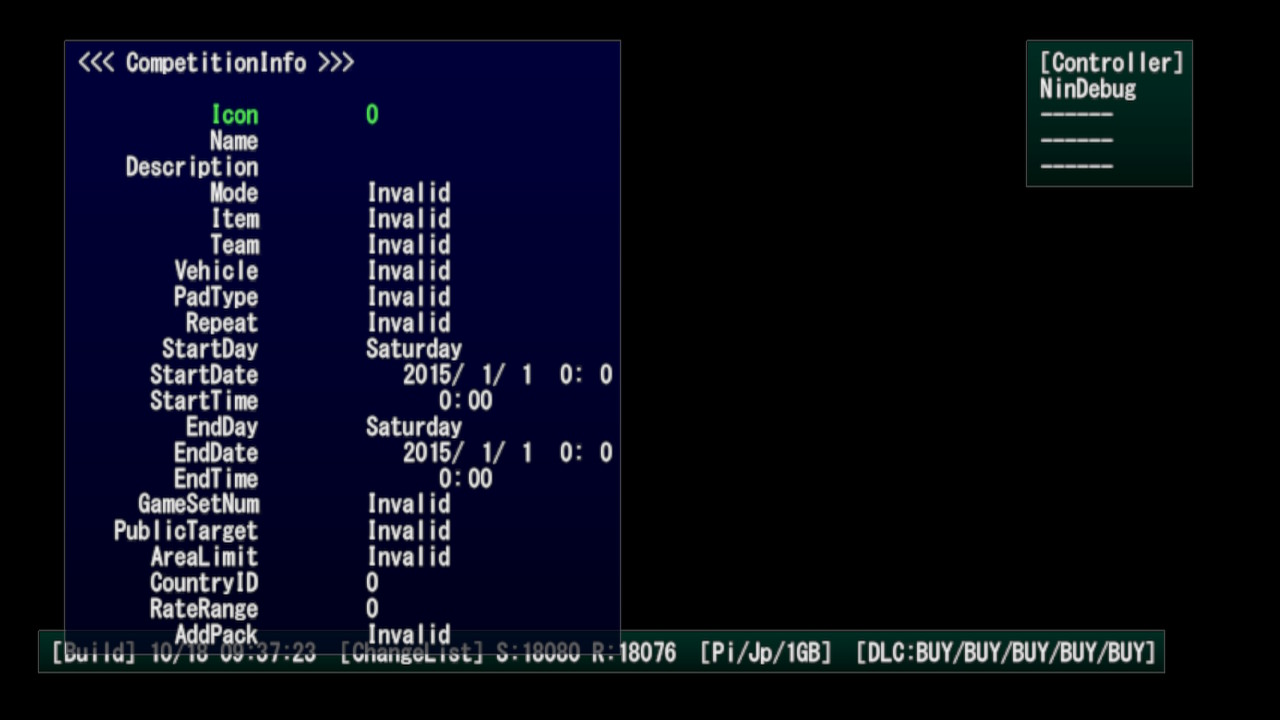
A competition editor with many options about the tournament. Impossible to navigate, making the game softlock. Most likely unfinished and unusable.
Flag#
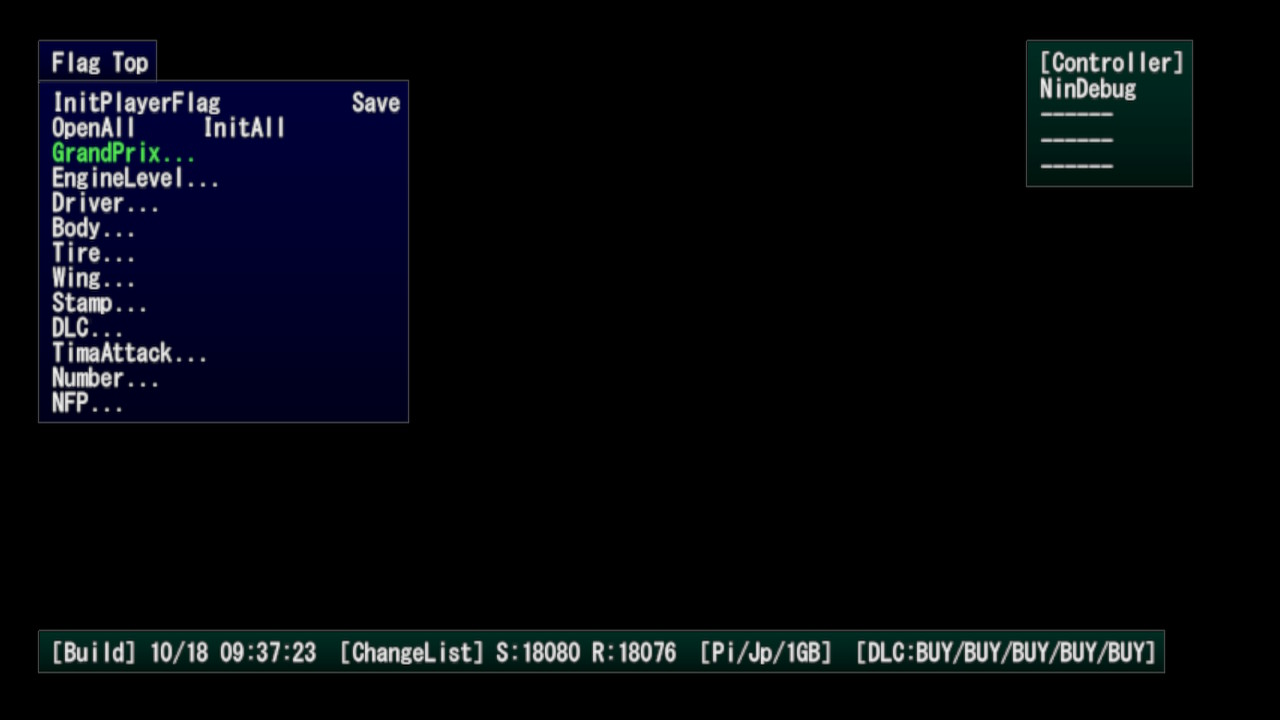
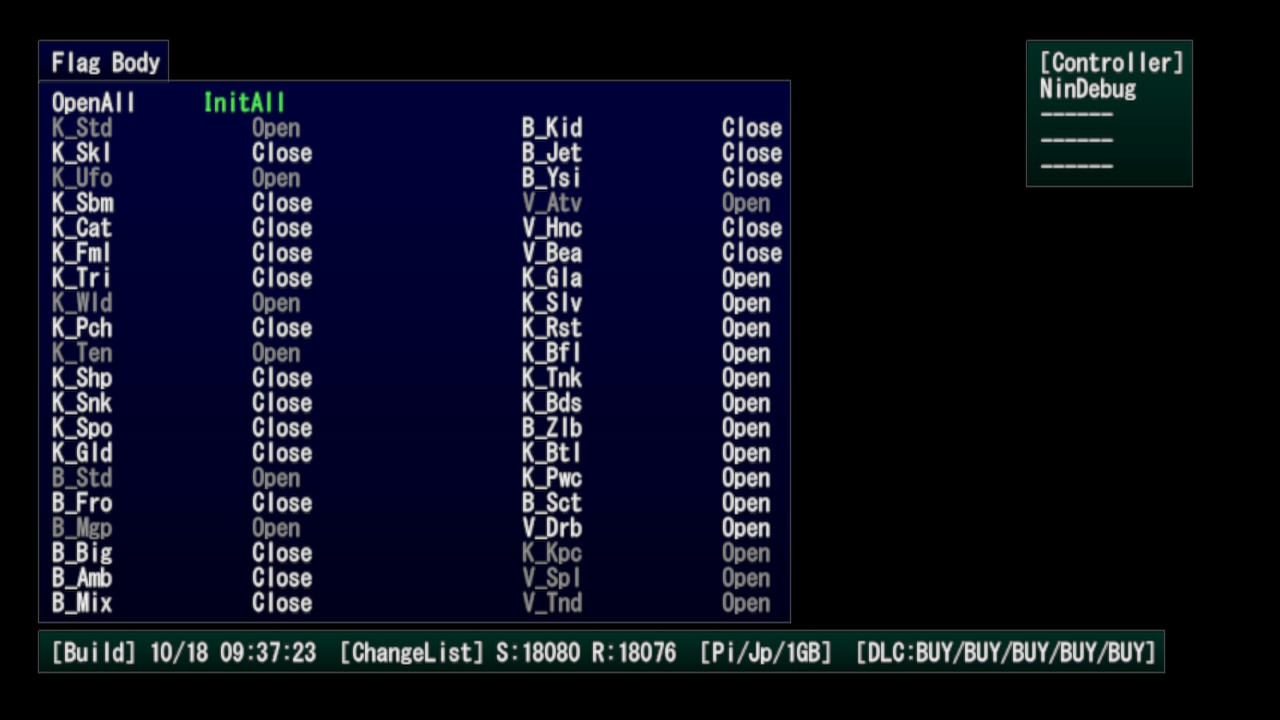
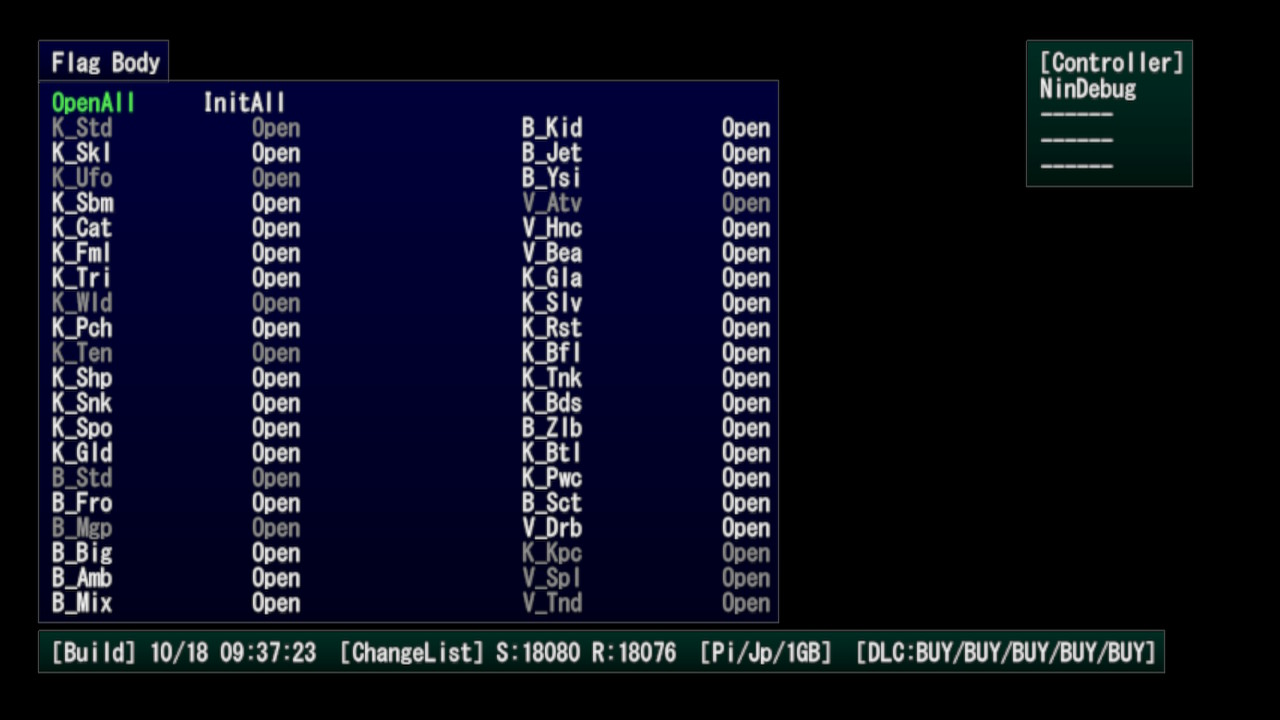
A savegame editor that allows to unlock anything (Open), lock it back to a clean savegame state (Close) [does not affect default unlocked ones], set it as a new unlocked character/vehicle part (Present) and set it as Archive (?). Also allows messing with something related to ghosts and editing the savegame race amount, coin amount, VR/BR, win and losses, disconnect amount (never seen in game), percentage of gyro controls, if have ended the game (Grand Prix?) and if have got true ending (Staff Credit?). DLC can be modified to four different states, excluding Open, being able to make previously DLC only characters to be locked and having the Mario Kart 8 Wii U card model with the character icon, making the game softlock if selected, and depending on the setting, DLC cups are visually 'locked', having track names as '???", the cup icon is the Mushroom cup icon and the track images will be from the previous seen track, however that is just visual, selecting the track will redirect you to the proper track (DLC cup one). The options selected appear on the bottom bar of the Debug Menu. Option OpenAll will set all to unlocked, InitAll will set it back to a clean savegame state.
|
InitAll (Reset everything) |
OpenAll (Unlock everything) |
|---|---|
|
|

|
DLC Characters Locked |
DLC Cups Locked |
|---|---|
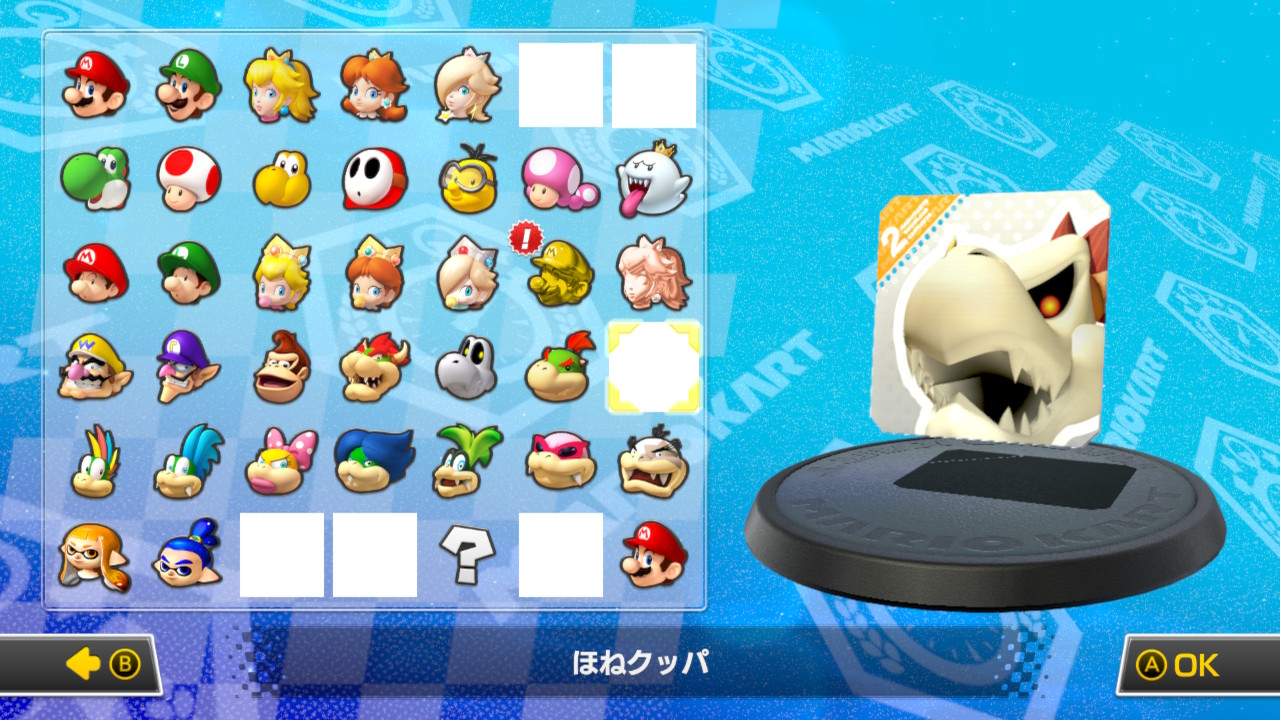
|
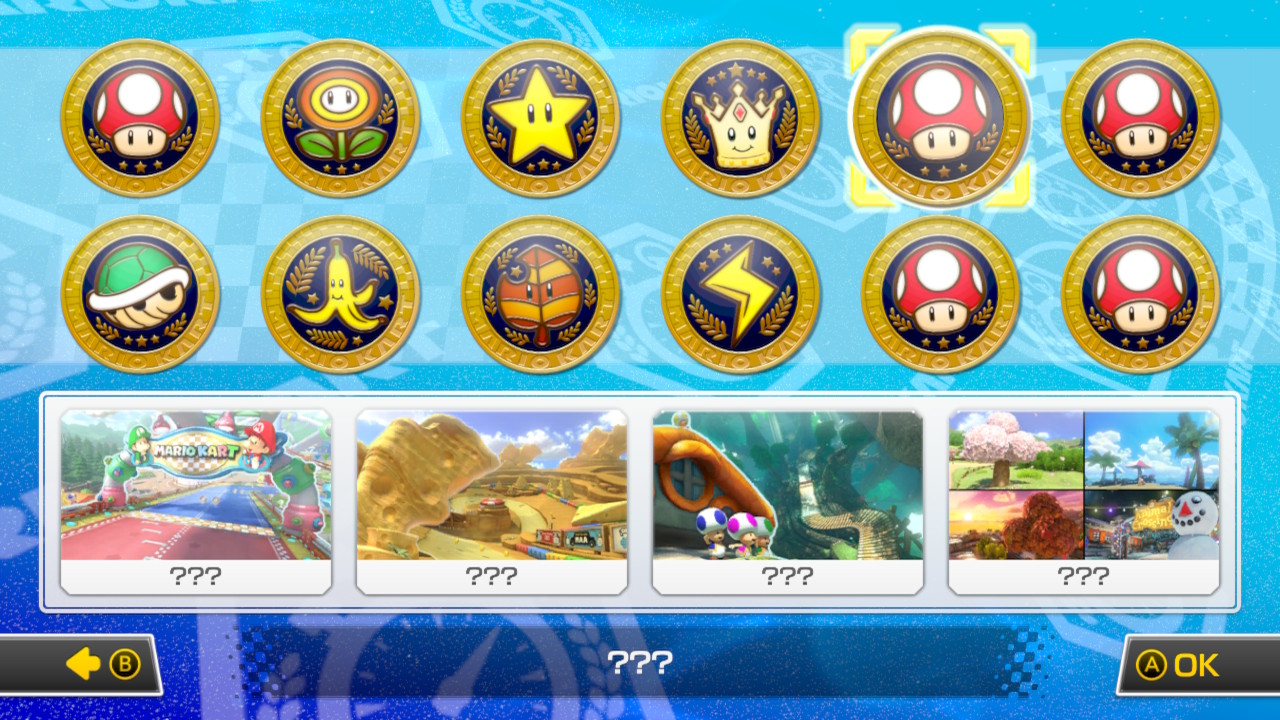
|
Scenes#
Customizer#
A scene that allows changing character/vehicle parts live, similarly to the menu one. Normally, this scene crashes the game but you can use a patch to fix the crash. There is text displaying the internal names of the characters and parts for selection. You can only nagivate and change parts if a debug controller is attached, else no inputs work. You can't drive and no sounds or particles are present in this scene. The selected combination will be saved and set in the Debug Menu. Files and function names related to this scene exists in the Kiosk Demo version of Mario Kart 8 Wii U, meaning Customizer was used during Mario Kart 8 Wii U development for testing and debugging purposes, possibly before the game had a menu or to view them with a different lightning/background.
The code that loads this scene is programmed to load the test_Customizer track but for some reason the course the scene loads is the last/current loaded course, for example, in menus, the course loaded is Gu_Menu, loading Customizer while in menus will load the scene in Gu_Menu, the course menus are loaded in, in game, it is a black void with no models or visuals.
The files for test_Customizer course is not present in the game but a skybox called VRCustomizer is present in the game's files (also in Mario Kart 8 Wii U) and is definitely used in this course. test_Customizer is definitely a copy of Gu_Menu but using VRCustomizer skybox instead, a unicolor light blue sky with a color gradiant similar to the one seen in the character selection background of the Kiosk Demo version of Mario Kart DS (and also almost identical to the paint background in the final game), the corner of many title/main menu background images of Mario Kart 8/Deluxe and minimap background on the Gamepad on the Wii U.
The reasons test_Customizer is definitely a copy of Gu_Menu is because Gu_Menu has no checkpoints and the spawn point coordinates and rotation are at 0,0,0. Coincidentally, this scene has the kart spawn point coordinates and rotation hardcoded to be at 0,0,0 and the game crashes if the course loaded has checkpoints. Also because Gu_Menu has no visuals as there's no models and the skybox (VRMenu) doesn't render in game so it's a black background which is out of place and it causes two issues: The character/vehicle parts text is harder to read because the color blends with the background and some vehicles are very glowy. test_Customizer has a proper skybox (VRCustomizer) that makes the text very readable and the karts aren't as glowy.
A lightning environment file for this scene exists and is present in "Debug/GEnv/Customizer.bgenv" (also present in the Kiosk Demo version of Mario Kart 8 Wii U) but it isn't loaded, instead it loads the default one; "Common/GEnv/Turbo_cmn.bgenv".
In the video below a recreation of test_Customizer is used by adding the files of the course to the game and adding it to the Debug Menu Test course list by using the Test Tracks patch (artificial custom code). Toggle Process Meter Bars and Toggle Free Camera Debug Controller Features were used to move the camera and display the game's process performance.
Fun but weird fact: You can load Customizer in GBA Mario Circuit and DS Wario Stadium by loading Customizer scene while in any of these two courses. These are the only courses with checkpoints that don't crash the game in Customizer. You'll spawn at the origin of the map and lakitu (who's invisible) will bring you back to the course.
Message#
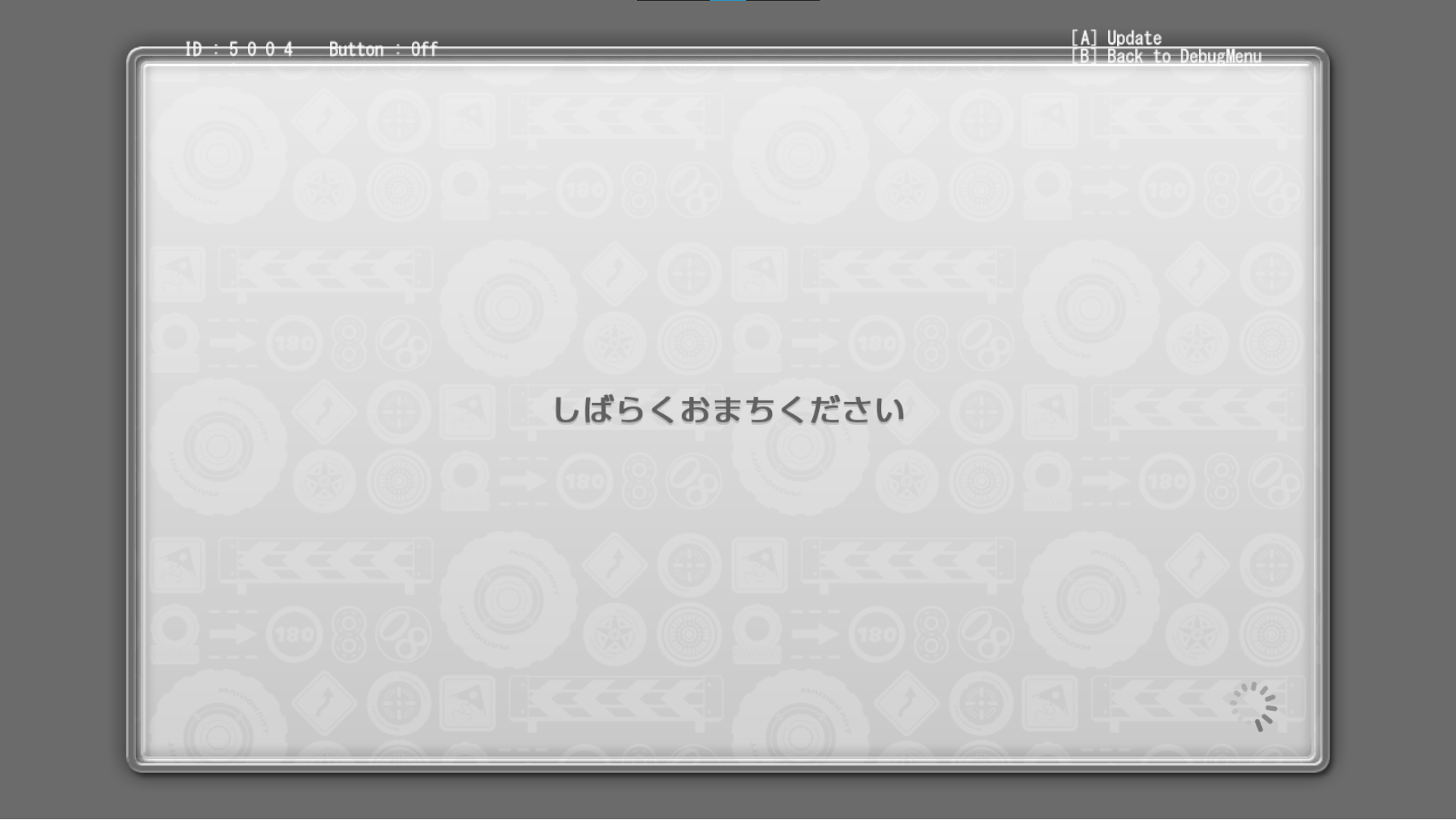
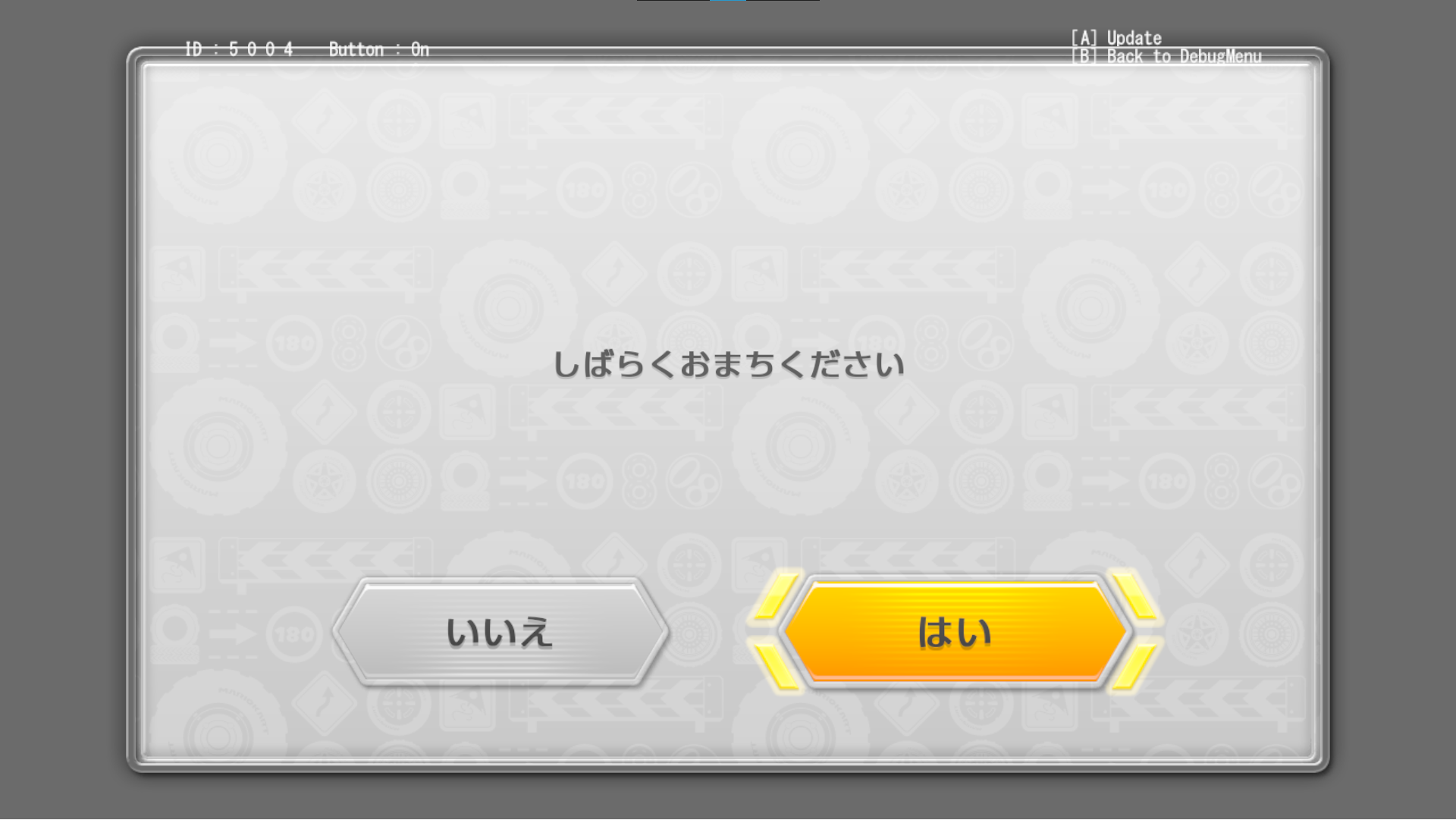
A simple message checker, allowing you test message displays from a given message ID, also with a flag to set if using a confirmation popup. It shows a cursor but it isn't really visible due to the layout it uses and text color is white so it's probably wise to remember what you're selecting.
Trial#
The scene "Trial" in the Debug Menu brings you to what looks like the Wii U's E3 2013 menu but with updated controller icons. After the race is completed, you'll see a "Thanks for playing" screen, which also appears in the Kiosk Demo of Mario Kart 8 Deluxe. The courses and vehicles you play are set ones, but randomized. For example, one time it is GCN Yoshi Circuit and you play as Mario on the B Dasher, other time it is Hyrule Circuit and you play as Mario on the Standard Kart. When in this scene, the Debug Menu cannot be opened, probably to prevent people playing the game at E3 to open the Debug Menu.
Logs#
Printouts of scripts are printed on the screen and log are written to the SD Card in Gear.
Debug Race/Battle#
VS Race and any Battle mode using the Debug Menu are considered as "Debug Race/Battle". Debug Race/Battle will make the race/battle start instantly, having no course intro or countdown, having the race/battle started as soon as it is loaded, allowing moving and everything once in the race/battle. Races/Battles will not end, lasting forever, even if all laps are completed, if the timer hits the limit or runs out, if all thieves are caught in Renegade Roundup or Shine Thief shine timer hits zero. A Grand Prix Race started using the Debug Menu will not have the features above and will work just like a normal race but there is only one race, after finishing it you will be brought to the Award screen.
When in a Debug Race/Battle, pressing Start (+) will open the Debug Menu without leaving the race/battle, having the race/battle displayed and paused in the background, allowing to select scripts, closing it will resume the gameplay. This will also apply to a Grand Prix Race started using the Debug Menu. In normal races/battles, in order to open the Debug Menu, Start (+) and Select (-) needs to be pressed at the same time, and that will also leave the race and return to the regular Debug Menu state when it's in menus, with a black background.
Debug Controller Features#
With a debug controller attached, special features become available that are not accessible with a normal controller, using specific input combinations.
Nintendo uses the Wii Classic Controller Pro as the debug controller. Previous consoles also used this controller for debugging. It must be attached to the top of the SDEV Switch console (Nintendo Switch developer hardware) to be used. The SDEV console ships with this controller. Internally, the game and its code label this controller as “NinDebug”.
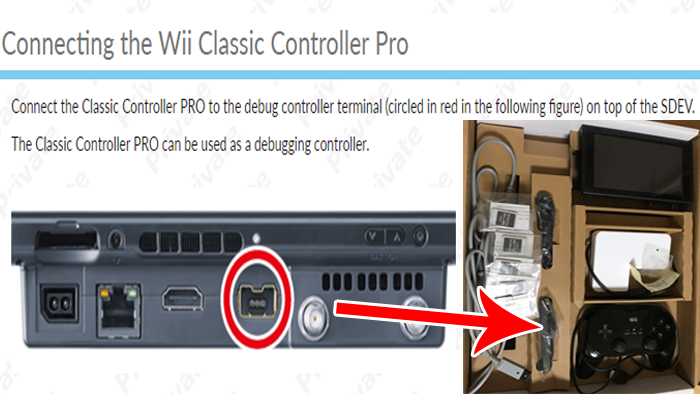
When a debug controller is connected, the game boots directly into the Debug Menu, and during scene transitions it displays a Debug Render Time & HEAP Usage Preview, showing render time and heap usage information.
Due to the Classic Controller Pro layout and the debug input combinations, some controls behave differently: items cannot be used with ZL, drifting is not possible with ZR, and while ZR is held, normal game inputs are disabled. Additionally, accelerating with the Right Stick will make you automatically trick on trickable surfaces.
Some of these features, if not all, were also present in Mario Kart 8 on Wii U. Evidence can be seen in the Mario Kart 8 Kiosk Demo test_race.nut Script from the April 4, 2016 demo, which contains a Squirrel script referencing Debug Controller features that are also present in Mario Kart 8 Deluxe. The script also uses the same input combinations to toggle these features.
The Debug Controller can be enabled on Yuzu without patches by going to Config > Controls > Advanced and then enabling the Debug Controller option. It can be enabled on a real Switch console by using a patch. The patch also includes a fix by Shadów that allows Free Camera to be enabled. While Yuzu can enable Debug Controller without patches, the Free Camera will not work, so the patch is recommended so it can work.
Use this patch to Force Debug Controller & fix Free Camera enable issue:
(Force Debug Controller Patch: Ro)
(Free Camera Enable Fix Patch: Shadów)
Item Cycler#
Holding R and pressing D-Pad Left/Right cycles through items in item ID order. When cycling, the currently selected item in the cycle is set to the first item slot, replacing the slot item if one is present. You can also cycle to select the "Empty" item, which clears the slot and prevents the currently selected item from being set to the slot
Once the item selected by cycling is used, it disappears from the slot like normal. Pressing the item-use button will set the currently selected (last cycled) item to the slot if the slot is empty.
The selected item is replaced with the fallback item (Coin) if its limit has been reached.
You can only cycle or set items when the kart is in a state that can use items (for example, not in damage or a Bullet Bill).
A Debug Text Display prints the name of the currently selected item below the item slot, even when the slot is empty. If the current item in the cycle is "Empty", no text is displayed. This and other debug texts can be hidden by enabling the Script "Util_DisableDebugScreen".
In Bob-omb Blast, using R + D-Pad Left/Right adds +1 Bob-omb to the stock instead of cycling items, no debug text is displayed, and the item use button does not give any item.
During online play, cycling items does not immediately give the item, even if the slot is empty. Only the debug text changes; to receive the currently selected item in the cycle, press the item use button, as long as slot is empty and not spinning.
"DebugMove"#
Holding ZR + L and pushing the Left Stick Up/Down allows you to move the kart forward or backward along the course, following the course layout. The kart moves slightly above the ground and effectively “flies” along the track. The movement speed and height depend on how far the stick is pushed; if the stick is neutral, the kart does not move. It follows the CPU routes (EnemyPath).
Holding ZR + L and pushing the Left Stick Left/Right resets the kart, warping it back to the spawn point where you start the race. The reset only occurs for a single frame, but keeping the buttons and stick held causes the kart to levitate. This allows the stick to be released while still Debug Moving, as long as the stick direction remains Left or Right. It is possible to trigger a bug where, after resetting, the kart slowly rises upward, especially if hit by items.
While Debug Moving, the kart is constantly being reset. As a result, the camera is perfectly positioned behind the kart, and kart states such as speed, timers, animations, and other status flags are constantly cleared. The game includes a separated special function to adapt checkpoints during Debug Move so lap counting and culling behave correctly. However, due to how this is implemented, if less than half of the track is completed using Debug Move and the kart is then warped back to the spawn point, the lap will still be counted.
This feature only affects player ID 0 Player 1 offline, or the room host in online play).
Internally, this feature is labeled “DebugMove” in the game’s code.
End Race#
Holding L + R and D-Pad Down ends the race immediately. The race will not get to the results if it's a Debug Race/Battle.
Toggle Slow Motion#
Holding ZR then pressing Plus (+) toggles slow motion mode. When toggled on, the game will freeze because it starts at Frame Advance mode.
Pressing D-Pad Left/Right enters slow motion mode and allows changing the speed (x1, x31, x61, x91 and x121). A Debug Text Display prints the current speed. This and other debug texts can be hidden by enabling the Script "Util_DisableDebugScreen".
Pressing D-Pad Up will enter Frame Advance mode, where the game is frozen and you can advance frames by pressing D-Pad Up.
Toggle Free Camera#
Holding ZR and pressing D-Pad Up toggles Free Camera.
When enabled, game and debug inputs are disabled, except for camera control. If ZR is held, inputs are unfrozen, but the camera cannot be controlled.
Left Stick rotates the camera, Right Stick moves the camera, A increases the camera altitude while B decreases it, X zooms in and slows down movement speed while Y zooms out and increases movement speed. L twists the camera left while R twists it right.
When enabled, holding ZR and pressing D-Pad Up again freezes the camera and re-enables inputs. Pressing it again disables Free Camera.
This feature works anywhere in the game.
A patch is required in order to construct the layers required for the debug camera to work. The patch is available above on Debug Controller Features part.
Toggle Layout Visibility#
Hodling L, R and D-Pad Up toggles game layout visibility. Works anywhere. Does not affect Debug Layouts.
Toggle Controller Modes & Screen Types#
Holding ZR and Y toggles controller and screen modes.
Main uses typical controls, Perf disables Debug Controller Features and Screen shows a screen with information. There are various screen modes, hold ZR and D-Pad Left/Right to cycle through screen modes. While in this mode, Debug Controller Features are disabled and game inputs work even if ZR is held.
This feature is completely disabled if the Script "Util_DisableDebugScreen" is enabled. You can see better explanation and pictures about the pages below on Debug Screen Type Pages part.
Toggle Process Meter Bars#
Holding ZR and pressing D-Pad Left/Right toggles process meter bars.
There are three bar types, first one shows "waitGPU", "draw" and "calc" performances but only bars are shown, no text is present. Second one is "DSP", "waitGPU", "draw" and "calc" performances with text, bars and percentages. Third one displays "GSys", "App", "waitGPU", "draw" and "calc" with text, bars and percentages.
This feature can work even if the Script "Util_DisableDebugScreen" is enabled.
Toggle Sead Menu#
Holding Start and pressing R displays the Sead Menu.
You can navigate through different menu options and see information. In Heap View, pressing X will show more details. When menu is open, game and debug inputs are disabled.
This feature can work even if the Script "Util_DisableDebugScreen" is enabled.
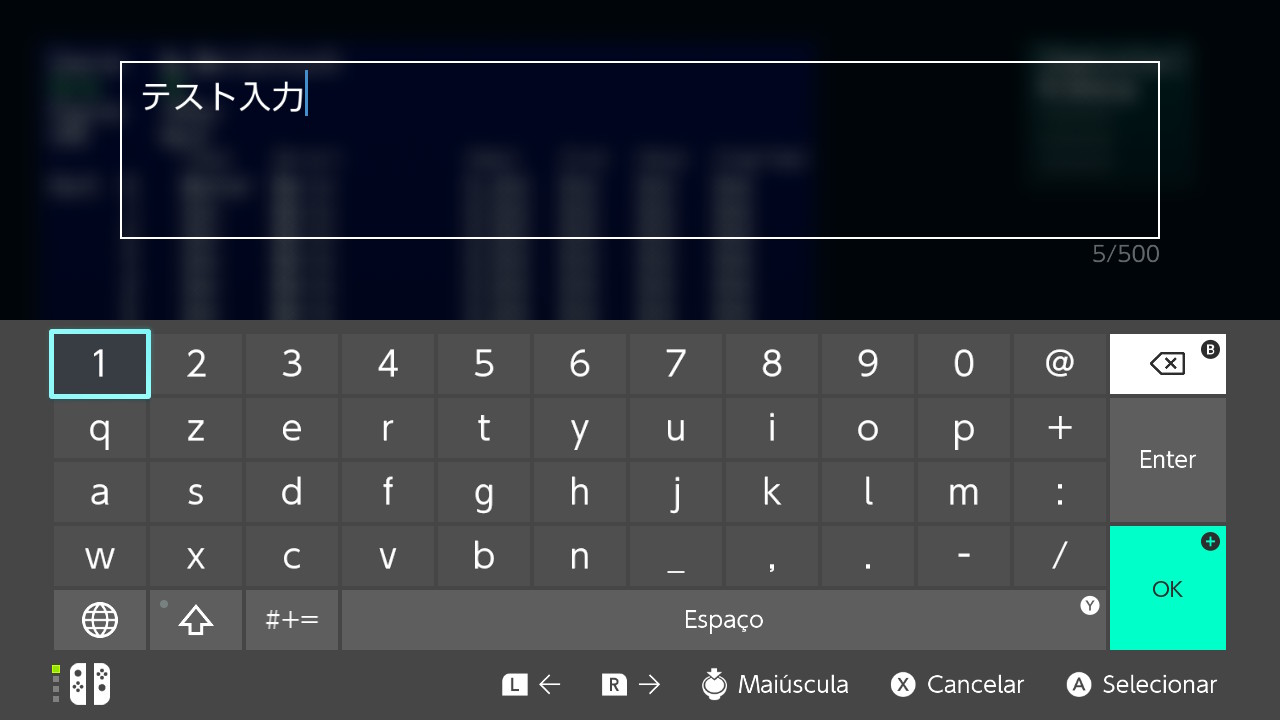
Load Keyboard Applet#
Holding ZL, L and R loads the keyboard applet. It comes with a default set texture in Japanese that says "test input".
Load Mii Maker Applet#
Holding ZL, L and ZR loads Mii Maker Applet on the Mii creation screen.

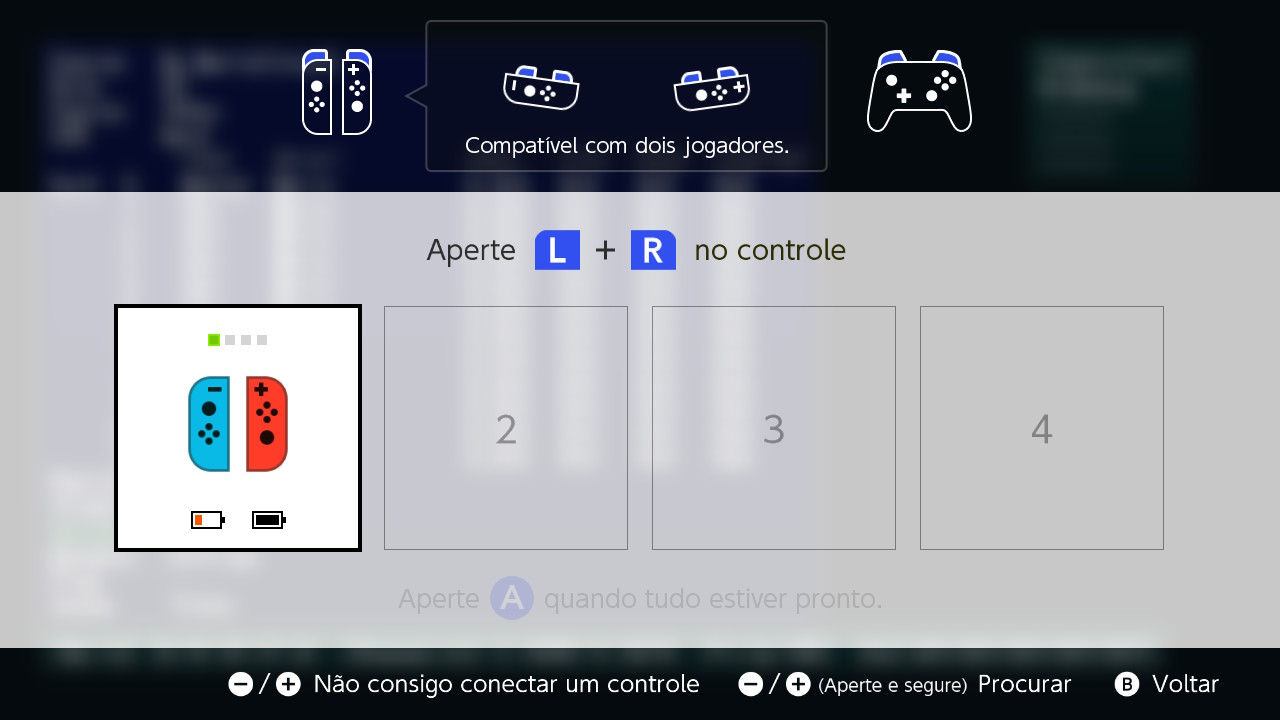
Load Controller Hookup Dialog#
Holding ZL, L and D-Pad Left loads the controller hookup dialog.
Two controllers are required to continue, but you can exit out by pressing B.
Load NFC Reader Applet#
Holding ZL, L and D-Pad Right loads the NFC reader Applet.

Load Web Browser or e-Manual#
Holding ZL, L and D-Pad Up loads the web browser (or e-Manual). This feature crashes the game.
Load Profile Select Applet#
Holding ZL, L and D-Pad Down loads the profile select Applet.
Debug Screen Type Pages#
Here's a list of pages accessible on the debug controller mode set to Screen and what they are/could be:
Console: Displays all warning logged (except the ones that show when first going to the race), debug render time & HEAP Usage Preview.
Warning: Displays set comments for certain functions, most of them warning if something went wrong, or if something happened.
MemoryMap: ?
CalcCost:
Collision: ?
Race: ?
Kart: ?
AI: Displays AIs properties and catch up rubberband distance & such.
Effect: Display KartEffect and ScreenEffect from each kart ID (players), O and X seems to determine if it's happening or if it's on the player's view
Item: Displays all player IDs, the item they have, if it's being dragged (and which), item duration, items in play, collision state, item type, ID, who used, state & way more.
MapObj: ?
NetRace: ?
NetItem: ?
UI: ?
Shiraiwa: ? (Probably used by Nintendo's programmer Yusuke Shiraiwa).
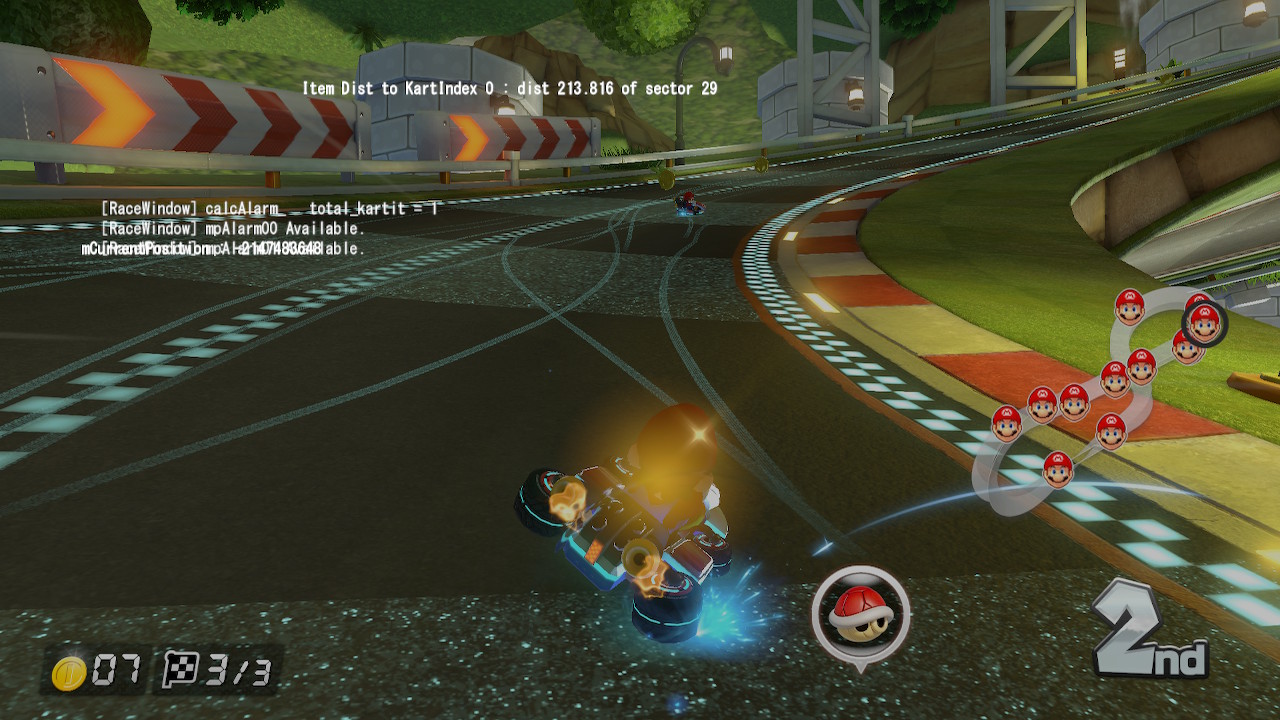
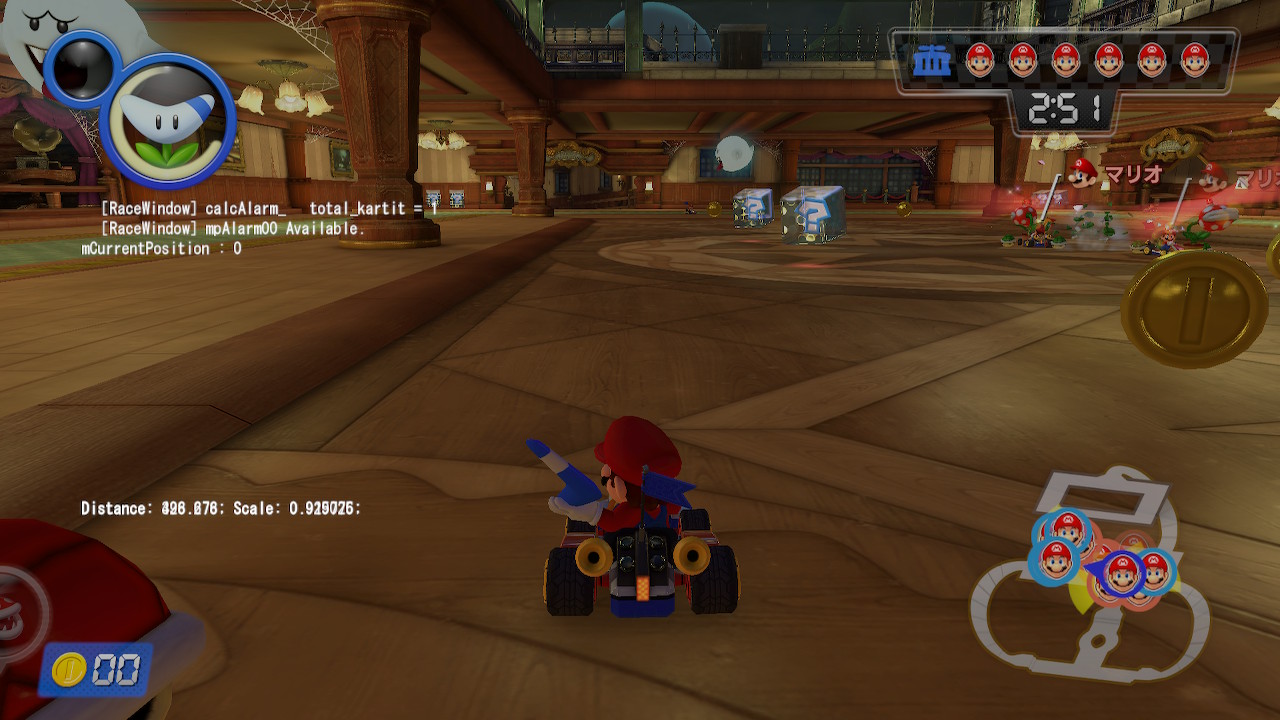
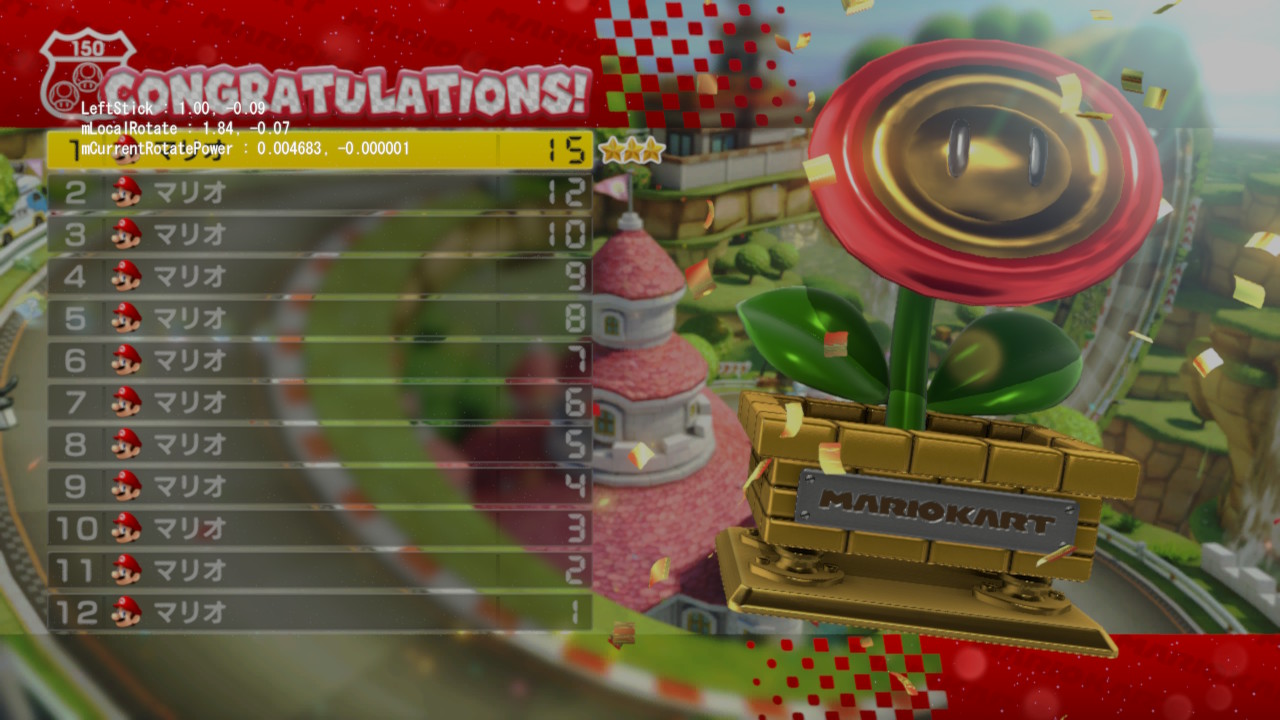
Fukuoka: Displays if item warning (and Renegade Roundup cup) is happening, sector to KartIndex and some sort of CurrentPosition. Multiple instances of it can happen. Also displays the Award trophy left stick X and Y values, how strong the trophy rotation X and Y is according to stick and trophy rotation X and Y angles. Also shows what current 'board' page you are on MKTV. Also displays the distance and scale to a player's nametag.
(Probably used by Nintendo Fukuoka Office, one of their old development offices).
Uchida: ? (Probably used by Nintendo's sound programmer Sanae Uchida).
Miyagawa: ? (Probably used by Nintendo's sound programmer Yohei Miyagawa).
Mizuta: (Probably used by Nintendo's sound programmer Masato Mizuta).
Video of these pages can be seen in Toggle Controller Modes & Screen Types.
Warning#
Displays set comments for certain functions, most of them warning if something went wrong, or if something happened. On the picture below, it shows warnings about UI failing to get the PlayerIndex and some object warnings. 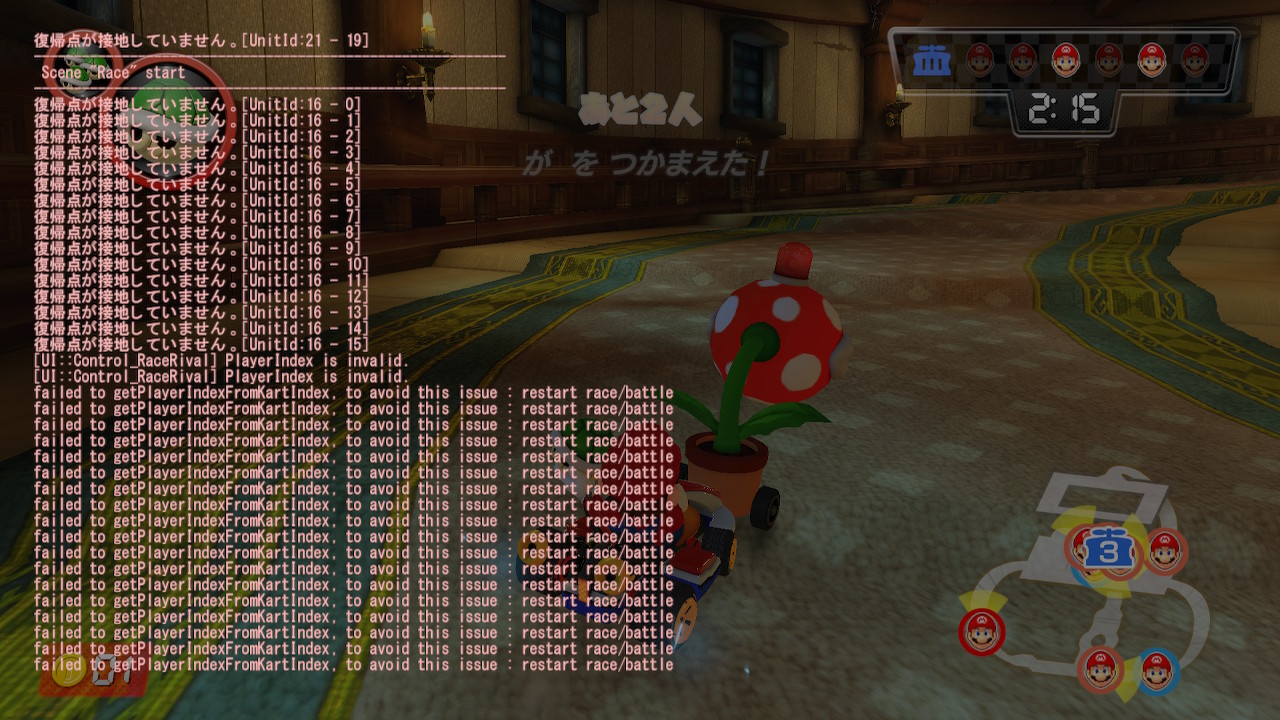
AI#
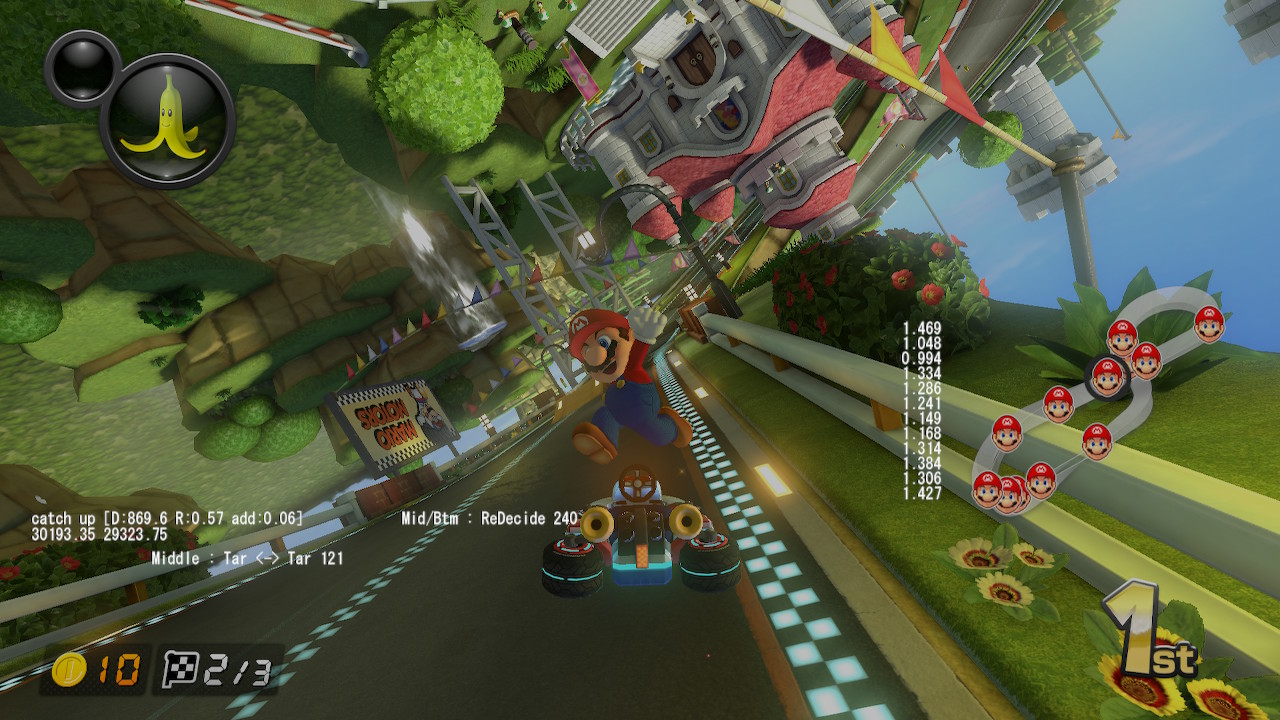
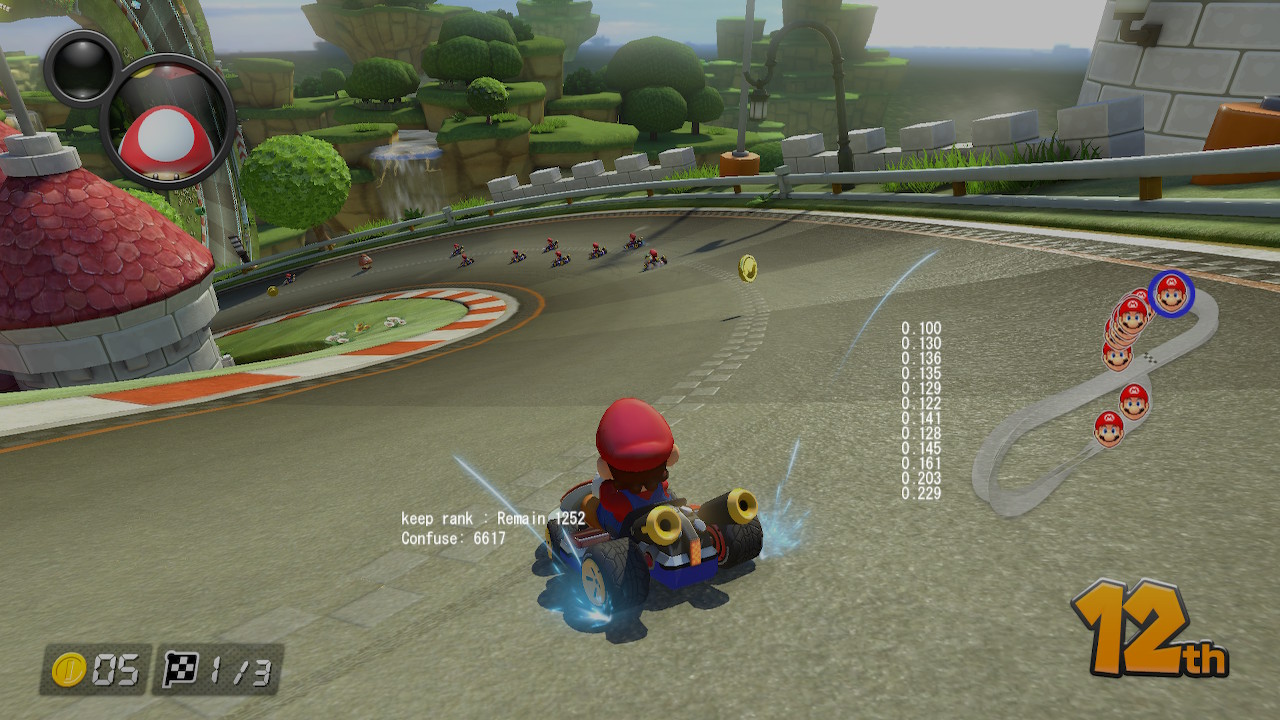
Displays AIs properties and catch up rubberband distance & such. There seems to be a value for each AI, maybe the distance of rank or distance from each kart. Keep rank is probably a timer that shows for how long CPUs should stay on top (after the timer hits 0, they should slow down for the local player to be able to catch them). Catch up is probably the distance and stuff about rubberbanding when they're too far behind. There seems to be some distance values too.
|
Catch up & distance values (?) |
Keep rank (how long to stay on top before slowing down for local player?) |
|---|---|
|
|
Effect#
Display KartEffect and ScreenEffect from each kart ID (players), O and X seems to determine if it's happening or if it's on the player's view. 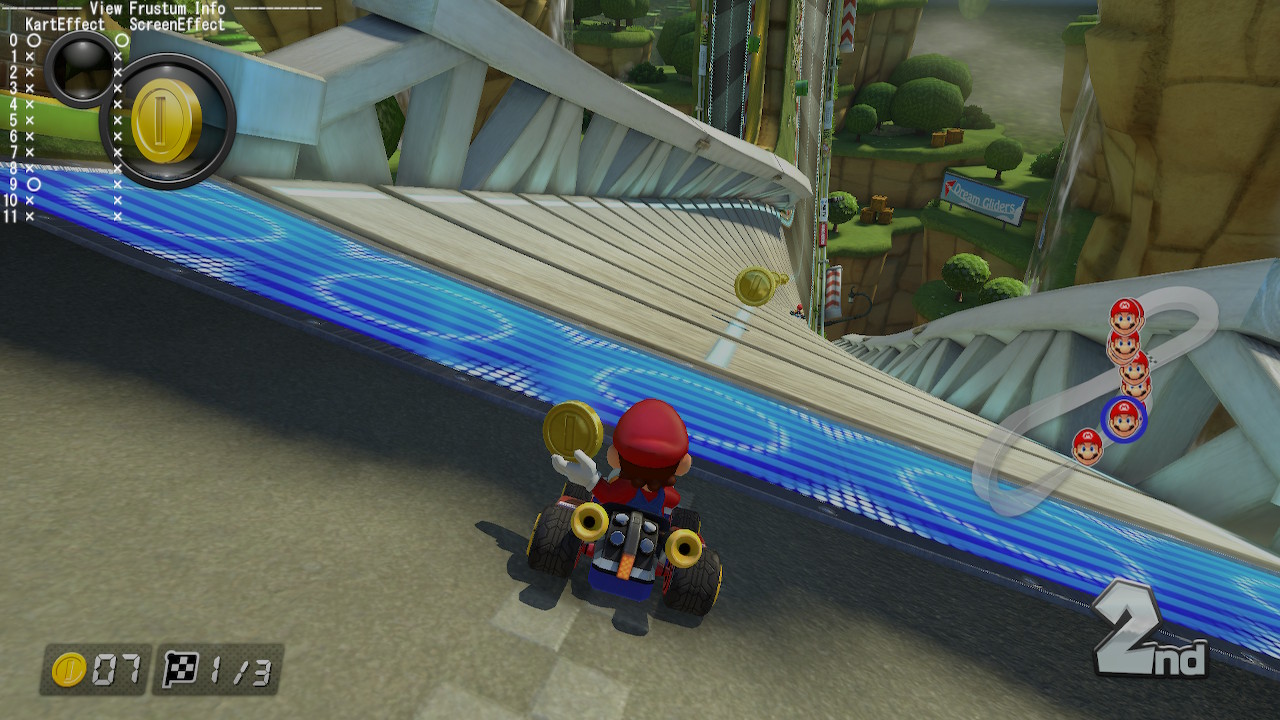
Item#
Displays all player IDs, the item they have, if it's being dragged (and which), item duration, items in play, collision state, item type, ID, who used, state & way more. In order the kart ID can be seen, then the statte of the roulette, if spinning, empty or having an item. Then, the stock item, current item and next item (all three are the same?). cnt is probably a item timer such as golden mushrooms. ratio and revel is unknown. After that, there is the kart ID again, Keep is the item in hand, Cr and Fl seems to be the amount of items rotating/being dragged. Cnt is the amount of times the item was used before it finishes/gets out of the slot and max is the max amount of usage (used on fireballs for example). Times is the item timer until it ends (increasing instead of decreasing) and Max is the max timer value. Attention is items being dragged/rotated, and so is EquipItems. The number next to it is the amount of times it has been dragged/used in the match and IDs? On the bottom, it shows the items in play, ColState is the state of the item, if it's moving (thrown process before ground or moving shells) and standing (stopped, on ground, or dropped?), the item name, the ID of the item, the serial (?), the Kart who used and if it has collision.
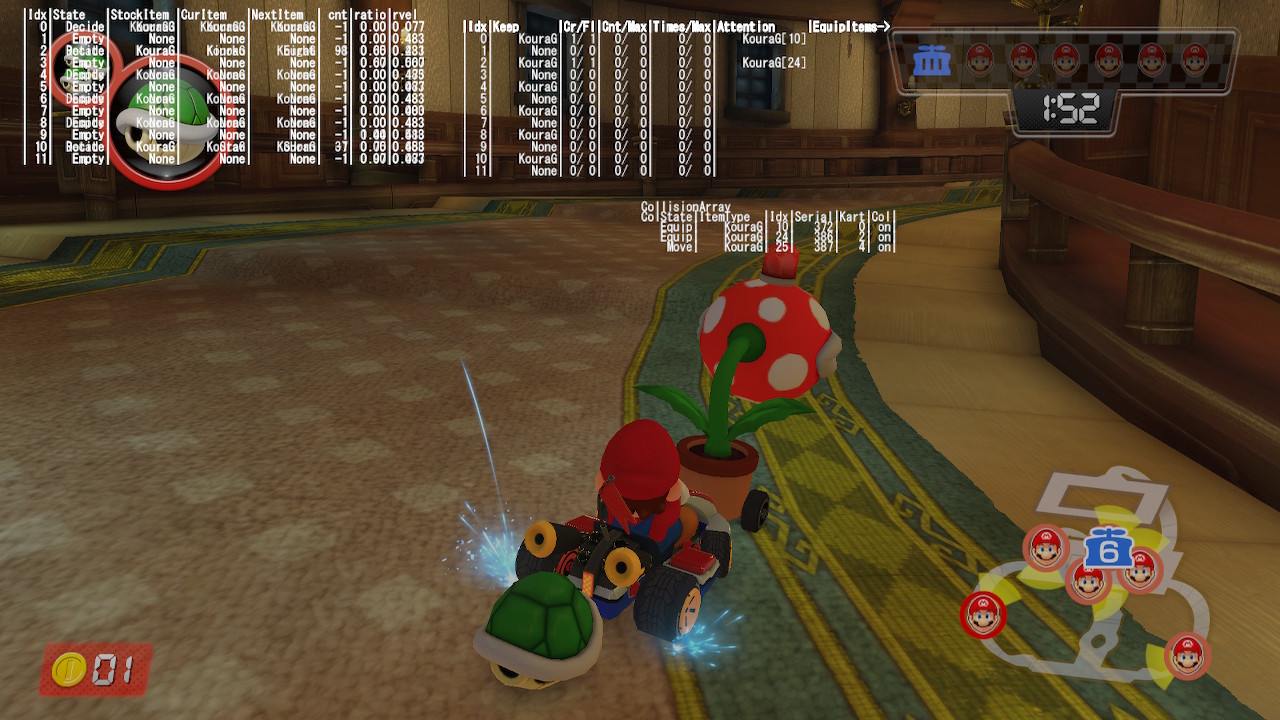
Fukuoka#
Displays if item warning (and Renegade Roundup cup) is happening, sector to KartIndex and some sort of CurrentPosition. Multiple instances of it can happen. When the icon is on screen, it shows that the pane is available. CurrentPosition is sometimes 0 and then a random value, it does not look like a floating point value. It also displays the Award trophy left stick X and Y values, how strong the trophy rotation X and Y is according to stick and trophy rotation X and Y angles. Also shows what current 'board' page you are on MKTV. Also displays the distance and scale to a player's nametag. By the name of the page, it is certain that it was used by Nintendo Fukuoka Office, one of their old development offices.
|
Item Warning distance to KartIndex 0 (local player), and LapPath sector ID? |
Renegade Roundup Cop warning & nametag distance and scale |
|---|---|
|
|
Lots of Inaccessible, Removed & Undiscovered Debug Features#
There are lots of debug features that are either stubbed (function has name but code is removed), existent but inaccessible (some were restored by modifying the game's codes and files, read Restored Debug Features) or undiscovered to today's date according to the game's code. It seems like they can be enabled or modified with Script files, modifying them can restore some of these features. Here's a list of different classes for these features: Audio, Controller, Debug, Kart, NetworkInfo, Player, Race, RaceInfo, SaveData, System, Test and UI. NetworkInfo is the one with most features.
Restored Debug Features#
There are debug features that are present but there is no way to enable them other than modifying the game's code. Patches are required to enable them. Note that these are many of them, but only a few were restored.
Debug Item Probability Display#
A debug item probability display which the way of enabling is unknown and probably inaccessible without patches, it displays rank distance (distance from you to top rank/position) with a line and an arrow showing the distance and a text display showing the value of the distance and two graphs displaying all possible items to receive in that rank distance and the probability value of that item, plus an arrow with the item color, pointing at the chance of the item and a text display showing the value of the probability. The lower the rank distance value is, the higher top rank you are, therefore, you'll receive simple items like Bananas and Shells, the higher the value, the lower rank you are, therefore, you'll receive powerful items like Stars, Mushrooms etc. The lowest rank distance value is 0.000 and the highest rank distance value is 1.000, while for items, the lowest is 0.00 and the highest is 1.00.
When first touching a box, a graph will show at the left even though the item was not received yet, that is because the item you receive is already decided the moment you collect a box, when touching another box, the graph that was previously at the left will now be at the right, still displaying the previous item probability and at the left, the new item probability. When getting a double box the graph at the left will show the item probability of the second slot and the graph at the right will show the item probability of the first slot.
This feature also works in Battle, in Balloon Battle, the rank distance starts at zero and keeps incrementing, it can change according to how much points you or others have, and also change when the battle is about to end, in Coin Runners, the rank distance seems to keep increasing and never change, in Renegade Roundup, it starts at a certain distance and it changes according to the amount of points your team has, in Shine Thief, it changes according to the shine timer. This is one of many unknown or inaccessible debug features of this build. It's internally called "SetItemSlotTableDrawDebugSelectInfo". For more info, read Lots of Inaccessible, Removed & Undiscovered Debug Features. Below, you can see what each item color is. These colors are shown in the graph, which has the probability of the given items on the given rank distance.

Below, you can see this feature in action, in both VS and Battle. In the VS video, "DebugMove" was used to move back and forth to show the rank distance and item probability changes. All videos of this feature were recorded with CPUs on Hard difficulty.
Use this patch to enable this feature:
|
Balloon Battle |
Coin Runners |
|---|---|
|
Renegade Roundup |
Shine Thief |
|---|---|
Debug Item Table Print#
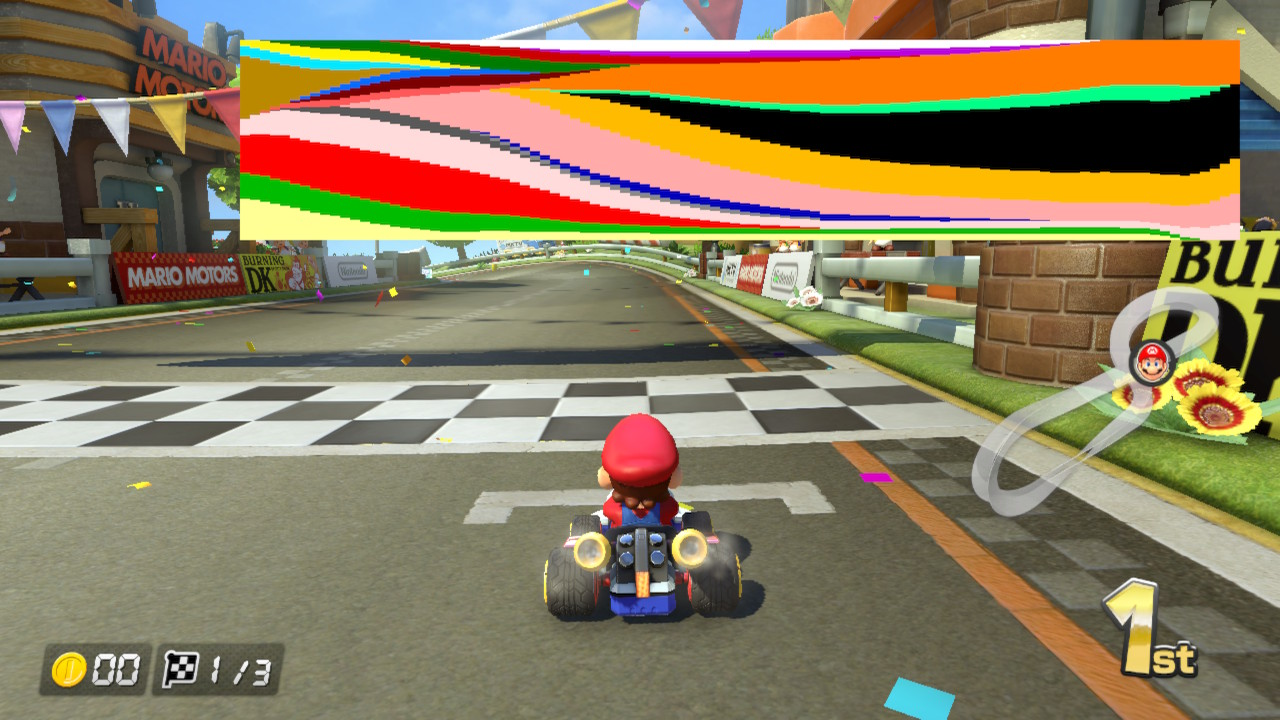
Prints a graphic-like visualization of the item probability table. The colors are the same ones as seen in the debug feature above. Odd enough, this graphic does not change in item-specific modes.
Debug GPU Stress Analyzer#
A GPU Stress Analyzer. Shows a graph with moving wave lines to display the GPU stress. It is part of some developer tool debug drawing so it cannot be activated normally in game. Even though it is a developer tool activated feature, it can be considered as one of many unknown or inaccessible debug features of this build. For more info, read Lots of Inaccessible, Removed & Undiscovered Debug Features.
Use this patch to enable this feature:
Kart Spring Value Display#
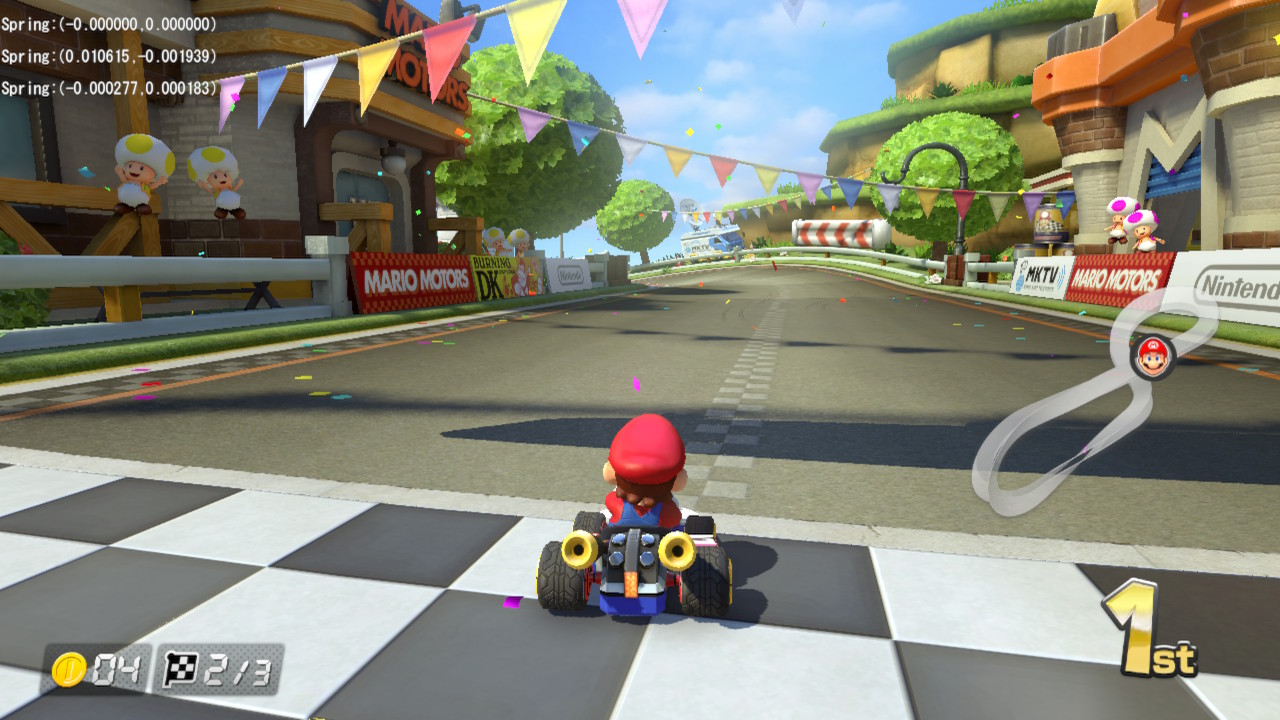
A kart spring value displayer. Displays the kart spring value on the top left of the screen. In order to enable this feature with patches, inaccurate function tricks were done so it is possible that the values and number of displays are incorrect. For more info, read Lots of Inaccessible, Removed & Undiscovered Debug Features.
Use this patch to enable this feature:
Enable Feather Jump Anywhere#
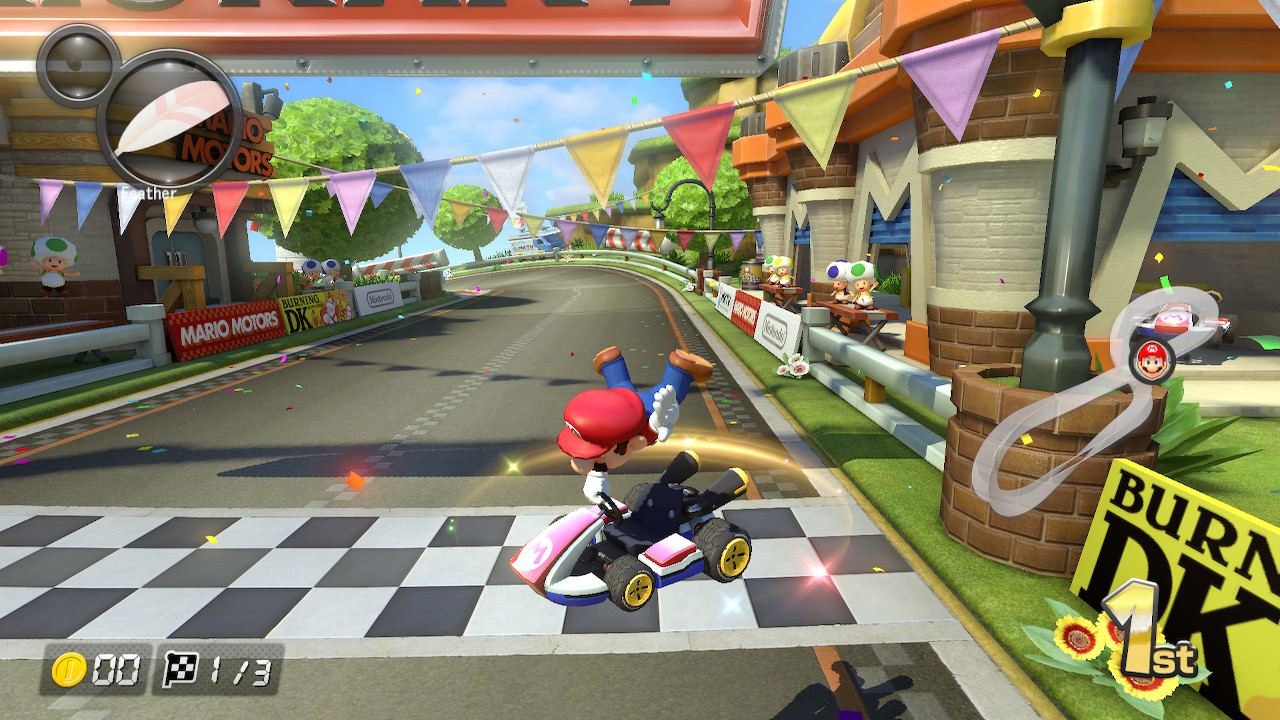
By default the feather jump can only work in Battle, with this feature it can work in any mode, including race. It's internally called "SetEnableFeatherAlways". This is one of many unknown or inaccessible debug features of this build. For more info, read Lots of Inaccessible, Removed & Undiscovered Debug Features.
Disable Culling#
A feature that disables culling, making the entire track model, items and objects visible from anywhere. Nintendo likely uses it with Free Camera.
Debug Text Display#
Some debug text are displayed on the screen, some appear naturally in some scenarios, some appear when certain debug features are done. There are many texts, according to the game's code, there are many different types of printf functions about debug screen text. These texts can be disabled by enabling the Script "Util_DisableDebugScreen".
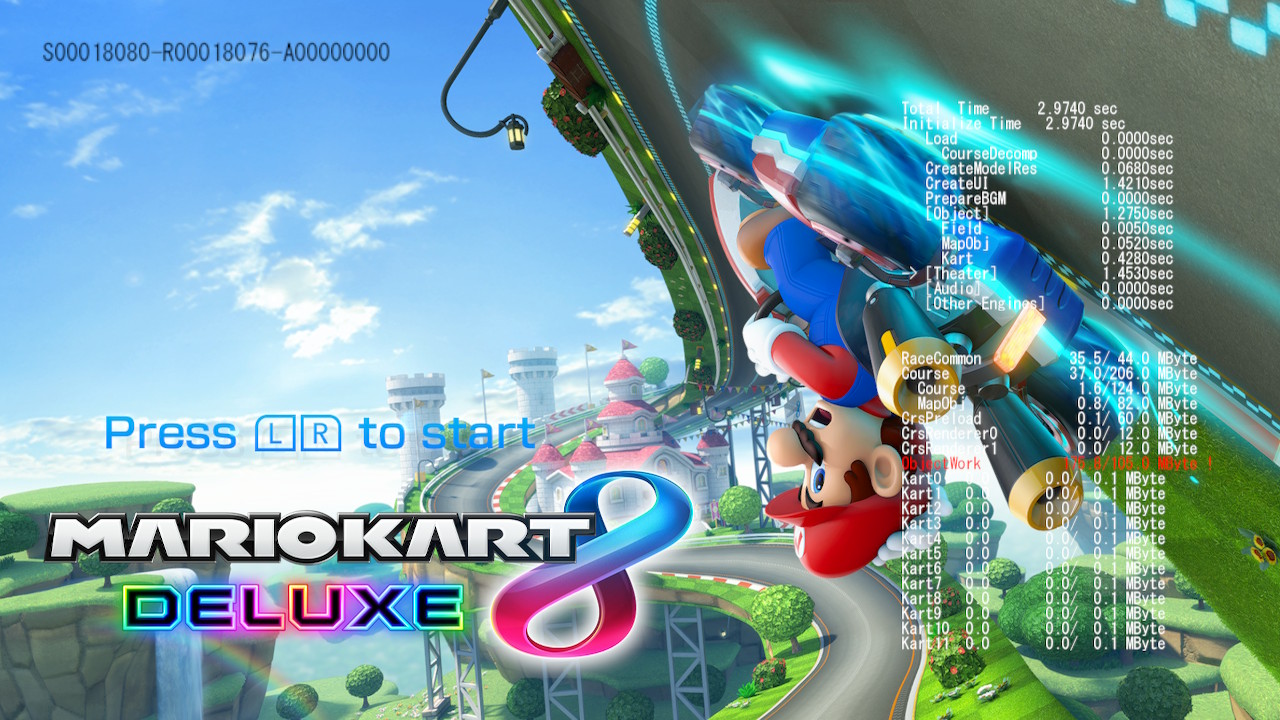
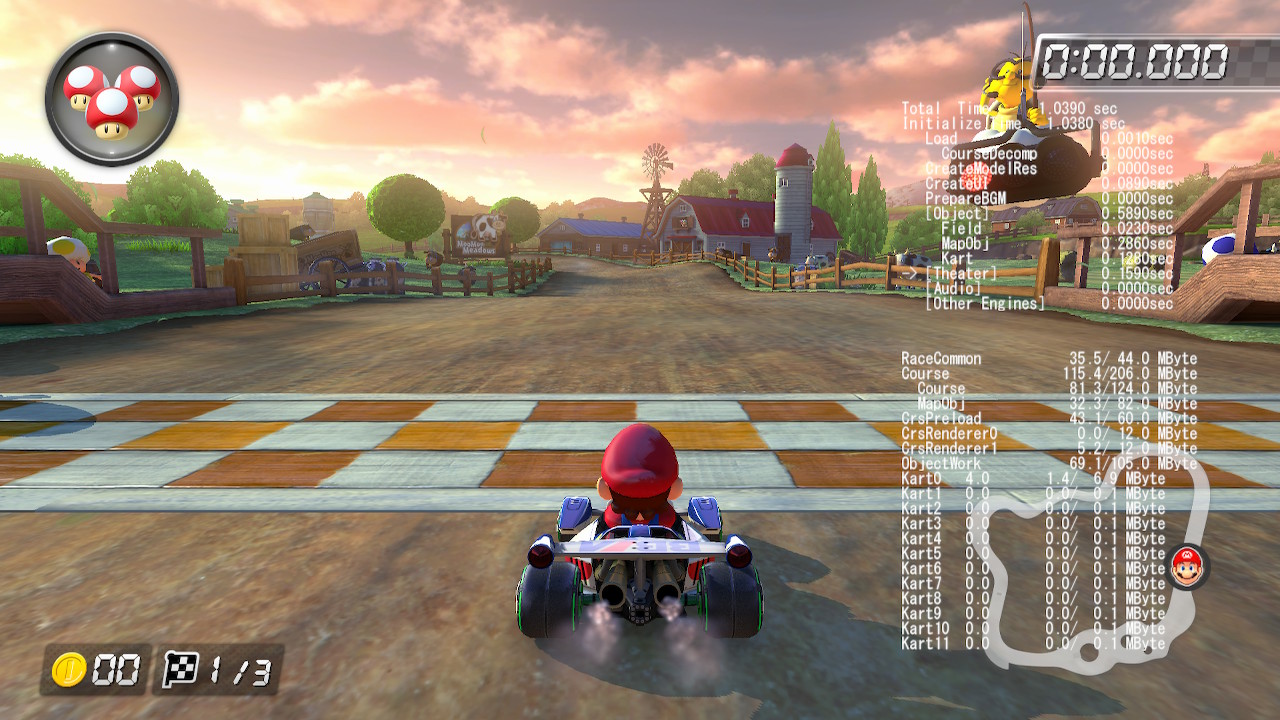
Debug Render Time & HEAP Usage Preview#
A debug text preview displaying what could be seen as a render time and HEAP usage of elements loaded in the scene. It only appears if a debug controller is connected and it is displayed in the start of the title screen and race; it disappears after few seconds. It is always visible if the debug controller type is set to Screen and the page is Console. On the second bottom part, it shows the MB loaded and next to it, probably a safe or recommended maximum MB to be loaded. Sometimes, ObjectWork is higher than the max. When the value is higher than the maximum, the text is red.
|
Title Screen |
Race |
|---|---|
|
|
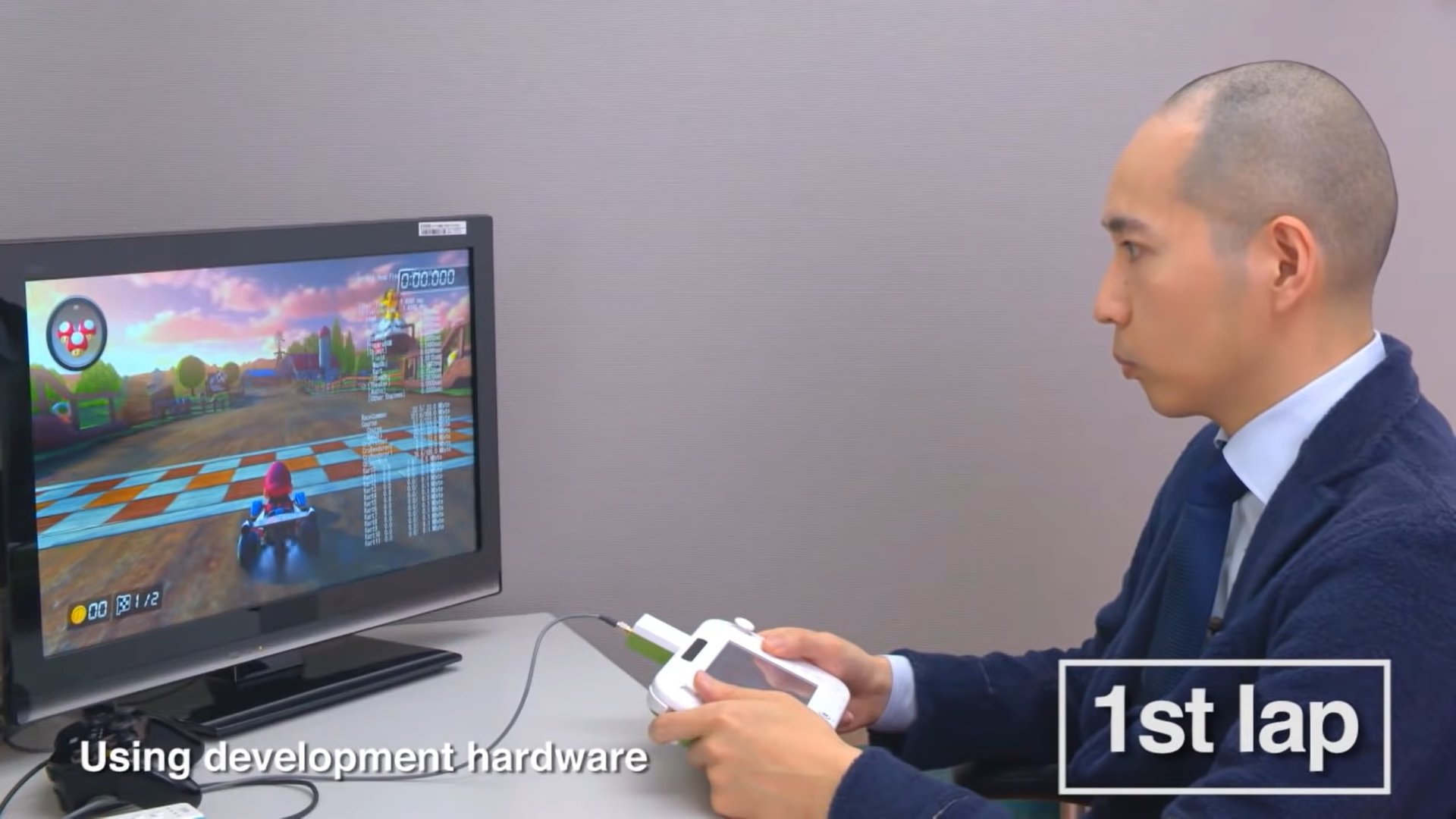
This same feature was shown on Mario Kart 8 Direct from April 30th, 2014. This puts more strength to the theory that the debug features from this Prototype came from Mario Kart 8 Wii U. Same goes for the debug folders and function names from the Kiosk Demo version of Mario Kart 8 Wii U. A black Wii Classic Controller Pro can be seen at the bottom left of the picture, this is a debug controller that is probably connected to the console, thus why the debug text appears on the screen. The Wii U Gamepad seen is a Cafe DRC-DK-TV Gamepad, it is unknown if it can be used as a debug controller, in the game's code, there's a controller labeled as "WiiUDebug" which could be this gamepad.
Item Cycler Selected Item#
When cycling items with Item Cycler, a text displaying the selected item name is displayed below the first item roulette slot. The text remains on the screen even after using the item, having no item in slot or having a legit item. You can see the text by watching the video of the Item Cycler in the Debug Controller Features page.
Toggle Slow Motion Speed#
When enabling Toggle Slow Motion, a text displaying the speed is displayed at the top left corner of the screen . When advancing frames, the text is only shown on the advanced frame, and hidden when the game is paused on the advance frame mode. You can see the text by watching the video of the Toggle Slow Motion in the Debug Controller Features page.
Process Meter Bars#
With the Toggle Process Meter Bars feature, two bar modes have texts to display what each bar represents. You can see the text by watching the video of the Toggle Process Meter Bars in the Debug Controller Features page.
Debug Controller Modes & Screen Types#
When changing the Debug Controller Mode by using the Toggle Controller Modes & Screen Types, a text is displayed an the top left corner of the screen displaying the mode. It appears blinking for few seconds, then stops blinking and disappears after few more seconds. There are also many different texts on the Screen Types displaying many different information about different game elements. You can see the texts by watching the video of the Toggle Controller Modes & Screen Types in the Debug Controller Features page and also see the different information texts of the screen types in Debug Screen Type Pages.
Debug Item Probability Display#
When using the Debug Item Probability Display feature, there is text displaying the value of the rank distance and item probability value. You can see the texts by watching the video of the Debug Item Probability Display in the Restored Debug Features page.
Kart Spring Value Display#
When using the Kart Spring Value Display feature, there is text display the value of the kart spring on the top left of the screen.
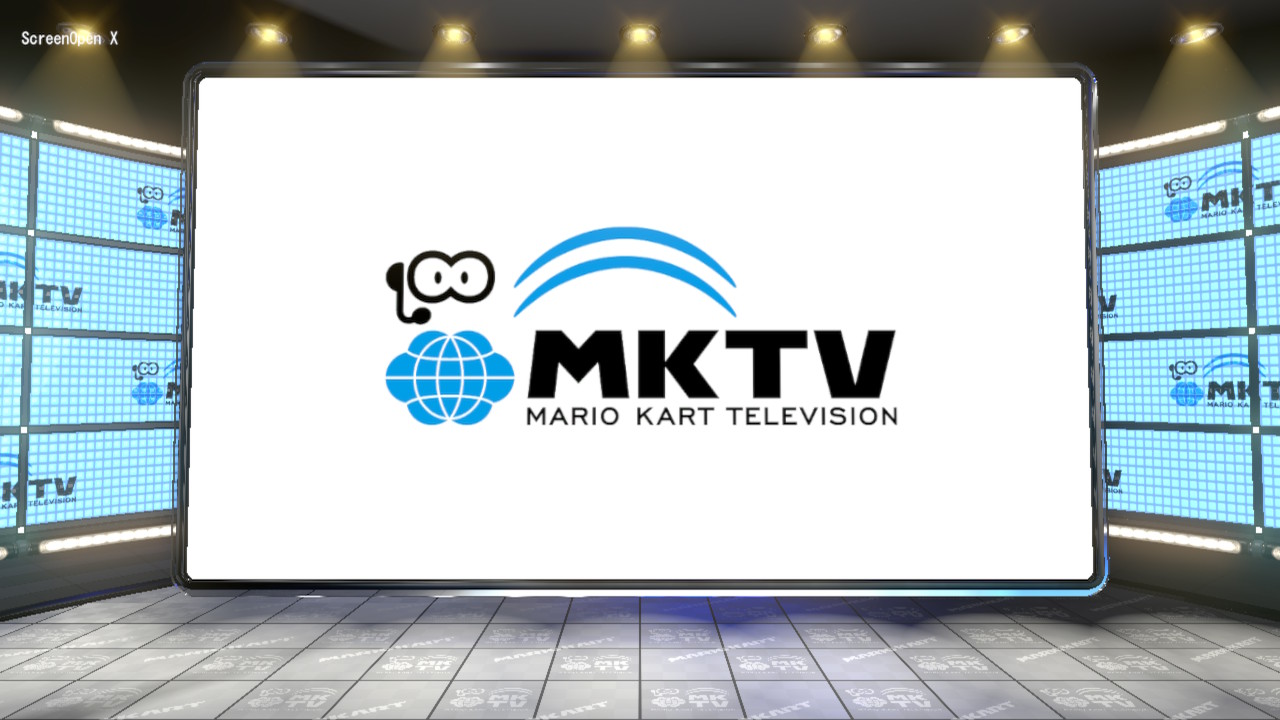
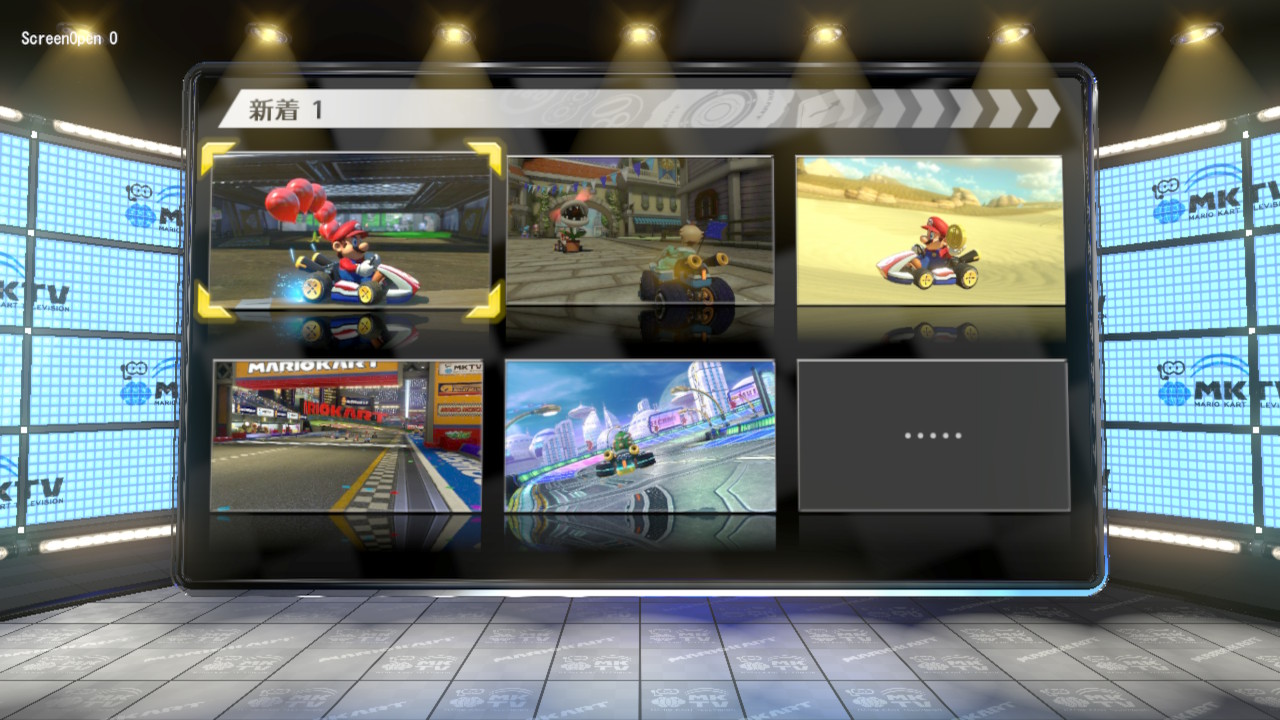
MKTV Video List Board#
When in MKTV, at the top left corner, a text displays if the video list is visible on the board or not. X for when it isn't and O for when it is. There is also a text saying what page the board is on, shown in Fukuoka page from Debug Screen Type Pages, which is accessed with Toggle Controller Modes & Screen Types feature.
|
Video list not visible |
Video list visible |
|---|---|
|
|
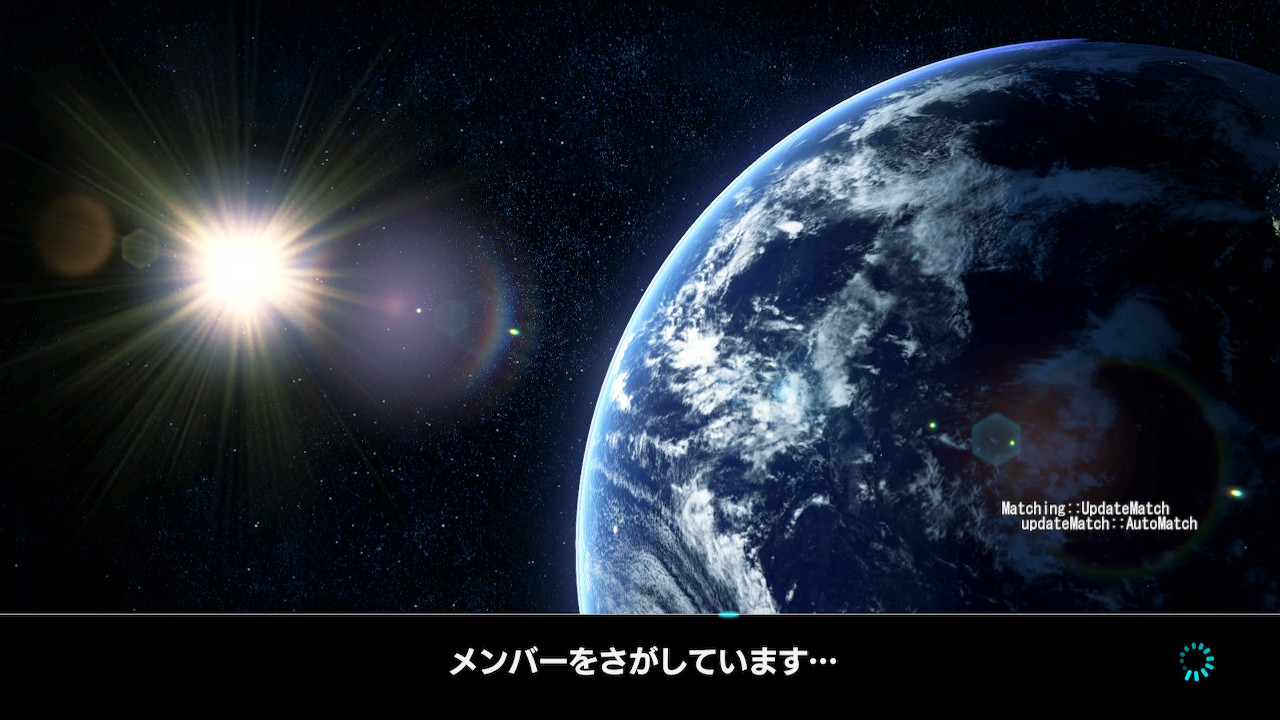
Online Matching#
When searching for an online lobby, at the bottom right half, two texts display what could be assumed to be some sort of match state.
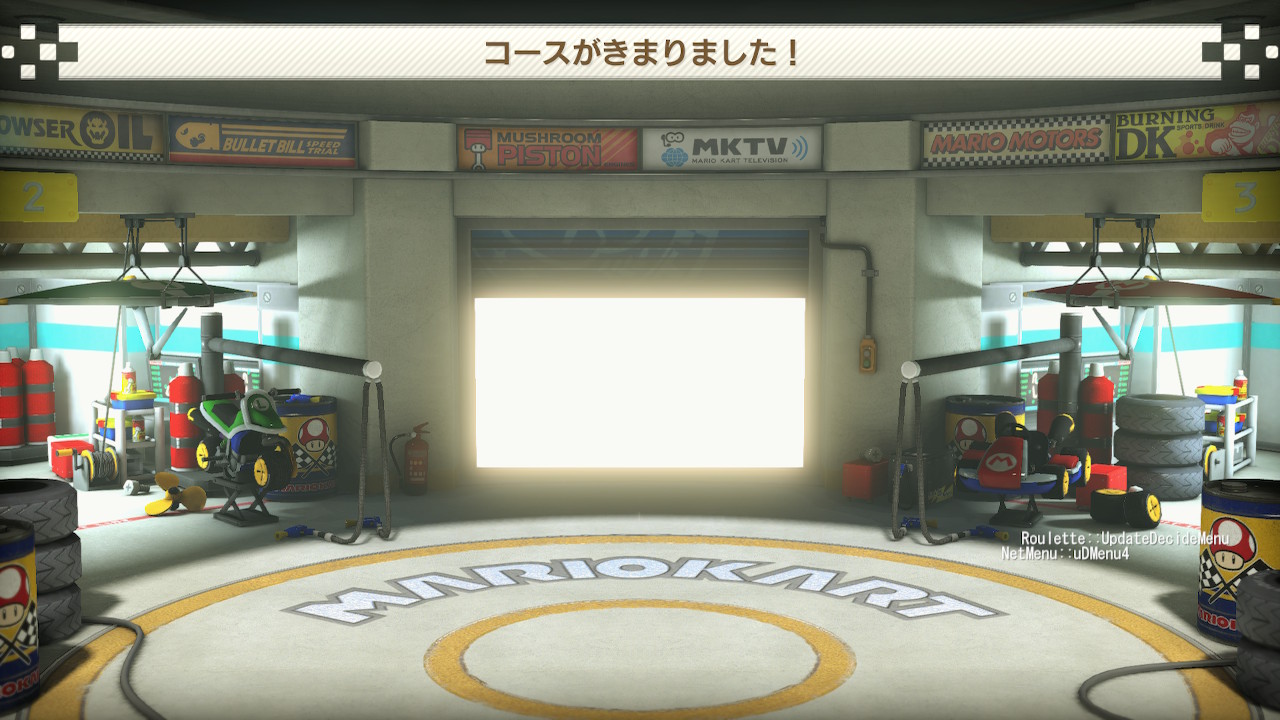
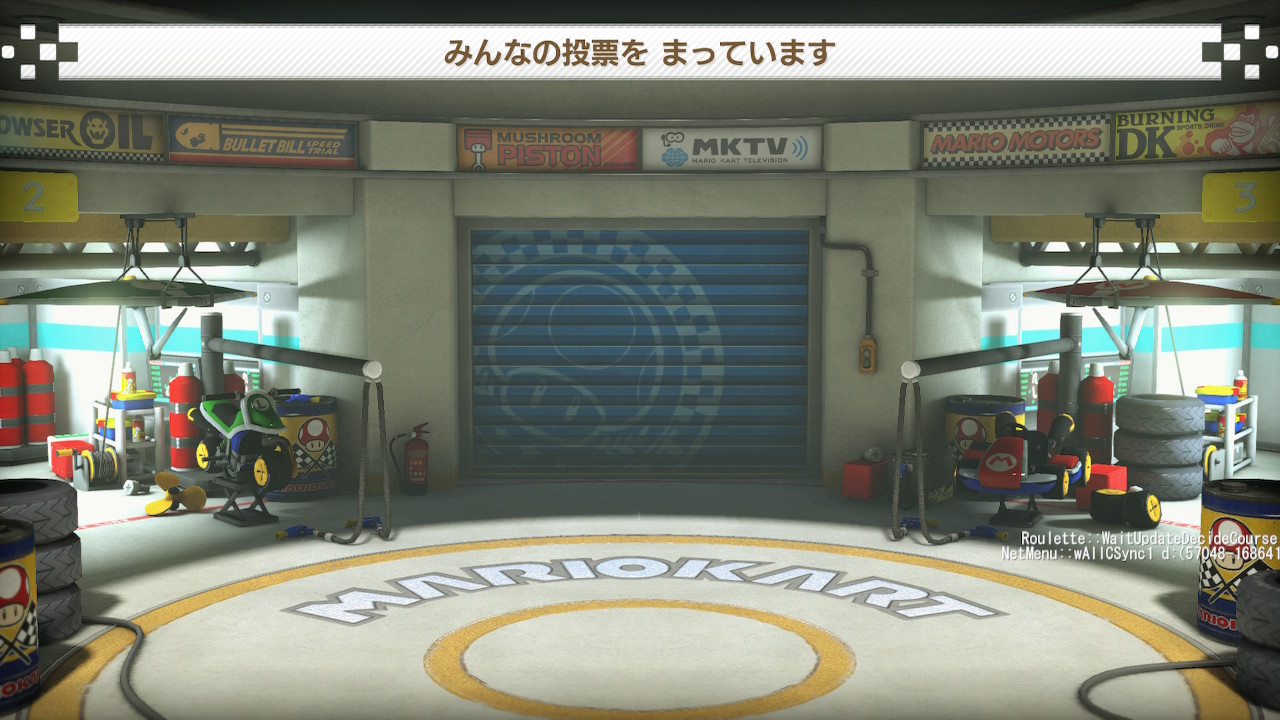
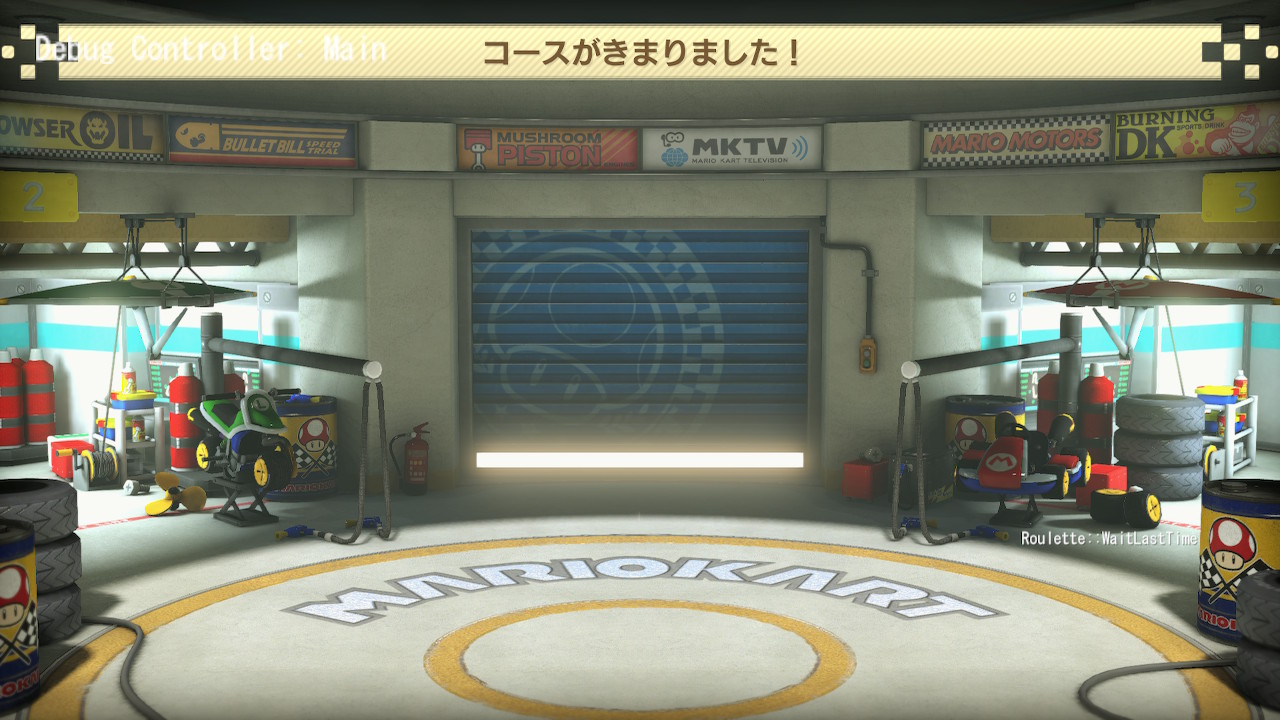
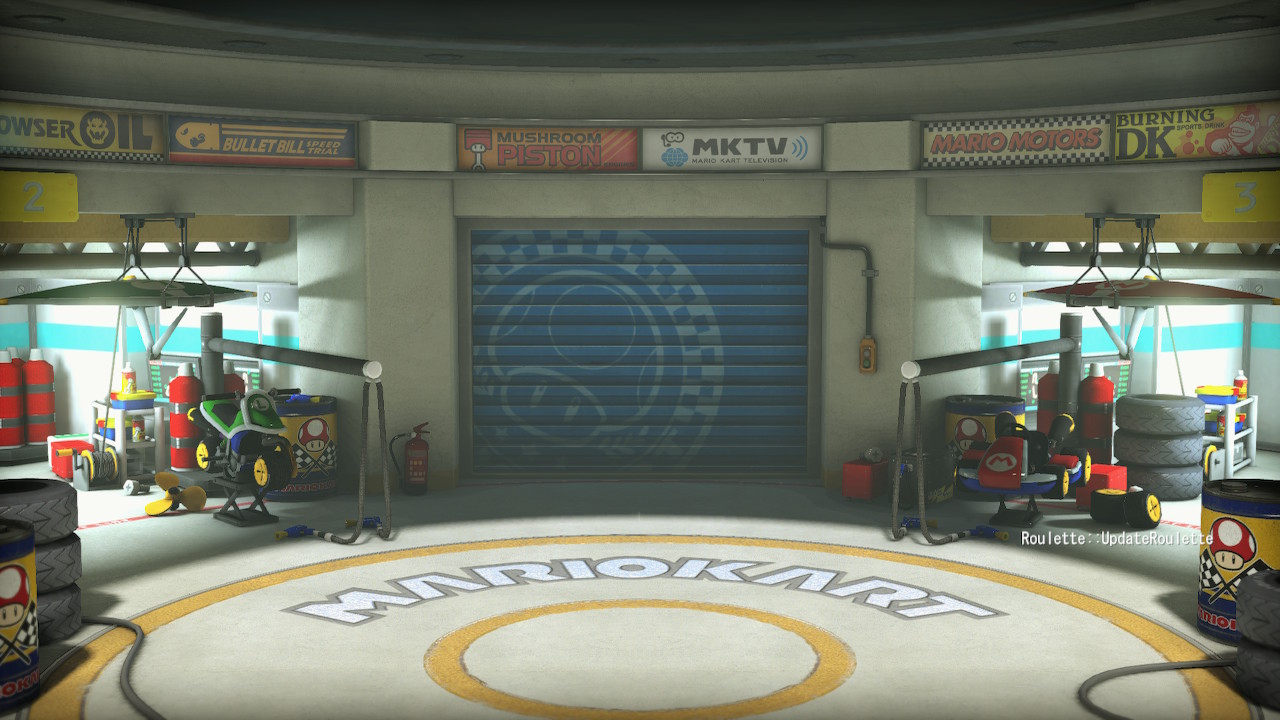
Online Voting Roulette#
When voting for a track online or in Wireless Play/LAN Play, at the bottom right half, texts display the voting state. Sometimes, it is one text, sometimes, it is two texts. There are many different states with different text messages. At least four examples are shown below.
|
UpdateMenuDecide |
WaitUpdateDecide |
|---|---|
|
|
|
WaitLastTime |
UpdateRoulette |
|---|---|
|
|
Customizer Parts#
The Customizer scene has text displaying the selected driver, kart, tire and glider. You can see the texts by watching the video of the Customizer scene text in the Debug Menu page. If the Script "Util_DisableDebugScreen" is enabled, the text will be gone and navigation will not work.
Debug Features used in Nintendo's Videos#
Nintendo uses different Debugging Material in their videos to have better quality showcases. Below you can see some of the known and also assumed features they use.
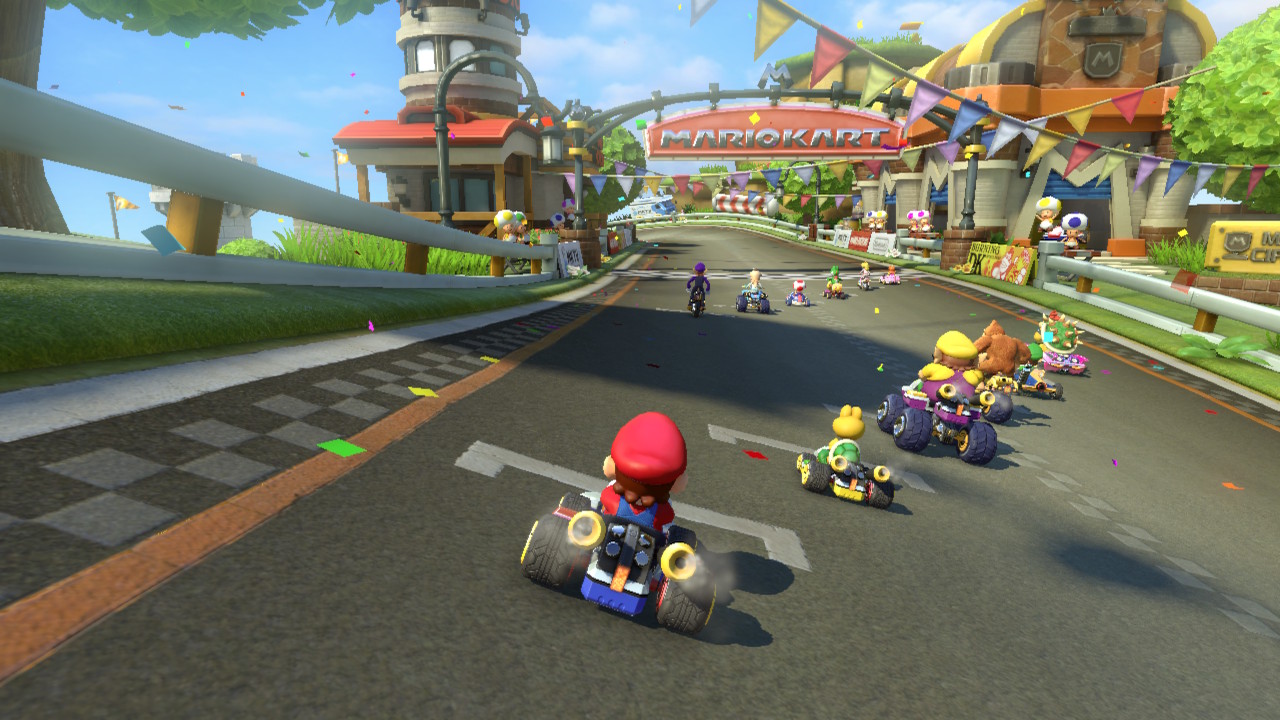
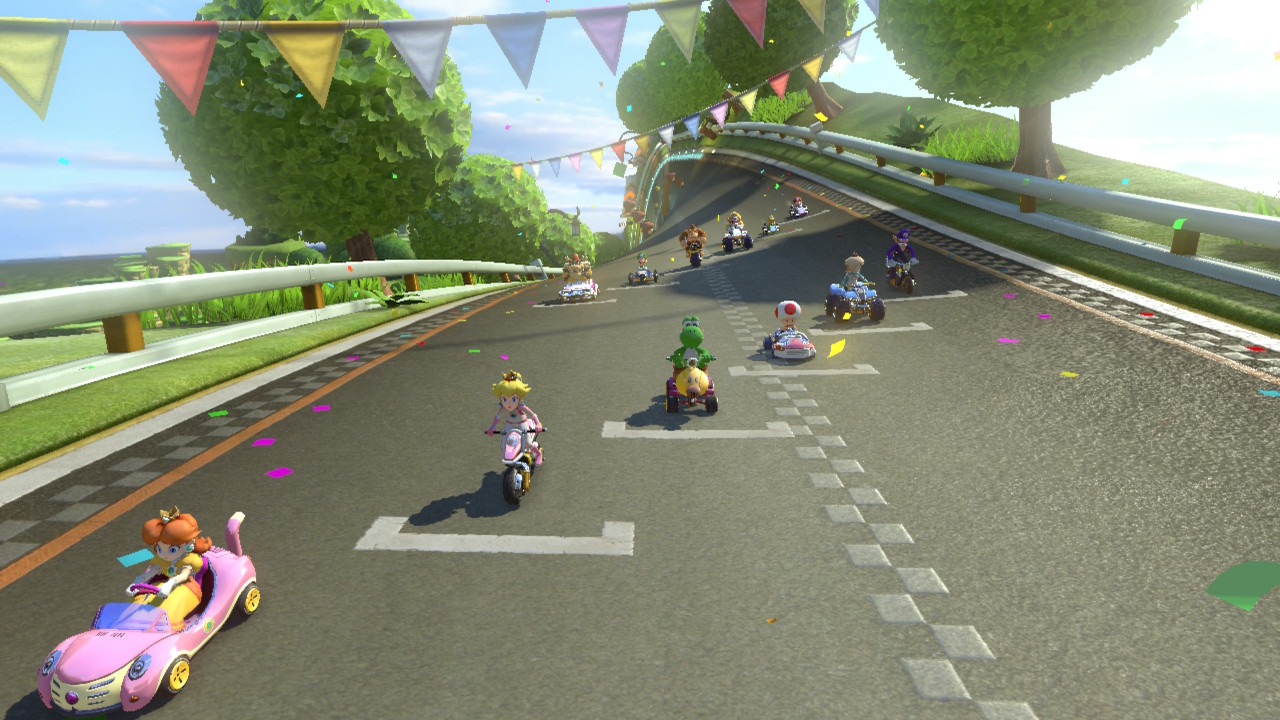
Set Character & Vehicle Parts Combo#
Nintendo uses different Script that sets given character & vehicle combos for their videos. There is a combo set that can be called the "main" set because of how much it is used on Nintendo's videos and also because most of the other combo sets are small changes of the "main" combo set. There are also other scripts with set family characters such as all Yoshi with different colors, only Koopalings on Koopa Clown, Baby Characters only etc... The combo player order is randomized, for example, at times, Yoshi on Wild Wiggler might be player 1 and Mario on Standard Kart can be player 7, at other times, Mario on the Standard Kart can be player 10 while Yoshi on the Wild Wiggler is player 4. With the release of Mario Kart 8 Deluxe and the Booster Course Pass DLC, there is a possibility that some combo sets were changed or new ones were added. Almost all combo sets used on Nintendo's videos are present on this debug build, with only a few missing (either changed, removed or replaced) or manually changed on the Debug Menu.
|
"Main" combo set |
"Main" combo set |
|---|---|
|
|
Disable Characr Voice and Music#
Nintendo uses a Script that disables character voices and music for short gameplay videos, usually the ones shown in ads.
Hide Layout Visibility#
Nintendo uses a Script or Debug Controller Feature Toggle Layout Visibility that hides all in game interface.
Hide Debug Screen#
Nintendo probably uses this Script that disable most debug screen elements, such as Debug Text Display. There is a probability that some vsmall videos, mostly ad videos, have items received by using Item Cycler, so, this feature is useful to hide the debug text.
Different Camera Features#
Nintendo uses different camera tricks on their videos. Some of them are obvious and others are assumed. The Debug Controller Feature Toggle Free Camera is probably used on some shots. It seems like they also use features that plays the course intro camera as well as features that can make the camera comes from far and then does some animation or follows the kart then focuses on a target kart. On the game's code there are functions related to targetting camera to a kart and disabling the course culling, other functions about these have not been discovered yet.