 This article has a talk page!
This is a sub-page of Proto:Forza Motorsport/March 5th, 2005.
A plethora of debug functions and on-screen strings can be enabled by loading ForzaDebug.xbe or ForzaPerfRelease.xbe with the required files and hardware. These functions are available right from the get-go or require you to press a certain button combination to activate them.
Main Menu Debug Menus#
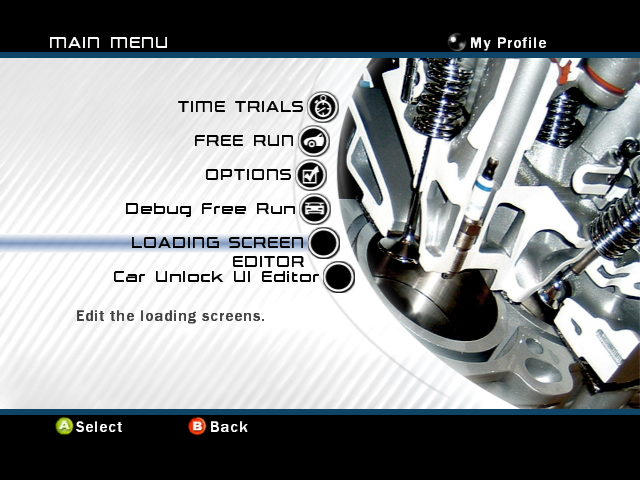
A total of three options can be found on the main menu by scrolling down to the selections below "Options". Some of these selections have specific icons or descriptions, which are still present in the final game.
Debug Free Run#

|
To do: |
(Description: Debug Free Run REMOVE)
Debug Free Run mode lets you pick any car and drive on any course mentioned in tracklist.xml. From top to bottom, you can select your car with the D-Pad (known here as "Ordinals"), choose any of the preset customized cars you've saved during the Career Mode, select any track, select the amount of laps (pick between 1, 3, 5, 7 and infinite), and view any replays you've saved. The game will simply return to the main menu if no replays are saved, and will crash when no course was selected beforehand, or when the game attempts to load customized cars without having any of them saved. Entering a race without having played a course before will show no loading banner at all.
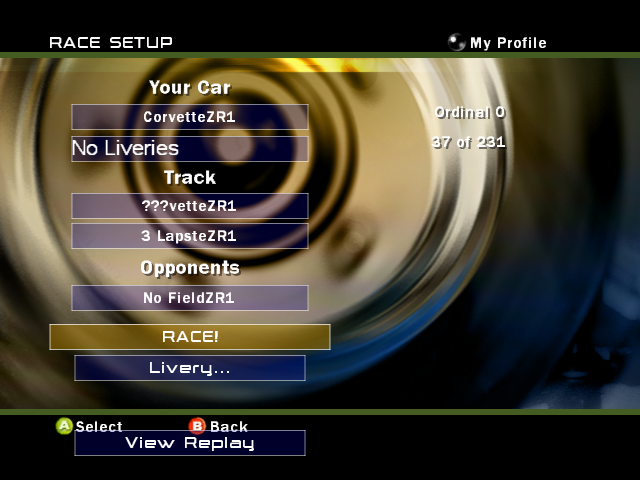
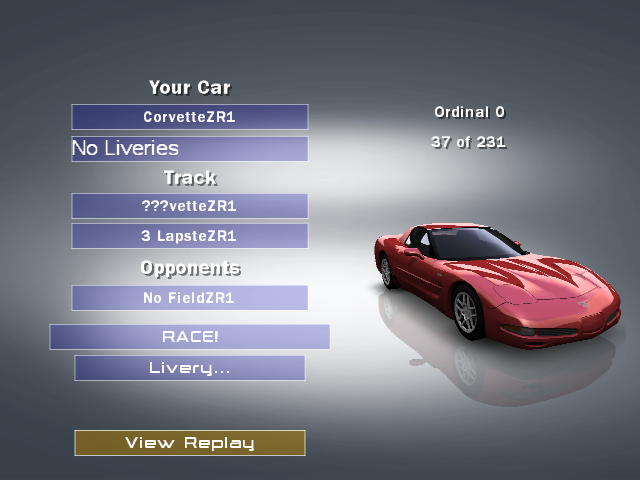
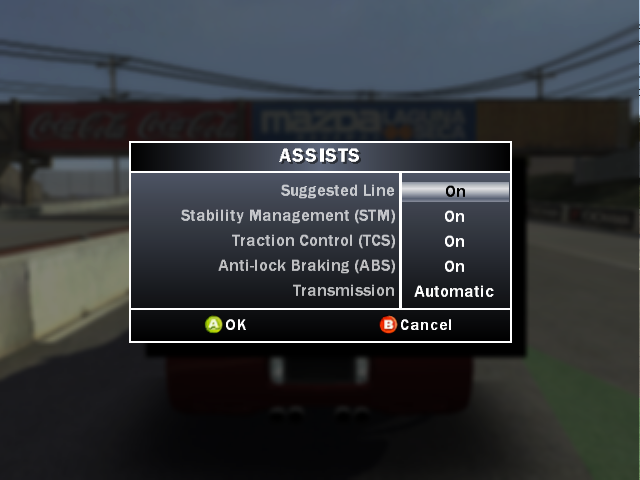
When in-game, there's no Starting Grid menu to tune or load car setups or countdown timer. Crossing the finish line will abruptly end the race and send you back to the main menu. The "Assists" option will be available on the pause menu as well for tweaking the car assist settings during a race.

If you're running this on an Xbox with 64MB of RAM, no car preview will appear on-screen and the game will freeze when attempting to load a track or exit to the main menu.
Loading Screen Editor#
(Description: Edit the loading screen.)
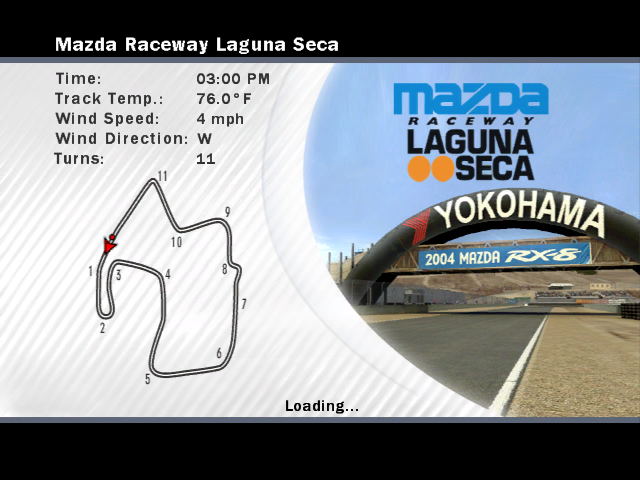
The Loading Screen Editor lets you view all used loading screens present in the game. Combined with the debug overlay, you can edit the screen and text's position. It doesn't appear to work as intended however, as it's stuck on the loading banner for Mazda Raceway Laguna Seca at all times.
Car Unlock UI Editor#
The Car Unlock UI Editor is a similar story to the Loading Screen Editor. Upon loading the editor, the game will unlock three random cars to be used for the Career Mode, and combined with the debug overlay will let you edit background and text positions.
If no Career Mode save data exists yet, an assertion failure will occur due to no rarity region being set, though the game will run fine when prompted to continue.

If you're running this on an Xbox with 64MB of RAM, no cars or congratulation message will appear on-screen and the game will freeze when trying to load the next car.
Debug Overlay#
|
|
To do: |
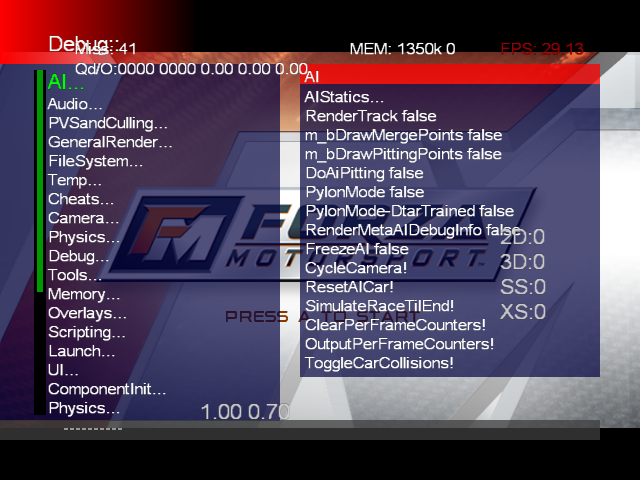
The very excessive Debug Overlay can be enabled by either pressing Start, Back, White and Black or L, R, Left Thumbstick and Right Thumbstick all at the same time. By default, the game will automatically switch to the InputToOverlaysOnly cycle, and switch back to InputToGameFirst once closed. To close the menu, press Back.
On the top of the screen, the game shows how many total frames of in-game lag have passed, memory usage and FPS.
Input Cycle#
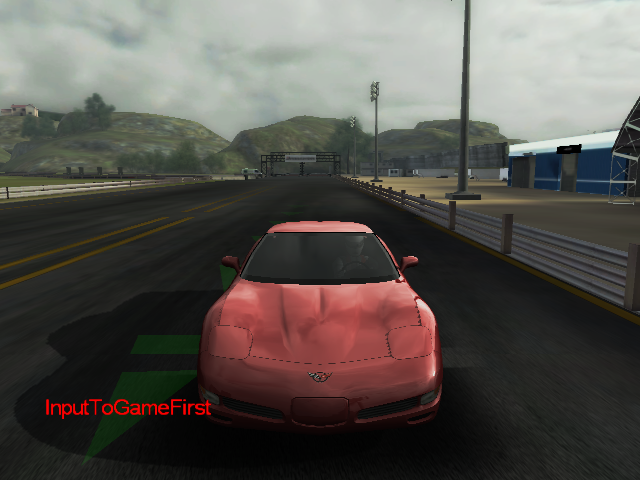
By either opening or closing the debug overlay or clicking the Right Thumbstick while holding the Left Thumbstick lets you cycle through different overlay interaction modes. Text should appear on the bottom left of the screen indicating what menu option has been selected. These options will prioritize or disable input.
- InputToGameFirst - Prioritize the game before the debug overlay. You can still control the debug overlay with the D-Pad.
- InputToOverlaysFirst - Prioritize the debug overlay before the game. This disables main menu control, but you can control your car during gameplay.
- InputToOverlaysOnly - Disable all in-game controls and only control the debug overlay.
Crash Log & Mini-dumps#
|
|
To do: |
If the game were to find an invalid setting or missing file at any point, the game will abruptly stop on either a blue or transparent screen containing some crash information. A *.bmp screenshot is also automatically taken right after the crash and saved in E:\TDATA\4d53006e on the Xbox hard drive. There are two types of crashes: Assertion Failures and Unhandled Exceptions.
Assertion Failures shows an excessive list of info, from top to bottom an error message, indicated source file, function, code line, build date, launched executable, and a RAM dump. You can press A to create a mini-dump, which exports the on-screen text to E:\TDATA\4d53006e in the form of a *.dmp file. Pressing B will prompt the game to continue running. If no further Assertion Failures occur, the game will continue running like normal. Pressing X will freeze the game entirely and force you to restart your Xbox.

Unhandled Exceptions doesn't give away much info and gives you no way out. It'll only show the exception code, the build date, a mini-dump prompt, and a prompt to crash the game and debug the error code if you press B.

A mini-dump's filename is determined by the Xbox's name set in the XDK Launcher, followed by a random string of numbers. If UploadMinidumps is set to 1, the game will attempt to upload the created mini-dump to a server assigned in TicketTracker.cfg. If it's set to 0, or it finishes creating the mini-dump, the game will abruptly stop and return to the Xbox Dashboard.

Mini-dump Settings#
TicketTracker.cfg helps keep track of the mini-dump settings that developers have assigned when a crash occurs. Below is the script provided as is from the prototype dump.
UploadMinidumpsHost=65.52.250.95
UploadMinidumpsPage=/debug_server/upload.aspx
UploadScriptName=CRASH_DONE
UseMinidumps=1
UseMinidumpsWhenDbgPresent=1
UploadMinidumps=1
The settings go as follows:
- UploadMinidumpsHost: Server that the crash will be uploaded to. The server in this file no longer exists.
- UploadMinidumpsPage: URL that the crash will be directed to.
- UploadScriptName: Name of the script that'll be uploaded.
- UseMinidumps: Enable/disable mini-dumps.
- UseMinidumpsWhenDbgPresent: Enable/disable mini-dumps when a debugger is present (only available through ForzaDebug.xbe).
- UploadMinidumps: Whether you want to upload your mini-dumps to the assigned upload page.