 This article has a talk page!
This page details one or more prototype versions of Chaos Wars.

|
This needs some investigation. |
A retail version of this game, with full debug functionality enabled, can be find within another game called Rogue Hearts Dungeon. This particular build can be find inside a disc image file named DUMMY1. This prototype version was compiled two minutes after the retail version. Unfortunately, the DVD image of this game is damaged. We have steps listed below to get this game working again which involves copying a few retail files, along with the contents of DUMMY1's files onto a new disc image.
Instructions#
A few things are needed in order to make this game run again. Things you will need in advance:
- A retail Japanese copy of the PlayStation 2 game, Rogue Hearts Dungeon.
- A retail Japanese copy of the PlayStation 2 game, Chaos Wars.
- Image backup software, such as ImgBurn.
- Internal virtual drive software, such as WinCDEmu to mount ISO files.
If you have the material listed above, proceed with the following steps.
- 1. Put your copy of Rogue Hearts Dungeon into your CD/DVD drive on your computer.
- 2. On the root of Rogue Hearts Dungeon's DVD folder, find a file called DUMMY1 and copy it somewhere on your computer. You can eject your disc after you copied the file.
- 3. Rename the DUMMY1 file to DUMMY1.ISO.
- 4. Virtually mount DUMMY1.ISO with your software.
- 5. With DUMMY1.ISO mounted, copy all of the files to a folder named CHAOSWARS to your computer. You can unmount DUMMY1.ISO after you are done copying the files over.
- 6. Put your Japanese retail copy of Chaos Wars into your CD/DVD drive.
- 7. With Chaos Warss root DVD folder open, copy and replace the following files to yourCHAOSWARS' folder:
- 7.1 Copy FC.DIR and, DUMMY.DAT which is in the root DVD folder to your folder of CHAOSWARS.
- 7.2 Copy EFFECT.UN2, EVENT.UN2, FACE.UN2, OPTION.UN2 and SCRIPT.UN2 which is in the UNION folder to your CHAOSWARS's UNION folder.
- 7.3 Copy BGM.AFS and SE.AFS which is in the DATA folder to your CHAOSWARS's DATA folder.
- 8. Finally, make an ISO image out of the files in the CHAOSWARS folder.
If you are using ImgBurn as your ISO creation software, click on the Create image file from files/folders button then drag and drop everything in the CHAOSWARS folder.
Debug Modes#
Debug Menu#

Pressing Triangle at the main menu will enable this menu. Selecting anything here will enable you to enter this menu again by pressing Select + Start at anytime. Selecting Dot Test does not work.
Text |
Translation |
|---|---|
マップテスト |
Map Test |
サブマップテスト |
Sub Map Test |
ランダムマップテスト |
Random Map Test |
ステージテスト |
Stage Test |
アジトテスト |
Hideout Test |
ムービーテスト |
Movie Test |
ドットテスト |
Dot Test |
イベント画像テスト |
Event Image Test |
カットインテスト |
Cut-in Test |
必殺技カットイン |
Special Technique Cut-in |
特殊攻撃テスト |
Special Attack Test |
UN2再登録 |
Re-register UN2 |
リスト更新 |
Update List |
エフェクトテスト |
Effect Test |
イベントテスト |
Event Test |
タイトルへ |
To Title |
Map Test#

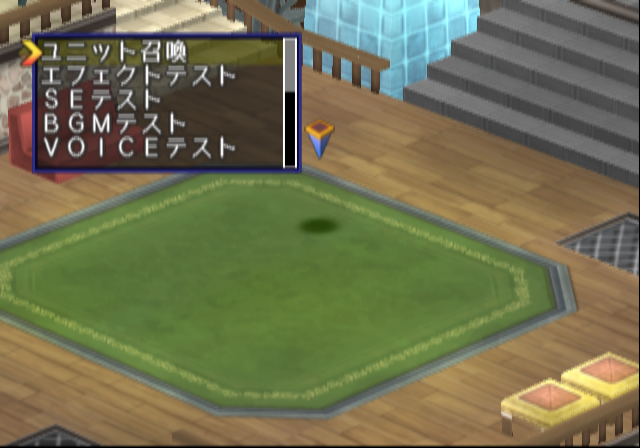
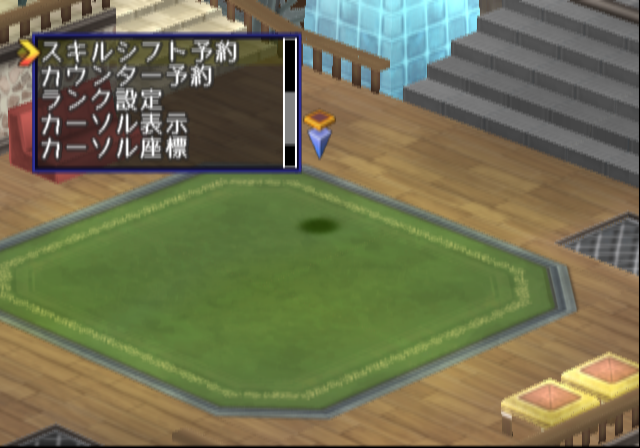
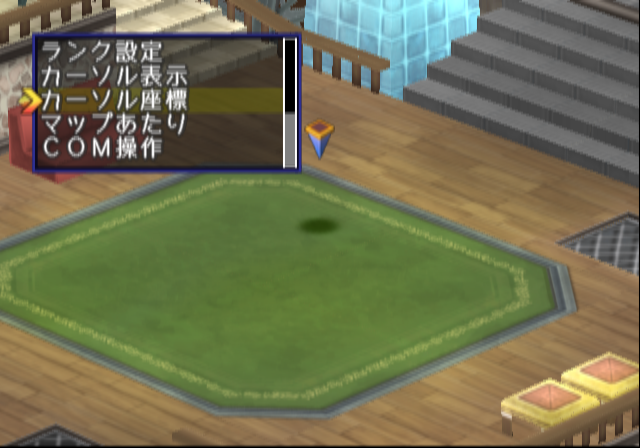
Selecting anything in this menu will instantly send you to a map. Pressing Square while in a map will open another debug menu.
Text |
Translation |
Notes |
|---|---|---|
ユニット召喚 |
Summon Unit |
Summons a unit with the weapons of your choice. |
エフェクトテストト |
Effect Test |
It is unclear what this does. |
SEテスト |
SE Test |
Allows you to play all of the SFX in the game. |
BGMテスト |
BGM Test |
Allows you to play all of the music in the game. |
VOICEテスト |
Voice Test |
Allows you to play all of the voices in the game. |
スキルシフト予約 |
Skill Shift Reserve |
It is unclear what this does. |
カウンター予約 |
Counter Reserve |
It is unclear what this does. |
ランク設定 |
Rank Setting |
Changes the rank of all units. |
カーソル表示 |
Display Cursor |
Toggles the cursor on or off. |
カーソル座標 |
Cursor Coordinates |
Displays a window on the lower left hand of the screen relating to the cursor's coordinates. |
マップあたり |
Map Collision |
Colors the map certain colors. Blue determines if the tile can be walked on, red determines if a character cannot stand on the tile. |
COM操作 |
COM Operation |
It is unclear what this does. |
Sub Map Test#

Another map select option. This menu sends you to various test maps with extra settings. It's unclear what the other settings in this menu do exactly. Selecting the first option allows you to change the test map you will enter.
Text |
Translation |
|---|---|
サブマップ |
Sub Map |
サブマップ中心 |
Sub Map - Center |
サブマップ右 |
Sub Map - Right |
サブマップ上 |
Sub Map - Top |
サブマップ左 |
Sub Map - Left |
サブマップ下 |
Sub Map - Bottom |
サブマップ右上 |
Sub Map - Top Right |
サブマップ左上 |
Sub Map - Top Left |
サブマップ右下 |
Sub Map - Bottom Right |
サブマップ左下 |
Sub Map - Bottom Left |
Start 決定 |
Start |
Random Map Test#

Selecting anything here will send you to a randomly generated map. After selecting a map number, you can choose how big the map will be. Valid numbers are 0 - 9. 9 being the largest map size.
Stage Test#

Selecting anything here will send you to story related maps. Pressing Select + Start in this mode will grant you an instant victory. In some cases it will progress story related events on the map.
Hideout Test#

This sends you to your various hideouts in the game. It is unclear what the valid numbers for this mode are.
Movie Test#

This mode would allow you to view the game's pre-rendered video files, however it is unclear what the valid numbers are.
Event Image Test#

This mode allows you to view all of the event image cut-ins in the game. Valid numbers start at 10.
Cut-in Test#

This mode allows you to view all of the battle cut-ins of characters.
Special Technique Cut-in#

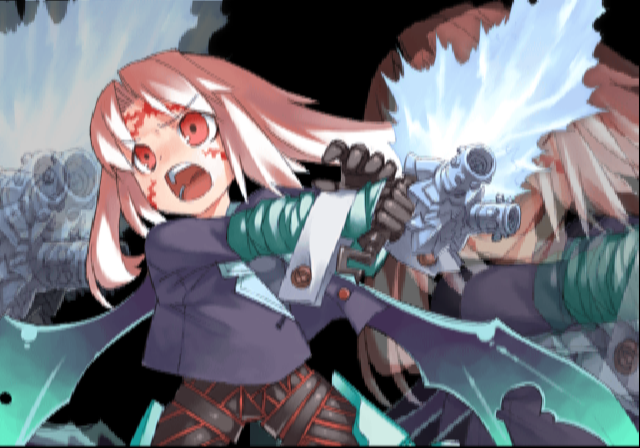
This mode allows you to view all of the special technique battle cut-ins of characters.
Re-register UN2#

It is unclear what this menu does.
Update List#
It is unclear what this does when selected. It takes a few seconds to return to the main debug screen after selecting this.
Effect Test#

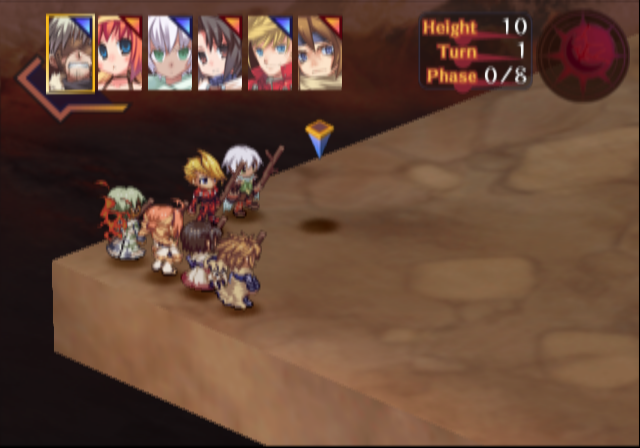
Selecting anything here appears to only send you to a test map with a few party members. The rest of the map has no objects in it.
Event Test#

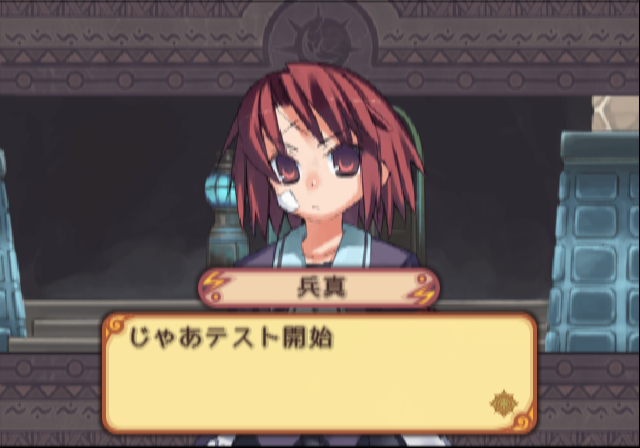
Using this option allows you to view the events in the game. Selecting event number 1 starts a test event. Regular events start at number 1120 and appear to increment by ten.
Debug Info 1#
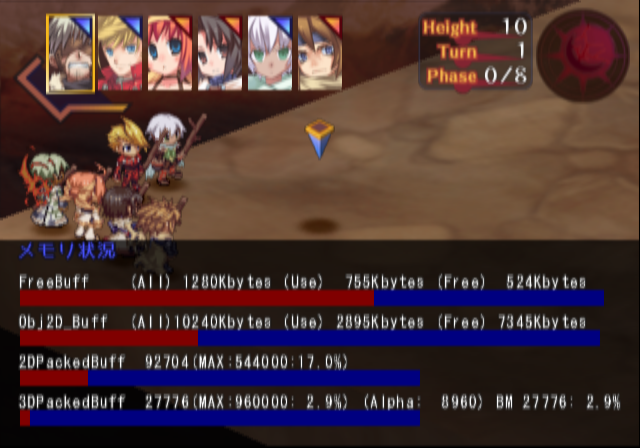
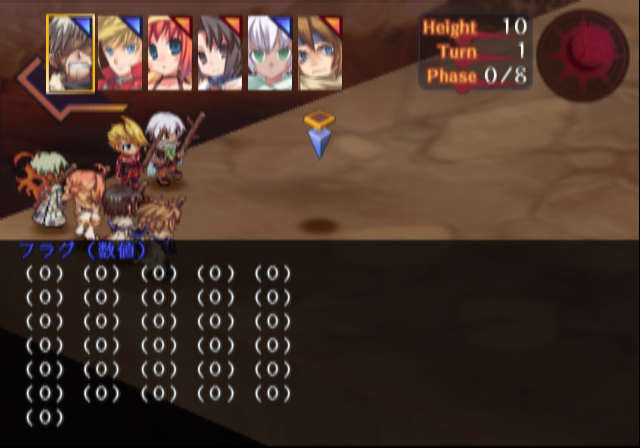
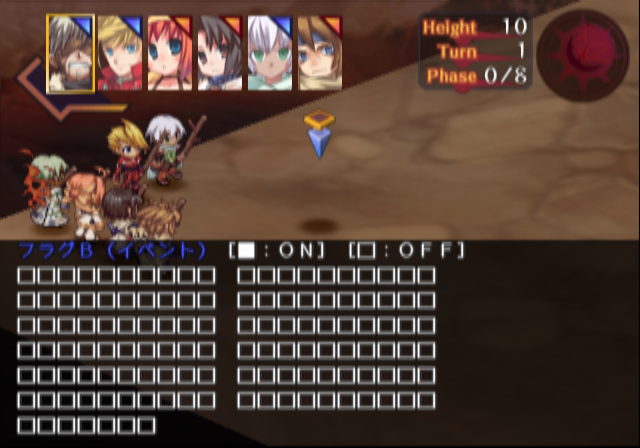
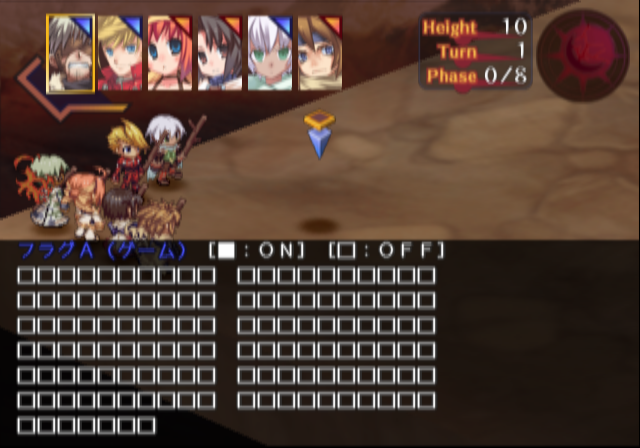
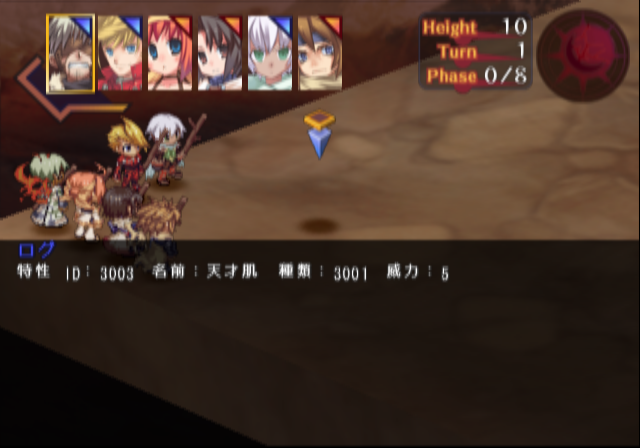
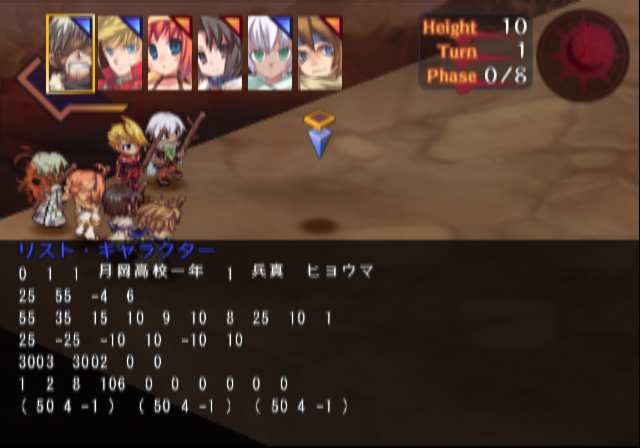
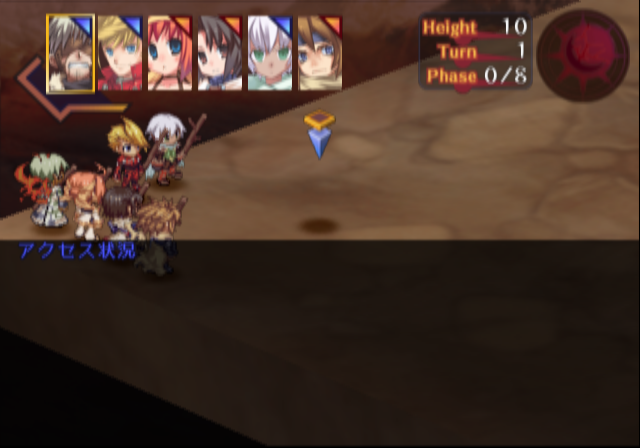
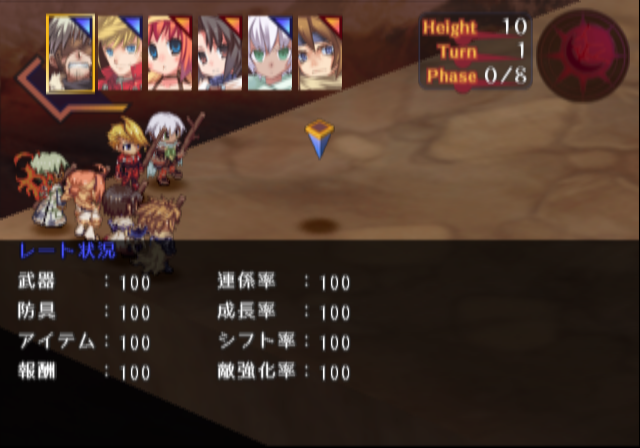
Pressing Select at anytime will bring up this info. Press R2 / L2 to change pages. This information mostly represents current story progress and flags set. It also allows you to view free memory.
Debug Info 2#
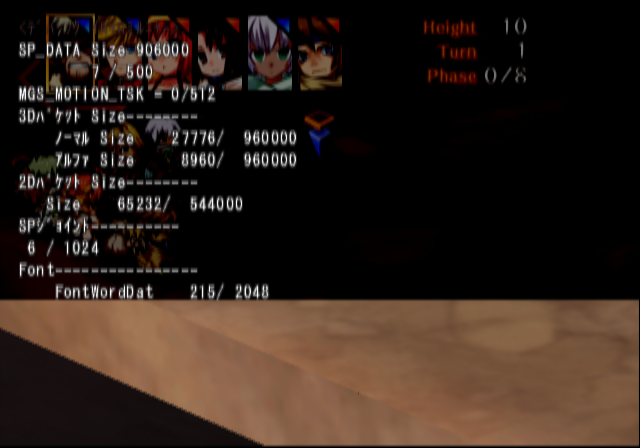
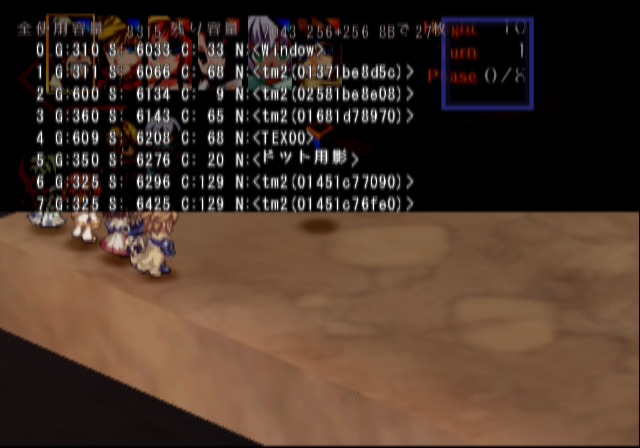
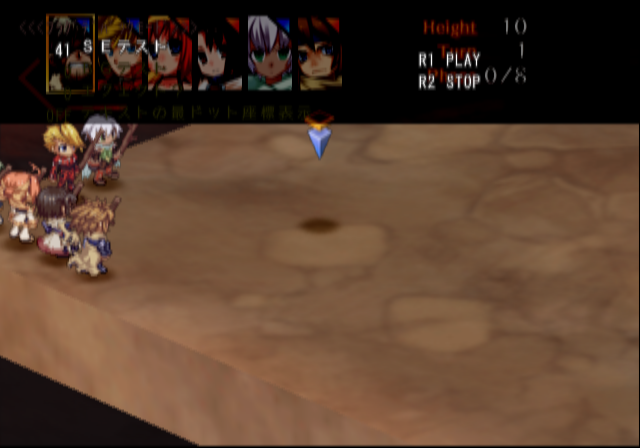
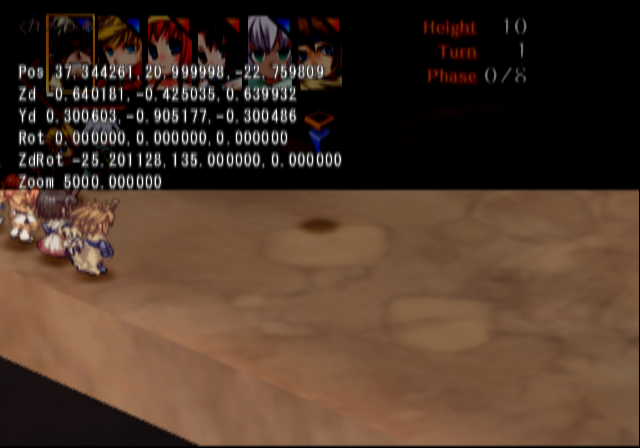
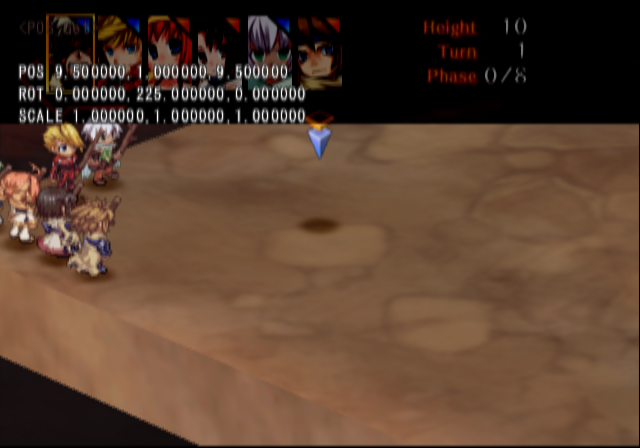
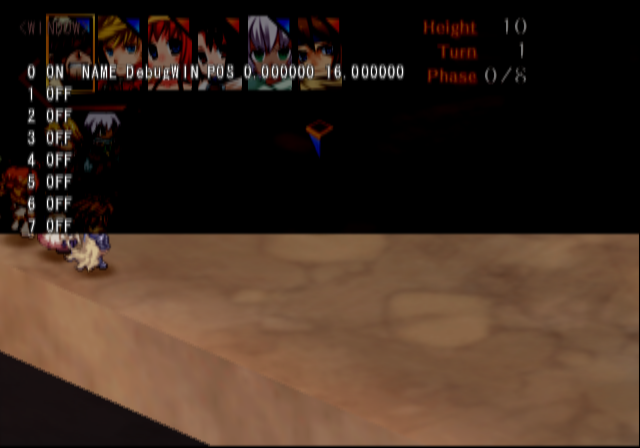

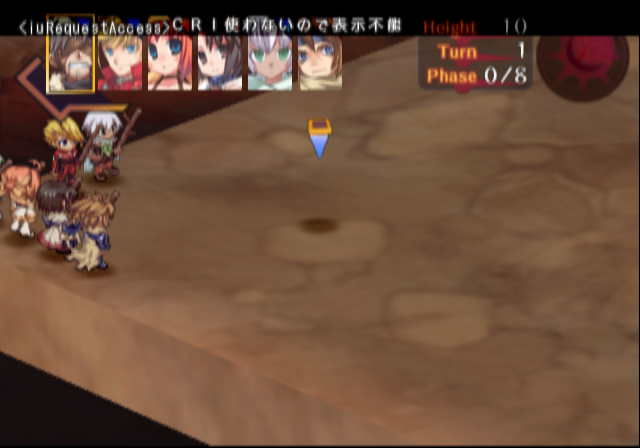
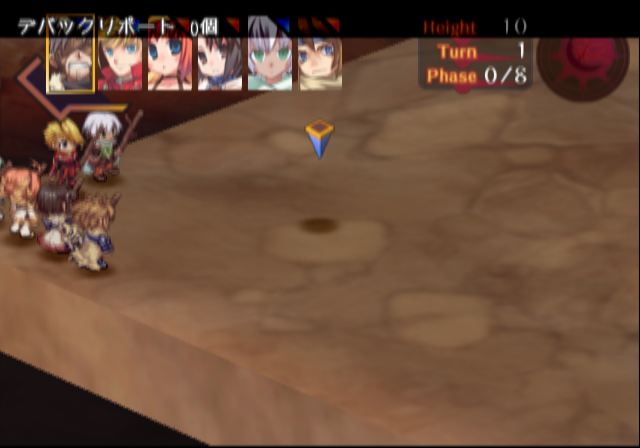
Press L1 + L2 to bring up this information. Press L2 / L1 to change pages. Parts of this information relate to the cursor's position on the map, the camera position, currently rendered graphics, a sound test menu (which doesn't appear to work), and a error handler. The error handler would report errors if the game encountered any, such as a missing map file.