 This article has a talk page!
This is a sub-page of Proto:Viva Piñata (Xbox 360)/Oct. 13, 2006 Builds.
The executable PinataParadiseDv is extremely different to all the other present executables, featuring lots of functions that are only present in this build. It doesn't even boot into the actual game itself!
Many scripts present in the files that don't work normally will do here (aside from ones broken due to missing assets).
Additional Differences#
- The text for the "Press START" button on the Title Screen (
aid_script_pinata_game_newfrontend_garden) displays "Press RB!" in this executable.- This is reflected in the controls, with RB taking the functionality of the Start button (E.g. to pause/unpause the game).
General Build Functionality#

- This build can connect to an available workstation with the right software and can communicate back and forth with it.
- If no workstation is available, set COMMS_DISABLE within
setup.inito true and set the hostname withinhostname.txtto "nohost".
- If no workstation is available, set COMMS_DISABLE within
- A debug camera is present in this build, which can be toggled between that and the player actor (if there is one in the active scene).
- A ticker gauge is present in the top-right corner.
- A general star menu can be accessed/closed at any time by pressing Start.
Controls |
|---|
Button |
Back + RB |
Back + LB |
Debug Camera Controls |
|---|
Button |
Left Stick |
Right Stick |
D-Pad |
LT / RT |
A |
B |
Star Menus#
Various "star menus" are present in this build, all with different functionalities and appear depending on the current scene. Navigation is done by pointing the Left Stick in the direction of the option. A is to select the highlighted option and B is used for backing out.
Default Menu#
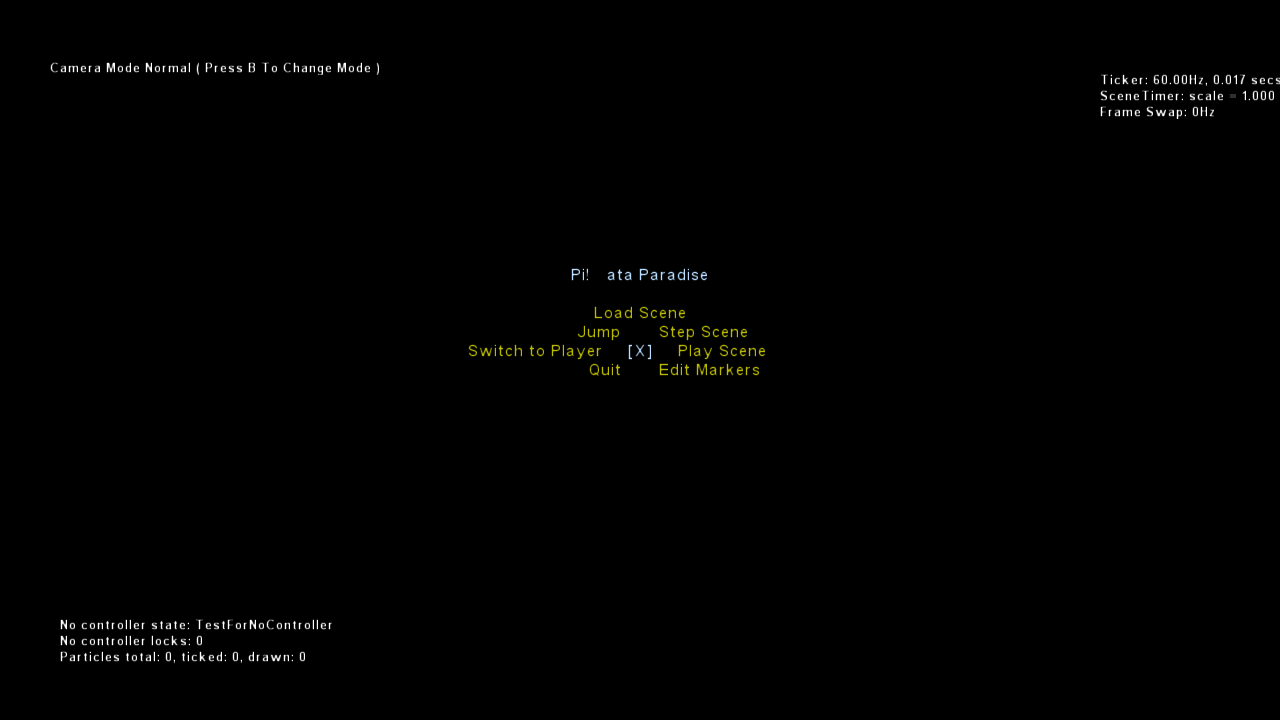
The main star menu which is used for a lot of scene navigation. This is what you are loaded into when starting the build.
Text |
Direction |
Function |
|---|---|---|
[X] |
Center |
Exits the menu. |
Load Scene |
Up |
Pulls up a menu for loading any available script file. |
Step Scene |
Up + Right |
Progresses the active scene by a frame. |
Play Scene |
Right |
Starts or pauses the active scene. |
Edit Markers |
Down + Right |
Pulls up the Marker Editor |
Quit |
Down + Left |
Closes the executable. |
Switch to Player |
Left |
Switches between the Debug and Player Camera (if the scene has one). |
Jump |
Up + Left |
Restarts the active scene. |
Depending on if there are any additional menus active, an extra option will be present at the bottom of this menu.
Text |
Direction |
Function |
|---|---|---|
[Marker Editor] |
Down |
Only present if the Marker Editor is active. |
[ModelAnim Viewer] |
Only present if the ModelAnim Viewer scene is loaded. |
Marker Editor Menu#
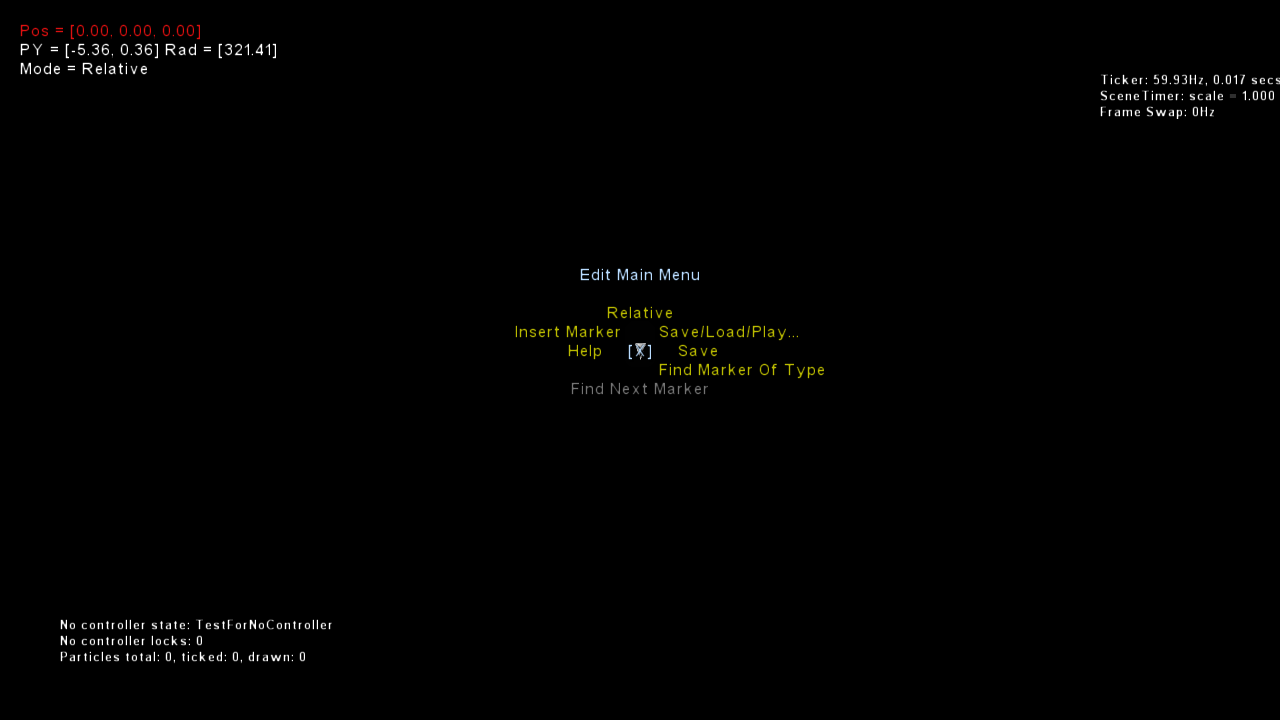
The star menu for the Marker Editor, available while the player is editing markers.
Text |
Direction |
Function |
|---|---|---|
[X] |
Center |
Exits back into the default menu. |
Relative |
Up |
Toggles the positional state of the cursor. |
Save/Load/Play… |
Up + Right |
Exits out of the Marker Editor. |
Save |
Right |
Saves the marker data if a host computer is connected. |
Find Marker Of Type |
Down + Right |
Pulls up a list of available marker types to search for within the active scene. |
Find Next Marker |
Down |
Finds the next available marker of the chosen type. |
Help |
Left |
If a host computer is connected, opens the help file |
Insert Marker |
Up + Left |
Pulls up a list of available marker types to add to the active scene. |
ModelAnim Viewer Menu#
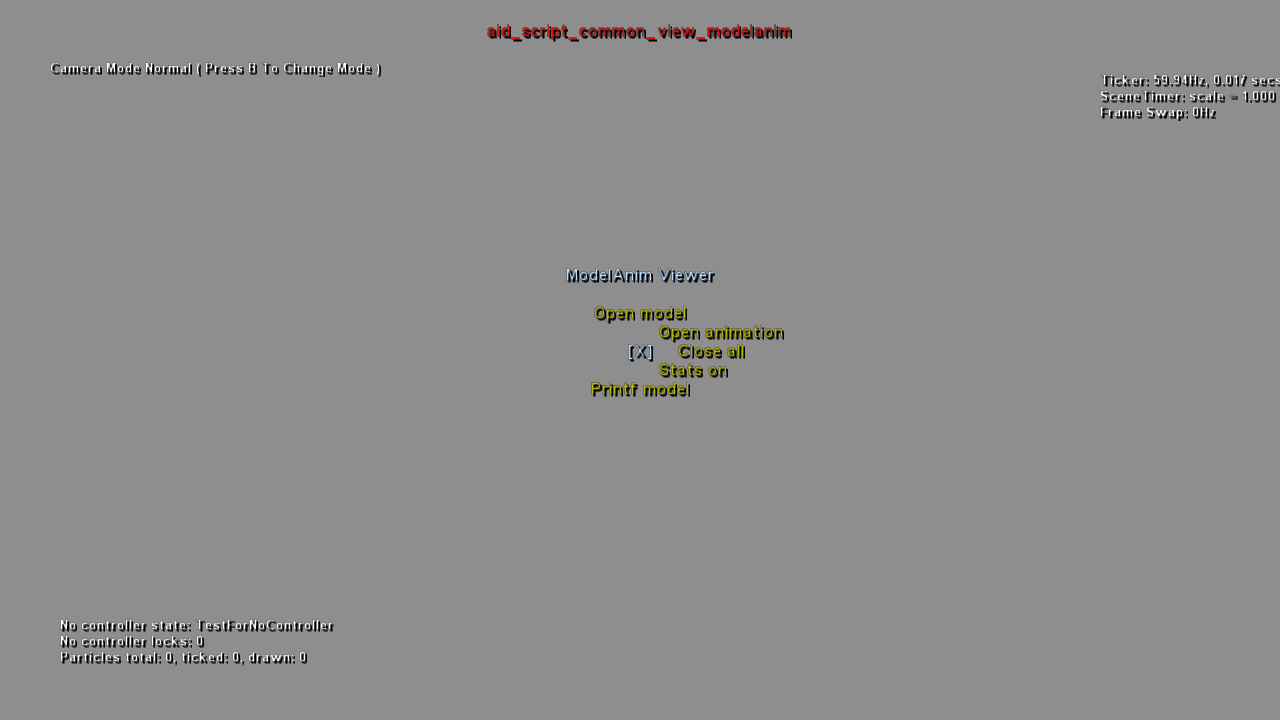
The star menu for the ModelAnim Viewer, available while the player is currently in the ModelAnim Viewer scene.
Text |
Direction |
Function |
|---|---|---|
[X] |
Center |
Exits back into the default menu. |
Open model |
Up |
Displays a list of available models to display. |
Open animation |
Up + Right |
Displays a list of available animations to assign to the active model. |
Close all |
Right |
Closes the currently loaded model and/or animation. |
Stats on |
Down + Right |
Displays information regarding the currently loaded model and/or animation on the lefthand side of the screen. |
Printf model |
Down |
If a host computer is connected, prints out information about the currently loaded model and/or animation to the log. |
Marker Editor#

The Marker Editor, accessed by going Edit Markers -> Fetch markers. While in this editor, all the placed marker points in the current scene are displayed.
Controls |
|---|
Button |
Left Stick |
D-Pad Up |
D-Pad Down |
D-Pad Left |
D-Pad Right |
X |
Holding A |
Holding B |
Holding RB |
If B is pressed while the cursor is hovering over a marker, an options menu will appear that affect said marker.
Option |
Function |
|---|---|
Properties |
Unknown Functionality. |
Delete |
Deletes the specified marker. |
Clone |
Duplicates the specified marker. |
Link |
Allows for linking two markers together. |
ModelAnim Viewer#

The ModelAnim Viewer, accessed by going Load Scene -> common -> view -> modelanim and is the file aid_script_common_view_modelanim within the game files.
The purpose of this is self-explanatory, most of the models and animation files found in the game files can be loaded by selecting Open model and Open animation respectively.
Controls |
|---|
Button |
Holding Back |
Y |
X |
Controller Test#

A controller test screen, accessed by going Load Scene -> common -> test -> controller and is the file aid_script_common_test_controller within the game files.
The purpose of this is also self-explanatory, the game will display information regarding your current controller inputs (if control is set to the player actor).
Buttons |
|---|
Section |
Status |
Pressed |
Released |
Ticks pressed |
Additional Debugging Functionality#
Debug Camera Stats#
Along with the regular camera mode display, there's an additional set of statistics for the Debug Camera that are disabled by default. These can be re-enabled by setting the value at 83578484 to 1, which will appear above the Controller stats.
Text Format |
Description |
|---|---|
debugCam: pos: { %5.2f, %5.2f, %5.2f }, rot: { %5.2f, %5.2f, %5.2f } |
Fairly self-explanatory, displays the debug camera's current position and rotation. |
debugCam: mode: (%d) %s (Button B to toggle) |
Also self-explanatory, shows the current camera mode along with the mode index beside it. |
Setup Files#
This build requires two specific files in order to function properly, hostname.txt, which contains the name of the workstation the game is intended to connect to, and setup.ini.
Setup Configuration File#
The file setup.ini contains various parameters that are read by the game for certain functions.
Option |
Description |
|---|---|
CommsSettings |
|
COMMS_DISABLE |
Sets whether Host Comms is enabled or disabled. |
DtapSettings |
|
DTAP_USE |
The game will use the values below this entry instead of the contents of |
DTAP_IP |
The IP address of the intended workstation. |
DTAP_DEVKITNUM |
The target devkit number, used while establishing the various communication ports. |
SaveSettings |
|
ENABLE_SAVE |
Sets whether the player can save or not. |